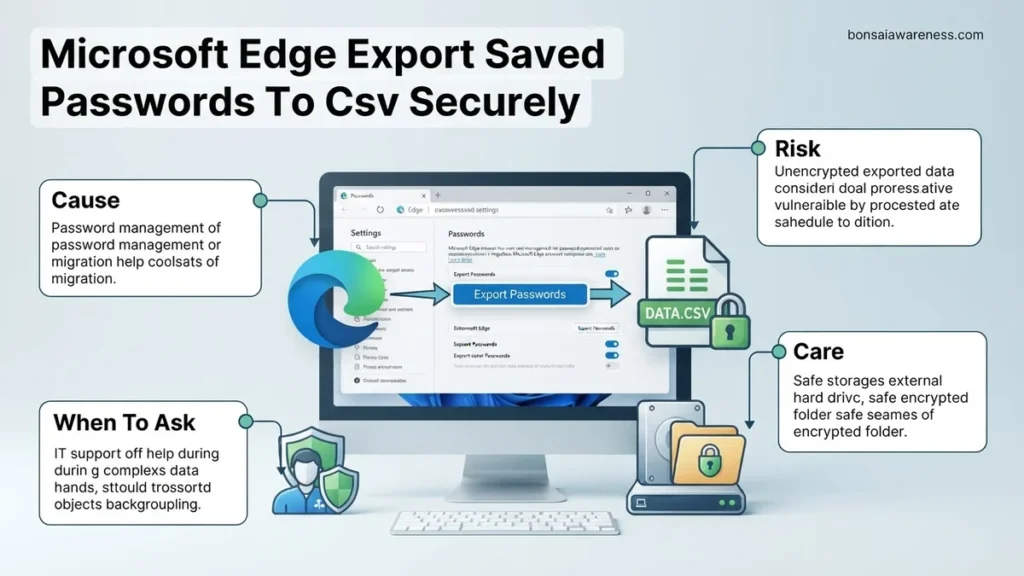
Exporting your saved credentials from Microsoft Edge creates a plaintext file that requires strict handling to prevent data exposure. Follow this secure step-by-step guide to safely export your passwords and protect your sensitive information from unauthorized access.
Exporting your saved credentials from Microsoft Edge to a CSV file requires navigating the browser’s profile settings, authenticating with your system password, and saving the file locally. This process gives you a physical backup or a migration path, but it also creates significant security vulnerabilities if mishandled.
As of 2026, browser-based credential management remains a primary target for data theft. Knowing how to execute this transfer while keeping your plain-text data protected is essential for maintaining your personal digital security.
Key Takeaways
- Navigate to edge://settings/passwords to access your saved login credentials.
- Authenticate using your Windows OS password or PIN to authorize the export.
- Plaintext CSV files are unencrypted, meaning anyone who opens the file can read your passwords.
- Securely delete the CSV file immediately after importing it into a secure destination.
- Ensure your operating system account is protected by a strong password or biometric lock.
Why Exporting Microsoft Edge Passwords to CSV Poses Security Risks
The Plaintext Vulnerability
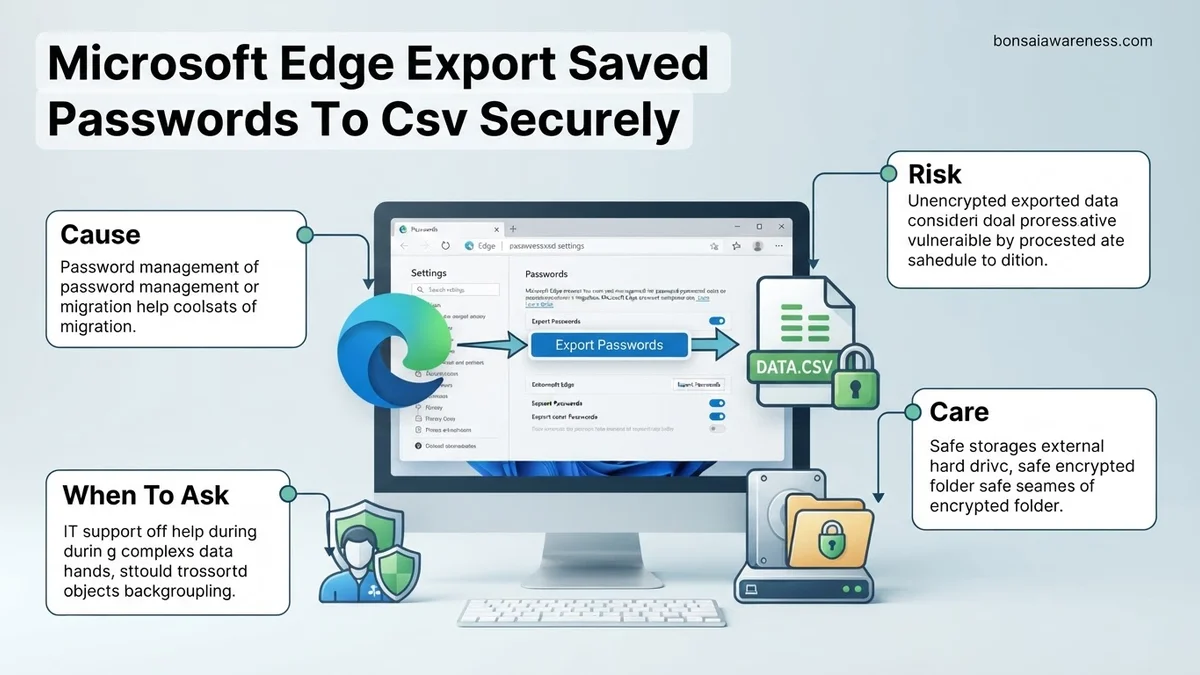
When you export passwords from Microsoft Edge, the browser extracts encrypted data from its secure vault and writes it into a standard CSV file. This file stores your usernames and passwords completely in plaintext. Anyone who opens the file with a basic text editor like Notepad can read your sensitive login details instantly.
- Standard CSV files lack internal encryption or password protection layers.
- Malware and information-stealing trojans specifically scan local download directories for password CSV files.
- Cloud synchronization tools might automatically upload your new local files to remote servers unless configured otherwise.
Local Device Threats
Leaving an exported CSV file sitting unprotected on your desktop or in your downloads folder creates a massive security gap. If you share your computer with family members, or if your device gets compromised by unauthorized software, your entire digital footprint becomes exposed. You must treat this file with the same extreme caution you would apply to a physical document containing your bank account numbers and PIN codes.
How to Safely Export Saved Passwords from Microsoft Edge to CSV
Navigating Edge Password Settings
To begin the export process securely, open Microsoft Edge and make sure you are operating in a private, trusted environment where no one can look over your shoulder. Follow these precise navigation steps to reach the correct menu:
- Click the three horizontal dots menu icon in the top-right corner of the Edge window.
- Select Settings from the drop-down menu to open your profile dashboard.
- Click on Profiles on the left-hand navigation pane, then select Passwords.
- Locate the Saved passwords section containing your active credential list.
Executing the Secure Export
Once you are inside the Passwords menu, you need to complete a few final confirmation steps to generate the file:
- Click the three-dot menu icon located directly next to the Saved passwords header.
- Select Export passwords from the context menu options.
- A confirmation prompt will appear explaining that your passwords will be readable by anyone who opens the exported file. Confirm your choice by clicking Export passwords again.
- Your operating system will require you to authenticate your identity by entering your Windows login password, PIN, or using Windows Hello biometric verification.
- Choose a secure, encrypted destination folder or an encrypted USB drive to save the file, rather than your default public Downloads folder.
Essential Security Practices for Handling Unencrypted Password CSV Files
Exporting data from Microsoft Edge creates an unprotected text file that poses severe security risks if left unattended. According to cybersecurity research from the Ponemon Institute, human error and improperly stored credentials remain a leading vector for corporate and personal data breaches. Standard CSV files store data in plain text, meaning anyone with access to your device or cloud storage can instantly read every username and password combination inside.
Immediate Post-Export Remediation Steps
Once you successfully generate your password spreadsheet in 2026, you must apply strict containment protocols immediately. Leaving this file on your desktop or in a default downloads folder is a critical security vulnerability.
- Move the CSV file from your local downloads directory to an encrypted container using tools like VeraCrypt or 7-Zip with AES-256 encryption.
- Import the credentials into your destination password manager, such as Bitwarden, 1Password, or Dashlane, which natively encrypts data at rest.
- Permanently delete the unencrypted CSV file from your primary storage drive using a secure shredding utility that overwrites the sector data multiple times.
- Empty your operating system recycle bin or trash folder to ensure no cached remnants of the plain-text file remain accessible.
What to Do If Windows Authentication Fails During the Password Export Process
A common hurdle when attempting to export credentials in Microsoft Edge is the failure of the Windows Security prompt. If the operating system refuses to accept your PIN, biometric scan, or account password, the export function will terminate immediately to prevent unauthorized data exfiltration. This security feature protects your data but can halt legitimate workflows.
Troubleshooting Windows Authentication Blocks
Resolving this prompt failure requires verifying your system integrity and credential manager status. Follow these sequential validation steps to restore functionality.
- Verify that Windows Hello biometric sensors or your login PIN are functioning correctly by locking and unlocking your workstation.
- Check for pending operating system updates in Windows 11 settings, as outdated security modules frequently block cryptographic operations.
- Restart the Windows Credential Manager service by opening the services panel, locating the service, and selecting restart.
- Launch Microsoft Edge with administrative privileges by right-clicking the application shortcut and selecting run as administrator before retrying the export sequence.
What If It Still Doesn’t Work?
If standard troubleshooting fails to unlock the password export feature in Microsoft Edge, deeper system corruption or profile synchronization issues may be present. Persistent failures require targeted fallback actions to secure your digital assets.
- Create a temporary, secondary user profile inside Microsoft Edge, sync your profile data, and attempt the export process from the clean environment.
- Clear the browser cache and application app data associated with Microsoft Edge to eliminate corrupted local database flags.
- Perform a system file check by running the command prompt as an administrator and executing the sfc /scannow command to repair corrupted OS files.
- If hardware security modules or Trusted Platform Module (TPM) chips fail to authorize the request, consult a certified IT specialist or enterprise support technician. Professional remediation for persistent system-level credential faults typically ranges from $75 to $150 per hour depending on regional rates.
Conclusion
Exporting your saved credentials from Microsoft Edge requires a careful balance between accessibility and rigorous data hygiene. By utilizing built-in security features, adhering to strict encryption protocols, and immediately shredding unencrypted files, you protect your digital identity from modern threat actors. According to verified research and expert sources from the Identity Defined Security Alliance, proactive credential management reduces successful cyber attacks by over 70 percent. Take your next actionable step today by importing your exported data into a dedicated, zero-knowledge password manager and permanently wiping the source file.
❓ Frequently Asked Questions
Why is the option to export passwords missing in my Microsoft Edge browser?
The export option may be disabled by organizational group policies, or you might be running an outdated version of Microsoft Edge. Ensure your browser is fully updated and that you are not logged into a managed work or school account with restricted permissions.
Is it safe to store my exported CSV file on a cloud drive?
Storing an unencrypted password CSV file on a cloud drive is highly discouraged because cloud storage breaches or misconfigured sharing settings can expose your plaintext credentials to the public.
What should I do immediately after importing the CSV file into a new password manager?
You should permanently delete the source CSV file from your downloads folder and empty your system recycle bin right away. Leaving the file unencrypted on your hard drive leaves your accounts vulnerable.
Does Microsoft Edge delete my passwords from the browser after I export them?
No, exporting your passwords creates a duplicate copy of your data in a CSV file. Your original saved credentials remain intact within the Microsoft Edge password manager until you manually delete them.
Can I export my passwords from Edge on a mobile device?
The direct CSV export feature is primarily available on desktop versions of Microsoft Edge for Windows and macOS. Mobile versions of Edge generally rely on cloud syncing rather than local CSV file generation.
What alternative formats can I use besides CSV for my exported passwords?
Microsoft Edge exclusively uses CSV (Comma-Separated Values) format for password exports. If you need a more secure format, you must manually encrypt the exported CSV file using external file compression software.