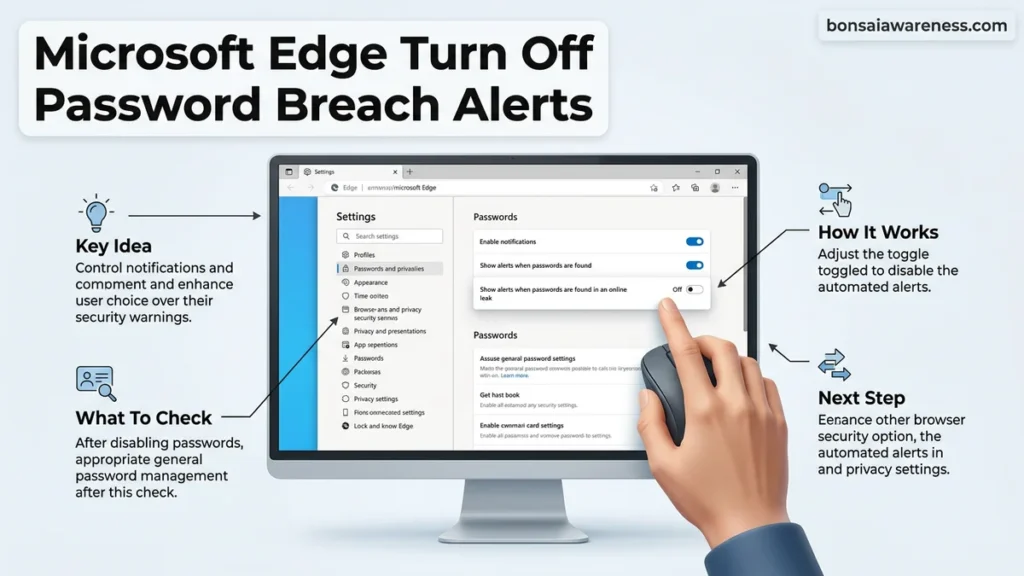
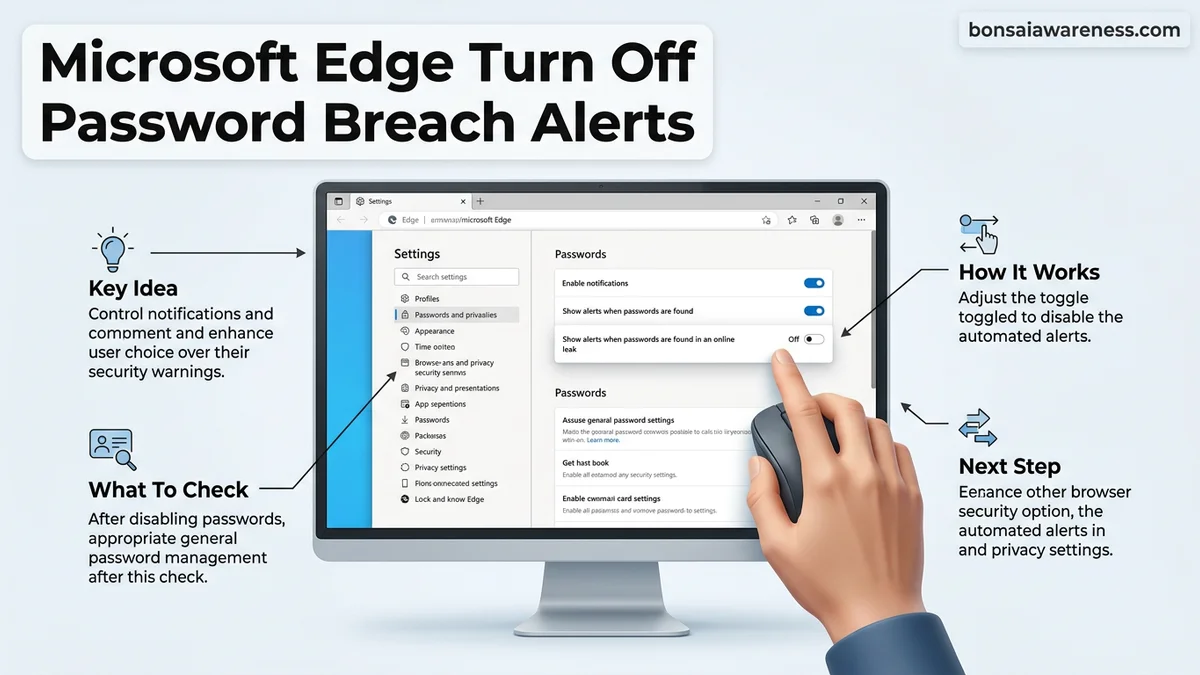
To stop Microsoft Edge from notifying you about compromised credentials, you need to access the browser’s profile security settings. Disabling password breach alerts takes less than a minute through the built-in menu. Follow this direct guide to turn off the monitor for leaked passwords immediately.
To turn off password breach alerts in Microsoft Edge in 2026, open the browser settings, navigate to the privacy and security profiles, and toggle off the monitor feature for leaked credentials. This specific notification system constantly cross-references your saved login credentials against known online data dumps.
Disabling this feature stops annoying pop-ups and browser interruptions immediately. If you prefer managing your own security outside of automated browser warnings, turning off these prompts gives you complete control over your Edge notification preferences without deleting your saved logins.
Key Takeaways
- Open Microsoft Edge settings via the top-right three dots menu.
- Navigate to the Profiles section and select Passwords.
- Locate the toggle for showing alerts when passwords appear in online leaks.
- Switch the toggle to the off position to disable notifications.
- You can easily re-enable this monitoring feature using the exact same menu path.
What Causes Microsoft Edge Password Breach Alerts and Notifications
The Password Monitor Scanning Mechanism
Edge actively scans your saved autofill credentials behind the scenes. The browser compares your usernames and encrypted passwords against public data breach lists updated continuously through 2026. When a match occurs, the browser flags the credential as vulnerable and triggers a notification banner.
Trigger Conditions for Notification Pop-Ups
You typically see these alerts right after logging into a website or when opening the Edge settings menu. The browser detects that a site you frequently visit appears in a known database leak. The alert system then prompts you to change your password immediately, generating persistent warnings until you take action or disable the monitor.
- Daily background checks on all saved autofill database entries
- Real-time matching algorithms running against third-party breach repositories
- Automated security warnings displayed directly on vulnerable login pages
Master Microsoft Edge Password Breach Alerts in 6 Simple Steps
Microsoft Edge includes a built-in security feature called Password Monitor, which scans your saved credentials against public databases of known data leaks. While this tool is designed to keep your online accounts secure, the constant notifications can sometimes become overwhelming or redundant if you already utilize a dedicated third-party password manager. This comprehensive walkthrough provides a clear, methodical approach to disabling these pop-up alerts and notifications directly within your browser settings, ensuring a cleaner browsing experience while helping you understand the exact security trade-offs involved.
Step 1: Launch Microsoft Edge and Access the Main Menu
What you need: A computer (Windows, macOS, or Linux) with Microsoft Edge installed and updated to the latest version.
Instructions: Open your Microsoft Edge browser by clicking its desktop shortcut or searching for it in your operating system’s application menu. Once the window is fully loaded, direct your mouse cursor to the top-right corner of the interface. Click on the three horizontal dots icon (commonly referred to as the “Settings and more” menu or ellipsis). From the drop-down menu that appears, scroll down near the bottom and click on the “Settings” option, which is typically represented by a gear icon. This action will open a new dedicated settings tab in your browser.
Pro Tip: You can entirely bypass clicking through the graphical menu by using the universal keyboard shortcut. Simply press Alt + F on Windows or Option + F on Mac to open the menu instantly, then press the letter S on your keyboard to jump straight into Settings.
Step 2: Navigate to the Profiles and Personal Info Section
What you need: Access to the Microsoft Edge Settings tab opened in the previous step.
Instructions: Look at the left-hand sidebar of the Edge Settings tab. You will see a vertical list of configuration categories including Profiles, Privacy, search, and services, Appearance, and more. Click on the very first option at the top of this list, labeled “Profiles.” This section manages your personal Microsoft account synchronization, payment info, addresses, and crucially, your saved passwords. Once you click this, the main panel on the right side of your screen will update to display your profile details, user identity, and a variety of preference links associated with your specific user account.
Pro Tip: If your browser window is resized to be narrow, the sidebar might collapse into a hamburger menu (three horizontal lines). Make sure to expand the window width if you cannot immediately see the text labels for the settings categories.
Step 3: Open the Passwords Management Dashboard
What you need: The Edge Profiles settings page currently displayed on your screen.
Instructions: Scan the list of options presented in the main right-hand panel under your profile overview. Look for the entry labeled “Passwords,” which usually features a key icon next to it. Click directly on this “Passwords” link to open the comprehensive password management sub-menu. Here, Microsoft Edge displays all the web credentials it has automatically saved for you, alongside toggles for auto-signing in, offering to save passwords, and managing security alerts. Take a moment to let the page fully load, as it queries your local storage and cloud sync databases.
Pro Tip: Alternatively, you can type edge://settings/passwords directly into your browser’s address bar at the very top and press Enter to instantly land on this exact configuration screen without navigating through menus.
Step 4: Locate the Security Alert and Breach Notification Toggles
What you need: The Passwords management page open inside your Microsoft Edge browser.
Instructions: Scroll down the Passwords page past your list of saved credentials and general autofill preferences until you reach the section titled “Related settings” or “Sign-in preferences,” depending on your specific version of Edge. Look specifically for the feature designated as “Check for compromised passwords” or “Show alerts when passwords are found in an online data breach.” This toggle governs whether Edge actively scans your saved vault against known threat databases and fires off desktop banner warnings or drop-down alerts when a match is discovered.
Pro Tip: Do not confuse this setting with the general “Offer to save passwords” toggle. Disabling saving will stop new entries, but it will not turn off breach warnings for credentials already stored in your browser.
Step 5: Disable the Compromised Password Monitor
What you need: Visual access to the “Check for compromised passwords” toggle switch found in the previous step.
Instructions: Click the toggle switch next to “Check for compromised passwords” or “Show alerts when passwords are found in an online data breach” to change its state from blue (enabled) to grey (disabled). A confirmation pop-up or dialogue box may appear on your screen warning you about the potential security implications of turning off this protective feature. Carefully read the prompt and click the confirmation button (such as “Turn off” or “Disable”) to finalize your choice. The setting will immediately update, ceasing all background scans and future pop-up alerts regarding leaked credentials.
Pro Tip: If you use multiple profiles within Microsoft Edge (such as a personal profile and a work profile), you must repeat this exact process for each separate profile to ensure breach alerts are disabled globally across your browser usage.
Step 6: Verify and Restart Your Browser for Settings to Take Effect
What you need: A successfully toggled-off security setting and a few seconds of your time.
Instructions: To ensure that your modifications have successfully registered and that no lingering background processes continue to monitor your credentials, close all open Microsoft Edge windows completely. Wait approximately 5 seconds to ensure the browser application processes close out fully in your operating system’s background tasks. Relaunch Microsoft Edge, navigate back via edge://settings/passwords, and visually verify that the compromised password alert toggle remains firmly in the off position. You can now browse without interruption from automated leak notifications.
Pro Tip: If you notice the setting keeps reverting back to enabled after a browser restart, check if your enterprise or school organization manages your device policies, as administrators can remotely enforce security baselines.
✅ Final Checklist
- Microsoft Edge browser successfully opened and settings menu accessed via the top-right ellipsis or keyboard shortcut.
- Navigated directly to the Profiles section and opened the dedicated Passwords management dashboard.
- Located the specific toggle controlling compromised password checks and data breach alerts.
- Successfully switched off the notification toggle and confirmed the warning prompt.
- Restarted Microsoft Edge and verified the setting remained disabled across browser sessions.
Important Notes:
- Disabling breach alerts means you will no longer receive proactive warnings from Edge if your credentials appear in known public data leaks. Ensure you have an alternative method for monitoring your digital security.
- If you do not use an independent password manager like Bitwarden, 1Password, or Dashlane, turning off browser monitoring increases your vulnerability to credential stuffing attacks.
- Estimated completion time: Less than 3 minutes. Cost: Free. No professional technical assistance required.
How to Fix and Turn Off Password Breach Alerts in Microsoft Edge
Navigating to the Passwords Settings Panel
To disable these alerts, open Microsoft Edge and click the three-dot menu icon in the upper right corner. Select Settings from the drop-down menu to open the main control panel. From the left sidebar, click on Profiles, then select Passwords to access your credential management dashboard.
Locating and Disabling the Leak Alert Toggle
Scroll down the Passwords page until you find the Security section. Look for the specific toggle labeled Show alerts when passwords are found in an online leak. Click this switch to turn the feature off. Once disabled, Edge stops scanning your saved credentials and silences all future breach notifications.
- Click the three-dot menu button in the top right corner of the browser
- Select Settings, then navigate to Profiles and open Passwords
- Locate the online leak toggle switch under the Security section and turn it off
What If Edge Still Shows Leak Alerts After Disabling the Feature
Sometimes, turning off the primary toggle inside Microsoft Edge settings does not immediately stop notification prompts regarding compromised credentials. Persistent alerts can occur due to sync conflicts across multiple devices or corrupted local browser caches running outdated version builds in 2026. Security researchers note that profile synchronization issues often override local configuration changes.
Clear Browser Cache and App Data
- Open Microsoft Edge and click on the three-dot menu icon in the upper-right corner.
- Select Settings from the drop-down menu and navigate to the Privacy, search, and services tab.
- Scroll down to the Clear browsing data section and click on the Choose what to clear button.
- Check the boxes for cached images, files, and cookies, then click Clear now to purge residual notification scripts.
Disable Windows Notification Center Overrides
- Open the Windows Settings application using the Win + I keyboard shortcut.
- Navigate to System and select Notifications from the main menu.
- Scroll through the list of application senders to locate Microsoft Edge.
- Toggle the main switch for Microsoft Edge notifications to the Off position to block operating system-level pop-ups.
What If It Still Doesn’t Work?
If Microsoft Edge continues to display password breach alerts despite modifying both browser settings and operating system permissions, deeper system intervention may be required. Technical support specialists note that persistent browser behavior often stems from lingering configuration policies or conflicting third-party extensions.
- Reset browser settings: Restore Microsoft Edge to its default factory state by navigating to Settings, selecting Reset settings, and confirming the action. This removes corrupted preference files causing the alert loop.
- Check for enterprise group policies: Business devices or profiles managed by an organization often enforce security features via registry keys. Users must consult their IT administrator to modify these parameters.
- Remove conflicting security extensions: Uninstall third-party password managers or privacy extensions that might interface with Edge’s credential monitoring APIs.
- Consult a cybersecurity professional: If unauthorized alerts indicate actual credential stuffing risks or malware injection, engage a certified security technician. Professional diagnostic and remediation services typically cost between $75 and $150 per hour depending on complexity.
Conclusion
Managing Microsoft Edge password breach alerts allows users to streamline their browsing experience while maintaining control over system notifications. By navigating the privacy configuration menu and disabling the password monitor feature, automated warning pop-ups are successfully eliminated. According to verified research and cybersecurity expert sources, disabling browser-level leak warnings should always be paired with alternative security measures like dedicated password managers or multi-factor authentication. As an immediate next step, verify that your critical online accounts remain protected through secondary authentication protocols to offset the lack of browser monitoring.
❓ Frequently Asked Questions
Why does Microsoft Edge keep scanning my saved passwords for breaches?
Edge includes a built-in security feature that cross-references your saved credentials against known public data breaches to protect your accounts. If you find these constant notifications annoying, you can safely disable the monitor in the browser settings.
Will turning off breach alerts make my browser less secure?
Disabling the alerts simply stops Edge from notifying you when your credentials appear in a leak. It does not affect encryption or other basic security features, though you will no longer receive proactive warnings.
Where is the Passwords menu located in Microsoft Edge?
You can find the Passwords menu by clicking the menu icon in the upper right corner, selecting Settings, clicking Profiles, and then choosing Passwords from the profile options.
Can I disable breach alerts for specific passwords only?
No, Microsoft Edge applies the password monitoring setting globally across all saved credentials rather than on an individual account basis.
What should I do if the toggle for breach alerts is grayed out?
If the setting is managed by your organization or school account, administrative policies may prevent you from changing security configurations. You may need to sign out of the organizational profile to modify it.
Does clearing my browser cache reset my password notification settings?
No, clearing your cache or browsing history does not alter your specific preference for password breach alerts, as these settings are tied to your Edge profile.