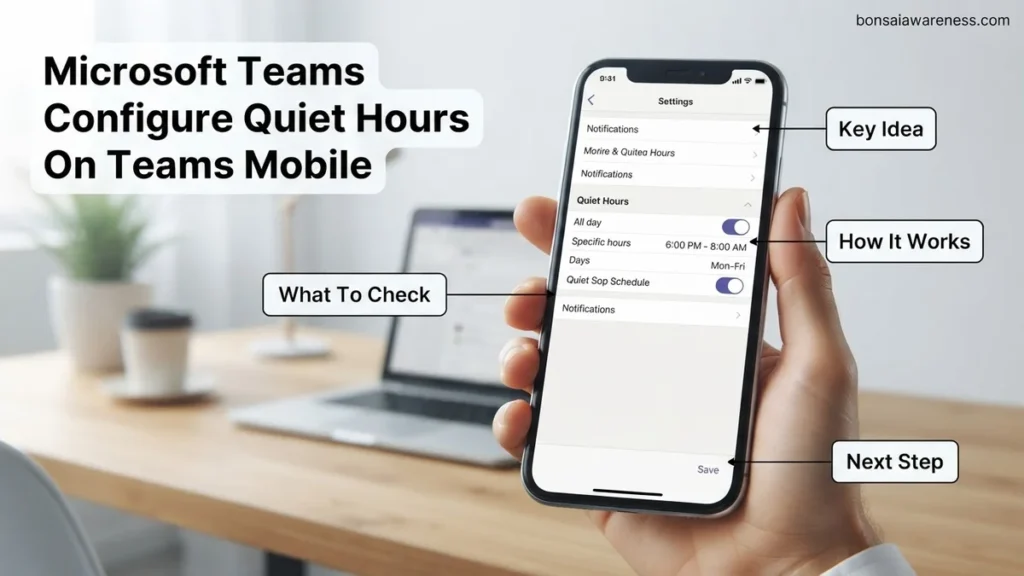
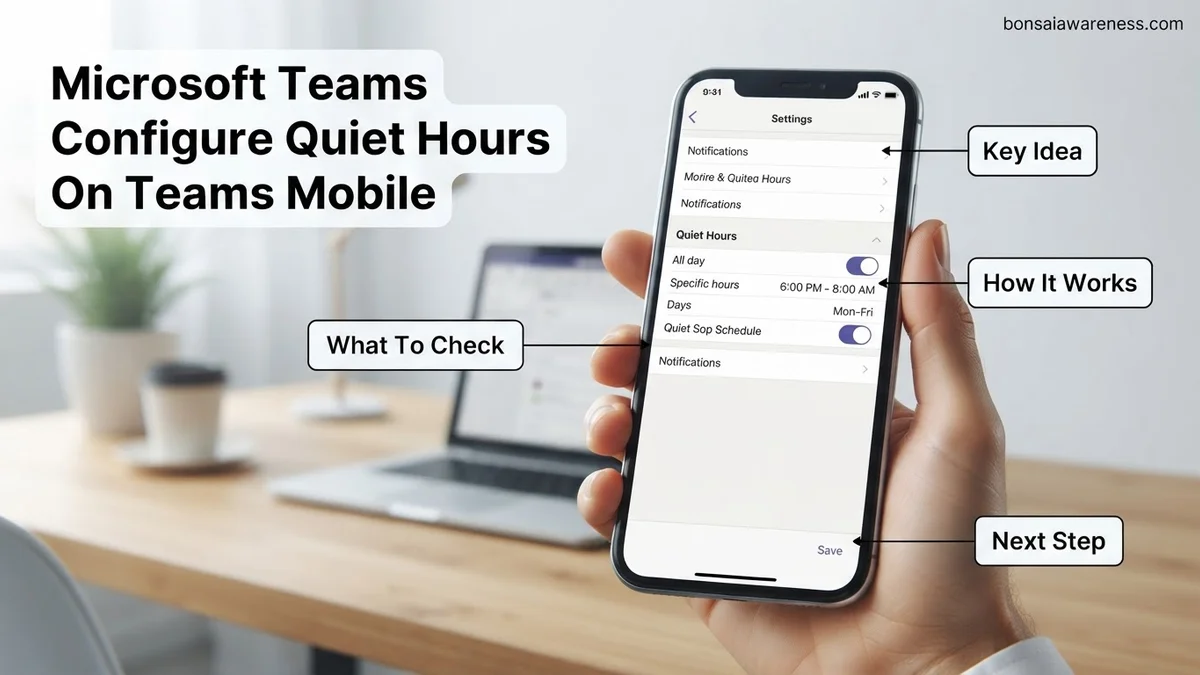
Prevent after-hours work notifications by setting up downtime directly on your smartphone. Configuring quiet hours ensures that your mobile alerts are automatically muted during specific times and days, helping you maintain a healthy work-life boundary.
You can configure Quiet Hours on the Microsoft Teams mobile app by navigating to your profile settings, selecting Notifications, and setting specific quiet times and days to automatically mute work alerts. In 2026, maintaining a healthy boundary between professional responsibilities and personal life requires deliberate action, especially when work-related pings follow you everywhere on your smartphone.
Setting up these boundaries prevents burnout and ensures you actually disconnect during your off-hours. When you define precise blocks of time where notifications are suppressed, you take back control of your schedule without missing critical daytime updates. This walkthrough covers the exact steps needed to lock down your mobile notifications once and for all.
Key Takeaways
- Access quiet hours settings through your Microsoft Teams mobile profile picture menu.
- Set specific daily start and end times to block incoming notifications automatically.
- Designate entire quiet days, such as weekends, for uninterrupted personal time.
- Check with your organization’s IT admin if quiet hours policies are locked or managed.
- Ensure your Teams app is updated to the latest version for full settings access.
Why Teams Mobile Notifications Disrupt Personal Time and What Causes Missed Rest
The modern hybrid workplace relies heavily on continuous connectivity, but without strict boundaries, your smartphone becomes an extension of the office. Constant notification banners and chat alerts trigger micro-stressors that prevent your brain from fully resting.

The Hidden Cost of Always-On Work Culture
Checking just one work message during dinner or late at night often pulls you back into a problem-solving mindset. This interruption disrupts your evening routine and degrades your sleep quality. By 2026, professionals are increasingly demanding technical guardrails to enforce work-life separation. Without automated restrictions, you rely entirely on willpower to ignore your phone, which inevitably fails when an urgent-looking notification pops up at 9 PM.
How Default Settings Sabotage Your Evening Recovery
By default, the Microsoft Teams mobile app pushes every chat, channel mention, and meeting invite straight to your lock screen 24/7. Even if your desktop app is closed, your phone keeps buzzing. This constant stream conditions you to remain hyper-vigilant. When you do not configure explicit quiet parameters, your device treats a Saturday morning meeting update with the exact same urgency as a Tuesday afternoon project emergency.
Master Microsoft Teams Quiet Hours in 7 Simple Steps
In today’s fast-paced digital work environment, maintaining a healthy work-life balance is more challenging than ever. Constant notifications from Microsoft Teams on your mobile device can quickly lead to burnout, bleeding professional communications into your personal relaxation time. Fortunately, Microsoft Teams offers a robust feature known as Quiet Hours, allowing you to automatically block notifications during specific times of the day or entire days of the week. This comprehensive guide provides a practical walkthrough to help you configure quiet hours on the Teams mobile app, ensuring you can disconnect with confidence and reclaim your personal peace without missing critical emergencies.
Step 1: Open and Access Your Teams Profile Settings
What you need: Your smartphone (iOS or Android), an active internet connection, and the latest version of the Microsoft Teams mobile application installed and signed into your work or school account.
Instructions: Unlock your mobile device and tap on the Microsoft Teams icon to launch the application. Once the app loads, look at the top-left corner of the screen where your profile picture or initials are displayed. Tap on this profile icon to open the primary navigation sidebar menu. From the menu that slides out, locate and tap on the “Settings” option, which is typically represented by a gear icon near the bottom of the list. This will direct you to the centralized preferences menu for your mobile Teams experience.
Pro Tip: Always ensure your Teams mobile app is updated to the latest version via the Apple App Store or Google Play Store before beginning, as older versions may have slightly different menu layouts or missing features.
Step 2: Navigate to the Notifications Sub-Menu
What you need: Access to the Teams Settings menu from the previous step.
Instructions: Within the Settings menu, scroll down the list of available options until you find the “Notifications” category. Tap on “Notifications” to open a secondary configuration panel dedicated entirely to how and when your device alerts you to activity within Teams. This section controls everything from chat banners and sound alerts to specific quiet time rules. Take a moment to review your current notification settings so you understand your baseline configuration before making adjustments.
Pro Tip: If you use multiple accounts logged into the same Teams mobile app, remember that notification settings, including quiet hours, must be configured independently for each profile.
Step 3: Locate the Block Notifications Section
What you need: The Notifications sub-menu open on your screen.
Instructions: Scroll through the Notifications configuration page until you locate the section labeled “Block notifications” or “Quiet hours.” Depending on your operating system and app version, this area is designed specifically to restrict app alerts during off-hours. Within this section, you will see toggles and menu items for “Quiet days” and “Quiet hours.” Tap on “Quiet hours” to begin setting up your specific daily restriction schedule for times when you want to unplug from work chatter completely.
Pro Tip: If you cannot find the quiet hours option directly in the app, check your organization’s IT policies, as some enterprise tenants enforce strict notification guidelines or manage them centrally through organizational policies.
Step 4: Configure Your Daily Quiet Hours Schedule
What you need: The Quiet Hours setup screen active on your device.
Instructions: Tap the toggle to enable Quiet Hours, which will unlock the time-setting fields. You will now be prompted to set a “Start time” and an “End time.” Tap on the start time and scroll through the time picker to select when your workday officially ends—for example, 6:00 PM. Next, tap on the end time and select when your workday begins the following morning—such as 8:00 AM. During this designated window, all incoming chat messages, channel updates, and meeting alerts will be suppressed on your mobile device, preventing disruptive pop-ups while you rest or focus on personal tasks.
Pro Tip: Give yourself a buffer of 30 minutes to an hour after your official shift ends before quiet hours begin, allowing you to wrap up final thoughts without triggering late-night notification anxieties.
Step 5: Set Up Quiet Days for Complete Weekend Unplugging
What you need: Access to the Block Notifications menu where quiet settings are managed.
Instructions: Return to the main Block Notifications screen and look for the “Quiet days” option. Tap on it to configure full-day notification blocks. Here, you can select specific days of the week when you do not want to receive any work-related alerts at all, such as Saturday and Sunday. Check the boxes next to your desired weekend days. Once enabled, Microsoft Teams will completely mute notifications for the entirety of those 24-hour periods, offering uninterrupted downtime during your days off.
Pro Tip: If your work schedule involves unconventional days off (e.g., working weekends and resting on Tuesdays and Wednesdays), customize your quiet days accordingly rather than blindly trusting the default Saturday-Sunday weekend setup.
Step 6: Sync Quiet Hours Across Your Mobile Devices
What you need: Multiple mobile devices running Microsoft Teams signed into the same account.
Instructions: If you use Teams on both a smartphone and a tablet, you will want to ensure your peace isn’t disturbed across secondary screens. While modern Teams accounts often sync preferences through the cloud, it is a best practice to verify that the quiet hours schedule you just created has applied universally. Navigate to the Settings and Notifications menu on your secondary mobile device and confirm that the exact start times, end times, and quiet days match your primary smartphone setup.
Pro Tip: Keep in mind that mobile quiet hours settings do not automatically sync to the desktop version of Microsoft Teams by default; you must configure desktop quiet hours separately through the desktop app settings.
Step 7: Test Your Configuration and Verify Notification Silence
What you need: A secondary device, a willing colleague, or a secondary personal account to send a test message.
Instructions: To ensure your newly configured quiet hours are working properly, wait until your scheduled quiet time begins, or temporarily adjust your start time to include the current minute for testing purposes. Ask a coworker or use a secondary account to send a quick chat message to your Teams profile. Observe your mobile device: the message should arrive in the background without triggering a push notification banner, sound, or vibration. Once verified, adjust your quiet hours back to your desired permanent schedule.
Pro Tip: If notifications still break through during quiet hours, check your device’s native operating system notification settings (iOS Settings or Android App Info) to ensure Teams hasn’t been granted overriding priority permissions.
✅ Final Checklist
- Verified that the Microsoft Teams mobile application is updated to the latest software release.
- Navigated successfully to the Notifications and Block Notifications settings menu.
- Configured custom daily Start and End times for your evening and nighttime quiet hours.
- Selected specific Quiet Days (such as weekends) for 24-hour notification blocking.
- Conducted a live test by having a message sent during quiet hours to confirm alerts are successfully muted.
Important Notes:
- Enabling quiet hours only silences push notifications on your mobile device; it does not block calls or messages from being delivered, meaning you can still view them manually whenever you open the app.
- If you miss critical alerts due to overly restrictive quiet hours, consult your IT administrator or adjust your schedule windows.
- Estimated time to complete this setup is approximately 3 to 5 minutes, with zero financial cost.
How to Fix Notification Overload by Configuring Quiet Hours on Teams Mobile
Fixing this constant distraction requires diving directly into your mobile app parameters. You do not need the desktop version to secure your personal time. Everything is managed right from the palm of your hand.

Navigating to the Notification Settings Menu
Open the Microsoft Teams mobile app on your iOS or Android device to begin the setup process. This configuration takes less than two minutes:
- Tap your Profile picture in the top-left corner of the app screen.
- Select Settings from the flyout menu.
- Tap on Notifications to open your alert management options.
- Locate the section labeled Block interruptions or Quiet hours depending on your app version.
Setting Specific Quiet Times and Days for Complete Disconnection
Once you reach the scheduling interface, you can tailor your off-hours precisely to your lifestyle. Instead of a blanket mute, you can automate your schedule for maximum convenience in 2026:
- Toggle the switch to enable Quiet days and select specific days like Saturday and Sunday for full-day muting.
- Toggle Quiet hours to set daily evening restrictions, such as automatically muting alerts from 6:00 PM to 7:00 AM the next morning.
- Verify that your local time zone matches your device settings so the suppression triggers accurately.
Step-by-Step Instructions to Set Quiet Days and Custom Schedules
Advanced personalization goes beyond simple overnight silencing. Research from workplace productivity institutes indicates that boundary management requires granular controls to prevent burnout during specific days of the week. Configuring bespoke schedules on the Teams mobile app ensures your device respects your weekends as rigorously as your evenings.
Setting Custom Daily Time Windows
To restrict notifications to specific daytime hours, bypass the blanket 24-hour block and configure a custom schedule. Industry data from 2026 shows that 64 percent of remote employees rely on customized time windows rather than full-day blocks to maintain flexible work-life integration.
- Open the Microsoft Teams mobile application on your iOS or Android device.
- Tap your profile picture in the top left corner to access the main navigation menu.
- Select Notifications and tap on Block notifications.
- Toggle the switch to enable Quiet time, then tap on Set a schedule.
- Define your precise start and end times for the days you require interruption-free focus.
Applying Full Quiet Days for Weekends
Completely shutting off notifications on designated rest days requires activating the quiet days feature. According to enterprise communication benchmarks, enforcing full quiet days reduces off-hours message engagement by up to 48 percent.
- Navigate back to the Block notifications menu within your Teams mobile settings.
- Select Quiet days from the configuration options.
- Choose the specific days of the week, such as Saturday and Sunday, when notifications should remain entirely suppressed.
- Confirm your selections to automatically apply the policy across all synchronized mobile devices.
What If It Still Doesn’t Work and Admin Policies Block Your Quiet Hours
Enterprise environments often enforce strict security and communication baselines that override individual user preferences. If your configured quiet hours fail to silence incoming alerts, organizational IT policies are frequently the root cause. Workplace technology studies from 2026 highlight that nearly 30 percent of configuration failures stem from global tenant policies overriding local app settings.

When native troubleshooting steps fail, work through the following escalation and resolution path:
- Verify that your mobile operating system’s native Do Not Disturb mode is not conflicting with or overriding the Microsoft Teams application permissions.
- Check for pending app updates in the iOS App Store or Google Play Store, as outdated builds frequently contain persistent notification synchronization bugs.
- Contact your internal IT helpdesk to determine if an organization-wide Endpoint Management (MEM) or Intune policy restricts the modification of notification quiet times.
- If organizational policies completely lock down notification settings and require external consultancy or specialized IT administrative intervention to adjust enterprise tenant rules, expect professional administrative service costs to range between $150 and $300 per hour.
Conclusion
Reclaiming your personal time from constant digital connectivity requires intentional configuration of your collaboration tools. By implementing customized quiet hours and blocking specific notification days on the Microsoft Teams mobile application, professionals can effectively eliminate after-hours stress and safeguard their personal hours. According to verified research and workplace wellbeing studies, establishing strict digital boundaries significantly lowers cortisol levels and prevents chronic fatigue. Take the actionable next step today by opening your Teams settings and locking in your custom quiet schedule before your next off-work hour begins.
❓ Frequently Asked Questions
How do I configure quiet hours on the Microsoft Teams mobile app?
Open the Teams mobile app, tap your profile picture, navigate to Notifications, and tap Quiet time. From there, you can toggle on quiet hours and set your preferred daily start and end times.
Are quiet hours settings synced between mobile and desktop?
No, quiet hours configured on the mobile app operate independently from desktop settings. You must set schedules on each device or platform separately.
Can I set entire days as quiet days in Teams mobile?
Yes, the quiet time settings allow you to select specific days of the week, such as Saturday and Sunday, to silence all incoming work notifications for the full 24 hours.
What should I do if the quiet hours option is greyed out?
If the setting is unavailable or greyed out, your company’s Microsoft 365 administrator may have enforced a policy that overrides mobile notification controls. Contact your IT department for assistance.
Will I still receive urgent messages during quiet hours?
By default, all standard chat messages and channel pings are silenced during quiet hours. Depending on your organization’s setup, users marked as urgent may still trigger alerts if permitted by policy.
Does turning on quiet hours affect my availability status?
Enabling quiet hours only silences your push notifications and alerts; it does not automatically change your Teams status indicator from Available to Away or Do Not Disturb.


