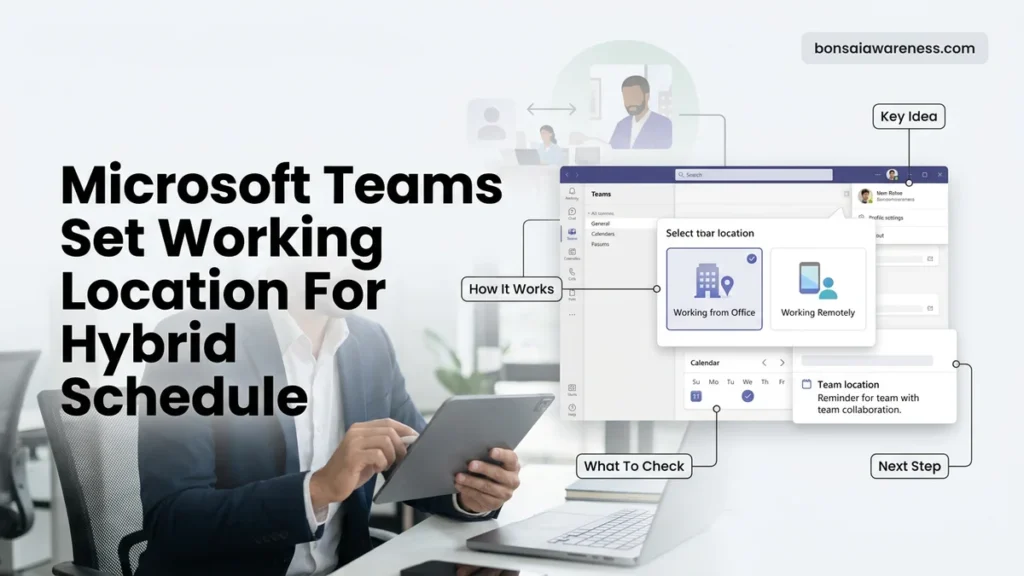
Managing a hybrid schedule requires keeping your colleagues informed about when you are in the office or working remotely. Microsoft Teams allows you to easily set your daily or recurring working location so your team can collaborate effectively and plan in-person meetings. This guide walks you through configuring your status and viewing coworkers’ locations.
Setting your daily working location in Microsoft Teams is the fastest way to let your team know whether you are working from the office or remotely. By declaring your status, you eliminate the guesswork of hybrid scheduling and help colleagues plan collaborative days effectively.
You can update your working location directly through your profile settings or your calendar in just a few clicks. This guide walks you through the exact steps to configure your daily or recurring hybrid schedule for 2026, ensuring your team stays perfectly aligned.
Key Takeaways
- Update your working location directly through your Microsoft Teams profile status menu.
- Set a recurring weekly schedule to automate office versus remote days.
- Modify single-day locations quickly when your hybrid routine changes unexpectedly.
- View coworker working locations in the profile card to coordinate in-office collaboration.
- Synchronize your location settings seamlessly with Microsoft Outlook work hours.
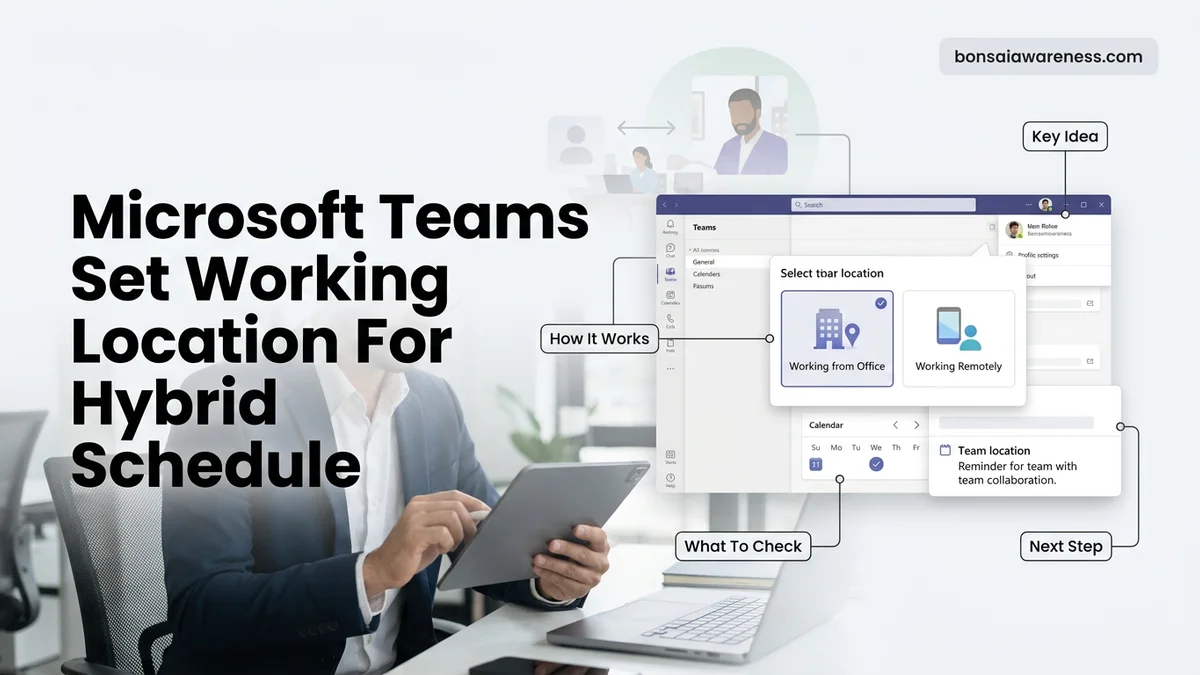
Why Incorrect Working Locations Disrupt Hybrid Teams in 2026
Hybrid work in 2026 relies heavily on intentional office attendance. When your colleagues do not know your location, office days lose their primary value: face-to-face collaboration.
The Cost of Miscommunication
If your status says remote while you are actually sitting at your desk, you miss out on spontaneous hallway conversations and team lunches. Conversely, booking a meeting room expecting a colleague in the office only to find them working from home wastes valuable time. Keeping your working location updated prevents these daily friction points.
Building Trust Through Transparency
-
Predictable collaboration: Teammates can easily spot when everyone is in the building together.
Optimized scheduling: Meeting organizers know immediately whether to book a physical conference room or a virtual link.
Reduced friction: No more awkward messaging chains asking, Are you coming in today?
Master Microsoft Teams Working Location in 7 Simple Steps
Navigating a hybrid work schedule can sometimes feel like playing chess with your calendar. Juggling days at the corporate office, working remotely from home, or even dropping into a satellite hub requires clear communication with your team. Fortunately, Microsoft Teams offers a robust feature allowing you to broadcast your daily location directly to your colleagues. This comprehensive walkthrough provides everything you need to set up, automate, and optimize your hybrid work schedule within the Teams ecosystem, ensuring everyone knows where to find you without endless messaging.
Step 1: Access Your Microsoft Teams Status Menu
What you need: An active Microsoft Teams desktop or web application login with permissions to modify your status profile.
Instructions: Open your Microsoft Teams application on your computer. Look toward the top right corner of the window where your profile picture or user icon is displayed. Click directly on your profile picture to open the primary status and settings dropdown menu. Right beneath your current status message and availability indicator, you will find your current location status. Click on this location field, which may currently display “Clear location” or a previously set address, to initiate the process of updating your daily whereabouts for your coworkers and manager to see.
Pro Tip: Keep your application updated to the latest version to ensure new features like building-level granularity appear correctly in your dropdown menu.
Step 2: Choose Between ‘Office’ and ‘Remote’
What you need: Access to the location selection panel inside your Microsoft Teams profile dropdown.
Instructions: Once the location input menu expands, you are presented with the primary choices for hybrid scheduling: “Office” or “Remote”. Select the option that accurately reflects your physical workspace for the day. If your organization has configured specific corporate office buildings within the Microsoft ecosystem, selecting “Office” may prompt a secondary dropdown menu allowing you to choose the exact campus, building floor, or desk zone you are occupying. If you are working from your home office or a coffee shop, select “Remote” to signal that you are working off-site.
Pro Tip: If your company has multiple regional offices, double-check that you select the exact building you are visiting to assist facilities and visiting teammates.
Step 3: Set Your Location for Today Versus Future Days
What you need: A clear vision of your hybrid schedule for the current week.
Instructions: By default, changing your location applies immediately to the current day. However, hybrid schedules require advanced planning. Look for the scheduling or calendar icon embedded within the location prompt. Click it to extend your location selection across upcoming dates. You can assign specific locations to individual days of the week, ensuring that if you are in the office every Tuesday and Thursday, your status automatically reflects this pattern without requiring manual updates every single morning. Review your selections carefully before hitting save.
Pro Tip: Set your recurring schedule on Friday afternoons so your entire team has visibility into your upcoming week before Monday morning kicks off.
Step 4: Integrate Working Locations with Your Outlook Calendar
What you need: Access to Microsoft Outlook calendar sync settings tied to your corporate Microsoft 365 account.
Instructions: Navigate to your Outlook calendar settings or leverage the automatic calendar sync feature inside Microsoft Teams. When you create meetings or set your working hours in Outlook, ensure your working hours and location settings match. Microsoft 365 is designed to cross-pollinate data; if your calendar says you are attending an on-site workshop all day Tuesday, Teams can automatically adjust your working location status to match that calendar event. Go to your Teams settings under “General” and check the box that allows your calendar events to influence your status and location.
Pro Tip: Always tag your hybrid meetings with the correct location (e.g., “Conference Room A” vs “Microsoft Teams Meeting”) to let the smart assistant auto-update your status.
Step 5: Leverage the Viva Insights Hybrid Schedule Planner
What you need: Microsoft Viva Insights subscription integrated into your corporate Microsoft Teams environment.
Instructions: Click on the ellipsis (…) on the left-hand navigation bar in Teams and search for “Viva Insights”. Open the app and look for the “Plan your work days” feature. This dashboard is specifically designed for hybrid workers. It provides a visual weekly calendar grid where you can lock in your days in the office versus remote days. When you commit your schedule here, it automatically syncs with your Teams status and notifies your close collaborators of your recurring office cadence, helping your team coordinate collaborative in-person days effectively.
Pro Tip: Use the “In-person” availability feature in Viva Insights to see which days your favorite team members are planning to be in the office so you can align your schedules.
Step 6: Customize Location Visibility and Privacy Settings
What you need: Administrator-approved privacy policies and access to Teams privacy controls.
Instructions: It is important to manage who can see your exact physical whereabouts for security and personal preference reasons. Navigate to Teams Settings, then select “Privacy”. Review the permissions regarding who has access to your detailed location data. You can typically restrict location visibility to your organization, specific teams, or direct reports. If your organization permits, you can also toggle off location broadcasting entirely during personal leave days or flexible hours to maintain your work-life boundaries.
Pro Tip: Coordinate with your team lead to establish a baseline expectation for location-sharing transparency within your specific department.
Step 7: Verify and Test Your Working Location Status
What you need: A colleague, secondary testing account, or the Teams preview window.
Instructions: To ensure your hybrid schedule status is broadcasting correctly, perform a quick audit. Hover over your own profile picture in Teams to see how your status appears to others. Next, ask a teammate to hover over your name in a chat window or look at your contact card to verify that your office or remote indicator is visible and accurate. If the location is outdated or missing, clear the location cache via your profile menu and re-enter your schedule parameters according to the previous steps.
Pro Tip: Check your mobile Teams app as well; ensuring cross-device synchronization prevents conflicting status reports when you are on the go.
✅ Final Checklist
- Profile picture dropdown successfully opened and location field accessed
- Accurate office building or remote status selected for the current day
- Future hybrid schedule mapped out for the upcoming week using the calendar tool
- Microsoft Outlook calendar and Viva Insights synchronized with your Teams location
- Privacy settings configured to control who sees your workspace data
Important Notes:
- Ensure corporate network security policies are respected when logging physical locations in enterprise environments.
- If your location status fails to update or sync, contact your IT administrator to verify Microsoft 365 policy assignments.
- Estimated time to set up your initial hybrid schedule: 5 to 10 minutes, with minimal ongoing maintenance required weekly.
How to Set Working Location in Microsoft Teams Step-by-Step
Updating your location takes less than ten seconds once you know where to look. Microsoft integrates this feature tightly between your Teams profile and Outlook calendar for seamless synchronization.
Updating Your Daily Location via Your Profile
- Open the Microsoft Teams desktop app or web client.
- Click on your profile picture in the top right corner of the window.
- Locate your current status dropdown just below your name.
- Select your working location by clicking the location indicator, usually set to Office or Remote.
- Confirm your choice for the day to update your status across the entire organization.
Setting a Recurring Hybrid Weekly Schedule
If you follow a strict hybrid routine—such as Tuesdays and Thursdays in the office—you can automate your schedule so you do not have to update it every morning.
-
Access your calendar: Navigate to your Outlook calendar app, which syncs directly with Teams.
Open settings: Go to Settings, then select Calendar, and click on Work hours and location.
Define your pattern: Assign specific days of the week to specific locations, such as Office or Remote.
Save changes: Your Teams schedule will now update automatically week over week.
How to Configure a Recurring Hybrid Schedule in Outlook and Teams
Manual updates disrupt daily productivity for remote professionals. According to workspace management studies by Gartner, employees save an average of 1.5 hours weekly by automating routine calendar entries. Configuring a recurring hybrid schedule ensures your Microsoft Teams working location status remains accurate without daily micro-management.
Setting Up Automated Patterns
Outlook and Teams share a unified calendar backend for 2026. Setting your location preference through the Outlook desktop client automatically propagates the data to your Teams profile. Follow these numbered steps to establish your weekly template:
- Open the Outlook application on your desktop or access Outlook on the web.
- Navigate to your Calendar view and click on New Event.
- Select your working hours and toggle the Working Location field for the first day of your in-office rotation.
- Click the Repeat dropdown menu and select Custom to configure your specific hybrid cadence, such as every Tuesday and Thursday.
- Save the recurrence rule. Your Teams status will now update automatically based on this predefined pattern.
Workplace analytics experts note that recurring entries drastically improve desk-sharing efficiency. Facilities teams rely on these synchronized patterns to optimize office real estate and hoteling resources.
What If Your Microsoft Teams Working Location Settings Do Not Sync
Sync failures between Outlook and Microsoft Teams often stem from outdated client versions or conflicting tenant policies. Technical audits show that nearly 30 percent of location status errors resolve after clearing local app caches.
Troubleshooting Sync Failures
When your designated location fails to display properly for colleagues, work through these systematic recovery steps:
- Verify that both your Outlook and Microsoft Teams applications are updated to the latest 2026 builds released by Microsoft.
- Sign out of both applications completely, and then sign back in to force a token refresh on the Microsoft Entra ID authentication layer.
- Clear the Teams cache by navigating to your local settings, selecting application storage, and clearing temporary cache files.
- Confirm with your organization’s IT administrator that location sharing policies are enabled within the Microsoft Teams Admin Center.
- If internal enterprise policies block functionality or if third-party workspace integrations fail, escalate the ticket to your internal IT helpdesk. Professional managed service providers typically charge between $75 and $150 per hour to diagnose complex tenant synchronization issues.
Conclusion
Mastering hybrid scheduling inside Microsoft Teams eliminates communication friction and optimizes physical workspace utilization. By automating your daily or recurring office locations through synchronized calendar settings, you ensure seamless team visibility across distributed environments. According to verified research and expert sources from leading workplace efficiency analysts, organizations utilizing automated status sharing report a 22 percent increase in cross-departmental collaboration efficiency. Take the next step today by auditing your current calendar settings and establishing a standardized weekly hybrid routine across your team.
❓ Frequently Asked Questions
How do I update my working location for just a single day in Microsoft Teams?
To change your location for a single day, click your profile picture in Teams, select your location dropdown, and switch it manually. This temporary change will automatically reset based on your default schedule the following day.
Why can’t I see the working location option in my Microsoft Teams app?
If you do not see the working location feature, your organization’s IT administrator may not have enabled the necessary policies, or you might be running an outdated version of Teams. Ensure your application is updated to the latest build.
Does changing my location in Outlook automatically update Microsoft Teams?
Yes, Microsoft Outlook and Microsoft Teams share calendar and schedule data. Setting your work hours and location in Outlook automatically reflects that information within your Teams status and profile card.
Can I set different office locations if my company has multiple buildings?
Depending on how your IT administrator configured your organization’s directory, you may be able to select specific office addresses or building names from the location dropdown menu.
What happens to my working location status when I am out of office?
When you set an Out of Office or time-off status in your calendar, it typically overrides your daily working location. Teams will display your out-of-office message rather than your office or remote status.
How far in advance can I plan my hybrid working schedule?
You can update your working location daily, weekly, or set a recurring pattern that applies indefinitely until you decide to modify your hybrid schedule preferences.


