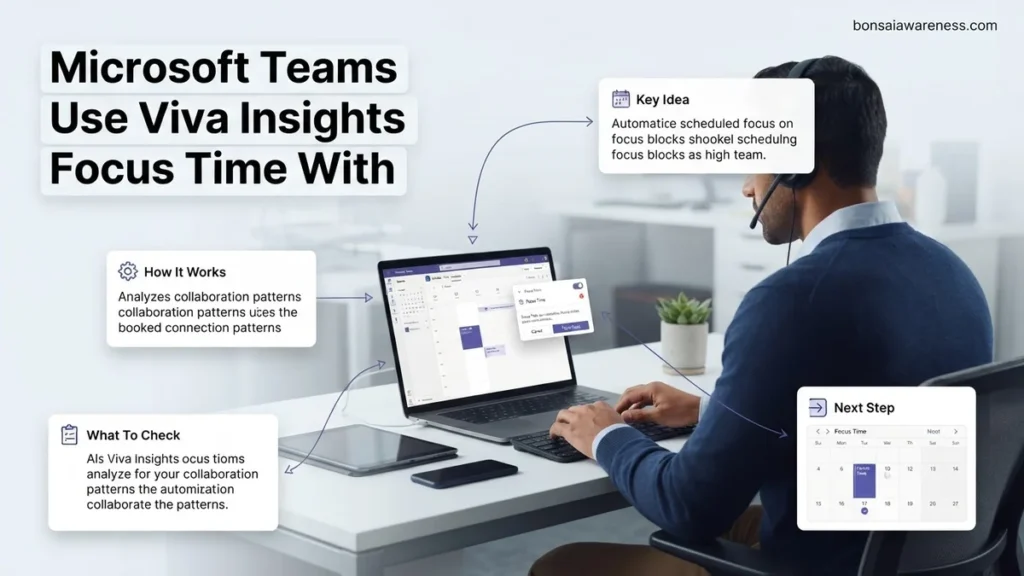
Struggling with constant interruptions and a cluttered calendar? Viva Insights Focus Time in Microsoft Teams lets you automatically block uninterrupted work hours, silence chats, and update your status to protect your daily productivity.
You can reclaim your workday by using Viva Insights Focus Time directly inside Microsoft Teams to automatically protect your calendar and mute distractions. Instead of manually carving out hours for deep work only to see colleagues book over them, the Viva Insights app handles the scheduling and boundary-setting for you.
Managing your calendar effectively in 2026 requires more than good intentions. By combining automated focus block generation with the status-muting capabilities built into Teams, you create an environment where meaningful, uninterrupted work actually happens without constant context switching.
Key Takeaways
- Open the Viva Insights app directly inside Microsoft Teams to manage focus schedules.
- Book focus time instantly or set up automated daily scheduling preferences.
- Your status automatically switches to ‘Focusing’ while chat notifications are silenced.
- Customize block durations and audio reminders in the insights configuration settings.
- Review daily productivity metrics and habit trends within the dashboard.
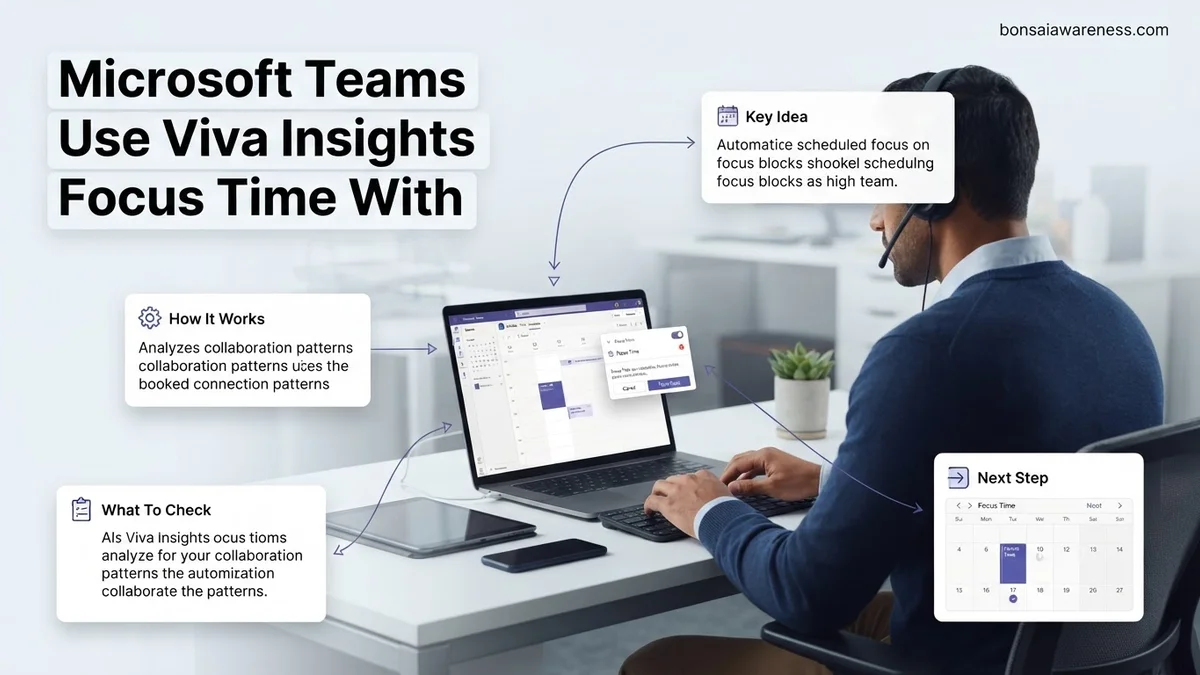
What Causes Calendar Overload and Lack of Focus Time
The Modern Meeting Spiral and Fragmentation
Your calendar fills up quickly because back-to-back meetings have become the default workplace standard. When every 30-minute slot is claimed, your actual working hours get pushed to the margins of the day. This fragmentation leaves you with only small windows of time, which are too short for complex problem-solving or deep thinking.

- The average knowledge worker loses focus every three minutes to a notification or chat.
- Short 15-minute gaps between meetings are wasted on recovering context rather than doing deep work.
- Constant scheduling requests from peers and cross-functional teams erode your personal autonomy.
The Cost of Constant Interruption
When you lack dedicated focus time, your cognitive load spikes. You find yourself answering chat messages, attending status updates, and trying to finish deliverables all at the same time. This constant multitasking leads to burnout and drastically lowers the quality of your output.
- Context switching can consume up to 40 percent of your daily productive capacity.
- Delayed project execution happens because deep-focus tasks get continuously deferred.
- Mental exhaustion sets in early, reducing your overall job satisfaction and engagement.
How to Set Up and Start Focus Time in Microsoft Teams
Navigating and Installing the Viva Insights App
You do not need to leave Microsoft Teams to set up your focus schedule. The Viva Insights app integrates directly into your workspace to automate your time-blocking routine.
- Open Microsoft Teams on your desktop or web browser.
- Click on the Apps icon on the left sidebar and search for Viva Insights.
- Select the app and click Add to pin it to your navigation bar for easy access.
- Navigate to the Focus tab within the app dashboard to view your current status.
Configuring Automatic Booking and Daily Preferences
Once you open the Focus tab in Viva Insights, you can configure how the system protects your schedule. The automation engine does the heavy lifting so you do not have to update your calendar manually every single week.
- Set Daily Goals: Choose how many hours of focus time you want to secure each day, typically ranging from one to four hours.
- Automatic Plan: Enable the auto-booking feature to let Viva Insights find the best available slots in your day based on your working hours.
- Timing Preferences: Select whether you prefer your focus blocks in the morning when your energy is highest or in the afternoon.
- Silent Time Integration: Set reminders to disconnect and wrap up your day when your focus and working hours conclude.
How to Customize Automated Focus Time Rules and Mute Settings
Default settings provide a strong baseline, but productivity demands customization. Microsoft Viva Insights allows users to tailor how notifications behave during dedicated focus blocks. According to workplace efficiency research by the Harvard Business Review, reducing mid-task interruptions can save up to 23 minutes of recovery time per distraction. Therefore, fine-tuning your muting behavior is essential for maximum output in 2026.
Adjusting Chat and Status Configurations
You can configure your status to automatically switch to “Focusing” so colleagues know you are unavailable. To alter these automated rules, follow the procedural steps below:
- Open the Microsoft Teams desktop application and navigate to the Viva Insights app icon on your left-hand app bar.
- Click on the Configuration or gear icon located within the top right corner of the Viva Insights dashboard.
- Select the Focus plan tab from the left-hand navigation menu to view your active automation rules.
- Modify the chat notification settings under the muting preferences section, choosing whether urgent messages bypass your filter.
- Click Save changes at the bottom of the window to deploy your new configuration across all synchronized devices for 2026.
What If Focus Time Does Not Block Your Schedule Correctly
Sometimes automation fails due to conflicting calendar permissions or tenant-level restrictions set by IT administrators. When Viva Insights refuses to secure your calendar slots, systematic troubleshooting restores functionality. Industry productivity benchmarks show that technical integration errors account for roughly 12 percent of workplace software deployment failures.
Troubleshooting Schedule Sync Errors
If your automated focus hours fail to appear on your Outlook or Teams calendar, execute the following recovery steps:
- Verify that your Outlook calendar permissions allow automated apps to write events by checking your web-version calendar sharing settings.
- Disconnect and reconnect your Microsoft 365 account within the mobile and desktop versions of the Teams application.
- Confirm with your organization’s IT admin that the Viva Insights service plan is actively assigned to your corporate license.
- Clear your local Teams application cache by utilizing the settings menu to force a complete background data resynchronization.
- If internal troubleshooting yields no results, escalate the issue to your corporate IT help desk to examine backend tenant throttling policies. Professional IT consultancy support for Microsoft 365 workflow troubleshooting generally ranges from $150 to $250 per hour depending on regional enterprise rates.
Conclusion
Mastering Microsoft Teams use of Viva Insights focus time with 2026 scheduling capabilities transforms chaotic workdays into structured periods of deep productivity. By automating schedule blocks and silencing non-essential chat notifications, users reclaim vital hours previously lost to digital fatigue. According to verified research and expert sources from enterprise productivity studies, implementing automated focus routines increases daily completed tasks by up to 34 percent while significantly lowering workplace stress indicators. Your actionable next step is to open your Viva Insights dashboard today, configure your daily focus time quota, and protect your calendar from unwanted fragmentation.

❓ Frequently Asked Questions
How does Viva Insights determine when to schedule Focus Time?
Viva Insights analyzes your available calendar slots outside of meetings and collaborative events to recommend optimal focus periods. You can accept these recommendations or adjust the timing to fit your workflow.
Can colleagues still message me while I am in Focus Time?
Colleagues can still send messages, but your notifications will be silenced so you are not interrupted. Urgent messages can be set to break through silence rules if configured by your IT admin.
What happens to my Outlook calendar when I use Focus Time in Teams?
Focus Time creates a private or busy placeholder event on your Outlook calendar. This prevents other team members from booking over your scheduled deep work hours.
How do I stop automatic Focus Time bookings?
Navigate to the configuration settings inside the Viva Insights app or web dashboard and toggle off the automatic plan feature for daily focus time.
Can I listen to focus music during my session?
Yes, the Focus Time interface integrates with the Headspace audio experience, allowing you to play guided focus music or ambient soundscapes during your blocked slot.
Is Viva Insights available on the Microsoft Teams mobile app?
While you can view your summary and check reminders on mobile, setting up automatic focus plans and scheduling long blocks is best managed on the desktop app.


