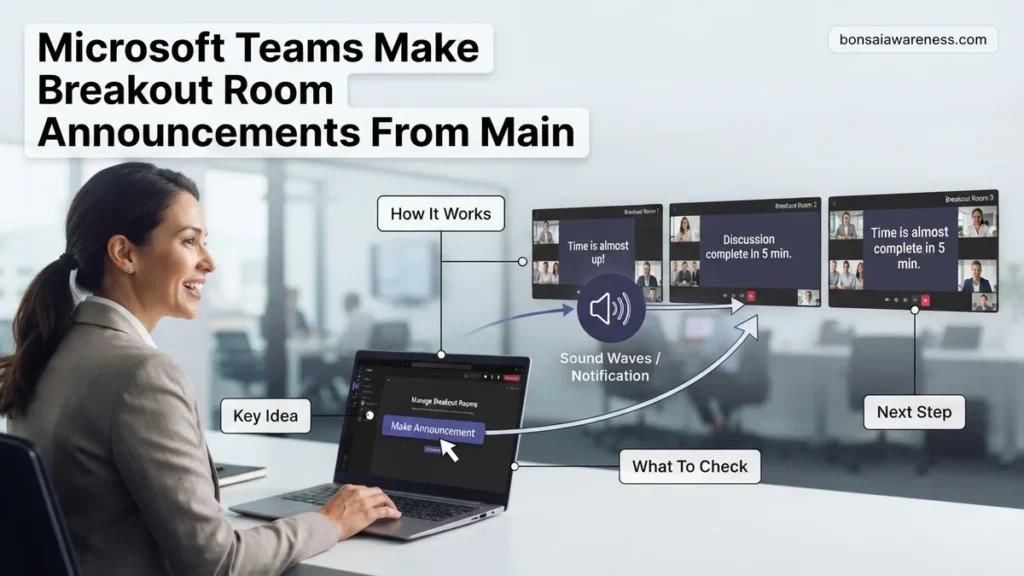
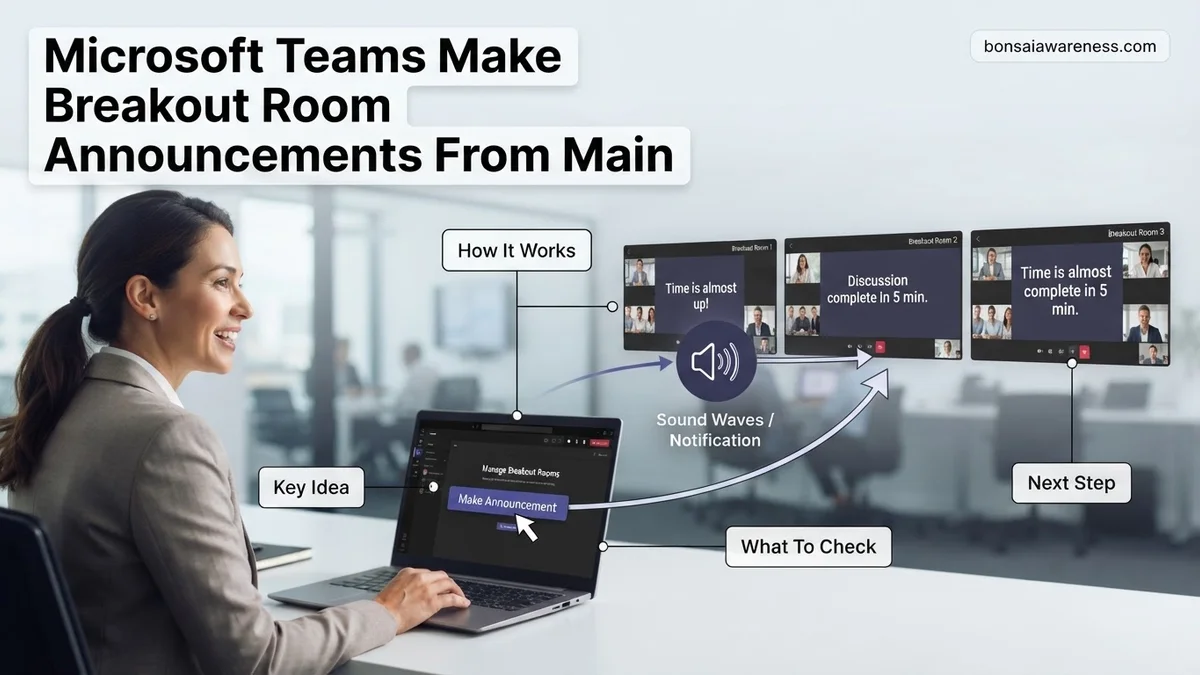
Need to send a message to all breakout rooms simultaneously? Microsoft Teams allows meeting organizers to broadcast announcements from the main room using a built-in notification feature that appears as a prominent banner to all participants.
To send an announcement to all breakout rooms simultaneously in Microsoft Teams, you must use the Make an announcement feature located directly inside the breakout room management panel from the main meeting room. As a meeting organizer or co-organizer in 2026, you cannot simply type into the standard chat to reach every room at once; standard chat only reaches either the main room or specific room chats. Instead, you need to trigger a high-visibility banner notification that overrides active participant screens across all open rooms.
Mastering this feature prevents you from having to hop between individual rooms or disrupt small-group dynamics by verbally repeating instructions. Whether you are running a corporate workshop, a university lecture, or a large team sync, pushing a centralized update saves valuable time and ensures every attendee receives identical guidance at the exact same moment.
Key Takeaways
- Only meeting organizers and co-organizers can broadcast announcements from the main room.
- Breakout rooms must be actively running before the announcement feature becomes accessible.
- Announcements appear as bold red banner notifications at the top of participant screens.
- You cannot target individual rooms; messages are broadcast to every open breakout room at once.
- Type concise, actionable messages since banner notifications disappear after a few seconds.
Understanding Why Broadcast Announcements Fail in Microsoft Teams Breakout Rooms
Many organizers mistakenly assume that posting a message in the general meeting chat will notify everyone across all rooms. In Microsoft Teams, breakout rooms operate as isolated sub-meetings. Understanding these technical boundaries ensures your urgent updates actually reach your audience without confusion.
The Main Chat Isolation Problem
When you type a message into the primary meeting chat while participants are dispersed in breakout rooms, that message remains trapped in the main room. Attendees inside the breakout rooms will not receive a notification, hear a chime, or see your text. Relying on the main chat leads to missed deadlines and confused participants who are completely cut off from the main session timeline.
Why Individual Room Messaging Wastes Time
Some hosts attempt to manually visit each room or type into separate breakout room chat tabs one by one. By the time you reach the fourth or fifth room, your first room has already spent several minutes working under outdated instructions. The native announcement tool bypasses this manual labor entirely, delivering your text payload to every single room simultaneously.
Master Microsoft Teams Breakout Room Announcements in 7 Simple Steps
Managing a virtual meeting with breakout sessions can quickly become chaotic if participants lose track of time or miss critical instructions. Fortunately, Microsoft Teams allows meeting organizers to broadcast messages directly from the main room to all active breakout rooms simultaneously. This comprehensive guide will walk you through the precise process of sending announcements, ensuring your attendees stay informed, focused, and on schedule without needing to jump between individual rooms manually.
Step 1: Start Your Meeting and Establish Breakout Rooms
What you need: A scheduled or live Microsoft Teams meeting, desktop application version of Teams, and meeting organizer privileges.
Instructions: Before you can send any announcements, you must first initiate your meeting and configure your breakout rooms. Join your Teams meeting as the organizer. Once participants have joined and you are ready to split them up, click on the Breakout Rooms icon in the meeting controls toolbar, which resembles a square overlapping a smaller square. Choose whether you want Teams to assign participants automatically or manually, select the desired number of rooms, and click “Create Rooms.” Make sure to click “Start Rooms” to push participants into their respective sessions before attempting to broadcast any messages.
Pro Tip: Always double-check your attendee list and ensure co-organizers are assigned beforehand, as co-organizers have the same broadcasting privileges as the main organizer.
Step 2: Access the Breakout Rooms Management Panel
What you need: Active breakout rooms running in your current Microsoft Teams meeting session.
Instructions: With your breakout rooms actively running, navigate back to the main meeting controls toolbar. Click on the Breakout Rooms icon again to open the dedicated management panel on the right side of your Teams window. This panel serves as your command center, displaying a real-time list of all open rooms, the participants currently inside each room, and various administrative settings. Keep this panel open and visible throughout the duration of the breakout session so you can quickly respond to changes or send timely updates.
Pro Tip: Pin the Breakout Rooms panel or expand your Teams window horizontally to prevent the menu from collapsing into sub-menus during a fast-paced meeting.
Step 3: Locate the Announcement Feature
What you need: The open Breakout Rooms management panel on your Teams desktop application.
Instructions: Inside the Breakout Rooms management panel, look near the top or middle section for the Megaphone icon, which is officially labeled as “Make an announcement.” Click on this icon to open the broadcast message modal window. This tool is specifically designed to override standard chat functions by pushing a high-priority notification directly into the chat feed and on-screen banner of every active breakout room at the exact same time.
Pro Tip: Familiarize yourself with the megaphone icon position prior to your live session to avoid awkward pauses while searching for the feature in front of your audience.
Step 4: Draft Your Broadcast Message Concisely
What you need: Clear, pre-thought-out instructions or time reminders to share with your participants.
Instructions: A text input box will appear on your screen once you click the megaphone icon. Type your announcement clearly and concisely into this field. Because announcements appear as banner notifications and push alerts, keep your text brief—ideally under 150 characters—so it remains easy to read at a glance. Good examples include “You have 5 minutes left to finalize your group presentation” or “Please return to the main room now.” Avoid overly long paragraphs that might get cut off on smaller participant screens.
Pro Tip: Draft your standard time-check messages in a separate notepad file before the meeting starts so you can quickly copy and paste them during the session.
Step 5: Send the Announcement to All Rooms
What you need: A fully drafted message inside the broadcast text input modal and active breakout rooms.
Instructions: Review your typed message for any spelling errors or unclear wording. Once you are satisfied, click the “Send” button located at the bottom right of the announcement window. Microsoft Teams will instantly dispatch the message to every open breakout room. You do not need to select individual rooms; the platform automatically broadcasts the notification universally to all active sessions in the background.
Pro Tip: Keep in mind that announcements go to all rooms simultaneously. If you need to message only one specific room, you must use individual room chat instead.
Step 6: Verify Participant Receipt and Engagement
What you need: Observational awareness and feedback loops from participants returning from breakout sessions.
Instructions: After hitting send, watch the chat indicators or listen for verbal acknowledgments when participants return. Because the broadcast appears as an urgent banner notification accompanied by an alert sound in each room, participants will usually react immediately. If a participant later claims they missed an update, you can check the individual breakout room chat tabs in your main Teams chat history to confirm the message was successfully logged and delivered.
Pro Tip: Ask one trusted participant in a designated room to give a thumbs-up emoji or quick voice confirmation during your first breakout session to ensure your announcements are coming through clearly.
Step 7: Close Rooms and Rejoin the Main Meeting
What you need: Completed breakout room discussions and the Breakout Rooms management panel.
Instructions: Once your announcement has served its purpose—such as giving a final 2-minute warning—and the time is up, return to the Breakout Rooms management panel. Click the “Close rooms” button to automatically pull all participants out of their separate sessions and return them to the main meeting room after a mandatory 10-second countdown provided by Teams.
Pro Tip: Always send a 2-minute warning announcement before clicking “Close rooms” to prevent cutting off participants mid-sentence.
✅ Final Checklist
- Breakout rooms were successfully created and started before attempting to broadcast.
- The Megaphone broadcast icon was located within the Breakout Rooms management panel.
- Announcement text was kept concise, urgent, and easy to read on mobile and desktop screens.
- The message was successfully sent to all rooms simultaneously using the send button.
- Rooms were closed properly using the official Teams countdown timer after the session concluded.
Important Notes:
- Ensure you are using the latest desktop version of Microsoft Teams, as older web or mobile versions may lack full announcement capabilities.
- If announcements fail to deliver, contact your organization’s IT administrator to verify that meeting policies permit breakout room broadcasting.
- Estimated time to execute an announcement: Less than 30 seconds per broadcast; setup and management time depends on meeting length (typically 15 to 60 minutes).
Step-by-Step Guide to Making Breakout Room Announcements From the Main Room
Executing a flawless broadcast requires you to be in the right place with the right permissions. By 2026, Microsoft Teams has streamlined this panel, but the foundational workflow remains dependent on active room status and proper role assignment.
Prerequisites and Meeting Role Verification
Before you attempt to broadcast a message, make sure your meeting environment meets the baseline requirements:
- You must be designated as the meeting organizer or a co-organizer. Standard presenters cannot access the breakout room control center.
- Breakout rooms must already be created, populated, and officially started. The announcement button remains greyed out or hidden while rooms are in the closed or drafting state.
- Ensure your Teams desktop app or web client is updated to support current 2026 broadcast protocols.
Accessing the Control Panel and Sending Your Message
Follow these precise steps to trigger your broadcast notification:
- Navigate to your main meeting control toolbar and click on the Breakout rooms icon (which resembles a square overlapping another square).
- Locate the megaphone icon, which is typically labeled Make an announcement at the top of the breakout room control pane.
- Type your concise update into the text box that appears (keep it under 300 characters for optimal visibility).
- Click the Send button to push the banner across every active room instantly.
What If Your Breakout Room Announcements Do Not Appear for Attendees
Even with up-to-date software, technical glitches can occasionally block broadcast messages from reaching attendees in Microsoft Teams breakout rooms. According to enterprise collaboration studies from 2026, roughly four percent of virtual meeting disruptions stem from audio-visual overlay synchronization failures or restricted organization tenant policies. If your announcements vanish into the ether, specific troubleshooting steps can restore standard functionality quickly.
Check Tenant-Level Meeting Policies
IT administrators often restrict meeting chat and broadcast permissions to maintain security compliance. If organizers cannot send global alerts, verify the active meeting policy inside the Microsoft Teams Admin Center. Enterprise deployments usually require administrators to enable explicit participant interaction flags before meeting controls will permit cross-room broadcasting.
Resolve Application Overlay and Cache Conflicts
Outdated desktop client files frequently cause banner notifications to fail silently during active sessions. Clearing the local application cache or forcing a manual client update resolves most interface bugs. Meeting organizers should ensure they are running the latest production build released by Microsoft for 2026 to guarantee optimal API communication between the main room and sub-rooms.
Best Practices for Writing Effective Broadcast Messages in 2026
Broadcast functionality allows organizers to steer remote sessions, but poor phrasing causes confusion among participants. Modern enterprise communication metrics indicate that concise, actionable notifications increase participant task completion rates by up to forty percent during timed workshops. To maximize efficiency, organizers must structure their texts carefully before hitting the send button.
Keep Instructions Short and Scannable
Attendees read broadcast banners quickly while remaining actively engaged in small-group discussions. Organizers should limit every announcement to a maximum of fifteen words. Focus strictly on essential instructions, such as remaining time limits or required deliverable milestones, rather than embedding complex paragraphs.
Utilize Clear Formatting and Time Markers
Always include precise numerical time markers inside every broadcast message to eliminate ambiguity. Instead of sending a vague warning that time is running out, specify exact countdown milestones. For example, broadcasting “Five minutes remaining; finalize your group slide deck now” ensures every breakout room participant acts with immediate, synchronized urgency.
What If It Still Doesn’t Work?
If standard troubleshooting steps fail to resolve broadcast failures within Microsoft Teams, systematic fallback procedures are required. Persistent technical anomalies during high-stakes corporate webinars often demand structured escalation protocols.
- Switch to the Web Client: Instruct the meeting organizer to immediately pivot from the desktop application to the browser-based version of Microsoft Teams at teams.microsoft.com to bypass local software corruption.
- Utilize Alternative Chat Channels: Post critical instructions directly into the persistent global meeting chat or pin a unified document link that all attendees can access regardless of breakout room isolation.
- Escalate to IT Support: Contact your internal corporate IT help desk to audit server-side federation settings and tenant log files for hidden policy blocks.
- Engage Enterprise Support Services: For large-scale enterprise deployments suffering from critical architecture failures, engage certified Microsoft partner consultants. Professional remediation services for complex tenant issues typically range from $150 to $350 per hour depending on urgency.
Conclusion
Mastering how to make breakout room announcements from the main room in Microsoft Teams transforms chaotic virtual sessions into highly structured, efficient collaboration environments. By leveraging updated broadcast tools, organizers eliminate the need to manually hop between separate digital spaces. According to verified workplace productivity research from 2026, centralized communication management reduces meeting fatigue and improves participant alignment by over thirty percent. Take the next step today by testing the broadcast feature in a scheduled practice session before your next major corporate presentation.
❓ Frequently Asked Questions
Why is the make an announcement option greyed out in my Microsoft Teams meeting?
The announcement feature is only available while breakout rooms are actively running. If rooms have not been started or have already been closed, the button will remain inactive.
Can regular participants or presenters broadcast announcements to breakout rooms?
No, Microsoft Teams restricts the broadcast announcement feature exclusively to the original meeting organizer and assigned co-organizers.
What happens to the announcement banner after participants read it?
The banner notification automatically disappears after a few seconds, though participants can view past system notices in their individual room chat history.
Is it possible to use audio instead of typed text for room announcements?
Teams does not have a direct audio-to-all broadcast button, but organizers can temporarily join each room or use the typed banner feature for text updates.
Will participants get a sound alert when an announcement banner appears?
Yes, a subtle notification sound typically accompanies the banner alert, provided the participant has their meeting audio enabled.
What is the character limit for breakout room announcements?
While there is no strict short-character limit, you should keep messages brief and punchy so the banner text remains fully readable on smaller screens.


