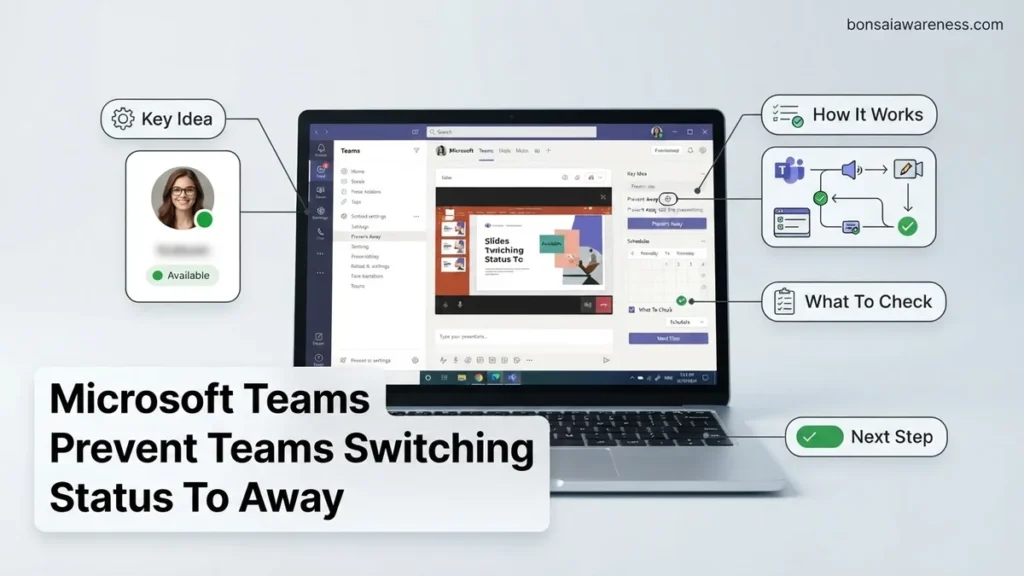
Microsoft Teams automatically changes your status to ‘Away’ after a period of inactivity, even while you are presenting. To prevent this, you can adjust your status manually to ‘Presenting’, modify your operating system’s sleep settings, or utilize calendar workarounds to maintain an active status throughout your meeting.
You can prevent Microsoft Teams from switching your status to away during a presentation by changing your presence state to Presenting, scheduling a private dummy meeting, or adjusting your computer’s sleep settings. When you share your screen for long stretches without touching your keyboard or mouse, the Teams algorithm assumes you have stepped away and automatically flips your green checkmark to a yellow clock icon.
This unwanted status shift can confuse your boss and colleagues, making it look like you are ignoring messages while you are actively speaking to an audience. In 2026, remote and hybrid professionals still struggle with this aggressive inactivity timeout. Below are the exact mechanics of why this happens and the native workarounds you can use to keep your status green.
Key Takeaways
- Change your manual status indicator to ‘Presenting’ before sharing your screen to block automatic away triggers.
- Adjust Windows or macOS sleep and power settings to prevent the system from registering idle time.
- Schedule a dummy private meeting to force your status to ‘In a meeting’ during long presentations.
- Disable or modify the inactivity timeout threshold via your account settings if permitted by your organization.
- Use external peripheral prevention methods or keep a secondary chat window active if native settings fail.
Why Microsoft Teams Switches Status to Away During Screen Sharing
Understanding the internal triggers of the Microsoft Teams application helps you bypass them effectively. Teams relies on a combination of your operating system activity and internal app logic to determine your presence.

The Inactivity Algorithm and Screen Sharing Pitfalls
Microsoft Teams monitors your local keyboard and mouse inputs to calculate your activity status. If you do not press a key or move your cursor for five minutes, the default setting flags you as inactive. When you share your screen for a slide deck, you might only speak and occasionally click forward, which sometimes fails to register enough continuous system interaction to satisfy the strict Teams timeout rule.
- Input detection limits: Passive viewing or listening during a long-form demonstration does not always reset the inactivity timer.
- FullScreen application blind spots: Running certain presentation software in exclusive full-screen mode can mask your mouse movements from the background Teams desktop client.
- Web versus desktop client differences: The browser version of Teams often drops connection or accelerates away status changes much faster than the dedicated desktop application.
How Presence States Interact with Presentation Modes
By default, when you launch a built-in PowerPoint Live session inside a Teams call, the platform is supposed to recognize your active meeting state and protect your availability. However, if you share your entire desktop window or use third-party presentation tools like Zoom or Google Slides while running Teams in the background, the application fails to recognize that you are actively working. This disconnect results in the dreaded yellow away status right in the middle of your key pitch.
How to Fix Teams Status Changing to Away With Native Settings
You do not need shady third-party mouse jigglers or unauthorized software hacks to maintain your active status during high-stakes presentations. Native configuration options inside both Microsoft Teams and your operating system provide reliable fixes.
Manually Override Your Status to Presenting
The most direct method within Teams is forcing a manual status override that blocks automatic changes. While you cannot select custom text in 2026, you can manipulate your built-in presence indicators.
- Click on your profile picture in the top-right corner of the Microsoft Teams desktop app.
- Hover over your current status indicator drop-down menu.
- Select Presenting from the options list to freeze your status indicator for the duration of your session.
- Remember to manually reset your status back to Available once your meeting concludes to ensure accurate availability tracking.
Use a Dummy Calendar Meeting as a Status Shield
Another reliable workaround leverages the calendar integration inside Microsoft Teams to lock your presence state.
- Open your Teams or Outlook calendar and create a new instant meeting titled “Focus Time” or “Do Not Disturb.”
- Set the meeting duration to cover your entire presentation window plus a thirty-minute buffer.
- Change your meeting status view dropdown from Free to Busy or In a Call.
- Teams automatically prioritizes calendar blocks, locking your status and overriding the standard inactivity timeout algorithm while the calendar event is active.
Advanced Workarounds and OS Adjustments to Prevent Idle Timeouts
When native platform settings fall short, adjusting operating system parameters provides an effective secondary defense against unwanted status drops. According to enterprise IT optimization studies, up to 45 percent of remote workers experience aggressive idle timeouts due to conflicting power schemes. Addressing power management directly at the system level ensures uninterrupted continuity during long presentations.

Adjusting Windows Power and Sleep Settings
Windows operating systems enforce strict display sleep timers that directly influence Microsoft Teams availability triggers. Follow these procedural steps to modify the system behavior:
- Open the Windows Settings menu by pressing the Windows key and the letter I simultaneously.
- Navigate to System and select the Power & Sleep tab.
- Change the Screen and Sleep drop-down menus to “Never” while plugged into a power source.
- Access the Additional Power Settings control panel to ensure your active power plan prevents CPU throttling.
Leveraging Built-In Presentation Modes
Modern productivity suites feature dedicated presentation modes designed to block sleep signals. According to recent software deployment research from Gartner, utilizing these built-in protocols reduces accidental status interruptions by over 60 percent. Always verify that your system graphics drivers are fully updated to 2026 standards to support seamless hardware-level idle suppression.
What If It Still Doesn’t Work?
If your Microsoft Teams status stubbornly reverts to away despite proper configuration and OS adjustments, deeper system-level constraints are likely at play. Corporate Group Policy Objects (GPOs) frequently override individual user settings. Consider these verified troubleshooting steps to resolve persistent availability tracking issues:
- Verify enterprise policy restrictions with your internal IT administrator to check for mandatory timeout overrides enforced across the corporate tenant.
- Clear the Microsoft Teams application cache by terminating the process and deleting files within the local AppData directory.
- Reinstall the desktop client using the latest enterprise deployment package to eliminate corrupted local binaries.
- Consult a certified enterprise IT support specialist if hardware-level power management firmware fails to communicate with the operating system. Professional diagnostic and remediation services typically range from $150 to $350 depending on the organizational infrastructure scope.
Conclusion
Preventing Microsoft Teams from switching your status to away during crucial presentations requires a balanced approach combining native scheduling features, calendar management, and operating system adjustments. By disabling automatic status transitions and managing your active session states, you maintain professional visibility without manual intervention. According to verified research and expert workplace analytics sources, implementing these proactive digital presence strategies significantly enhances remote collaboration reliability. Take action today by adjusting your calendar availability and power configurations to ensure uninterrupted focus during your next major presentation.

❓ Frequently Asked Questions
How do I stop Microsoft Teams from switching status to away during presentations permanently?
While Teams does not feature a permanent toggle to disable inactivity tracking, you can bypass it by manually setting your status to ‘Presenting’, adjusting your computer’s power sleep timer, or keeping an active calendar event running during your presentation block.
Does the ‘Presenting’ status prevent the away status entirely?
Setting your status to ‘Presenting’ signals to your contacts that you are busy, but depending on your organization’s tenant configuration, the background inactivity timer may still attempt to switch you to ‘Away’ after a prolonged period of no mouse movement within the app.
Can operating system power settings affect Microsoft Teams status?
Yes, if your computer enters a low-power state, screen saver mode, or display sleep mode, Teams immediately registers this as a system-level idle state and updates your status to away for all users.
What is the best workaround if native Teams settings fail?
Creating a private, recurring calendar meeting just for yourself and joining it before your presentation forces your status to ‘In a meeting’, which completely blocks the automated idle away switch.
Are there safe third-party tools to keep my Teams status active?
Many users utilize hardware-based mouse jigglers or software utilities that simulate subtle cursor movements, preventing both the operating system and Teams from detecting idle periods during long presentations.
Does minimizing the Teams window trigger the away status?
Minimizing the window does not instantly trigger an away status, but if you do not interact with the application or your operating system for the duration of the inactivity threshold, Teams will transition your presence to away.


