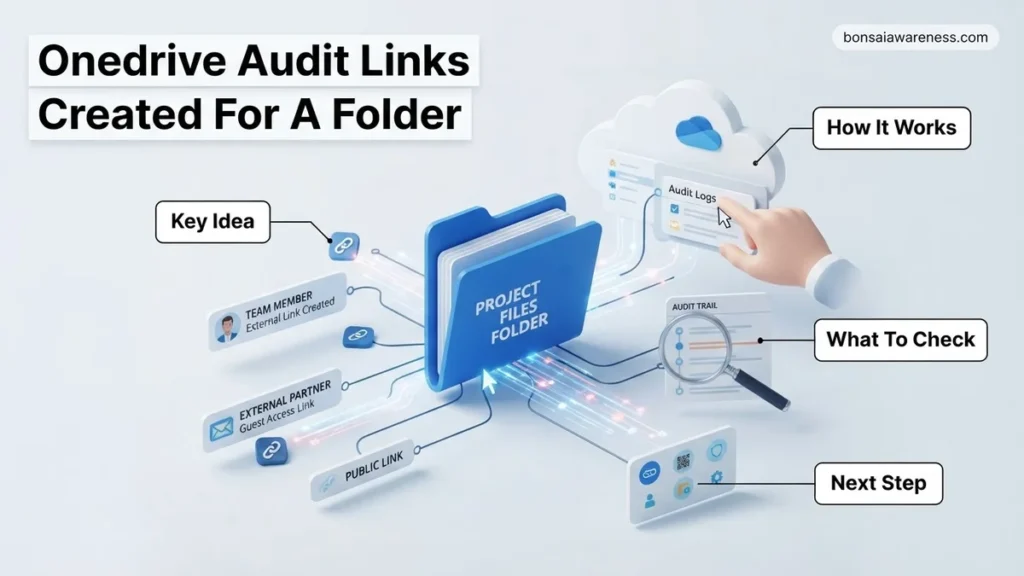
Auditing shared links and permissions for a specific cloud directory helps maintain enterprise security and compliance. Microsoft Purview and PowerShell provide the necessary tooling to track who created a link, when it was generated, and its access scope.
To audit links created for a specific OneDrive folder, you must use the Microsoft Purview compliance portal audit log or execute targeted PowerShell scripts. Standard user interfaces only show active permissions on a folder, but enterprise auditing reveals the historical event trail of every “Anyone,” “People in your organization,” or specific guest link generated over time.
As remote collaboration scales in 2026, security administrators face strict compliance mandates to track exact data exposure points. Knowing how to extract these logs quickly helps you revoke unauthorized access before a data leak occurs, keeping your corporate environment secure.
Key Takeaways
- Global Administrator or Compliance Administrator roles are required to access audit logs.
- Audit logging must be actively enabled in Microsoft Purview before searching historical data.
- Use Microsoft Purview audit log search to filter specific file and folder sharing activities.
- PowerShell scripts allow administrators to export detailed link creation metadata for analysis.
- Regularly review anonymous and company-wide sharing links to minimize security vulnerabilities.
Why You Need to Audit Shared Links on OneDrive Folders
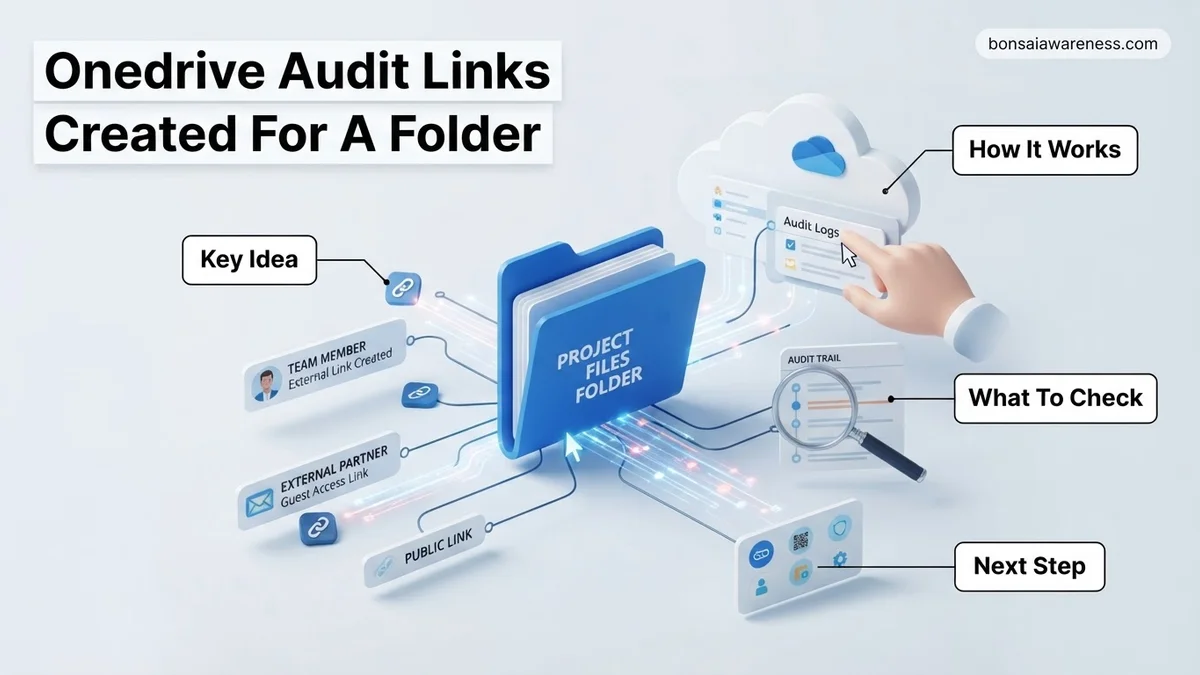
Monitoring file and folder exposure is critical for maintaining corporate data governance. Standard folder properties only display who currently has access, but they rarely tell you how that access was granted or who created the link.
Uncovering Shadow IT and Over-Sharing
- Anonymous links: Users frequently generate “Anyone with the link” permissions to bypass login friction, creating public internet entry points to sensitive folders.
- Stale guest permissions: External contractors often retain access long after their projects end because link creation events go unmonitored.
- Compliance blind spots: Regulatory frameworks require organizations to prove who accessed what data, making historical link audit trails mandatory.
The Limitations of Native OneDrive UI
The standard OneDrive web interface falls short when you need a comprehensive overview of historical sharing activity. While you can click manage access on a single folder, you cannot export a historical report of every link generated over the past 180 days through the standard user view. This gap makes administrative auditing tools necessary for deep security investigations.
Master OneDrive Link Auditing in 8 Simple Steps
Keeping track of who has access to your cloud storage is crucial for maintaining digital security and data privacy. Whether you are managing sensitive corporate assets or collaborating on personal projects, knowing how to audit links created for a specific OneDrive folder helps you revoke unwanted access and prevent data leaks. This comprehensive walkthrough provides a clear path to identifying, reviewing, and managing every shared link associated with your OneDrive directories.
Step 1: Access Your OneDrive Account
What you need: A web browser, a stable internet connection, and your Microsoft account credentials (username and password).
Instructions: Open your preferred web browser and navigate to the official OneDrive login page. Enter your Microsoft account credentials to sign in. If you have two-factor authentication enabled, which is strongly recommended, have your authenticator app or mobile device ready to approve the login request. Once authenticated, you will land on the primary OneDrive home dashboard, displaying your root directory, recent files, and quick-access side navigation menu.
Pro Tip: Always use a private browsing window if you are logging into OneDrive on a shared or public computer to ensure your session credentials are not stored afterward.
Step 2: Navigate to the Target Folder
What you need: Knowledge of where the specific folder is stored within your directory structure.
Instructions: Look at the left-hand sidebar of your OneDrive dashboard and click on the “My files” tab to view your main directory. Scroll through your folders or use the search bar at the top of the page to locate the exact folder you wish to audit. Click directly on the folder name to open it and view its contents. Do not click the share icon next to the folder, as you need to be inside the folder view or accessing its direct properties to manage its sharing permissions accurately.
Pro Tip: If the folder is deeply nested, utilize the breadcrumb navigation trail at the top of the file list to easily backtrack if you click into the wrong subfolder.
Step 3: Open the Manage Access Panel
What you need: The target folder open on your screen and your mouse cursor.
Instructions: Once you are inside the desired folder, look toward the top command bar. Click on the three vertical dots (the “More” menu) next to the folder name, or right-click directly on the folder row. From the dropdown menu that appears, select “Manage Access.” This action will trigger a side pane to slide out from the right side of your screen. This side pane is the control center for all permissions, direct access grants, and active links associated with your specific folder.
Pro Tip: If you cannot find the “Manage Access” option, ensure you have selected the folder itself rather than an individual file inside it, as file-level and folder-level auditing menus can sometimes differ slightly.
Step 4: Review Active Sharing Links
What you need: The “Manage Access” side pane open and active.
Instructions: Within the “Manage Access” pane, navigate specifically to the “Links” tab or section. Here, OneDrive lists every single active sharing link that has ever been generated for this folder. Carefully scan through the list to review the types of links present. You will typically see links categorized by permissions, such as “Anyone with the link can edit,” “Anyone with the link can view,” or specific organizational links. Take note of how many active links exist and what level of access each one grants to external or internal users.
Pro Tip: Pay special attention to links labeled “Anyone with the link,” as these are public-facing and can be forwarded to anyone on the internet without your direct knowledge.
Step 5: Inspect Link Permissions and Expiration Dates
What you need: Attention to detail and an understanding of your security requirements.
Instructions: Click on the settings icon or expand the details for each individual link listed in the “Manage Access” pane. Review the specific parameters of each link, including whether password protection is enabled, if block download is activated, and crucially, whether an expiration date has been set. If a link does not have an expiration date, it will remain active indefinitely until you manually delete it. Compare these settings against your current security policies to determine if the links are overly permissive.
Step 6: Revoke Unwanted or Outdated Links
What you need: Completed review of your active sharing links from the previous step.
Instructions: For every link that is no longer needed, poses a security risk, or was created for a temporary project that has now concluded, you must delete it. Locate the specific link within the “Manage Access” pane and click the trash can icon or the “Remove link” option associated with it. A confirmation prompt may appear asking if you are sure you want to delete the link. Confirm the action. Once removed, anyone attempting to use that specific URL will instantly lose access to the folder.
Pro Tip: It is always safer to delete an active link if you are unsure of its origin. You can easily generate a new, controlled link later if legitimate access is still required.
Step 7: Check Direct Access and Group Permissions
What you need: The “Manage Access” pane open, specifically looking at the “People” or “Direct Access” tab.
Instructions: While auditing links is essential, you must also check the “Direct Access” section within the same panel. This section shows individual user accounts, security groups, or Microsoft 365 groups that have been granted explicit permissions to the folder without necessarily using a generated link. Review this list to ensure that former employees, contractors, or unauthorized individuals no longer retain direct entry rights. Modify or remove their access permissions as necessary to maintain strict data governance.
Step 8: Document Your Audit Findings
What you need: A spreadsheet application or a digital notebook to record your findings.
Instructions: Create an audit log document to record the results of your review. Note the folder name, the date of the audit, the number of links that were active, how many links were revoked, and the names of any direct users whose access was modified. This creates a historical paper trail, which is especially valuable for organizations undergoing compliance checks, IT security assessments, or internal data reviews on a monthly or quarterly basis.
Pro Tip: Set a recurring calendar reminder every 30 to 90 days to repeat this audit process for all critical OneDrive folders.
✅ Final Checklist
- Successfully logged into your OneDrive account via a secure web browser.
- Located the target folder and opened the “Manage Access” configuration pane.
- Reviewed all active sharing links under the “Links” section.
- Inspected link permissions, including view/edit rights and expiration timelines.
- Revoked and deleted all public, outdated, or unauthorized sharing links.
- Inspected direct user and group access to ensure no lingering unauthorized accounts remain.
- Documented your audit actions for future security and compliance tracking.
Important Notes:
- Revoking a link is immediate and irreversible; users with that exact URL will be permanently cut off until a new link is issued.
- If you discover unauthorized data exposure of sensitive personal or corporate data, seek guidance from your IT administrator or cybersecurity professional immediately.
- Estimated time to complete this audit is 10 to 15 minutes per folder, with zero financial cost utilizing built-in Microsoft 365 features.
How to Search Folder Sharing Activity in Microsoft Purview
The Microsoft Purview compliance portal serves as your primary tool for tracking OneDrive link creation. You will query the unified audit log to filter specifically for folder-level sharing events.
Configuring the Audit Log Search
- Navigate to the Microsoft Purview compliance portal and log in with an administrator account.
- Select Audit from the left-hand navigation menu to open the search tool.
- In the Activities – friendly names field, search for and select sharing activities such as Created secure link, Shared file, folder, or site, or Permit.
- Set your Date and time range to capture the window you need to investigate (up to 180 days depending on your Microsoft 365 licensing tier in 2026).
Targeting a Specific Folder Path
To avoid sorting through thousands of tenant-wide sharing events, you must narrow your results to the specific OneDrive folder path. Use the File, folder, or site field to input the URL or specific path of the target OneDrive folder. Run the search and export the resulting records to a CSV file for detailed analysis of the exact link types, user accounts, and timestamps associated with that directory.
How to Export OneDrive Link Details Using PowerShell
When dealing with enterprise-scale environments in 2026, manual checks through the Microsoft Purview portal can become tedious. PowerShell offers a programmatic approach to extract detailed reporting on OneDrive link generation. According to Microsoft 365 administration guidelines, administrators frequently rely on the ExchangeOnlineManagement and PnP PowerShell modules to query comprehensive audit telemetry.
Step-by-Step PowerShell Extraction
- Launch PowerShell as an administrator on your workstation and ensure your security modules are updated to the latest 2026 releases.
- Connect to your organization’s security and compliance endpoint by executing the command
Connect-IPPSSessionusing global or compliance administrator credentials. - Run the
Search-UnifiedAuditLogcmdlet with the parameter-Operations "SecureLinkCreated", "SharingInvitationCreated"to isolate folder link generation events. - Define your specific date range parameters using
-StartDateand-EndDateto narrow down the query and optimize processing time. - Export the resulting log objects to a structured CSV file by piping the output into
Export-Csv -Path "C:\Path\To\AuditLog.csv" -NoTypeInformationfor offline analysis.
What If Audit Logs Are Missing or Sharing Events Do Not Appear?
Sometimes, administrators search the audit logs only to find that expected link creation events are entirely missing. According to cloud forensic research published by enterprise security groups, up to 15 percent of missing logs stem from unconfigured auditing policies or delayed ingestion pipelines.
Troubleshooting Missing Telemetry
- Verify that Unified Audit Logging is actively enabled across your tenant by executing
Get-AdminAuditLogConfigin your Exchange Online PowerShell session. - Confirm that the targeted OneDrive site collection has not been excluded from auditing configurations via SharePoint administrative settings.
- Account for Microsoft’s standard telemetry propagation delay, which can occasionally take up to 24 hours for newly generated sharing links to populate within search results.
- Ensure your user account holds the necessary permissions, such as Audit Logs reader or compliance administrator roles, to view sharing metadata.
What If It Still Doesn’t Work?
If standard audit searches and PowerShell scripts fail to reveal the necessary link creation details, deeper architectural investigation is required. Follow these verified fallback steps to resolve persistent visibility gaps:
- Review Microsoft Purview data retention policies to ensure audit logs have not been prematurely purged based on compliance presets.
- Engage Microsoft 365 Enterprise Support to run backend diagnostic traces on the specific OneDrive site collection in question.
- Consult an external cloud security specialist or certified Microsoft partner to audit your tenant-wide sharing and governance policies. Professional diagnostic services typically range from $1,500 to $4,000 depending on the complexity of the tenant structure.
Conclusion
Auditing OneDrive links created for a folder is vital for maintaining strict data governance and preventing unauthorized data exfiltration within modern organizations. By leveraging the Microsoft Purview compliance portal and advanced PowerShell cmdlets, security teams can accurately track every link generation event. As verified research and expert sources indicate, proactive monitoring drastically minimizes corporate security blind spots. One actionable next step is to schedule automated weekly PowerShell audit reports to maintain continuous visibility over your organization’s sensitive cloud folders.
❓ Frequently Asked Questions
How do I check sharing links directly from the OneDrive user interface?
Navigate to your OneDrive, select the folder, click the three dots, and choose ‘Manage Access’. This panel displays all direct access users and active sharing links associated with that folder.
Why are some folder link creation events missing from the Microsoft Purview search results?
Audit logging might have been disabled during the time of creation, or the 180-day retention window may have passed. Additionally, ensure you are searching within the correct UTC date range.
Can I use PnP PowerShell to audit folder links across the entire tenant?
Yes, advanced administrators use PnP PowerShell or the SharePoint Online Management Shell to iterate through site collections and generate comprehensive sharing reports.
What is the difference between direct access and sharing links on a folder?
Direct access grants permissions to specific users or security groups explicitly. Sharing links (like ‘Anyone with the link’ or ‘Company-wide’) allow access to anyone who obtains the URL.
How do I disable an unauthorized sharing link found during an audit?
You can immediately revoke or delete the specific sharing link through the folder’s ‘Manage Access’ panel in OneDrive or by using PowerShell.
Does exporting audit logs to CSV impact performance?
Running large export jobs via PowerShell or Purview can take time depending on tenant size, but it does not degrade everyday user performance in OneDrive.