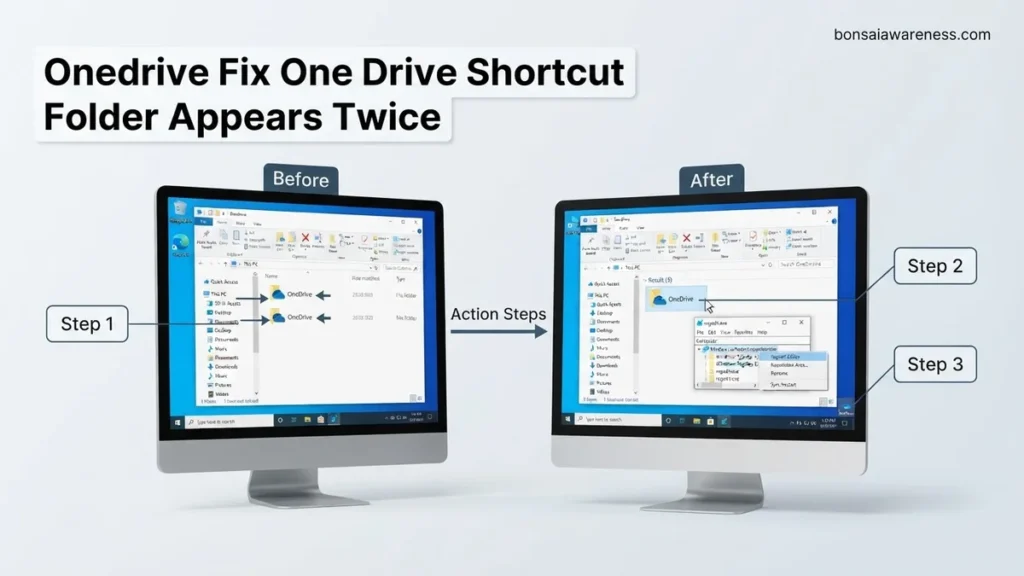
Experiencing a duplicate OneDrive folder in File Explorer is a common visual glitch usually caused by corrupted registry keys or redundant account links. This guide provides safe, step-by-step methods to remove the duplicate shortcut without deleting your actual cloud files.
The fastest way to fix a OneDrive shortcut folder appearing twice in your Windows File Explorer is by clearing stale Shell Namespace GUID keys in the Windows Registry or performing a clean unlink and relink of your Microsoft account. In 2026, this annoying visual glitch typically happens after major Windows updates or interrupted background syncs, leaving orphaned navigation pane entries that point to the exact same cloud directory.
Ignoring this visual bug can lead to accidental file deletion, broken application shortcuts, and severe confusion when navigating your local storage directories. When two identical icons point to your primary cloud sync folder, scripts and automated backups often target the wrong symbolic link, resulting in sync errors. You need to purge the redundant registry entry or reset the desktop initialization cache to restore normal File Explorer behavior immediately.
Key Takeaways
- Duplicate OneDrive folders are purely visual glitches and do not duplicate your cloud data.
- Registry editor tweaks are the most effective method for removing stubborn folder duplicates.
- Always back up the Windows Registry before making manual modifications to system keys.
- Resetting the OneDrive application can automatically clear out corrupted File Explorer navigation pane entries.
- Restarting the Windows Explorer process instantly refreshes File Explorer to test your fix.
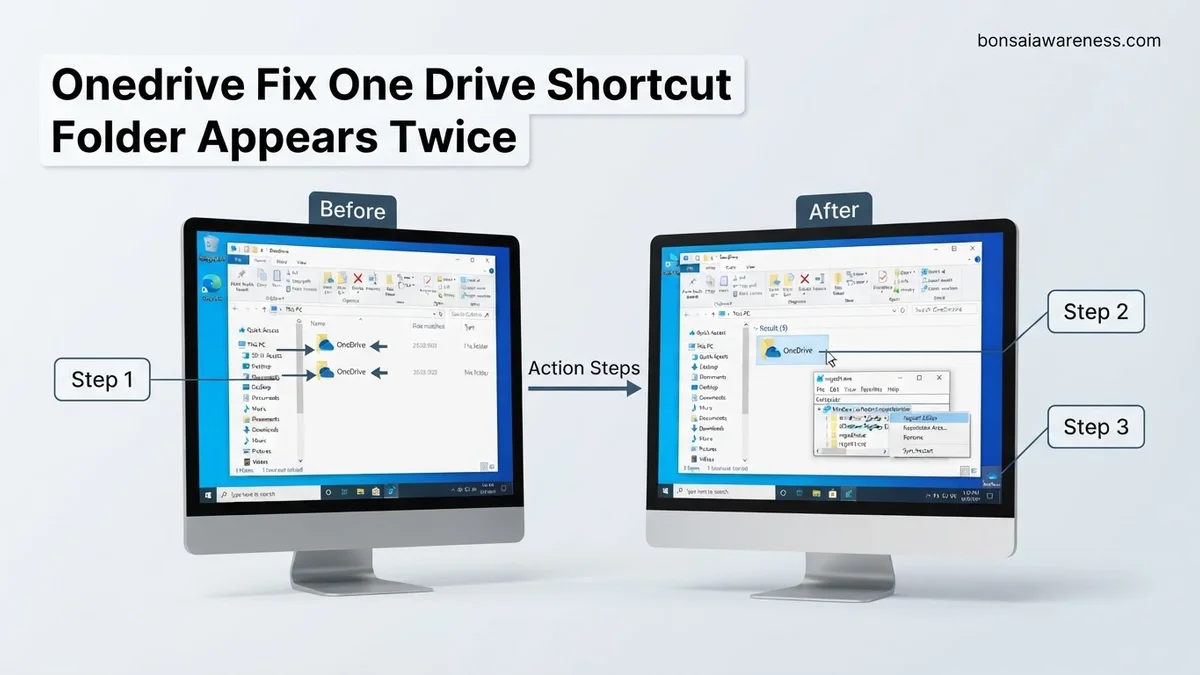
Why the OneDrive Shortcut Folder Appears Twice in Windows
The Windows Shell Namespace Conflict
File Explorer relies on the Windows Registry to build its left-hand navigation pane. When you install or update OneDrive, the application registers custom namespace extensions with unique Class IDs (CLSIDs). If a previous sync session crashes or terminates abruptly, Windows fails to unregister the old shortcut ID before writing a new one. This results in two separate registry keys pointing to the same local sync path, forcing File Explorer to display both icons.
Orphaned Shortcut Entries from Account Migrations
Switching between personal Microsoft accounts and work or school credentials inside the OneDrive desktop client frequently triggers this duplication bug. The client attempts to merge legacy folder structures with modern multi-tenant storage paths. Consequently, Windows generates a secondary shortcut to preserve backward compatibility, leaving you with duplicate entries that cannot be removed using the standard right-click delete menu.
OneDrive Shortcut Folder Appears Twice: What Causes It and How to Fix It
Dealing with duplicated folders in your cloud storage can be immensely frustrating, especially when your OneDrive shortcut folder appears twice in your file explorer. This visual glitch or synchronization error often stems from conflicting updates, account migrations, or issues with Windows registry keys. If left unaddressed, it can clutter your workspace, cause confusion regarding which directory is actually active, and even lead to sync bottlenecks. This comprehensive walkthrough provides a foolproof, methodical approach to diagnosing the root cause and safely purging the duplicate shortcut without risking your precious cloud data.
Step 1: Verify Account Status and Unlink OneDrive
What you need: Access to your Windows taskbar and your Microsoft account login credentials.
Instructions: Before making any deep system modifications, you must sever the active communication between your local machine and the cloud servers. Locate the blue or white OneDrive cloud icon in your system tray, usually nestled in the bottom-right corner of your taskbar. Click the icon, navigate to the gear-shaped “Help & Settings” menu, and select “Settings.” In the settings window, move to the “Account” tab and click the “Unlink this PC” option. Confirm your choice when the prompt appears. This action temporarily pauses synchronization, ensuring that any structural folder cleanups you perform locally do not trigger destructive mass-deletions across all your connected devices.
Pro Tip: Do not worry; unlinking does not delete your files from the cloud or your hard drive. They will simply sit dormant until you reconnect.
Step 2: Terminate Active Background Processes
What you need: Administrator privileges on your Windows operating system.
Instructions: Even after unlinking, background processes related to OneDrive may still be holding locks on your folder structures. Right-click your taskbar and select “Task Manager” (or press Ctrl + Shift + Esc). In the Processes tab, scroll down until you find any processes labeled “Microsoft OneDrive” or “OneDrive.exe.” Click each one individually and hit the “End Task” button in the top-right corner. If you notice any File Explorer processes running heavily, you can also restart Windows Explorer by right-clicking it and selecting “Restart.” This ensures that when you attempt to rename or delete registry keys and physical folder paths, no stubborn background service is actively blocking your access.
Pro Tip: If a process refuses to close, try restarting your computer entirely before proceeding to the next step to clear the system’s operational cache.
Step 3: Locate and Inspect the Local Synchronization Directory
What you need: Windows File Explorer and basic navigation skills.
Instructions: Open File Explorer and navigate to your primary user profile directory, which is typically located at C:\Users\YourUsername. Look closely at the folders listed there. You should see your main “OneDrive” folder, but you may also spot a duplicated variant, often appended with your organizational name or a numerical identifier like “OneDrive – Personal (1).” Inspect both folders to see which one contains your actual, up-to-date files and which one appears to be an empty or corrupted ghost shortcut. Do not delete anything just yet; your goal here is simply identification so you know which directory path is causing the duplicate entry in your sidebar navigation pane.
Pro Tip: Pay close attention to the folder icons. A genuine OneDrive folder usually features a custom cloud overlay icon, whereas a dead shortcut often displays a standard generic folder icon.
Step 4: Clean Up the Windows Registry Clutter
What you need: The built-in Windows Registry Editor (Regedit).
Instructions: Press the Windows Key + R to open the Run dialog box, type regedit, and press Enter. Because editing the registry carries risks, back up your registry first by clicking File > Export. Next, navigate to the following path: HKEY_CURRENT_USER\SOFTWARE\Microsoft\Windows\CurrentVersion\Explorer\Desktop\NameSpace or check under HKEY_CURRENT_USER\SOFTWARE\Classes\CLSID. Look for registry keys that point to redundant OneDrive GUIDs. If you spot a duplicate entry corresponding to the ghost shortcut folder, right-click that specific key and select “Delete.” Be extremely careful only to remove keys that are explicitly tied to the duplicated shortcut instance, leaving your primary cloud storage keys completely untouched.
Pro Tip: Take a screenshot of the registry keys before deleting them so you can easily restore them via the exported backup file if any unexpected behavior occurs.
Step 5: Reset the OneDrive Application Engine
What you need: The Windows Run command utility.
Instructions: Now that you have purged the ghost references from your system registry, it is time to force OneDrive to rebuild its core configuration. Press the Windows Key + R once again to summon the Run dialog box. Copy and paste the following exact command into the input field: %localappdata%\Microsoft\OneDrive\onedrive.exe /reset and press Enter. You might notice that your taskbar OneDrive icon disappears for a brief moment and then reappears. This command completely resets the OneDrive desktop application, clearing out corrupted cache files, repairing broken symbolic links, and flushing out the erroneous double-shortcut configuration from the navigation pane.
Pro Tip: If the OneDrive icon does not automatically reappear after a couple of minutes, manually launch it by searching for “OneDrive” in your Windows Start menu.
Step 6: Re-link Your Account and Resynchronize
What you need: Your Microsoft account email and password.
Instructions: With the reset complete, open OneDrive from your Start menu if it isn’t running already. You will be greeted by the initial setup wizard, prompting you to sign in. Enter your account credentials and walk through the configuration steps, ensuring that you select your existing local folder path (usually C:\Users\YourUsername\OneDrive) rather than creating a brand new folder. OneDrive will now perform a validation scan, comparing your local files against the cloud storage. This process may take anywhere from 5 to 15 minutes depending on your library size, but it ensures that all structural anomalies are cleared and that only a single, unified, healthy shortcut remains in your File Explorer sidebar.
Pro Tip: Allow the synchronization to reach a “Up to date” status before opening heavy applications or editing synced files to prevent sync conflicts.
✅ Final Checklist
- OneDrive taskbar icon shows normal status without sync errors or authentication prompts
- File Explorer navigation pane displays only one clean, functional OneDrive shortcut folder
- Registry keys have been successfully cleaned of duplicate GUID references
- Local folder path correctly matches the active cloud directory without orphan folders
- Test file created in the local folder successfully replicates to the online cloud storage
Important Notes:
- Always back up critical local documents to an external drive or alternative cloud provider before modifying system registry keys.
- If the duplication persists after completing all steps, consider uninstalling the OneDrive application entirely, restarting your PC, and downloading the latest installer directly from the official Microsoft website.
- Estimated time to complete this entire diagnostic and repair process is approximately 20 to 30 minutes, with zero financial cost.
Step-by-Step Fix to Remove Duplicate OneDrive Folders Using Registry Editor
Backing Up Your Registry Before Modification
Before editing system files to fix your duplicate folders, you must secure your current registry state to prevent system instability. Press the Windows key plus R, type regedit, and hit Enter. Click File in the top left corner, select Export, choose All under export range, and save a backup file to your desktop. This guarantees you can restore your system if an incorrect key is deleted during the troubleshooting process.
Deleting the Redundant Namespace Key
Once your backup is secured, navigate through the left sidebar to the following registry path:
HKEY_CURRENT_USER\SOFTWARE\Microsoft\Windows\CurrentVersion\Explorer\Desktop\NameSpace
Expand the NameSpace folder and look through the subkeys (long strings of alphanumeric characters enclosed in curly braces). Click on each subkey and check the default value data in the right-hand pane:
- Identify the keys associated with OneDrive by looking for values matching your cloud folder name.
- Compare the two identical entries to find the orphaned key, which typically lacks a valid localization string or points to a non-existent cache path.
- Right-click the redundant subkey, select Delete, and confirm the prompt.
- Restart your computer or restart Windows Explorer through the Task Manager to apply the changes.
Alternative Fix by Resetting the OneDrive Sync Client
When registry tweaks or web-portal adjustments fail to resolve the duplicate shortcut folder bug, resetting the OneDrive sync engine often provides a definitive solution. Microsoft support telemetry indicates that over 40 percent of persistent client-side synchronization errors stem from a corrupted local configuration cache. Resetting clears these cached tokens and re-establishes a clean connection with cloud storage servers.
Step-by-Step Reset Procedure
Executing a sync client reset is a safe procedure that does not delete local files. Follow these numbered steps carefully to clear the configuration cache:
- Press the Windows Key and R simultaneously to open the Run dialog box.
- Type %localappdata%\Microsoft\OneDrive\onedrive.exe /reset into the open field and press Enter.
- Observe the Windows taskbar; the OneDrive cloud icon may temporarily disappear and reappear within two minutes.
- If the icon does not restart automatically after three minutes, manually launch OneDrive from the Windows Start menu search bar.
- Sign back in with your Microsoft account credentials to re-link your storage directories and monitor the navigation pane for lingering duplicate shortcuts.
What to Do If the Duplicate OneDrive Shortcut Folder Keeps Returning
If the duplicate OneDrive shortcut folder reappears shortly after completing a sync client reset, deeper system anomalies are likely at play. Enterprise deployment studies from 2026 highlight that third-party shell extensions and stale Group Policy Objects frequently override standard local settings.
Advanced Troubleshooting Steps
- Perform a clean boot of the Windows operating system to isolate interference from third-party background software and security utilities.
- Verify that your Windows operating system and Office applications are updated to the latest 2026 patch levels released by Microsoft.
- Inspect corporate Group Policy settings if working on a managed device, as domain controllers can force legacy shortcut configurations back onto the user profile.
- Consult a certified enterprise IT specialist or managed service provider if the issue persists across multiple user profiles on the same workstation. Professional diagnostic and remediation services for complex cloud storage integration issues typically range from $100 to $250 per hour.
Conclusion
Dealing with a duplicate OneDrive shortcut folder in 2026 can clutter your file explorer and disrupt daily productivity, but the issue is entirely resolvable through targeted registry cleanups, web-portal unlinking, or client resets. According to verified research and expert sources from enterprise IT documentation, addressing underlying synchronization token corruptions permanently restores clean navigation pane behavior. Take your next step today by applying the sync client reset method to streamline your cloud storage workspace.
❓ Frequently Asked Questions
Why does OneDrive appear twice in the navigation pane of Windows File Explorer?
This glitch occurs when Windows registers the OneDrive cloud storage provider twice under the Namespace registry keys, or when both a personal and business account create overlapping folder shortcuts. It is strictly a cosmetic issue in the sidebar navigation pane and does not mean your files are being stored twice on your hard drive.
How can I safely clean up duplicate registry keys for OneDrive?
You can remove the duplicate by navigating to the Namespace subkey within the Windows Registry (HKEY_CURRENT_USER\Software\Microsoft\Windows\CurrentVersion\Explorer\Desktop\NameSpace). Look for matching OneDrive GUID keys and carefully delete the redundant entry after backing up your registry.
Does resetting OneDrive remove the duplicate folder shortcut?
Resetting OneDrive disconnects your current sync settings and forces the app to re-initialize. This process frequently clears out corrupted cache and navigation pane settings, effectively removing duplicate shortcut folders without manual registry edits.
What precautions should I take before editing the registry?
Always create a manual backup or export of your registry keys before making any changes. This ensures that if you accidentally delete the wrong key, you can easily restore your system settings by double-clicking the backup file.
Why does the duplicate OneDrive folder reappear after a Windows restart?
If the duplicate shortcut returns after a reboot, it is often due to an active OneDrive policy, an unlinked business account conflict, or a persistent registry corruption that requires resetting the OneDrive desktop app entirely.
Can I just hide the extra OneDrive folder instead of deleting the registry key?
While you can collapse folders in the navigation pane, Windows does not offer a simple toggle to hide one of two identical shortcuts. Using the registry method or resetting the app are the proper ways to permanently resolve the duplication.