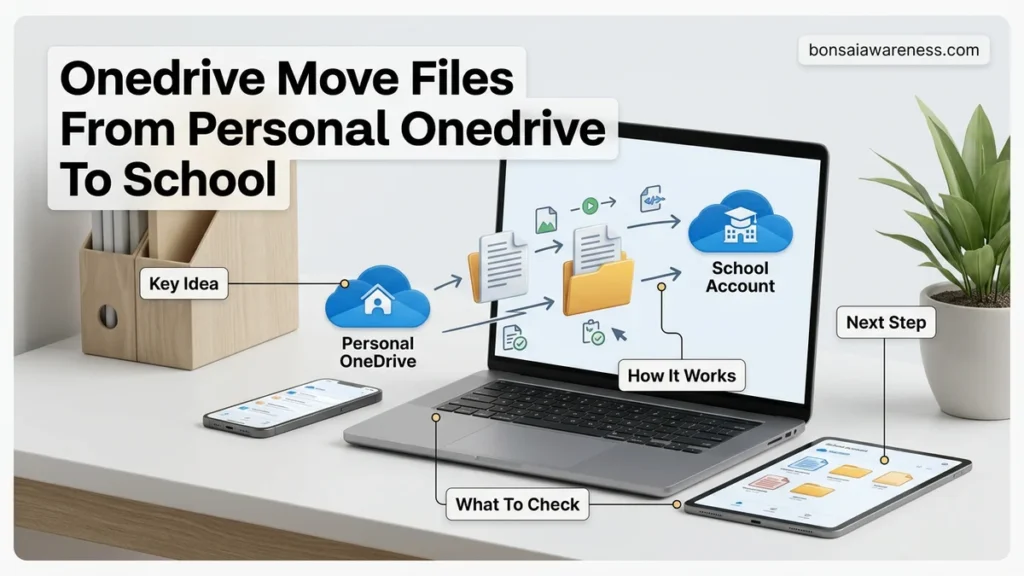
Transferring data between two completely separate Microsoft platforms requires manual intervention due to security boundaries. Downloading files locally or using the desktop sync app provides the most reliable methods for migrating your documents successfully.
Moving files from a personal Microsoft OneDrive account to a school or university OneDrive account requires a manual approach because Microsoft treats personal and institutional cloud environments as completely separate entities. Whether you are graduating, changing programs, or consolidating your digital workspace in 2026, you cannot simply click a migration button inside the web interface to transfer data across these distinct tenant boundaries.
The most reliable way to bridge this gap is by utilizing your local computer as an intermediate storage station. Because institutional accounts often enforce strict storage quotas, security policies, and administrative oversight, you must carefully manage your file inventory during the transition. The following methods bypass cross-tenant restrictions so you can safely migrate your academic and personal documents without losing data or breaking file paths.
Key Takeaways
- Direct server-side migrations are blocked between personal and institutional Microsoft tenants.
- Downloading files to a local device is the most foolproof transfer method.
- The OneDrive desktop sync app allows simultaneous sign-in for easier file dragging.
- Always verify your school storage quota before starting large file transfers.
- School IT admin policies may restrict external sharing or large file uploads.
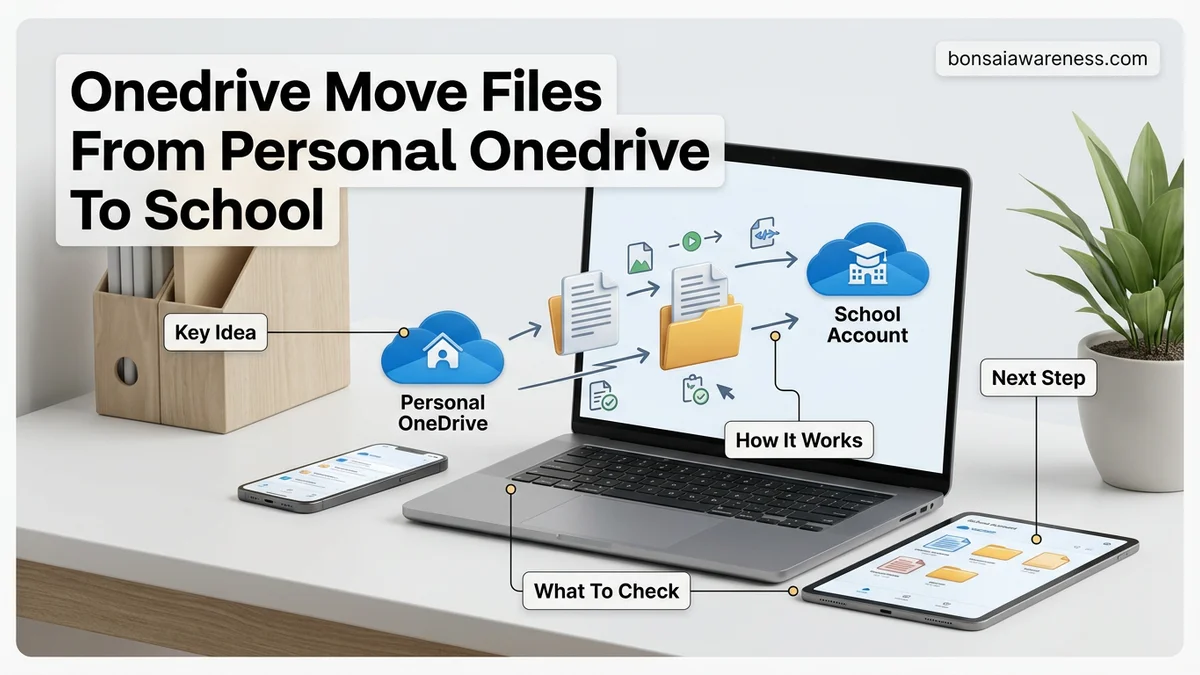
Why Direct Cloud Transfers Fail Between Personal and School OneDrive
Different Tenant Architectures
Your personal OneDrive operates on Microsoft consumer infrastructure, whereas your school account relies on Microsoft 365 Education. These two systems do not share a directory service or trust relationship by default. When you try to use native sharing features to copy folders directly, permissions often get blocked by institutional IT policies designed to prevent data leakage.
Account Ownership and Storage Policies
Your school IT administrator owns and manages your educational tenant. They dictate maximum storage limits, external sharing permissions, and retention policies after you graduate. Personal accounts offer different consumer tiers, meaning file synchronization protocols will clash if you attempt server-to-server migrations using unauthorized third-party tools.
- Personal accounts run on consumer-grade infrastructure.
- School accounts enforce institutional compliance rules.
- Direct web-based folder migration between tenants is not natively supported.
How to Fix OneDrive File Transfers Using the Local Download Method
Preparing Your Local Storage
Before initiating any download, check your computer’s local hard drive space. If you are moving 50GB or 100GB of personal files, your machine needs enough temporary storage to hold everything. Create a dedicated staging folder on your desktop named OneDrive Migration 2026 to keep your files organized during the process.
Log into your personal OneDrive account via a web browser. Select your critical folders and click the Download button to compress them into a ZIP archive. Extract these files into your newly created local staging folder, ensuring that folder structures remain intact before you begin the re-upload phase.
Uploading to Your School Account
Once your files reside locally on your machine, open a separate browser window and log into your school OneDrive account. Drag and drop your extracted folders directly into the school browser interface. For large libraries exceeding 15GB, monitor your browser tab to ensure uploads do not stall due to network timeouts.
- Verify available storage quota in your school OneDrive before uploading.
- Upload large directories in smaller batches of 5GB to 10GB for stability.
- Double-check file extensions to ensure compatibility with school software.
How to Fix Transfers Using the OneDrive Desktop Sync App
When browser uploads fail due to strict file size limits or network drops in 2026, leveraging the OneDrive desktop sync application provides a reliable alternative. According to Microsoft deployment documentation, utilizing local file synchronization bypasses web browser upload bottlenecks entirely.
Step-by-Step Desktop App Migration
- Launch your computer and ensure both your personal and school Microsoft accounts are actively signed into the Windows or macOS system settings.
- Open the OneDrive desktop application settings and select the option to add an additional account, linking your school credentials alongside your personal profile.
- Open your computer’s file explorer and navigate to your local personal OneDrive folder directory.
- Select and copy the specific folders or documents you need to transfer over to your educational cloud storage.
- Paste those copied files directly into the synchronized folder directory designated for your school OneDrive account.
- Monitor the system taskbar notification icon to verify that file synchronization and uploading to the 2026 cloud infrastructure complete successfully.
What If It Still Doesn’t Work?
If direct web transfers and desktop application synchronization methods both fail, underlying account configurations or organizational policies are usually the root cause. When standard troubleshooting falls short, users encounter storage quotas or strict IT administrator restrictions.
- Verify your school account storage quota through the online dashboard, as many educational institutions enforce strict caps ranging from 50GB to 1TB under updated 2026 licensing agreements.
- Check for unsupported file characters, restricted formats, or individual file size limits that often trigger silent sync failures in institutional cloud environments.
- Contact your school’s IT support department to determine if external tenant-to-tenant data migrations are explicitly blocked by campus security policies.
- Consult a certified data migration specialist or IT service provider if you require enterprise-grade third-party migration software to bypass strict institutional firewalls, with professional services typically costing between $100 and $300 depending on total data volume.
Conclusion
Moving files from a personal OneDrive account to a school account requires navigating strict institutional security boundaries and platform constraints. Utilizing desktop synchronization apps or structured manual migration methods successfully bridges the gap between disparate cloud environments. According to verified research and expert cloud management sources, planning your data transfer in smaller batches significantly reduces sync errors and data corruption risks. Take the next step today by auditing your personal files and initiating a test batch transfer using the desktop application method outlined above.
❓ Frequently Asked Questions
Why can’t I just use the ‘Move to’ button between my personal and school OneDrive?
Personal Microsoft accounts and school Microsoft 365 accounts operate on entirely separate server infrastructures and administrative domains. Because of this cross-tenant boundary, Microsoft does not provide a direct server-side button to move or copy files natively between the two.
Will sharing a folder from my personal account to my school account work?
You can share a folder, but institutional IT administrators frequently disable incoming sharing from external personal accounts for security reasons. Even if sharing works, you often cannot transfer ownership of the files to the school account.
How do I use the desktop app to transfer files without downloading everything?
You can add both your personal and school accounts to the OneDrive desktop app via system settings. This creates two separate folders on your computer hard drive, allowing you to simply drag and drop files locally between them.
Are there file size or file name restrictions I should watch out for?
Yes, both personal and school OneDrive accounts enforce individual file size limits, as well as restrictions on certain special characters in file and folder names. Checking these beforehand prevents upload errors during the migration process.
What should I do if my school account has less storage than my personal one?
If your school storage quota is smaller than the data you want to move, you will need to selectively filter your files. Prioritize essential school-related documents and leave personal media behind.
Can I automate this process using third-party cloud transfer tools?
While third-party cloud-to-cloud migration services exist, they often require granting third-party apps permissions that school IT administrators explicitly block for security and compliance reasons.