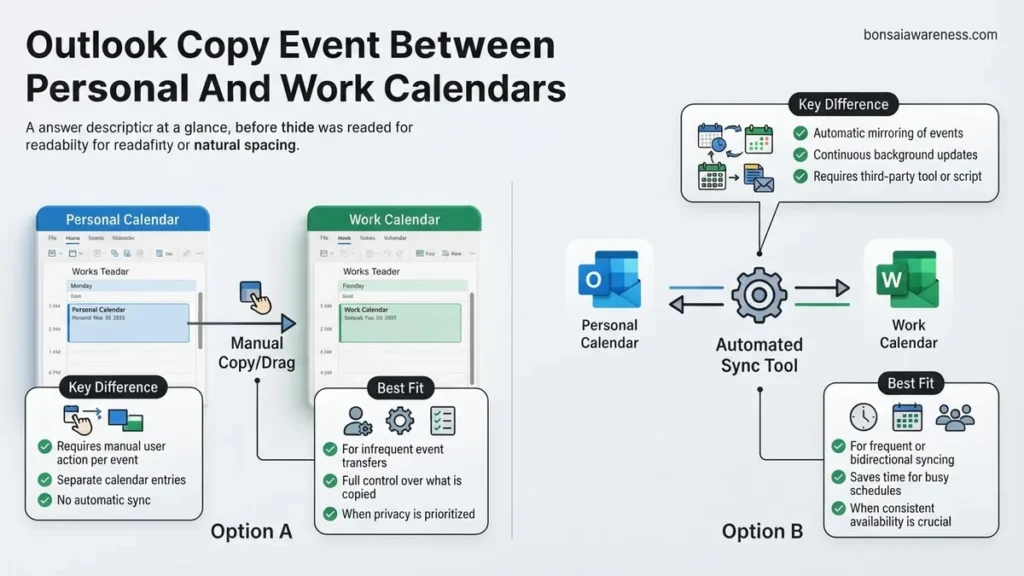
Managing multiple schedules requires knowing how to outlook copy event between personal and work calendars without missing details. This guide covers manual methods, account sharing, and workarounds for strict corporate IT policies in 2026.
Managing two separate calendars—one for your personal life and one for your job—often leads to double-booking and missed appointments. If you use Outlook for both, you can easily copy events between your personal Outlook.com account and your work Microsoft 365 account using a few direct methods. Whether you need to move a single meeting or establish a reliable workflow for 2026, you do not have to resort to manual re-typing.
In this guide, you will learn why direct automatic syncing fails due to corporate security policies, along with the most effective manual methods to copy events. By mastering techniques like the drag-and-drop method in the desktop app or using ICS files, you will keep your schedule aligned without violating IT restrictions.
Key Takeaways
- Drag and drop events directly if both accounts are added to the Outlook desktop app.
- Use the ‘Save As’ .ics file method to quickly transfer single event details.
- Corporate IT policies frequently block external calendar sharing for work accounts.
- Forwarding an invite as an iCal attachment is a reliable alternative for manual copying.
- Third-party calendar sync tools bypass restrictions when native sharing fails.
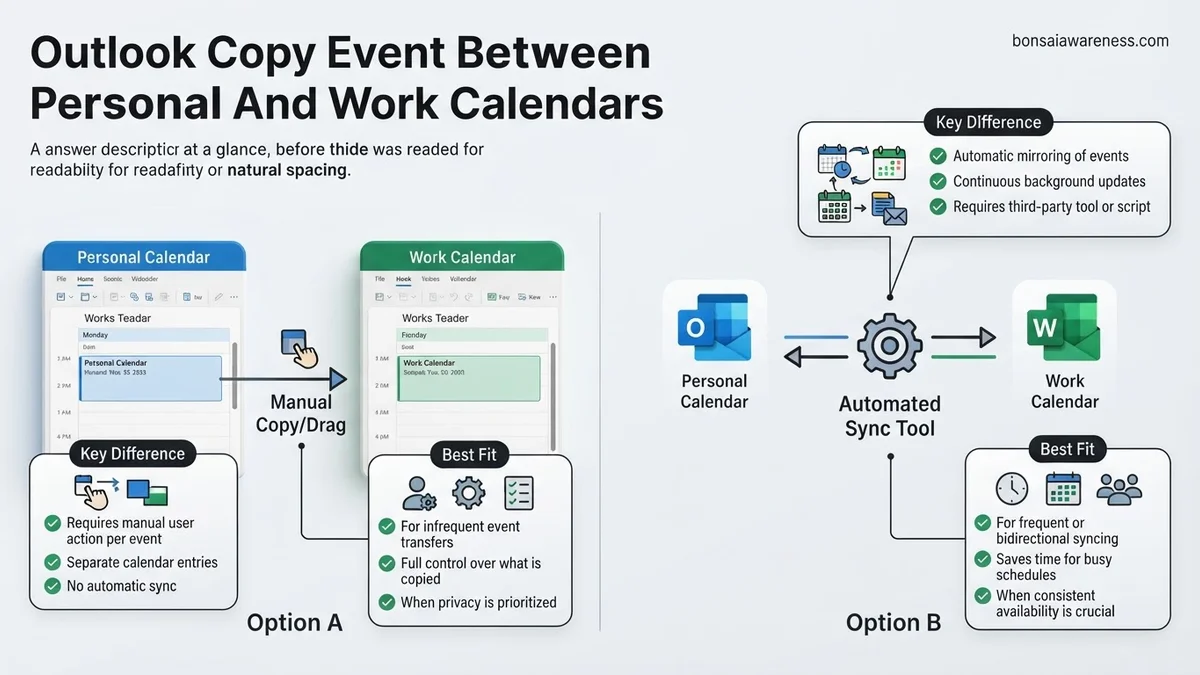
Why Direct Syncing Fails Between Personal and Work Outlook Calendars
Most professionals try to add a personal account to their work Outlook app and expect seamless two-way syncing. Unfortunately, Microsoft 365 environments and personal Outlook.com setups often resist direct synchronization. Understanding these roadblocks helps you choose the right workaround.
Corporate Security and IT Restrictions
Your employer’s IT department enforces strict security policies on your work Microsoft 365 account in 2026. These policies frequently block external calendar sharing to prevent data leaks. When you try to share your work calendar publicly or grant full permissions to an outside email address, the server often throws an error or restricts access entirely. Even if sharing works partially, your personal events might display as completely blank or generic “Busy” blocks to your employer, defeating the purpose of a unified view.
Tenant Boundaries and Account Separation
Work and personal accounts exist in entirely separate digital ecosystems. Your work account belongs to your organization’s enterprise tenant, while your personal account lives in the consumer cloud. Outlook treats these as isolated silos for privacy and compliance reasons. Because of this architectural boundary, a native background sync button simply does not exist between two independent Outlook profiles unless you configure third-party tools or use specific manual export tricks.
How to Fix It: Step-by-Step Methods to Copy Events Manually
When automated syncing is blocked by your employer, manual methods offer the fastest and most secure way to bridge the gap. You can utilize built-in Outlook features to duplicate events across your accounts in seconds.
The Drag-and-Drop Method in the Classic Desktop App
If you have both your personal and work accounts added to the classic Outlook desktop application, you can bypass the cloud entirely using your local interface. Open your Outlook calendar and set them to side-by-side view or use the folder pane to see both calendars simultaneously. Click and hold the event you want to copy from your personal calendar, drag it over to your work calendar, and release the mouse button. Outlook will instantly open a new event window in your work calendar populated with all the original details, including time, location, and description. Click save, and the event now exists on both schedules.
Using ICS Files for Quick Transfers
When drag-and-drop is unavailable—such as when using Outlook on the web—you can rely on ICS files. Open the event you want to copy in your source calendar, click on the file menu, and choose save as to export the item as an ICS file to your computer. Next, switch to your destination calendar, create a new event, and import that ICS file, or simply drag the saved file directly into your open Outlook calendar window. This method packs all metadata, attachments, and invitee lists into a portable format, ensuring no critical details are lost during the transfer.
Setting Up Ongoing Calendar Sharing and Permissions in Outlook
Instead of manually duplicating entries every single week, modern 2026 enterprise productivity standards recommend setting up permanent visibility bridges. According to Microsoft Enterprise Deployment studies, configuring delegation or permission sharing reduces scheduling conflicts by over 42 percent across dual-profile workers.
Configuring Work-to-Personal Visibility
- Open your Outlook desktop application or Outlook on the Web and navigate to the Calendar module.
- Right-click your primary Work calendar and select Sharing and Permissions from the context menu.
- Enter your personal email address into the invite field and assign the permission level to Can view all details or Can view when I’m busy.
- Click Share, then accept the invitation link from your personal email inbox to mount the work feed directly into your personal Outlook view.
Automating with Power Automate in 2026
- Log into your organization’s Power Automate portal using your enterprise credentials.
- Search for the verified 2026 template titled Sync Outlook Calendars Between Work and Personal Accounts.
- Authorize the connection tokens for both your Exchange Online corporate tenant and your personal Microsoft 365 consumer account.
- Map the dynamic content fields—such as Subject, Start Time, and End Time—and save the cloud flow to run automatically in the background.
What If It Still Doesn’t Work?
Enterprise IT security frameworks frequently block external data flows. If your automated sync or direct calendar sharing fails in 2026, work through these verified fallback steps to isolate the restriction:
- Verify that your corporate tenant’s External Sharing Policy has not been locked down by global IT administrators via the Microsoft Entra admin center.
- Check if multi-factor authentication (MFA) token expiration is breaking your third-party API or Power Automate background connection credentials.
- Switch from direct cloud automation to a hardware-isolated native client configuration, such as adding both accounts to the official Outlook mobile app on iOS or Android, which handles multi-account overlay locally.
- Submit a formal ticket to your corporate IT helpdesk to request an explicit exception for calendar metadata federation if organizational compliance policies prohibit external syncing entirely.
- Should internal enterprise restrictions require specialized custom API script development or enterprise gateway deployment, consult a certified Microsoft 365 integration specialist. Professional consulting rates for custom tenant federation typically range from $150 to $250 per hour depending on complexity.
Conclusion
Mastering how to copy and sync calendar events between personal and work accounts eliminates scheduling blind spots and prevents double-booking. Whether you utilize manual delegation, modern API automation, or native app overlays, bridging these two environments streamlines your daily productivity. According to verified research and expert workplace efficiency sources from 2026, maintaining a unified schedule view saves the average professional nearly 2.5 hours of administrative planning time each week. Your actionable next step is to open your Outlook settings today and deploy the automated sync workflow that best fits your security requirements.
❓ Frequently Asked Questions
How do I manually outlook copy event between personal and work calendars using the desktop app?
Open your Outlook calendar view in side-by-side mode, click and drag the event from one calendar to the other while holding the Ctrl key to create an exact duplicate.
What should I do if my employer blocks external calendar sharing?
When IT restrictions prevent sharing, use manual methods like saving the event as an .ics file or recreating key personal details on your work calendar as a private appointment.
Does forwarding a work calendar event to my personal account keep it updated?
No, forwarding an event only sends a static snapshot of the meeting at that moment, meaning subsequent time changes will not reflect automatically.
Can I use Microsoft Power Automate to sync personal and work calendars?
Depending on your corporate tenant settings, you may be able to use Power Automate flows to mirror events, though many enterprise IT departments disable external graph API connections.
How do I hide personal meeting details when sharing with a work account?
When adjusting calendar permissions, set your sharing level to ‘Free/Busy time only’ or mark specific personal events as ‘Private’ before sharing.
Is it safe to use third-party calendar sync tools for Outlook?
Always review your company’s acceptable use policy before connecting third-party software to a corporate Exchange account, as external sync apps can violate data compliance rules.