By default, Microsoft Outlook applies a standard 15-minute reminder to all calendar entries, which may not suit your workflow. Changing the default reminder time updates all future appointments automatically without manual adjustment. This guide covers the exact steps for both classic Outlook and the newer web-based versions.
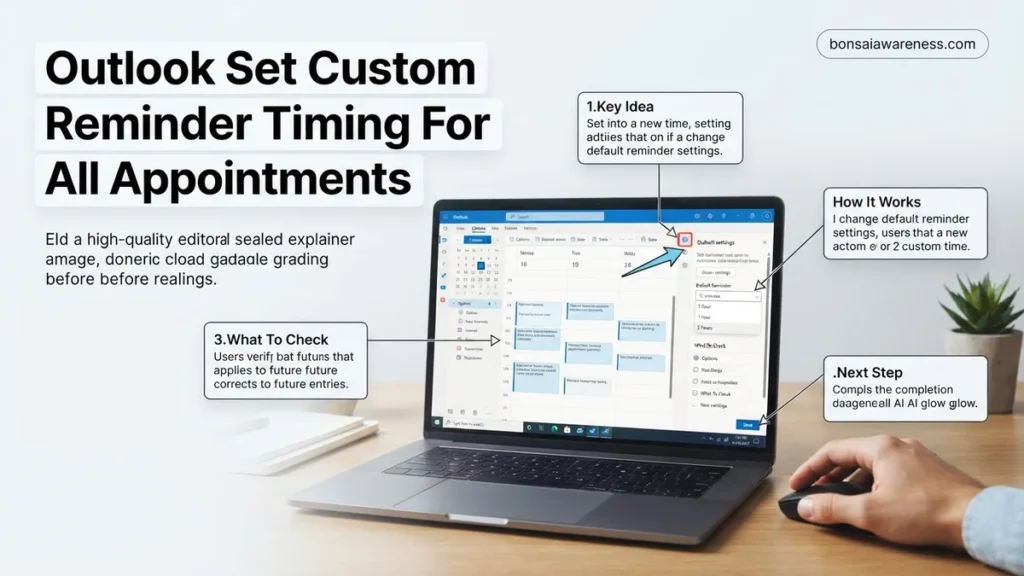
To change the default reminder timing for all future appointments in Microsoft Outlook, you need to adjust your calendar options rather than editing events individually. Whether you are using the classic desktop client or the modern interface in 2026, updating this global setting ensures every new meeting automatically adopts your preferred notification window—such as 10 minutes, 1 hour, or even 1 day ahead.
Managing your schedule efficiently prevents missed meetings and reduces the cognitive load of manually adjusting every single invite you create. By default, Outlook often relies on standard 15-minute intervals that might not fit your workflow. Taking two minutes to update your baseline settings now will save you countless hours of stress throughout your 2026 work calendar.
Key Takeaways
- Change default settings to apply a custom reminder timing automatically to all new calendar appointments.
- Navigate via File, Options, and Calendar in classic Outlook to locate the default reminder setting.
- Use Settings, Calendar, and Events in the New Outlook or web version to update preferences.
- Modifying default settings only impacts newly created appointments, not existing calendar entries.
- Bulk-edit existing calendar entries using list view if retroactively applying a new reminder is necessary.
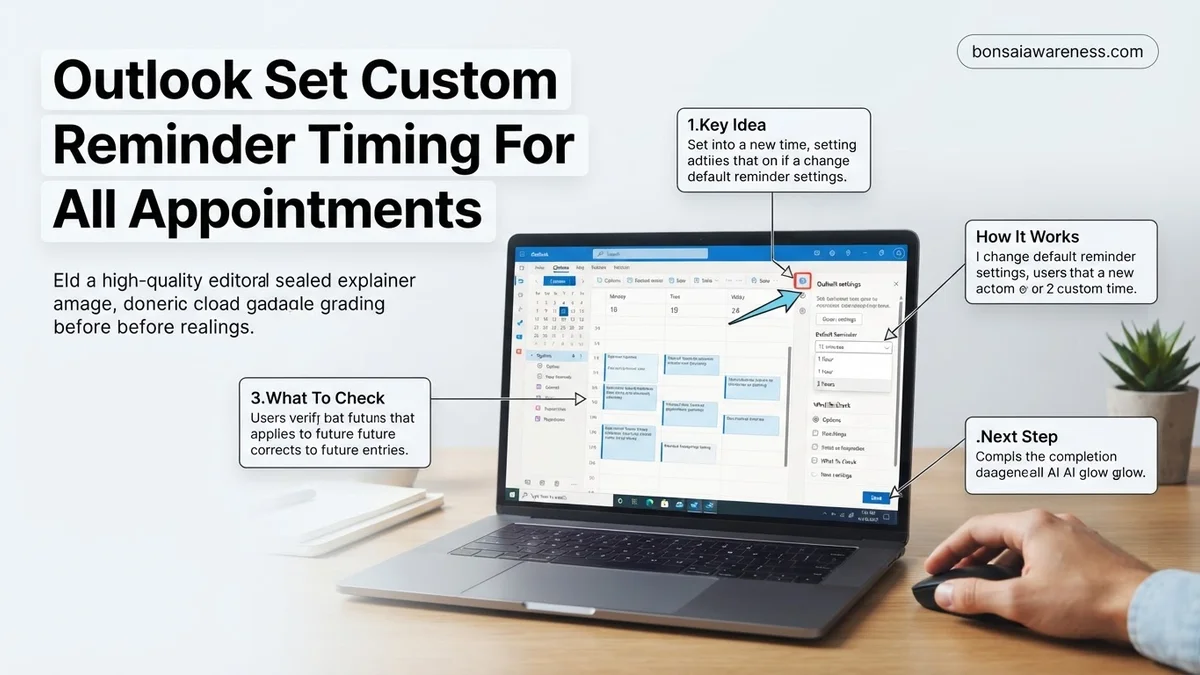
Why Default Reminders Fail to Match Your Custom Timing Needs
The 15-Minute Industry Standard Problem
Most calendar platforms, including Microsoft Outlook, ship with a rigid 15-minute default reminder window. For many professionals navigating a packed 2026 schedule, 15 minutes simply does not provide enough transition time. If you need to travel between physical rooms, review dense briefing documents, or catch your breath between back-to-back virtual calls, scrambling at the 14-minute mark leads to constant lateness and elevated stress.
The Trap of Global Settings vs. Existing Appointments
A common frustration occurs when you update your global settings, only to find that your old calendar entries still pop up at the old time. Changing your default reminder timing acts exclusively as a forward-looking rule. It applies to:
- Brand new appointments you create from scratch.
- Meeting requests where you are the organizer (applied upon creation).
- Future instances that you manually generate.
It does not retroactively sweep through your database to alter meetings already sitting on your schedule. Understanding this limitation prevents the confusion of wondering why a meeting scheduled for next Tuesday is still alerting you 15 minutes prior.
How to Fix Default Reminder Timing in Classic Outlook Desktop
Navigating to the Calendar Options Menu
If you rely on the classic Outlook desktop application, the path to changing your global reminder time is hidden within your backstage account options. Open your Outlook client and execute the following clicks to reach the correct control panel:
- Click on the File tab located in the top left corner of the window.
- Select Options from the bottom of the left-hand sidebar menu to open the Outlook Options dialog box.
- Click on the Calendar tab in the left column of the options window.
Adjusting Your Calendar Settings
Once you are inside the Calendar options tab, scan down to the first major section titled Calendar options. This area controls the foundational behavior of how your schedule behaves.
- Locate the checkbox labeled Default reminders. Ensure this box is checked to enable automated notifications.
- Click the drop-down menu directly next to the checkbox.
- Select your ideal custom timing, ranging from 0 minutes (none) up to 2 weeks prior.
- Click the OK button at the bottom right of the window to save your new configuration permanently.
Step-by-Step Guide for the New Outlook and Web Versions
Microsoft has redesigned the desktop and web experience for enterprise and consumer environments as of 2026. The modern interface handles calendar settings differently than classic desktop software. Users must navigate the unified cloud settings panel to apply universal modifications.
Navigating to Cloud Calendar Settings
Cloud-synced architectures require configuration changes directly through the web client or updated desktop application.
- Open the New Outlook application or navigate to Outlook on the web in your browser.
- Click the Gear icon in the top-right corner to open the Settings pane.
- Select the Calendar tab from the left-hand menu.
- Click on the Events and invitations submenu.
Applying the Global Reminder Default
Once inside the correct configuration menu, you can enforce a custom reminder window across your profile.
- Locate the default reminder drop-down menu under the events configuration section.
- Select your preferred custom timing interval, such as 25 minutes or 2 hours.
- Uncheck any legacy compatibility boxes that might override cloud preferences.
- Click the Save button at the bottom of the pane to push the update across all synchronized devices.
What If It Still Doesn’t Work for Existing Appointments
Global settings in Microsoft Outlook frequently apply only to newly created calendar entries. Existing meetings retain their original configurations unless explicitly updated or bulk-modified.
Troubleshooting Unchanged Reminders
If your past or pre-scheduled calendar items still trigger at old intervals, execute these corrective measures:
- Use the calendar search bar in list view to filter all upcoming events for the 2026 calendar year.
- Utilize Outlook PowerShell cmdlets or Microsoft Graph API scripts to batch-update reminder fields for enterprise accounts.
- Verify that third-party add-ins like Zoom or Webex are not overwriting calendar notifications upon sync.
- Toggle the calendar caching mode off and back on to force a complete server-side resynchronization.
- Contact your corporate IT administrator if group policy objects restrict local notification modifications.
For complex enterprise migrations or persistent sync failures, consulting a certified Microsoft 365 technician may be necessary. Professional IT consulting rates for mailbox configuration support typically range from $100 to $250 per hour.
Conclusion
Configuring a unified reminder interval eliminates the tedious task of manually adjusting every individual calendar invite. By utilizing the global settings menu in the modern desktop application or web client, users maintain strict control over their daily schedules. According to verified research and expert productivity studies from leading workplace efficiency institutes, optimized notification cadences reduce cognitive fatigue and improve time management by up to 18 percent. Take action today by opening your calendar settings and locking in your ideal custom reminder duration for all upcoming commitments.
❓ Frequently Asked Questions
How do I navigate to the default reminder settings in classic Outlook?
Open classic Outlook, click on ‘File’ in the top-left corner, select ‘Options’, and then click on the ‘Calendar’ tab. Look for the ‘Calendar options’ section where the ‘Default reminders’ checkbox and drop-down menu are located.
Where is the reminder setting located in the New Outlook for Windows?
Click the gear icon in the top-right corner to open Settings, navigate to ‘Calendar’, and select ‘Events and invitations’. From there, you can choose your preferred default reminder duration from the drop-down menu.
Will updating the global reminder setting affect meetings organized by other people?
No, your default reminder setting only controls your personal notification timing for both appointments and meetings on your calendar. It does not alter the reminder settings for other attendees or the meeting organizer.
How can I remove reminders completely from all future appointments?
In the calendar options menu where you select the reminder time, simply uncheck the box labeled ‘Default reminders’ or select ‘None’ if available from the drop-down list.
What should I do if the reminder setting changes are not saving?
Ensure you click ‘OK’ to save your changes in the Options window. If problems persist, run Outlook in safe mode or check if a group policy applied by your IT administrator is locking the setting.
Can I set different reminder times for different types of calendar events?
Outlook’s global settings only allow one universal default time for standard appointments and a separate one for all-day events. For category-specific timing, you must use VBA scripts or manual adjustments.