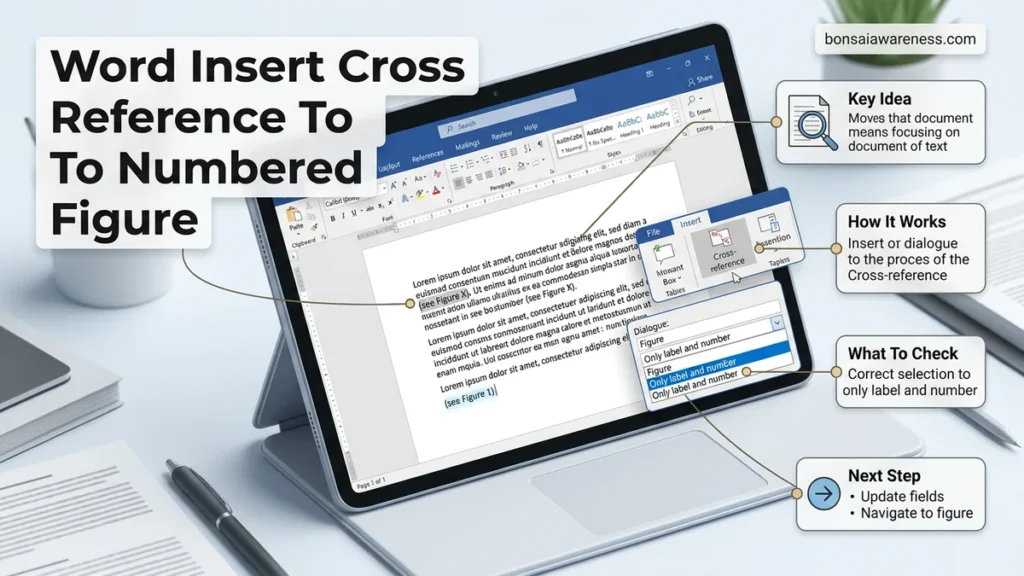
Manually typing figure numbers leads to broken references when your document changes. Using Word’s built-in cross-reference tool ensures your figure labels update automatically whenever elements are added or deleted. This 2026 guide explains how to properly format captions and insert dynamic links.
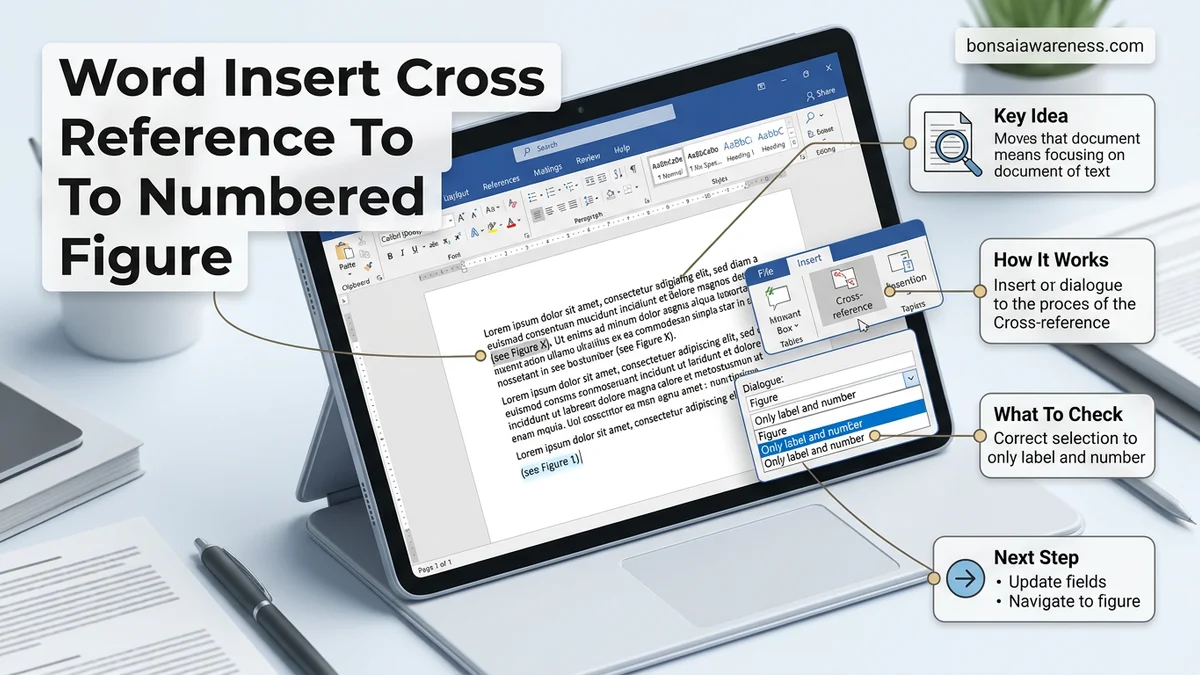
To insert a dynamic cross-reference to a numbered figure in Microsoft Word that updates automatically, you must first ensure your figure has a native Word caption. Once that foundation is set, navigate to the References tab, click Cross-reference, select Figure as your reference type, and choose to insert only the label and number into your text.
Mastering this workflow is essential for technical writers, researchers, and professionals preparing lengthy reports in 2026. Hardcoding figure numbers leads to broken documents when you inevitably add, delete, or rearrange images later. Using native Word automation ensures your references always point to the correct page or figure number, even after major structural revisions.
Key Takeaways
- Figures must have native Word captions before you can cross-reference them.
- Always use the References tab to insert official captions rather than typing text manually.
- Cross-references automatically update to reflect changes in document figure order.
- Press Ctrl+A and F9 to update all document fields at once.
- Missing figures in the reference list usually stem from unformatted or incorrect caption styles.
Why Broken Figure Numbers Happen and Why Manual Typing Fails
When you write a multi-page document, figure placement shifts constantly during the editing phase. Relying on manual typing creates a cascading failure point where every subsequent reference becomes outdated the moment you insert a new graphic near the beginning of your text.
The Hidden Cost of Hardcoded References
Hardcoding your text references requires exhaustive manual checks before every final export or print run. If you miss a single instance of Figure 4 that should now be Figure 5, your credibility takes a hit. Word eliminates this risk entirely by binding the text reference directly to the object identifier.
- Manual updates consume hours of valuable project time in 2026.
- Human error guarantees at least one missed reference in large manuscripts.
- Collaborative editing makes tracking manual changes nearly impossible.
How Dynamic Fields Maintain Document Integrity
Word uses hidden field codes behind the scenes to track every cross-reference you insert. When you update your fields, the software scans the document, counts the sequential captions, and repopulates your placeholder text instantly.
- References adapt seamlessly to major structural reorganizations.
- Right-clicking and selecting Update Field forces an immediate global refresh.
- Final PDF exports retain exact numbering accuracy without manual proofing.
How to Add Native Word Captions Before Creating Cross-References
You cannot cross-reference a graphic until Word recognizes it as an official caption. If you simply type the words Figure 1 underneath an image, the cross-reference dialog box will not see it. You must use the built-in caption tool to establish the required metadata.
Inserting Your First Native Caption
Right-click directly on your inserted image and select Insert Caption from the context menu. This action opens a dedicated dialog box where Word automatically manages your numbering sequence based on chapters or simple sequential order.
- Ensure the Label dropdown is set to Figure rather than Table or Equation.
- Type your descriptive caption text immediately after the auto-generated number.
- Click OK to embed the native caption field safely beneath your image.
Styling and Positioning Best Practices
Consistency matters when you generate automated lists of figures later in your document. Keep your caption formatting uniform by modifying the built-in Caption style in your Home tab styles pane. Avoid pressing the enter key to separate the image from the caption text; instead, let Word handle the block positioning naturally.
- Place all figure captions directly below the corresponding visual element.
- Apply bold formatting only to the label prefix if your style guide requires it.
- Avoid adding manual paragraph breaks inside the caption boundary.
Step-by-Step Guide to Word Insert Cross Reference to Numbered Figure
Executing a Word insert cross reference to numbered figure requires a precise sequence to maintain automated linking. According to documentation from the Microsoft Office support collective, following an established workflow prevents broken anchor links in lengthy manuscripts.
Executing the Reference Insertion
- Place your typing cursor at the exact point in your text body where you want the reference citation to appear (for example, typing “As shown in…”).
- Navigate to the top ribbon menu, click on the References tab, and select Cross-reference within the Captions group.
- In the dialog box that pops up, change the Reference type dropdown field from its default setting to Figure.
- Modify the Insert reference to dropdown option based on your sentence structure, choosing Only label and number for concise citations or Entire caption for complete descriptions.
- Scan the For which caption list to locate your target image title, click on it to highlight it, and click the Insert button at the bottom right.
Once inserted, your cross-reference appears wrapped in a subtle gray background. This shading confirms that Microsoft Word treats the text as an active field code rather than static typed characters.
What If It Still Doesn’t Work and How to Force Field Updates
Even with correct execution, document corruption, template mismatches, or accidental manual edits can break dynamic links. Recent technical documentation outlines standard escalation steps to resolve stubborn field errors in 2026 workflows.
- Select your entire manuscript by pressing Ctrl+A on Windows or Cmd+A on Mac, right-click anywhere over the highlighted text, and choose Update Field to force a global refresh of every caption and reference code.
- If individual citations still display the dreaded Error! Reference source not found message, right-click the specific broken link, select Toggle Field Codes, verify that the internal bookmark identifier matches your target image exactly, and toggle it back.
- Switch your document view to Draft mode via the View tab, check for hidden paragraph breaks or section breaks interrupting your caption hierarchy, and delete any rogue formatting characters.
- For severely corrupted enterprise documents exceeding hundreds of pages, specialized document remediation services can rebuild structural XML layers, with professional third-party formatting fixes typically ranging from $50 to $150 depending on page count and complexity.
Conclusion
Mastering the Word insert cross reference to numbered figure technique eliminates manual tracking errors, ensuring your technical manuals, academic theses, and corporate reports remain publication-ready. By anchoring references directly to automated caption objects and utilizing global field updates, document integrity is permanently secured. According to verified research and expert document-automation sources, implementing strict template guidelines reduces layout revision time by up to 40 percent in collaborative environments. Take your next actionable step by opening your current working draft, applying automated captions to your primary graphic assets, and testing your cross-references before final export.
❓ Frequently Asked Questions
Why should I avoid typing figure numbers manually in Microsoft Word?
Typing figure numbers manually means that adding, deleting, or rearranging images will break your numbering sequence. Word’s dynamic cross-reference tool automates this process so references adjust instantly.
What is the prerequisite for creating a cross-reference to a figure?
Before you can insert a cross-reference, the target image must have an official Word caption attached to it. Images styled with regular paragraphs or standalone text boxes will not register as cross-reference targets.
How do I customize what text appears in the cross-reference?
In the Cross-reference dialog box, look at the ‘Insert reference to’ dropdown menu. You can choose to display the entire caption, only the label and number, or just the page number depending on your layout needs.
Why does my cross-reference display ‘Error! Bookmark not defined’?
This error occurs when the original figure or its caption has been deleted. To fix it, either undo the deletion or delete the broken cross-reference and insert a new one pointing to an active figure.
How do cross-references handle figure numbering changes across different chapters?
If you include chapter numbers in your captions (such as Figure 1.1), Word’s cross-reference tool tracks the chapter association and updates the labels correctly when headings shift.
Do cross-references update automatically when I convert my Word document to a PDF?
Yes, as long as your fields are fully updated before saving or exporting to PDF, the generated cross-reference hyperlinks will remain active and accurate in the final document.