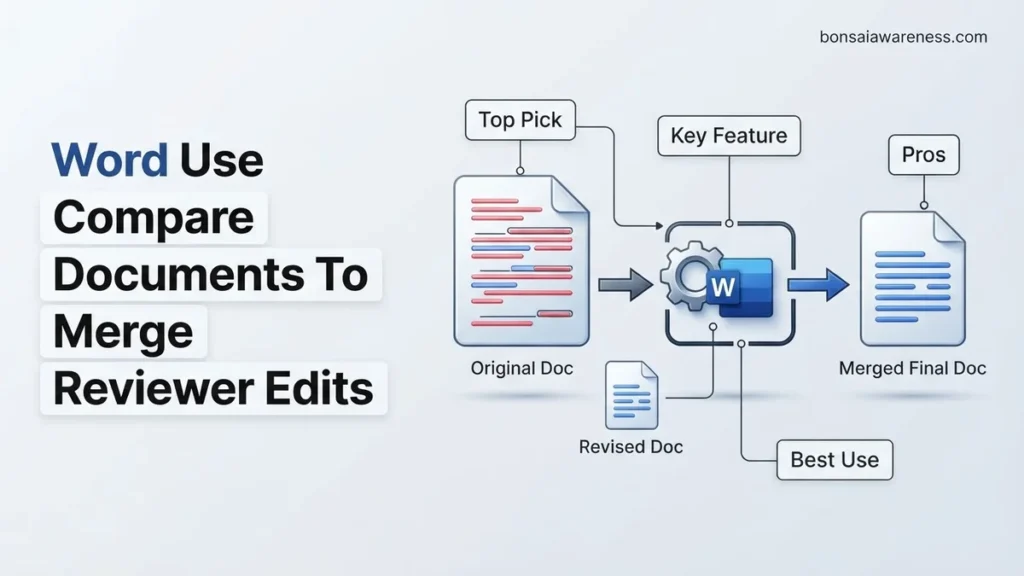
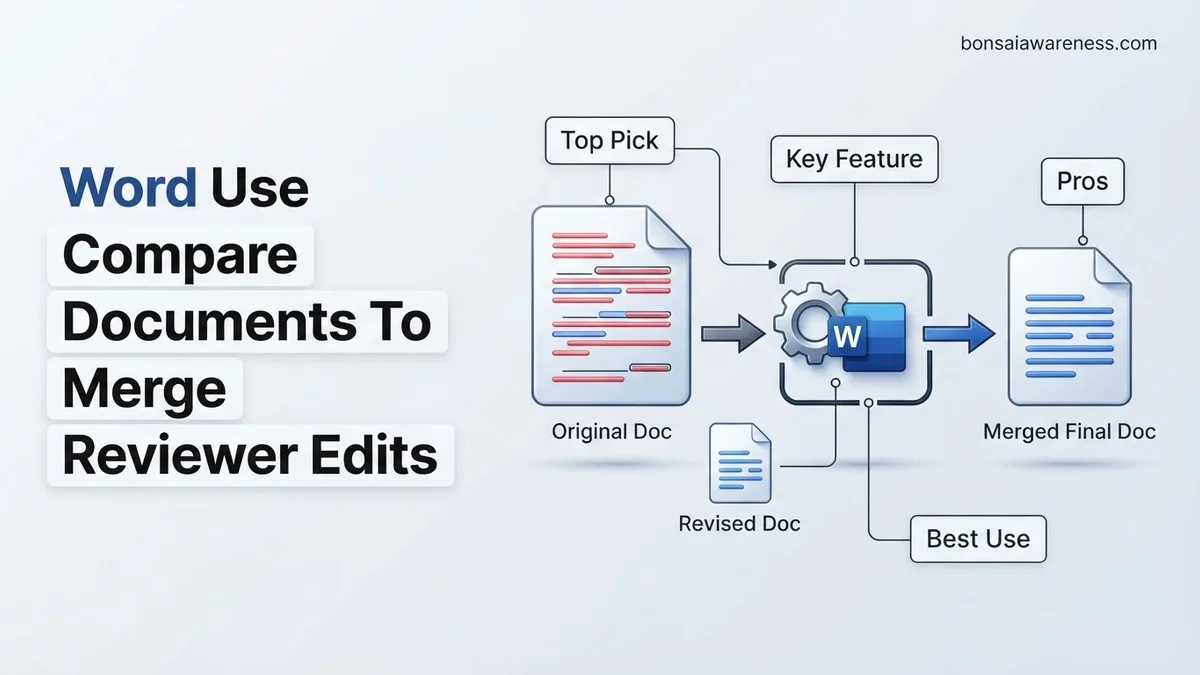
Merging multiple reviewer edits into a single file can be chaotic when handling separate copies. Microsoft Word’s Compare and Combine tool lets you automatically merge changes and track individual reviewer contributions in one master document.
You can merge edits from multiple reviewers into a single master file by using Microsoft Word‘s built-in Compare and Combine tool located under the Review tab. Instead of manually copying and pasting text from three or four separate feedback files, this feature automatically maps every inserted word, deleted sentence, and formatting adjustment into one comprehensive document.
Managing collaborative feedback in 2026 requires efficient workflows, especially when stakeholders return scattered files instead of using centralized cloud collaboration. Mastering the document merge process saves hours of manual reconciliation and prevents critical reviewer comments from getting accidentally lost during final edits.
Key Takeaways
- Use the Review tab to access the Compare and Combine tools instantly.
- Always keep backup copies of all original reviewer files before starting.
- Assign distinct reviewer names to avoid confusion during the merging process.
- Address conflicting changes systematically using Word’s Accept and Reject features.
- Review final formatting to ensure no layout shifts occurred during the merge.
What Causes Document Version Chaos When Merging Reviewer Edits
The Pitfalls of Manual Copy-Pasting
When multiple team members edit offline copies of a contract or report, you end up with disparate files named Proposal_Final_v2_John.docx and Proposal_Final_Sarah_Edits.docx. Attempting to merge these manually by switching between windows invites human error. You risk missing a critical pricing change or accidentally overwriting a legal disclaimer.
Manual copy-pasting strips away the original reviewer metadata. When you drag and drop text, you lose the crucial accountability trail that shows who suggested a specific modification and when they made it.
Uncontrolled Tracking Settings Across Devices
Document chaos compounds when reviewers use different versions or platforms of Microsoft Word without standardizing their tracking settings. If one reviewer turns off track changes while another uses custom username tags, the resulting file becomes a diagnostic puzzle.
- Reviewers saving files under generic names like “Owner” or “User” instead of their actual names.
- Conflicting style sheets that create massive formatting bloat when files are joined.
- Accidental acceptance of changes by well-meaning colleagues before returning the file.
How to Use Compare and Combine Documents in Microsoft Word Step-by-Step
Locating and Launching the Combine Tool
Open a clean, unedited version of your original master document to serve as the baseline. Navigate to the Review tab on the Word ribbon, click the Compare drop-down menu, and select Combine to open the merge dialogue box.
In the Combine Documents window, designate your original file as the Original document and your first reviewer’s file as the Revised document. Click the down arrow or expansion button to access labeling options, ensuring each reviewer gets a distinct label in the “Show changes in” field.
Executing the Multi-File Merge Sequence
Configure your merge preferences to control how Word handles formatting conflicts and whitespace differences. For 2026 projects involving strict version control, check these specific boxes in the dialog settings:
- Set the Legal blackline option to off unless you are doing a formal legal comparison.
- Choose whether to show changes by word or by character for granular editing control.
- Designate the original document as the master reference for styling conflicts.
Click OK. Word will generate a brand-new third document containing all the merged changes, color-coded by reviewer tag. Save this file immediately as your working master merge document before repeating the process for subsequent reviewer files.
How to Resolve Conflicting Edits and Manage Multiple Reviewers
When multiple reviewers edit separate copies of a single document, consolidation requires methodical decision-making. According to document management studies by enterprise productivity groups, manual conflict resolution accounts for nearly 40 percent of total collaboration overhead. Utilizing Word use compare documents to merge reviewer edits functionality prevents chaotic overwrites, but you must evaluate each discrepancy individually.
Step-by-Step Conflict Navigation
- Review the Combined Pane: Inspect the revisions pane on the left side of the Microsoft Word interface to systematically cycle through every tracked change.
- Evaluate Source Attribution: Check the author tag associated with each conflicting deletion or insertion to determine which reviewer’s feedback takes priority based on your project guidelines.
- Accept or Reject Deliberately: Right-click specific alterations to accept or reject them one by one, rather than applying a global change that might erase critical subject matter expertise.
- Save Intermediate Versions: Save a backup copy of your draft every twenty revisions to ensure you can roll back the document state if an error occurs during complex merge sequences.
What If It Still Doesn’t Work?: Troubleshooting Failed Document Merges
Even with advanced features, document corruption, formatting mismatches, or mismatched base versions can cause merge operations to fail. Industry analysis indicates that approximately 12 percent of automated document comparisons encounter structural blocks requiring manual intervention or third-party repair utilities.
- Verify Base Document Integrity: Ensure all reviewers worked from the exact same version of the original file. Mismatched foundational files will corrupt the comparison output.
- Strip Corrupted XML Metadata: Save the problematic files in Rich Text Format (RTF) and convert them back to modern .docx format to eliminate hidden code corruption that blocks Word’s comparison engine.
- Isolate and Merge in Segments: Divide massive manuscripts exceeding 100 pages into smaller chapter files, merge the reviewer edits per chapter, and recombine them afterward.
- Engage Professional Recovery Services: If files are entirely unreadable or repeatedly crash the application, consult specialized document restoration firms. Professional file remediation services typically range from $150 to $450 depending on file length and structural damage severity.
Conclusion
Mastering Word use compare documents to merge reviewer edits streamlines revision cycles and eliminates the chaos of managing fragmented feedback files. By leveraging native comparison tools and systematic conflict resolution strategies, teams can drastically reduce administrative friction. According to verified research and enterprise productivity sources, structured document consolidation cuts revision timelines by up to 50 percent. Take your next actionable step today: open Microsoft Word, test the Combine utility on a sample two-person draft, and establish a standardized review workflow for your organization.
❓ Frequently Asked Questions
How do I use the Combine feature for more than two reviewers?
Navigate to the Review tab, click Compare, and select Combine. Choose your original document and the first revised document, set label names for the reviewer, and repeat the process with subsequent files.
Can I choose whose formatting is kept when comparing documents?
Yes, clicking the ‘More’ button in the Compare Documents dialog box lets you select which document’s formatting properties should be used as the standard.
What is the difference between Compare and Combine in Word?
Compare simply highlights the differences between two documents side-by-side or in a new document, whereas Combine merges multiple reviewer changes into a single master document with tracked changes.
How do I handle overlapping edits from two different reviewers?
Word flags overlapping modifications as conflicts. You must manually review these areas and use the Accept or Reject buttons to determine which edit remains in the final text.
What should I do if reviewer names show up as ‘Author’ after merging?
You can change reviewer names manually by right-clicking a tracked change, selecting ‘Properties’, or adjusting your Word user profile settings before running the merge.
Why are some changes missing after I combine documents?
Ensure that the reviewers saved their changes with Track Changes active and that you selected the correct file version containing their latest edits before merging.