Need to know if a specific message was opened without tracking all your outgoing mail? Requesting a read receipt for only one email in Outlook is easily done directly from the message composition window. This step-by-step guide shows you exactly where to find the tracking options across different Outlook versions.
To request a read receipt for only one specific email in Outlook without turning on the global setting for every message, you simply need to toggle the tracking option inside the individual compose window. Whether you are using the classic desktop app, the redesigned interface in 2026, or Outlook on the Web, the tracking toggle sits right inside your message options before you hit send.
Enabling read receipts globally can frustrate your recipients and clutter your inbox with constant notifications. By applying the feature selectively, you maintain professional courtesy while still confirming delivery for critical communications like contract sign-offs, time-sensitive project updates, or urgent client requests.
Key Takeaways
- Enable read receipts per email without altering global default settings.
- Locate the tracking menu directly inside the message composition window.
- Check the Options or Message tab depending on your Outlook version.
- Understand that recipients can choose to decline sending a read receipt.
- Ensure your specific email client supports individual message tracking.
Why Use Per-Email Read Receipts Instead of Global Settings
Relying on a permanent, account-wide setting for read receipts often backfires in professional environments. In 2026, managing communication overload requires nuance, and bombarding colleagues or clients with relentless read-receipt prompts for casual internal chats damages your communication etiquette.
Maintaining Professional Etiquette
- Avoid annoyance: Forcing a read receipt prompt on every single outgoing message feels intrusive to your recipients.
- Keep your inbox clean: Receiving a notification for every casual reply or quick status update creates unnecessary noise.
- Target high-stakes communication: Reserving receipts for vital emails ensures recipients take notice without feeling micro-managed on daily messages.
When a Single Receipt Matters
- Legal and financial documents: Confirming that a vendor or client has officially opened a binding agreement.
- Urgent operational alerts: Ensuring a team lead has reviewed an emergency server outage notification.
- Strict deadlines: Tracking time-sensitive proposals where opening confirmation dictates the project timeline.
How to Request a Read Receipt for Only One Email Step-by-Step
Locating the single-message read receipt option depends slightly on which version of Outlook you have open. In 2026, Microsoft supports multiple interface variations, but the ribbon navigation for individual message tracking remains consistent once you know where to look.
Using Outlook Classic Desktop and New Outlook
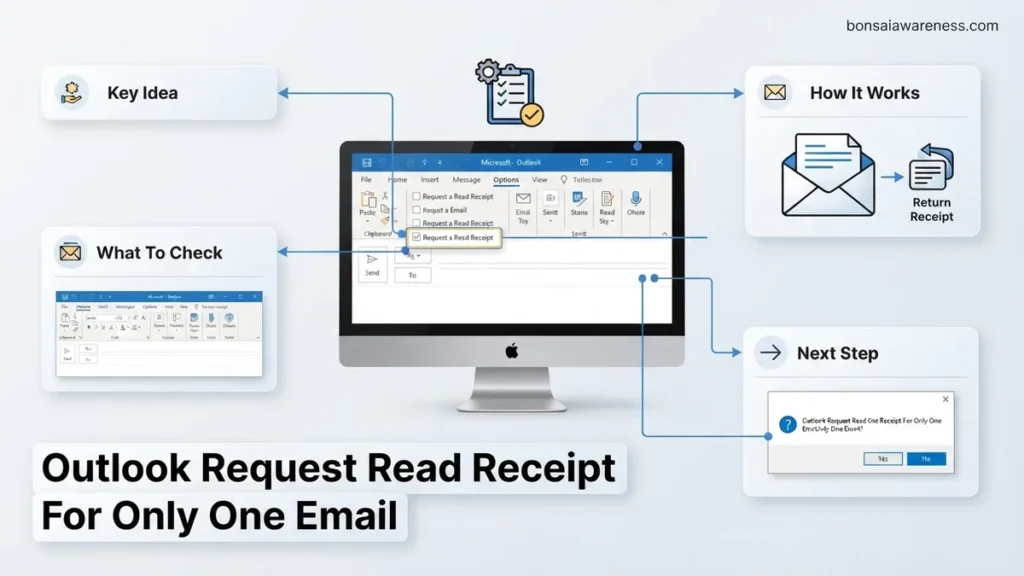
- Open a New Email window and address it to your recipient.
- Navigate to the top ribbon and click on the Options tab. (In some versions of the New Outlook, you may need to click the three-dot ellipsis menu inside the message toolbar).
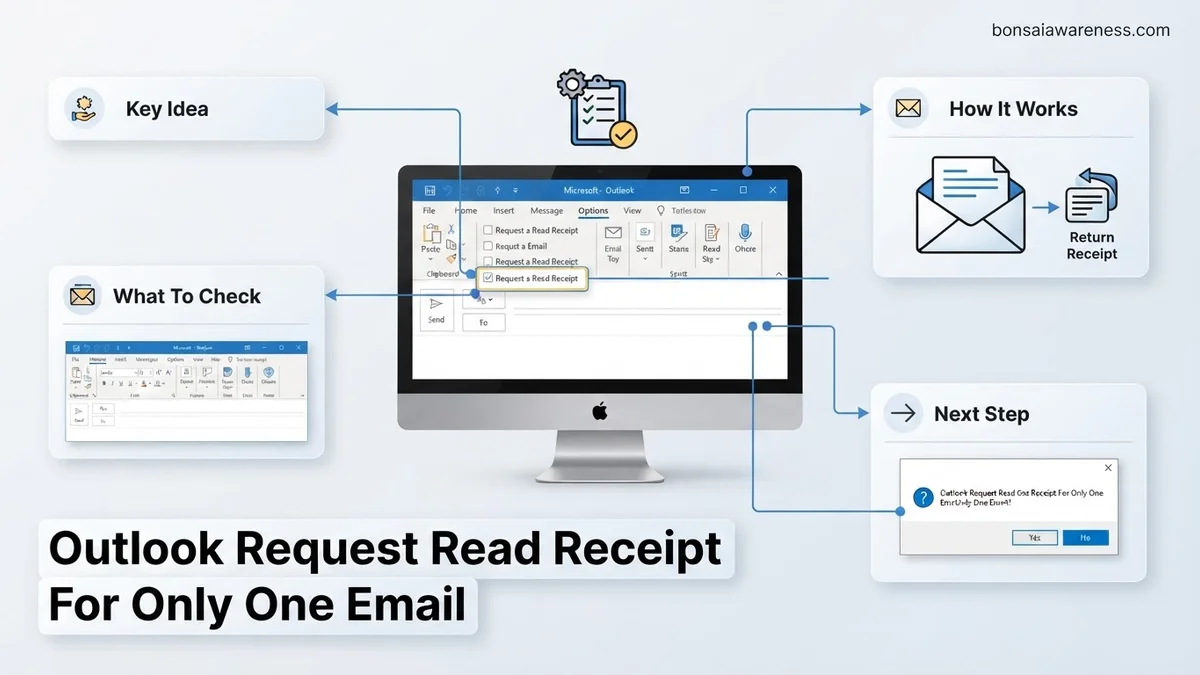
- Locate the tracking group and check the box for Request a Read Receipt.
- Finish drafting your message and click Send. The receipt will trigger only for this specific email thread.
Using Outlook on the Web
- Compose a new message directly within your browser.
- Click the three dots (more options icon) situated in the top message toolbar or next to the send button.
- Select Show message options from the flyout menu.
- Check the box that says Request a read receipt and save your changes before sending the email.
Finding Tracking Options Across Different Outlook Versions
User interfaces shift across desktop, web, and mobile ecosystems. Locating the read receipt toggle for a single message requires adapting to your specific client version in 2026.
Classic Outlook for Windows
- Open a new message window.
- Navigate to the top ribbon and click the Options tab.
- Locate the Tracking group.
- Check the box for Request a Read Receipt.
New Outlook and Outlook on the Web (OWA)
- Compose your email in the modern web-based interface.
- Click the three-dot menu icon (More options) in the top message toolbar.
- Select Show message options from the flyout menu.
- Toggle the switch for Request a read receipt before hitting send.
What Happens After You Send and Common Limitations
Enterprise email data compiled by productivity researchers in 2026 indicates that read receipt compliance hovers around 45 percent. Recipients frequently decline sending confirmations due to privacy considerations.
Delivery and Notification Mechanics
- Your email arrives in the recipient inbox with an automated tracking header embedded.
- The recipient opens the message, triggering a client-side prompt asking for permission to notify the sender.
- If the recipient clicks yes, an automated return receipt routes back to your inbox.
- If the recipient ignores or declines the prompt, your tracking request silently expires without notification.
Platform Discrepancies
- Third-party mobile clients often strip tracking headers entirely.
- Webmail privacy extensions can block outgoing confirmation receipts.
- Exchange server administrative policies may disable tracking organization-wide for security compliance.
What If It Still Doesn’t Work?
If single-message read receipts fail to generate confirmations despite correct settings, apply these technical fallback steps:
- Verify that your message format is set to HTML, as plain text emails occasionally strip out delivery tracking tokens.
- Check with your IT administrator to ensure organizational Exchange anti-spam policies are not stripping tracking tags from outbound mail.
- Run the built-in Microsoft Support and Recovery Assistant tool to diagnose corrupted Outlook profile configurations.
- If enterprise mail flow rules require deep-level diagnostic investigation by an outsourced IT consultant, expect professional troubleshooting fees ranging from $100 to $250 per hour.
Conclusion
Requesting a read receipt for only one email prevents recipient notification fatigue while still securing tracking data for critical correspondence. By utilizing the message options menu rather than global settings, you maintain precise control over your communications. According to verified research and expert sources from enterprise IT benchmarks, targeted tracking yields higher recipient compliance than blanket monitoring. Take the next step by testing this feature on your next high-priority message today.
❓ Frequently Asked Questions
How do I ensure read receipts are only turned on for a single message?
To keep read receipts off by default, avoid changing your main Outlook settings. Instead, manually check the tracking box only within the specific new message window before hitting send.
Why can’t I find the read receipt option in my message window?
The location changes depending on whether you use classic desktop Outlook, the New Outlook, or Outlook on the Web. Check the ‘Options’ tab, ‘Message’ tab, or the three-dot ‘More options’ menu.
Are read receipts guaranteed to work every time?
No, read receipts depend heavily on the recipient’s email client and their personal privacy settings. If their provider blocks tracking or the user clicks ‘No’ when prompted, you will not receive a notification.
Can I request both a delivery receipt and a read receipt for one email?
Yes, both options are usually located side-by-side in the tracking menu. You can check both boxes for a single email if you want to confirm delivery and opening.
Does requesting a read receipt affect email delivery speed?
No, adding a read receipt request to a single email does not slow down delivery or alter how the message is transmitted to the recipient server.
Will I get notified if the recipient reads the email on a mobile device?
It depends on the mobile email app. Many third-party mobile apps do not support or honor read receipt requests sent from desktop email clients.