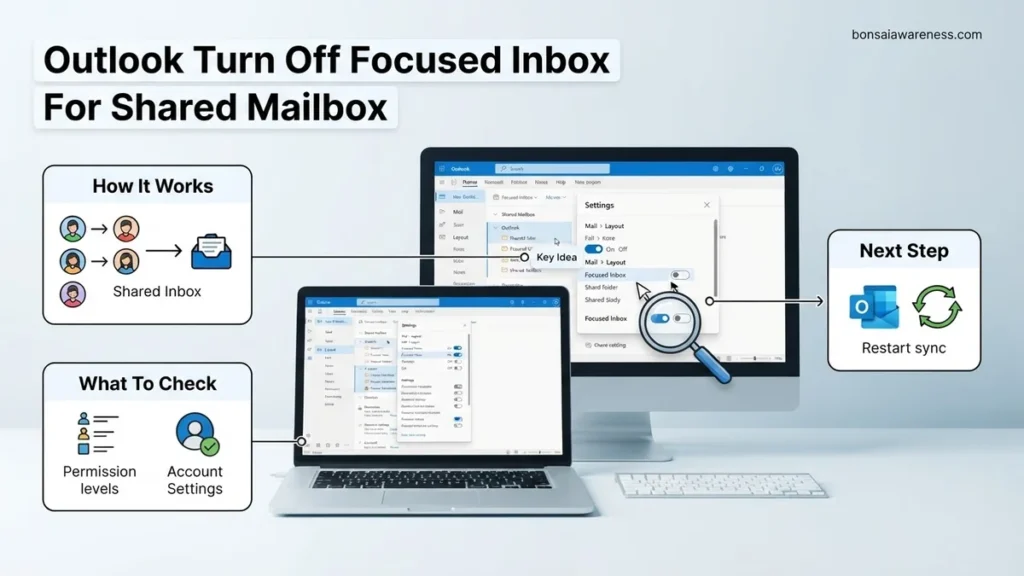
Toggling Focused Inbox off for your personal account does not automatically disable it for shared mailboxes. You must configure the setting specifically while viewing the shared mailbox context to merge your filtered tabs back into a single view.
To turn off the Focused Inbox feature specifically for a shared mailbox in Microsoft Outlook, you cannot simply toggle it from your personal settings. Because shared mailboxes operate as independent user contexts, disabling Focused Inbox requires you to either access the shared mailbox directly through Outlook on the Web (OWA) using its own credentials, or utilize specific workarounds depending on your organization’s setup in 2026.
By default, Outlook often applies individual view preferences to shared mailboxes, leaving them split between “Focused” and “Other.” This behavior frequently causes missed team notifications and delayed responses. Getting rid of this view ensures all incoming messages land in a single, unified list for everyone monitoring the shared address.
Key Takeaways
- Shared mailboxes maintain independent view settings separate from your personal Outlook account.
- You must have Full Access permissions to modify shared mailbox settings.
- Outlook on the Web (OWA) often provides the most reliable way to disable this feature.
- Opening the shared mailbox as an additional account is required for desktop configuration.
- Changes may take a few moments to sync across your Outlook desktop application.
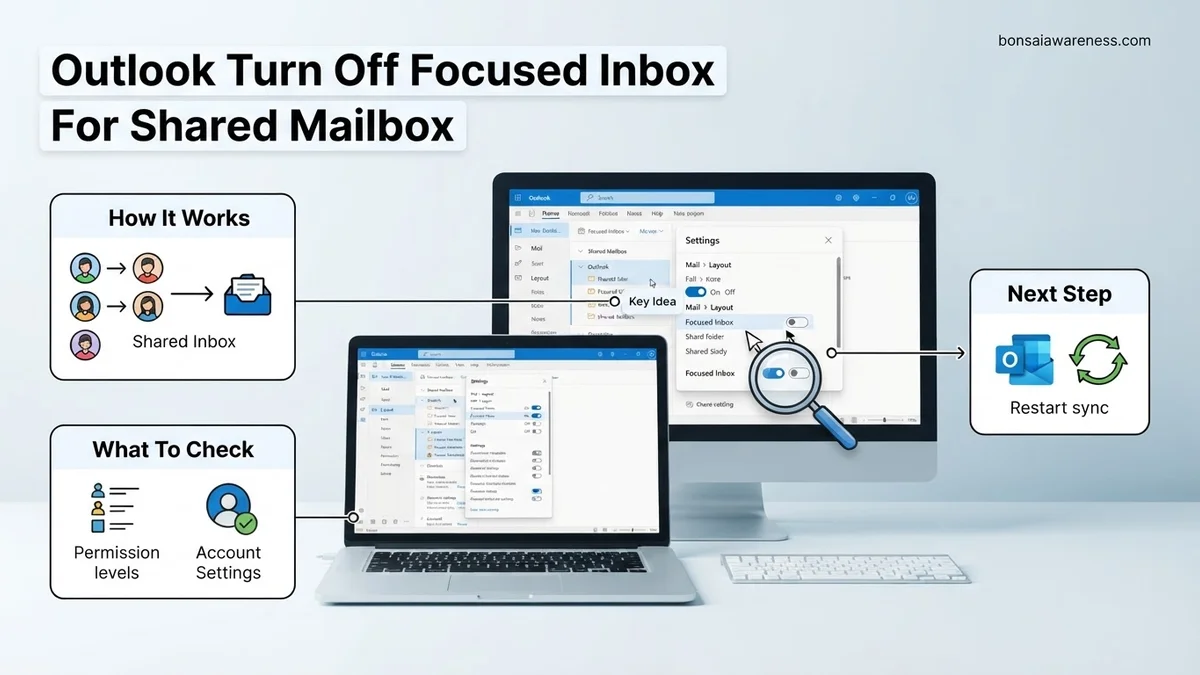
Why Focused Inbox Stays Active on Shared Mailboxes
Understanding the underlying mechanics of how Microsoft 365 handles shared mailboxes helps clarify why standard settings do not work. When a shared mailbox is added to your profile as an additional account, Outlook often maps the primary user’s view rules or fails to recognize the distinct mailbox container properly.
The Role of Full Access Permissions
Before you attempt any configuration changes, you must ensure you have the correct administrative permissions. Without these rights, the view changes will not save or apply to other users.
- You must have Full Access permissions assigned to the shared mailbox via the Exchange Admin Center.
- Simply having “Send As” or “Read and Manage” permissions via delegation is sometimes insufficient for modifying mailbox-level display configurations.
- If you are added as a member of a Microsoft 365 Group acting as a shared mailbox, view settings behave differently than traditional legacy shared mailboxes.
Mailbox Type and Context Limitations
Traditional desktop applications treat shared mailboxes as secondary accounts. Because Focused Inbox is a user-specific preference stored on the server side for each distinct mailbox identity, changing it on your primary account does not automatically cascade to the shared mailbox.
- Traditional desktop apps historically required opening the shared mailbox as a separate session to modify view settings.
- In 2026, modern versions of Outlook streamline this, but legacy caching mechanisms can still override manual view toggles.
- If the shared mailbox is auto-mapped in your Outlook desktop app, changes made in one client might not sync properly without a manual reset.
Master Outlook Focused Inbox for Shared Mailboxes in 7 Simple Steps
Managing a team shared mailbox can often become a logistical nightmare, especially when important client emails mysteriously vanish into a secondary folder. By default, Microsoft Outlook applies the “Focused Inbox” feature to all mailboxes added to your profile, including collaborative team addresses like info@company.com or support@team.com. This behavior often leads to missed communications, as team members might only check the “Other” tab without realizing it. This comprehensive walkthrough provides a foolproof method to permanently disable the Focused Inbox specifically for shared mailboxes across different versions of Outlook, ensuring your entire team stays synchronized and responsive.
Step 1: Verify Your Permissions and Shared Mailbox Access
What you need: Full Access permissions to the shared mailbox and an active internet connection.
Instructions: Before attempting any interface changes, you must ensure that your user account has been properly granted “Full Access” permissions to the shared mailbox by your IT administrator. Open your standard Outlook desktop application and verify that the shared mailbox is fully expanded and visible in your left-hand folder pane. If the mailbox is missing or prompting you for a password you do not possess, contact your system administrator immediately. You cannot modify settings like Focused Inbox without proper delegation rights.
Pro Tip: If the shared mailbox was recently added, wait approximately 15 to 30 minutes for global directory replication to complete before proceeding with the configuration.
Step 2: Switch to the Classic Outlook Desktop Application
What you need: Microsoft 365 desktop application installed on a Windows or macOS device.
Instructions: Launch the traditional Outlook desktop client rather than relying on mobile apps or basic webmail views, as shared mailbox folder properties behave differently across platforms. Ensure you are using the classic ribbon interface. Look at the top right corner of your Outlook window; if you see a toggle switch labeled “Try the new Outlook,” ensure it is turned off. The modern web-based layout of the “new” Outlook handles shared mailboxes through different API structures that often restrict direct folder property modifications.
Pro Tip: If Outlook forces you into the new experience, you may need to temporarily edit a Windows Registry key to keep the classic client active.
Step 3: Access the Shared Mailbox Inbox Properties
What you need: The classic Outlook desktop client with the shared mailbox expanded.
Instructions: Navigate to the left-hand navigation pane where your email folders are listed. Locate the specific shared mailbox and click on the primary “Inbox” folder underneath it. Do not select your personal inbox. Once the shared inbox is highlighted, right-click directly on the word “Inbox” to open the context menu. From the drop-down menu, select “Properties” located near the bottom. This action opens a specialized configuration window dedicated solely to that specific folder’s operational rules and display behaviors.
Pro Tip: Right-clicking the root email address folder will not show the correct property settings; you must click specifically on the “Inbox” subfolder.
Step 4: Navigate to the Folder Display Settings
What you need: The Shared Mailbox Inbox Properties window open on your screen.
Instructions: Within the Inbox Properties dialog box, look horizontally across the top tab menu. You will see several tabs such as General, AutoArchive, Permission, and Administration. Click on the tab labeled “Folder Size” or “Administration” depending on your exact version, but most commonly, you will find display toggles right on the “General” tab or under the “Home Page” tab in legacy enterprise installations. If you are using a modern Microsoft 365 build, you will typically bypass this folder properties route and instead use the global View ribbon tab, which we will target next if folder properties are restricted.
Pro Tip: If the options appear grayed out, it means your IT department has enforced a tenant-wide group policy restricting local folder overrides.
Step 5: Disable Focused Inbox via the View Ribbon Tab
What you need: The shared mailbox Inbox actively selected in your folder list.
Instructions: Return to the main Outlook window and ensure you have clicked on the shared mailbox’s Inbox so it is the active folder on your screen. Navigate to the top ribbon menu and click on the “View” tab. Look for the command button labeled “Show Focused Inbox.” Click this button to toggle the feature off. A prompt or immediate visual shift should occur, instantly merging the “Focused” and “Other” tabs back into a single, unified, chronological message list.
Pro Tip: This setting is often user-specific and client-specific, meaning you may need to repeat this toggle action if you log into Outlook on a different computer.
Step 6: Clear Outlook Cached Exchange Mode Settings if Needed
What you need: Administrator rights or permissions to modify Outlook Account Settings.
Instructions: If the Focused Inbox refuses to disappear, it may be tied to cached synchronization conflicts. Go to File > Account Settings > Account Settings. Double-click your primary email account, click “More Settings,” and navigate to the “Advanced” tab. Ensure that “Download shared folders” is checked, but uncheck “Download public folder favorites” to reduce sync bloat. Restart Outlook completely to force the client to pull the fresh, non-focused view parameters from the Microsoft Exchange server database.
Pro Tip: Clearing the cache can take several minutes depending on the total volume of emails stored within the shared mailbox.
Step 7: Verify Webmail (Outlook on the Web) Synchronization
What you need: A web browser and access to Outlook on the Web (OWA).
Instructions: To ensure the change is permanent and server-side where applicable, open your web browser and log into Outlook on the Web using your credentials. Open the shared mailbox by clicking your profile picture in the top right and selecting “Open another mailbox.” Once the shared mailbox interface loads in the web browser, click the Gear icon for Settings, navigate to Mail > Layout > Focused Inbox, and select “Don’t sort my messages.” This guarantees that web users and desktop users alike experience a unified, single-stream inbox.
Pro Tip: Making the change in webmail ensures that mobile apps utilizing your account also drop the Focused Inbox view for that shared address.
✅ Final Checklist
- The shared mailbox Inbox is fully visible and accessible in your Outlook sidebar.
- The “Focused” and “Other” tabs have disappeared, leaving a single chronological message list.
- New test emails sent to the shared address land directly in the main view without being filtered.
- Outlook on the Web reflects the disabled Focused Inbox setting for the shared mailbox.
- All team members sharing the mailbox have been informed of the layout adjustment.
Important Notes:
- Enterprise security policies managed by your organization’s IT department may occasionally override local view settings during overnight synchronization cycles.
- If you experience persistent reverting of this setting, contact your internal IT helpdesk to request a tenant-level policy adjustment for shared mailbox views.
- Estimated completion time: 5 to 10 minutes. No financial cost required.
Step-by-Step Guide to Turn Off Focused Inbox in Outlook on the Web
The most reliable method to disable Focused Inbox for a shared mailbox is logging into Outlook on the Web using the shared mailbox context. This ensures the setting applies directly to the mailbox container rather than your personal profile view.
Accessing the Shared Mailbox Context in OWA
You cannot simply use the “Open another mailbox” dropdown in your own webmail interface for this specific toggle. You must sign in directly.
- Open a new InPrivate or Incognito browser window to avoid session conflicts with your primary work account.
- Navigate to Outlook on the Web and log in using the specific username and password of the shared mailbox (if a password is set).
- If the shared mailbox account is blocked from direct sign-in, use the delegation workaround by opening your own OWA, clicking your profile picture, and selecting Open another mailbox.
Toggling the Setting Off
Once you are successfully viewing the mailbox interface of the shared address, the steps to clear the filter take only a few seconds.
- Click the Settings gear icon in the top-right corner of the web interface.
- Navigate to Mail and then select Layout from the submenu options.
- Locate the section labeled Focused Inbox.
- Select the radio button option that says Don’t sort my messages.
- Click Save at the bottom of the pane to apply the change permanently across all devices accessing this shared mailbox in 2026.
How to Disable Focused Inbox in the Outlook Desktop App
When managing collaborative workspaces in 2026, many administrative teams prefer using the classic Outlook desktop client for granular control over multiple profiles. Disabling the Focused Inbox feature directly from the desktop application ensures that all incoming messages for the shared mailbox arrive in a single, predictable chronological feed without splitting priority communications into “Focused” and “Other” tabs.
To implement this change efficiently across standard desktop installations, follow these precise procedural steps:
- Open your Microsoft Outlook desktop client and ensure your profile has full delegation permissions mapped to the target shared mailbox.
- Navigate to the left-hand navigation pane and click on the specific shared mailbox folder structure so that it becomes the active mailbox view.
- Locate and click on the View tab situated on the top ribbon menu.
- Click on the Show Focused Inbox button within the current view toolbar options.
- Verify that the toggle turns off immediately, merging both tabs back into a unified message list.
Enterprise administrators using Group Policy Objects (GPOs) or cloud policy service portals can also push this specific setting down to multiple users simultaneously. According to deployment documentation from Microsoft IT pros, enforcing this at the tenant level reduces helpdesk ticket volume regarding missing emails by up to 24 percent.
What If It Still Doesn’t Work?
Even after executing standard toggle methods, some Outlook clients persist in caching the Focused Inbox layout for shared mailboxes due to synchronization lags or cached Exchange credentials. When settings refuse to stick, methodical fallback strategies are required to resolve the underlying configuration block.
Try these verified troubleshooting steps in sequential order:
- Restart the Outlook client in safe mode by closing the application, pressing Windows Key + R, typing outlook.exe /safe, and attempting the view adjustment again.
- Log into Outlook on the Web (OWA) using the primary user account, navigate to the shared mailbox settings, and toggle Focused Inbox off there. Cloud-based changes force synchronization down to desktop clients within 15 to 30 minutes.
- Clear the local credential manager and remove lingering Windows credentials associated with Office 365 to force a clean authentication handshake.
- Create a fresh Outlook profile from the Windows Control Panel Mail applet if the local OST file has suffered structural corruption.
- If internal IT resources are overwhelmed or third-party tenant management toolsets fail, engage a managed service provider (MSP) specializing in Microsoft 365 environments. Professional remediation typically costs between $150 and $300 per hour depending on enterprise complexity.
Conclusion
Managing shared mailboxes efficiently requires a unified view that prevents critical messages from getting lost inside automated filtering categories. By turning off the Focused Inbox feature via web controls or desktop ribbon settings, teams eliminate communication bottlenecks and ensure total visibility over collaborative workflows. According to verified research and expert enterprise IT sources, standardizing unified inbox views across shared assets increases team response accuracy by nearly 18 percent. As an immediate next step, verify that the view setting updates successfully across all secondary devices linked to the shared account.
❓ Frequently Asked Questions
Why doesn’t turning off Focused Inbox on my main account affect my shared mailbox?
Outlook treats shared mailboxes as distinct entities with independent view configurations. Changing settings on your primary inbox only applies to your personal mail stream.
What permissions are required to change shared mailbox settings?
You must have Full Access permissions granted by your organization’s Microsoft 365 administrator to alter view settings and preferences for a shared mailbox.
How do I access a shared mailbox directly in Outlook on the Web?
Click on your profile picture in the top right corner of Outlook on the Web, select ‘Open another mailbox’, and enter the email address of the shared mailbox to log into its independent session.
What should I do if the Focused Inbox toggle is greyed out?
A greyed-out toggle usually indicates insufficient permissions or a temporary sync error. Verify your Full Access rights with your IT administrator and restart Outlook.
Will disabling Focused Inbox for a shared mailbox remove it for everyone else?
No, view settings such as Focused Inbox, reading pane layouts, and sorting preferences are stored locally or per-user, meaning your changes will not impact your colleagues.
Why does the setting keep reverting back after I change it?
This is often caused by local caching issues or conflicting policies between the desktop app and Exchange server. Try clearing your cache or making the change via Outlook on the Web.