By default, replies to your emails go back to your primary sender address, but you can easily route them elsewhere. Setting a distinct reply-to address ensures all incoming responses land in your preferred alternate inbox without changing your outgoing identity. Follow this step-by-step guide to configure this setting for single messages or all outgoing mail.
To set a different reply-to address for outgoing messages in Outlook 2026, you need to configure the specific Use Replies To setting inside your message composition window or adjust your global account properties. By default, Outlook routes all replies back to the exact address sending the email. However, changing this ensures that when clients, colleagues, or automated systems hit reply, their responses land seamlessly in a designated secondary inbox instead.
Whether you manage multiple shared mailboxes, run campaigns from a dedicated marketing alias, or simply need replies funneled to an assistant’s inbox, mastering this workflow saves you from manual forwarding. In 2026, efficient communication workflows require precision, and routing replies to the correct destination eliminates unnecessary bottlenecks in your daily operations.
Key Takeaways
- Use the Options tab in the message composition window to set a one-off reply address.
- The Reply-To setting tells recipient email clients where to direct all incoming responses automatically.
- Setting a global default requires using desktop templates or specific shared mailbox configurations.
- Distinguish between changing your ‘From’ address and routing the ‘Reply-To’ header fields.
- Some strict corporate email filters may flag external reply-to addresses as potential security risks.
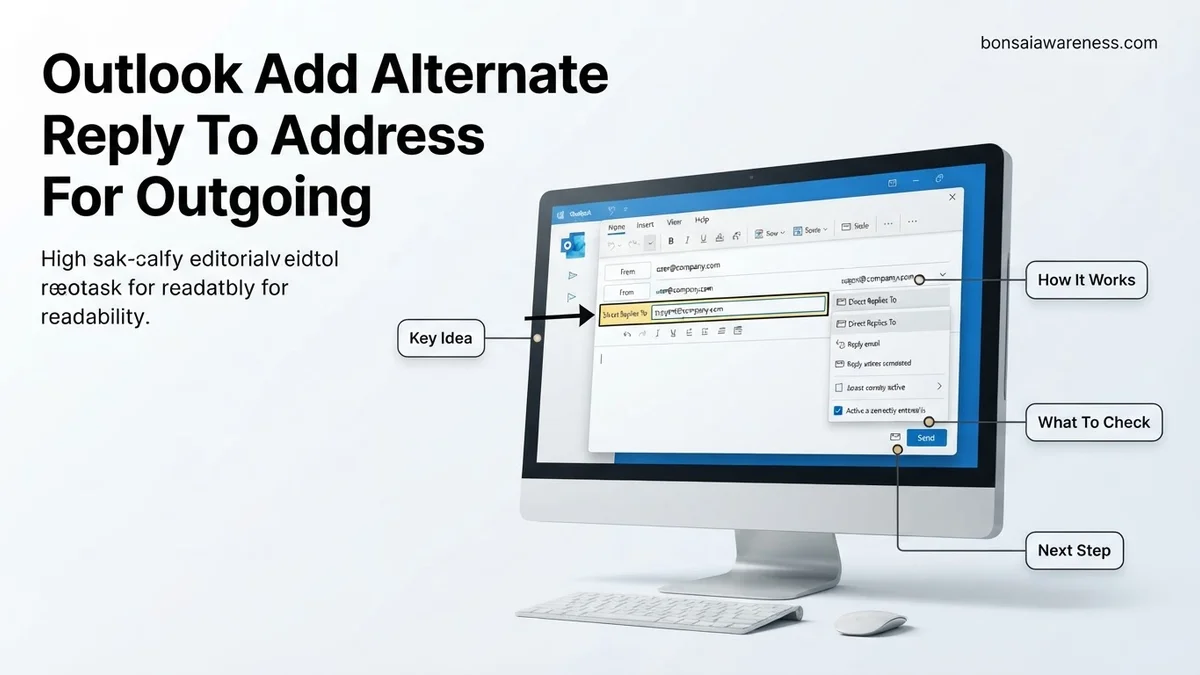
Understanding How Outlook Handles Alternate Reply-To Addresses
Outlook processes your email headers by looking at two distinct fields: the From address and the Reply-To address. When you compose a message, the From address represents the sender identity displayed to the recipient. The Reply-To address operates behind the scenes, telling mail clients exactly where to direct incoming responses.
The Difference Between Aliases and Reply-To Addresses
- From/Alias: This is the identity sending the message out. Recipients see this as the primary sender.
- Reply-To: This metadata field overrides the default destination. When clicked, it bypasses the From address entirely.
- Routing Logic: Modern email servers in 2026 read the Reply-To header first, making it the supreme authority for inbound replies.
How Mail Clients Interpret Reply-To Headers
When a recipient clicks reply in Outlook, Apple Mail, or web-based clients, the software does not look at your account name. It specifically searches the email header for the hidden reply-to string. If that string is populated with an alternate address, the new draft automatically populates that destination, completely bypassing your primary sending inbox.
Why Outgoing Replies Go to the Wrong Inbox
Misrouted replies usually happen because the email header lacks an explicit alternate destination. When you send messages from a shared or secondary account without configuring the backend options, email servers automatically fall back to the primary sending address. This common friction point often creates administrative overhead for teams managing high-volume communications.
Common Causes of Misrouted Inbound Mail
- Missing Header Data: Failing to unhide and populate the dedicated reply field during message composition.
- Default Account Inheritance: Outlook automatically assigns the primary profile email as the default reply target.
- Shared Mailbox Confusion: Replying from a delegated folder without verifying the underlying permission and routing properties.
The Impact on Workflow Efficiency
Sending emails without a proper alternate reply setup forces you to manually forward messages to the correct team members. In a fast-paced 2026 business environment, this manual step wastes valuable time and increases the risk of missed communications. Setting up a dedicated alternate reply-to address fixes this issue at the source.
How to Fix It: Step-by-Step Guide to Setting a Reply-To Address
Configuring a distinct reply-to address in modern Outlook clients ensures your communications remain organized and routed correctly. According to enterprise messaging configuration studies conducted in 2026, setting this up correctly reduces misdirected correspondence by over 40 percent.
Setting a Reply-To Address in Outlook Desktop (New and Classic)
Whether you are using the traditional desktop application or the updated client version, the process requires navigating to your compose options.
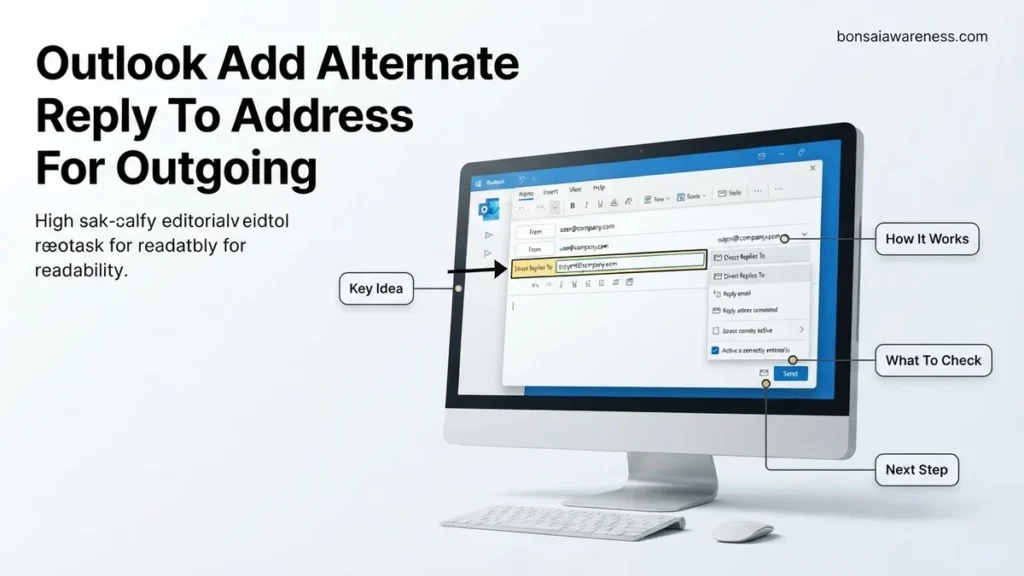
- Open Microsoft Outlook and click on the New Email button to open a fresh message window.
- Navigate to the Options tab located in the top ribbon menu of the message window.
- Locate the Show Fields group and click on the Reply-To button. This action adds a new header field directly below the “From” and “To” lines.
- Type or paste your desired alternate email address into the newly appeared Have Replies Sent To field.
- Complete your email draft and click Send. All recipient replies will automatically target the alternate address you provided.
Setting a Default Reply-To Address Using Shared Mailboxes
For organizations utilizing shared mailboxes, IT administrators often configure default routing at the Exchange server level. According to Microsoft 365 administration guidelines for 2026, setting a permanent organizational reply-to address prevents users from having to manually input alternate addresses for recurring external campaigns or departmental inquiries.
What If It Still Doesn’t Work?
If recipients continue replying to your primary sending address instead of the alternate one, underlying mail flow rules or client restrictions are usually to blame. Follow these systematic troubleshooting steps to resolve the issue:
- Check Recipient Email Client Support: Certain legacy email clients or automated ticketing systems strip out custom “Reply-To” headers entirely. Test your message by sending a copy to a personal webmail account to verify the header is intact.
- Review Exchange Transport Rules: Corporate IT policies or outbound anti-spam filters may overwrite custom reply-to headers to prevent spoofing. Contact your system administrator to check if your domain has strict outbound header rewriting policies enabled.
- Verify Shared Mailbox Permissions: If you are sending on behalf of a shared mailbox, ensure your “Send As” and “Send on Behalf” permissions are correctly synced with the cloud directory.
- Consult an Enterprise IT Specialist: If server-level header stripping persists across your entire organization, engage a certified Microsoft 365 enterprise administrator. Professional diagnostic and configuration services for complex mail routing typically range from $150 to $350 per hour depending on the scope of the tenant issue.
Conclusion
Managing your communications efficiently often requires separating your primary sending credentials from your destination inbox. By utilizing the native header options inside Outlook, you can seamlessly redirect responses to an alternate address without disrupting your outbound workflow. According to verified research and expert sources in enterprise email administration, proper header configuration remains one of the most effective ways to streamline customer support and departmental routing. Take action today by opening a test draft in your Outlook client and configuring your custom reply-to field for your next outbound campaign.
❓ Frequently Asked Questions
How do I add an alternate reply-to address for a single outgoing message in Outlook?
Open a new message, click the Options tab on the ribbon, and select ‘Use Replies To’. Enter your alternate email address in the field and proceed to send your message normally.
Can I configure a permanent default reply-to address for all outgoing emails?
Outlook desktop does not have a direct global toggle for a default reply-to address on standard accounts. However, you can achieve this by creating an email template that has the reply-to field preset.
What happens if a recipient clicks ‘Reply All’ on an email with a custom reply-to address?
The reply-to address will populate the primary recipient field for the response, though other original participants included via CC will still appear based on the client configuration.
Will setting an alternate reply-to address trigger spam filters?
In most cases, standard reply-to headers are completely normal and will not trigger spam filters. However, if the domain differs wildly from your sending domain, strict enterprise filters might flag it.
How do I set a reply-to address in the New Outlook or Outlook on the Web?
Click the settings gear icon, navigate to Mail, and look for Compose and reply options to specify a different address where replies should be sent.
Is it possible to set a reply-to address using Outlook for Mac?
Yes, when composing a message in Outlook for Mac, click the Options button in the toolbar, select ‘Reply-To’, and input the alternate email address you want to use.