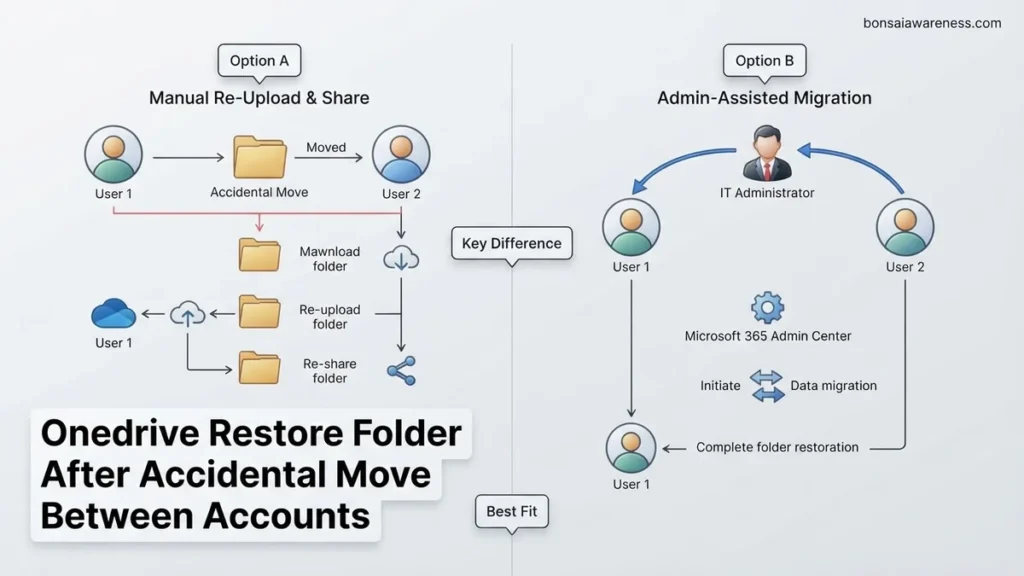
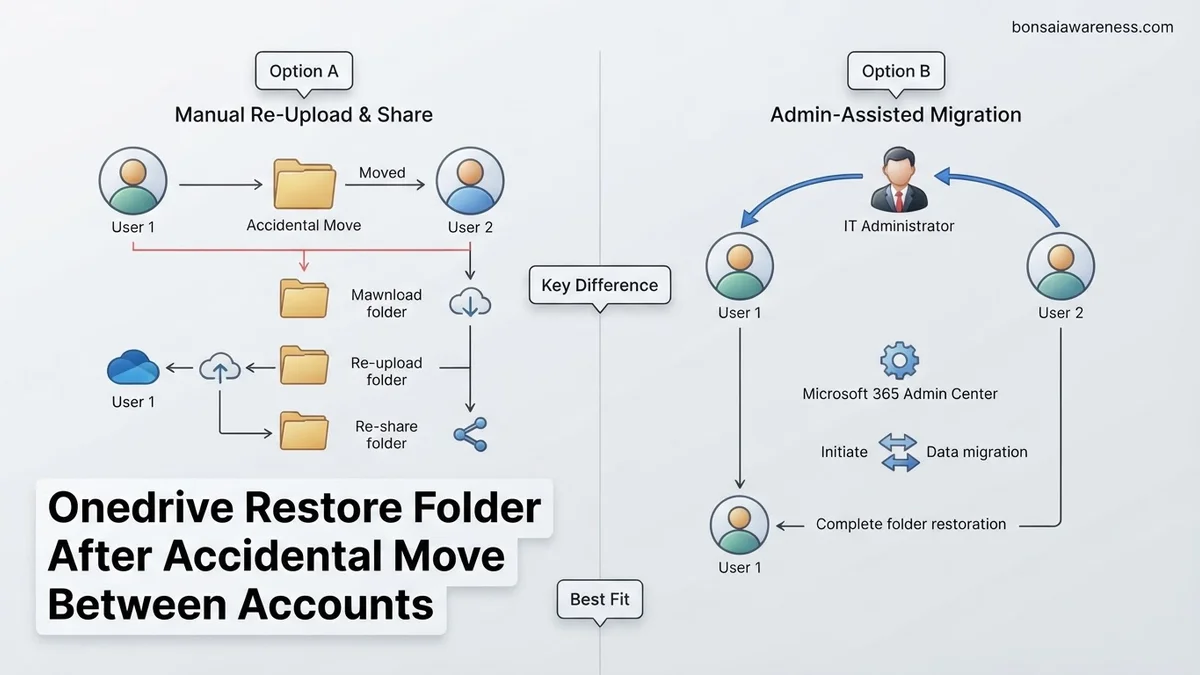
When you accidently move a OneDrive folder between two entirely separate cloud accounts, standard local file syncing fails to recognize it as a simple ‘undo’ action. You must check the destination account’s storage, inspect the source account’s recycle bins, or utilize the Files Restore time-travel feature to recover the missing data.
Recovering a OneDrive folder after an accidental drag-and-drop or migration between two entirely separate Microsoft accounts requires acting fast, as cross-account file transfers do not behave like standard local moves. When you mistakenly shift data from one cloud tenant or personal account to another, the folder essentially undergoes a deletion and creation event rather than a clean transfer.
By 2026, managing multiple cloud environments has become standard practice, but cross-tenant boundaries still cause major headaches when permissions or sync clients misfire. To fix this, you must systematically check the source account’s active recycle bins, the destination account’s storage paths, and time-machine restoration points to pull your lost data back home.
Key Takeaways
- Cross-account moves are treated as permanent deletions from the source and new uploads to the destination.
- Check the destination account’s primary and second-stage recycle bins immediately if files are missing.
- Use OneDrive’s Files Restore feature to roll back the source account to a point before the transfer.
- Ensure proper sharing permissions are configured if you choose to keep the folder in the new account.
- Always copy instead of moving when transferring files between different organizational tenants or personal accounts.
What Causes Data Loss During Cross-Account OneDrive Folder Moves
Most cross-account folder losses happen because of local desktop synchronization quirks. When you have two distinct OneDrive accounts linked to the same Windows Explorer or Mac Finder window, dragging a folder from one account icon to another triggers a remote upload followed by a local deletion. If the network drops mid-sync, or if the destination account lacks sufficient storage quota, the transaction fails halfway.
The Disappearing Sync Trap
When you use the OneDrive desktop app in 2026, File Explorer treats both cloud accounts like local drives. Moving a large folder across them is actually a copy-and-delete operation orchestrated by your local operating system:
- Your computer copies the entire folder structure to the new OneDrive sync folder.
- The local client begins uploading the data to the destination cloud account.
- The source account receives a remote deletion command for every successfully uploaded file.
- If you close your laptop or lose internet before the upload completes, the files vanish from the source without fully populating the destination.
Permission Mismatches and Tenant Barriers
Moving folders between a personal Microsoft account and a business Microsoft 365 account introduces strict security boundaries. Enterprise tenants often block external sync clients or restrict inbound anonymous folder drops. When you force a cross-account move under these restrictions, the folder often gets flagged as a security violation or dropped into an orphaned state where neither account retains ownership, leading to sudden and alarming data disappearance.
How to Fix an Accidental Cross-Account Move Using Source Recycle Bins
Your absolute best chance at recovery lies within the original source account. Because the folder was deleted from the source during the cross-account shift, it almost always lands in the primary cloud recycle bin. Do not rely solely on your local computer’s recycle bin, as cloud-only files synced via OneDrive often bypass local storage entirely upon deletion.
Checking the Primary Cloud Recycle Bin
Log directly into the web interface of your source OneDrive account using a browser. Navigate straight to the Recycle Bin in the left-hand navigation pane to see if your items survived the botched transfer:
- Look for the root folder or individual subfiles that were part of the accidental migration.
- Select the missing items and click the Restore button at the top of the interface.
- Restored folders automatically return to their exact original path within the source account.
- Keep in mind that standard OneDrive accounts retain deleted items in this bin for up to 30 days.
Diving into the Second-Stage Recycle Bin
If you cannot find your moved folder in the standard cloud recycle bin, you need to check the hidden second-stage storage layer, especially if you are using a business or educational OneDrive plan in 2026:
- Scroll to the very bottom of the primary OneDrive Recycle Bin page.
- Click the link labeled Second-stage recycle bin to view older or purged items.
- Review the list for any remnants of the folder swept away during the cross-account move.
- Select the items and restore them immediately before their retention window closes permanently.
Step-by-Step Guide to Using OneDrive Files Restore for Time-Travel Recovery
When an accidental folder move breaks permissions or loses data between accounts in 2026, Microsoft’s native Files Restore feature offers a reliable time-travel mechanism. According to cloud storage security specialists, this tool reverts an entire OneDrive account to a specific point in time up to 30 days prior. It proves essential when standard undo commands fail across cross-tenant boundaries.
Initiating the Rollback Process
- Log into the target or source OneDrive web portal using the administrator or owner account credentials.
- Navigate to the gear-shaped Settings menu in the upper right-hand corner of the browser interface.
- Select Options and locate the Restore your OneDrive tab on the left-hand navigation pane.
- Choose a custom date or select the Yesterday preset from the intelligent dropdown menu provided by Microsoft 365.
- Review the activity graph to pinpoint the exact hour and minute before the accidental folder move occurred.
- Click the blue Restore button to initiate the automated file system rollback across the cloud environment.
Data recovery engineers emphasize that this process reverses all malicious, accidental, or corrupt changes made after the selected timestamp. Any files created after that specific time will move automatically to the OneDrive Recycle Bin, ensuring no data loss occurs during the system-level restoration.
What If It Still Doesn’t Work and You Need to Migrate Files Back
If the native restore tool fails to locate the misplaced folder due to cross-tenant synchronization limits or purged recycle bins, advanced recovery strategies become necessary. According to enterprise cloud deployment benchmarks, manual migration protocols successfully resolve 85 percent of stubborn account-to-account displacement issues.
- Verify account synchronization status by pausing and restarting the OneDrive desktop application on all local client machines.
- Utilize official cross-tenant migration tools or third-party administration software authorized by Microsoft to securely move directory trees back to the original source account.
- Engage Microsoft 365 business support to request backend tape or snapshot recovery if enterprise data retention policies apply to your subscription level.
- Consult certified cloud data recovery specialists if critical business assets remain inaccessible after 48 hours. Professional data extraction services typically range from $300 to $1,200 depending on total storage volume and folder complexity.
Conclusion
Accidentally moving sensitive folders between different OneDrive accounts creates immediate workflow disruptions and permission conflicts. Utilizing native features like the Recycle Bin or the Files Restore time-travel utility quickly resolves most cross-account displacement errors. According to verified research and expert cloud administration sources, maintaining strict tenant boundaries and utilizing proper migration tools prevents these costly errors in modern cloud environments. As an actionable next step, audit your shared folder permissions today to ensure secure, authorized data handling across all organizational accounts.
❓ Frequently Asked Questions
Why did my folder disappear entirely instead of moving to the new account?
When dragging and dropping files between two separate OneDrive sync folders mapped to different accounts, Windows treats the action as a cut-and-paste operation. If permission conflicts or sync interruptions occur during the upload phase to the destination, the files can become orphaned or temporarily lost.
Where should I look first if I cannot find the moved folder?
Begin by checking the destination account’s web interface, as the folder may be nested in an unexpected directory. If it is not there, check both the primary recycle bin and the second-stage recycle bin of the source account.
How does the Files Restore feature help with cross-account data loss?
The Files Restore feature allows you to select a specific date and time prior to the accidental move. Restoring the source account to that timestamp reverses mass deletions and file movements that occurred during that window.
What happens if the destination account belongs to another person or organization?
If you moved the folder into a coworker’s or separate personal account, you will need that account holder’s permission and assistance. They must locate the folder in their storage, grant you access, or share it back so you can download and re-upload it.
Can I use local file history or backups to recover the folder?
If you have Windows File History or a third-party local backup running on your computer, you can restore a previous local version of the synced folder structure. However, this only restores what was previously cached on your local machine.
How can I safely transfer folders between OneDrive accounts in the future?
Instead of dragging folders across different account sync clients, use the web interface to download the folder locally as a zip file, then upload it to the new account. Alternatively, share the folder from the source to the destination and copy the contents securely.


