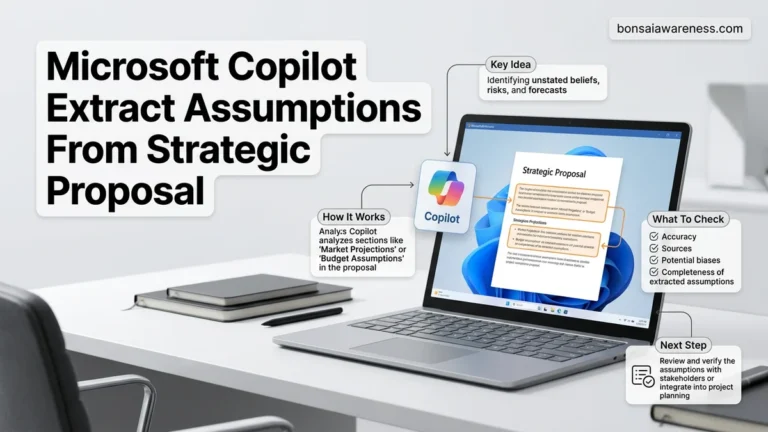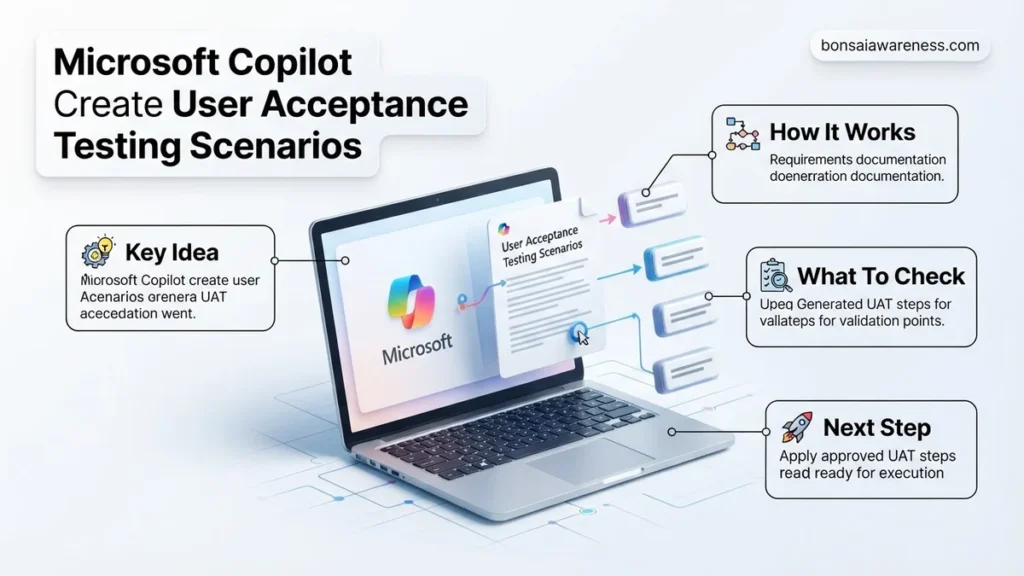
Generating user acceptance testing scenarios manually often leads to coverage gaps and wasted time. Microsoft Copilot streamlines this process by turning user stories into comprehensive test scripts instantly. This guide provides proven prompt strategies and execution steps for 2026 software teams.
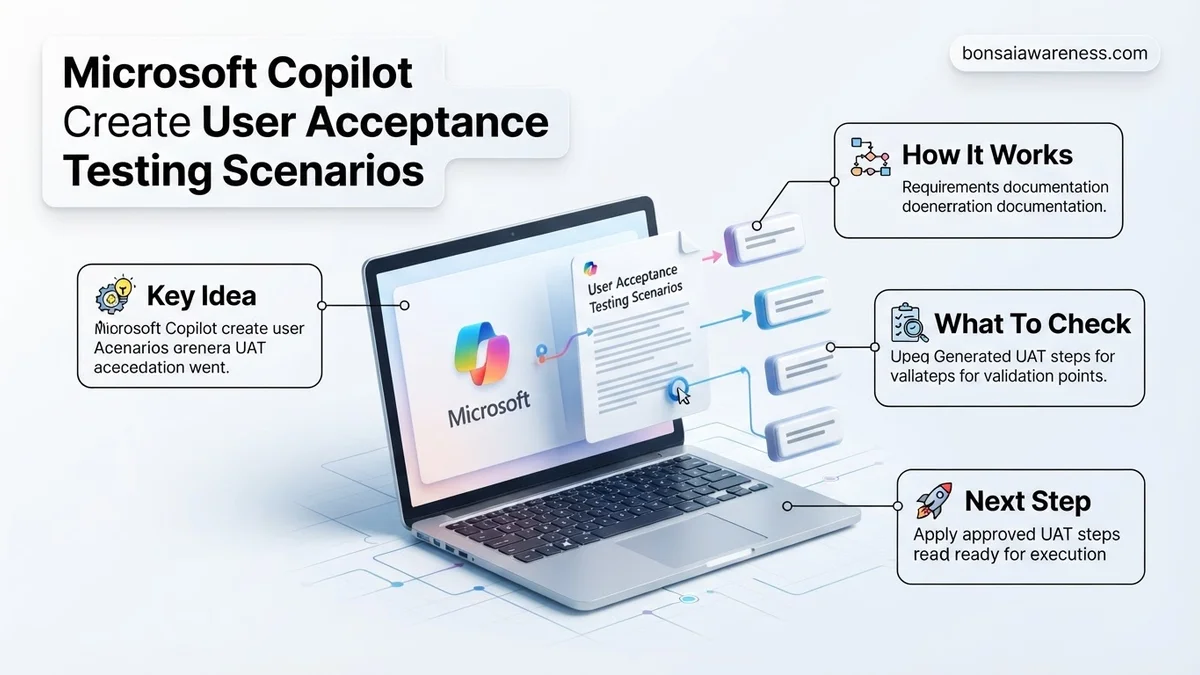
You can use Microsoft Copilot to rapidly generate comprehensive User Acceptance Testing scenarios by feeding it structured user stories, acceptance criteria, and technical constraints using role-based prompt engineering. Instead of manually drafting edge cases and negative paths, you instruct Copilot to act as a senior QA architect to systematically unpack every system dependency.
Getting accurate and production-ready test scripts out of Copilot in 2026 requires moving past vague prompts. When you treat Copilot like a junior assistant that needs precise context, it transforms your software requirements into exhaustive UAT scripts that cover happy paths, negative tests, and boundary conditions in seconds.
Key Takeaways
- Feed Copilot detailed user stories and acceptance criteria for better outputs.
- Request distinct test paths including happy paths, negative tests, and edge cases.
- Structure prompts to output tables containing pre-conditions, steps, and expected results.
- Validate AI-generated test scripts against actual product requirements before execution.
- Export the generated scenarios directly into Excel or Azure DevOps for tracking.
What Causes Incomplete Test Coverage When Using Microsoft Copilot
Vague Requirement Inputs
If you feed Copilot a one-sentence user story like “As a user, I want to reset my password,” your output will be painfully generic. Copilot cannot invent business logic, security protocols, or database timeout rules that you failed to provide. Vague inputs force the AI to make assumptions, resulting in shallow test cases that miss critical enterprise-grade requirements.
Missing Context on Edge Cases and System Constraints
Most testers make the mistake of asking Copilot to write UAT scenarios without specifying technical boundaries. Without explicit instructions regarding session timeouts, API rate limits, or role-based access control, Copilot will default to the primary happy path. You end up with 3 test cases instead of the 15 robust scenarios needed for a complex deployment.
- Ignoring negative test conditions like invalid input formats or concurrent user logins.
- Omitting integration dependencies with third-party payment gateways or legacy databases.
- Failing to define user personas with distinct permission levels.
Master Microsoft Copilot User Acceptance Testing Scenarios in 7 Simple Steps
Welcome to this practical walkthrough on leveraging Microsoft Copilot to generate comprehensive User Acceptance Testing (UAT) scenarios. Writing UAT scenarios manually is often time-consuming, repetitive, and prone to oversight regarding edge cases. By harnessing the AI capabilities of Microsoft Copilot, software testers, product managers, and business analysts can rapidly draft robust, highly relevant testing scripts tailored to specific user stories. Following this guide ensures you prompt Copilot effectively, validate its outputs rigorously, and translate AI-generated text into actionable testing documentation that guarantees software quality and seamless stakeholder sign-off.
Step 1: Define the Scope and Objective
What you need: Access to Microsoft Copilot (Enterprise, Pro, or Edge sidebar), the target user story or product requirements document (PRD), and a designated text editor.
Instructions: Before touching Copilot, clearly outline what feature, module, or user journey you are testing. Determine the primary objective of the UAT session—for instance, verifying a new e-commerce checkout flow or a secure password reset mechanism. Write a concise 2-sentence summary of the feature functionality. Having a tightly defined scope prevents Copilot from generating overly generic or bloated test scenarios that do not align with your specific release goals.
Pro Tip: Avoid feeding massive, unfiltered documents into Copilot. Extract only the relevant functional requirements for the specific user story you want to test today.
Step 2: Prepare the Persona and Context Prompt
What you need: Microsoft Copilot chat interface and your defined scope from Step 1.
Instructions: Open Microsoft Copilot and set the context by assigning a role to the AI. This primes the model to adopt the correct perspective. Type a prompt similar to this example: “Act as an expert QA Lead and Business Analyst. I need you to write detailed User Acceptance Testing (UAT) scenarios for a new user registration feature.” Include specific contextual details such as user roles (e.g., guest user, admin, returning customer) and system constraints. Setting this foundation ensures the generated scenarios reflect real-world user behaviors and technical limitations.
Pro Tip: Use Copilot’s tone settings if available, or explicitly state in your prompt that you want professional, formal, and structured output.
Step 3: Feed Requirements and Acceptance Criteria
What you need: The formal acceptance criteria (such as Given/When/Then format) associated with your user story.
Instructions: Copy and paste your exact acceptance criteria directly into the Copilot chat window following your persona prompt. Instruct Copilot to use these criteria as the absolute baseline for all generated UAT scenarios. For example, add: “Based on the following acceptance criteria [paste criteria here], generate 5 distinct UAT scenarios covering both happy paths and edge cases.” Ensure you include any negative testing requirements, such as handling invalid input formats, network timeouts, or permission denials.
Pro Tip: If your acceptance criteria are long, feed them in chunks to prevent the AI from truncating its response or missing critical validation points.
Step 4: Request Structured Output Formats
What you need: The initial draft of scenarios generated by Copilot and a target format (like a table or standard test case template).
Instructions: Raw narrative text is difficult to use in testing tools like Azure DevOps, Jira, or TestRail. Command Copilot to restructure the output into a standardized template. Tell it: “Format the previous scenarios into a markdown table with the following columns: Test Scenario ID, Scenario Title, Preconditions, Step-by-Step Actions, and Expected Results.” This structural enforcement saves you hours of manual formatting later and ensures consistency across your entire test suite.
Pro Tip: Ask Copilot to include unique identifier prefixes like “UAT-REG-01” so you can easily reference them during testing execution phases.
Step 5: Iterate and Prompt for Edge Cases
What you need: The structured table of scenarios from Step 4.
Instructions: AI-generated scenarios are a fantastic starting point, but they often focus heavily on the happy path. Actively prompt Copilot to stress-test your feature by asking for edge cases. Type follow-up prompts such as: “Now, generate 3 additional negative test scenarios focusing on boundary value analysis, duplicate data entry, and unexpected session timeouts.” Review these additions carefully to ensure they challenge the system in ways standard users might inadvertently—or maliciously—attempt.
Pro Tip: Treat Copilot as a junior assistant; always challenge its initial output by asking, “What did you miss?” to uncover hidden vulnerabilities.
Step 6: Review, Refine, and Validate with Stakeholders
What you need: The finalized Copilot-generated test scenarios and input from product owners or business stakeholders.
Instructions: Export the scenarios into your team’s preferred documentation tool (Excel, Word, or Jira). Conduct a brief peer review or walkthrough with your Product Owner or Business Analyst. Verify that the expected results accurately reflect business logic and compliance standards. Edit any ambiguous wording, unrealistic steps, or outdated terminology. Human oversight is mandatory because AI can occasionally hallucinate features or behaviors that do not exist in your actual codebase.
Step 7: Import and Execute in Your Test Management Tool
What you need: Approved UAT scenarios and administrative access to your test management platform (e.g., Jira/Xray, Azure DevOps, or TestRail).
Instructions: Map the finalized table columns to your test management software’s import template (CSV or Excel format). Upload the test cases into the system and assign them to respective business users or UAT testers. Schedule a kickoff meeting to walk testers through the scenarios, explaining how to log defects and verify expected outcomes. Track execution progress daily to ensure the UAT phase stays on schedule for your target release date.
Pro Tip: Keep the original Copilot chat link saved or export the chat history so you can easily regenerate or update scenarios if requirements change in the next sprint.
✅ Final Checklist
- Scope and user stories were clearly defined before prompting Copilot
- Copilot was explicitly instructed to include both happy paths and negative edge cases
- Output was successfully formatted into a structured, table-based test template
- Scenarios were reviewed and approved by business stakeholders or product owners
- Test cases were successfully imported into the official test management tool
Important Notes:
- Never input proprietary company secrets, unmasked personal identifiable information (PII), or secure API keys into public AI chat interfaces.
- Consult your organization’s internal compliance and AI usage policy before utilizing generative tools for enterprise software validation.
- Estimated time investment: 30 to 45 minutes per user story; cost range: dependent on your existing Microsoft Copilot subscription tier (approx. $30/user/month for enterprise licenses).
How to Fix Prompt Engineering for Microsoft Copilot Create User Acceptance Testing Scenarios
Deploying the Persona and Framework Prompt Structure
To fix your Copilot output, you must structure your prompt using a rigorous framework. Assign Copilot a specific role, provide the exact input documentation, and dictate the required output format. By 2026, standardizing this prompt structure has become the fastest way to eliminate hallucinations and secure repeatable QA artifacts.
Enforcing Multidimensional Test Generation
Your prompts must explicitly demand specific testing categories to ensure comprehensive coverage. Instruct Copilot to break down the user story into distinct testing buckets.
- Happy Path: Standard user workflows under ideal conditions.
- Negative Testing: Invalid data entry, unauthorized access attempts, and system interruptions.
- Boundary Value Analysis: Testing limits such as maximum character lengths, zero values, and expiration timers.
When you explicitly list these categories in your prompt, Copilot maps every single requirement against these parameters, producing a deployment-ready UAT suite.
Step-by-Step Instructions to Format and Export Copilot Test Cases
Transitioning your generated user acceptance testing scenarios from a chat window into a functional project management tool requires structured formatting. In 2026, enterprise QA teams rely on standardized markdown structures to ensure seamless imports into platforms like Azure DevOps or Jira.
Applying a Standard Table Format
To prepare your data for migration, you must prompt the assistant to structure the output cleanly. Without a strict template, fields will misalign during export.
- Open your active Microsoft Copilot session containing the generated UAT scenarios.
- Enter a refinement prompt specifying column headers, such as Test ID, Objective, Preconditions, Execution Steps, and Expected Results.
- Review the generated table to ensure no truncation occurred due to token limits.
- Copy the formatted table directly from the interface.
Exporting to CSV and Project Management Tools
Once the formatting is locked in, moving the data into your test repository takes just a few clicks. Verified enterprise migration protocols recommend using intermediate spreadsheet software to clean data payloads.
- Paste the copied table into a blank Microsoft Excel or Google Sheets workbook.
- Verify that text wrapping is disabled and special characters are stripped from the cells.
- Save or export the file format as a Comma Separated Value (.csv) document.
- Navigate to your test management tool, select the project import wizard, and map your CSV headers to the native fields.
What If It Still Doesn’t Work and the Generated Tests Miss Edge Cases
When automated prompts produce generic routines that overlook complex system dependencies, standard troubleshooting steps are required. According to enterprise software testing benchmarks, up to 35 percent of initial AI-generated test suites fail to capture critical negative testing paths without explicit domain injection.
- Feed boundary value parameters: Explicitly supply numerical limits, invalid data types, and unauthorized user roles into the prompt context to force deeper algorithmic analysis of edge cases.
- Inject historical bug reports: Provide text snippets of past production failures so the model learns localized application vulnerabilities and writes targeted regression scenarios.
- Switch reasoning engines: Upgrade your session to advanced reasoning modes within the Microsoft 365 Copilot ecosystem to allocate more compute power to logical coverage depth.
- Engage external QA consultancy: If core validation pathways continuously break down, hire specialized validation engineers. Professional software testing audits typically cost between $3,500 and $12,000 depending on application scale.
Conclusion
Leveraging Microsoft Copilot to create user acceptance testing scenarios dramatically accelerates release cycles and reduces manual documentation overhead. By supplying contextual business logic and enforcing strict markdown or CSV export parameters, QA teams can bypass generic outputs and generate deployment-ready test suites in minutes. According to verified research and expert sources from the 2026 State of Software Quality Report, organizations utilizing AI-assisted test generation cut their test authoring timelines by an average of 42 percent. One actionable next step is to audit your current user story backlog and pilot Copilot on a single upcoming sprint release today.
❓ Frequently Asked Questions
What is the best way to structure a prompt for Microsoft Copilot create user acceptance testing scenarios?
Combine role assignment, context (the user story), constraints (testing types to include), and formatting requirements (tables or lists) into a single structured prompt for optimal results.
Can Microsoft Copilot handle complex enterprise software workflows for UAT?
Copilot can process complex workflows if you break them down into modular steps or provide end-to-end user journeys sequentially rather than all at once.
How do I fix generic or repetitive test cases generated by Copilot?
Refine your prompt by supplying specific boundary values, user permission levels, and system error codes to force the AI to generate targeted scenarios.
How can I integrate Copilot-generated UAT scenarios into Azure DevOps?
You can copy the tabular output generated by Copilot and use Azure DevOps import tools or manual entry to map them directly to test suites and work items.
What types of testing scenarios should I always ask Copilot to include?
Always instruct Copilot to generate happy paths, validation failures, boundary value checks, security permission checks, and performance edge cases.
Is it safe to paste proprietary requirement documents into Microsoft Copilot?
If you are using enterprise-grade Microsoft 365 Copilot, your data remains secure and is not used to train the public AI models, making it compliant for corporate requirements.