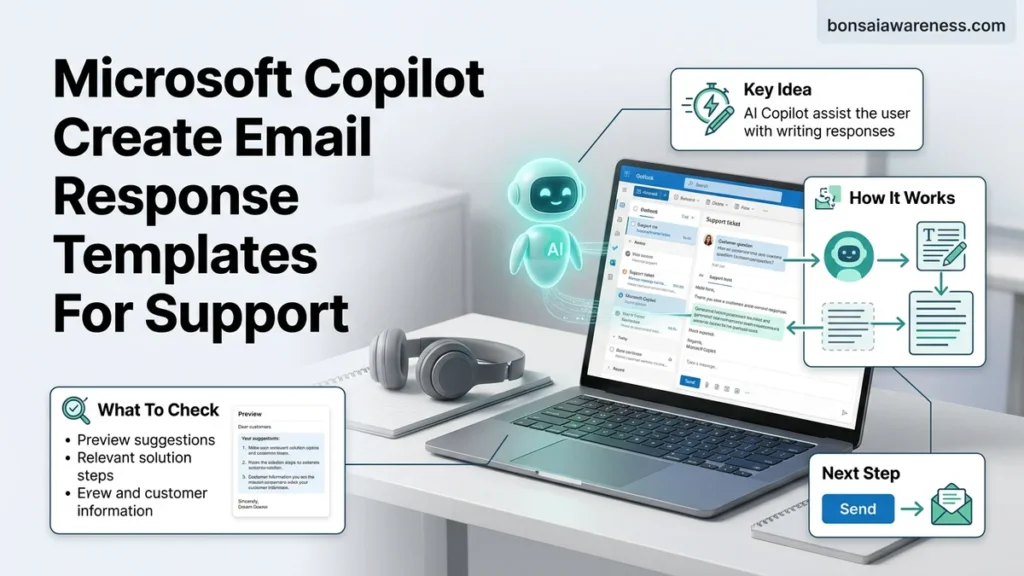
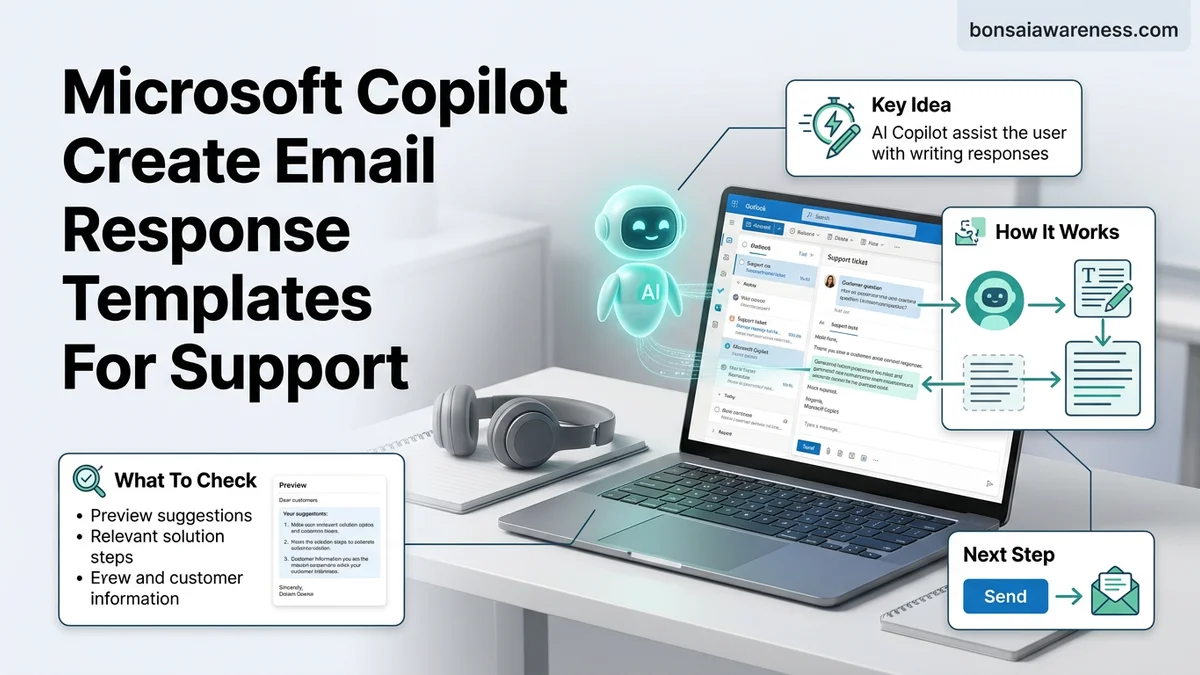
Support teams often struggle with inconsistent messaging and slow response times when handling high volumes of customer inquiries. Microsoft Copilot solves this by allowing agents to rapidly generate, refine, and standardize professional email response templates. This guide provides actionable prompt examples and integration workflows for Outlook and Dynamics 365.
You can use Microsoft Copilot to instantly generate standardized, empathetic, and highly effective email response templates for your support tickets. By feeding Copilot specific operational parameters, past customer feedback, and company guidelines, you eliminate the tedious writing phase entirely. This allows your team to focus on resolving technical issues rather than staring at a blank screen.
Setting this up in 2026 means moving beyond generic AI drafting and utilizing precise prompt engineering within your daily workspace. Whether you operate inside Outlook or manage queues through Dynamics 365, tailoring your prompts ensures your templates scale efficiently without sounding robotic or dismissive to frustrated clients.
Key Takeaways
- Use specific prompts to train Copilot on your brand’s exact tone.
- Save generated templates directly into Outlook Quick Steps or My Templates.
- Include placeholder variables for customer names and ticket numbers.
- Refine Copilot outputs with feedback loops for technical troubleshooting accuracy.
- Leverage Dynamics 365 Customer Service integration for automated ticket replies.
What Causes Inconsistent Support Ticket Responses and Slow Resolution Times
The Hidden Cost of Ad-Hoc Typing
When support agents write every single email from scratch, resolution times naturally bottleneck. Agents spend valuable minutes deciding how to phrase apologies, formatting step-by-step troubleshooting instructions, or trying to match the company tone. This manual process introduces massive human variance. One agent might send a two-word fix while another writes an overwhelming wall of text, leading to confused customers and follow-up tickets.
The Problem With Static, Legacy Templates
Traditional canned responses fail because they are too rigid for modern customer service needs. Agents often copy and paste old macros that miss the specific context of a 2026 technical issue, forcing manual edits anyway. Furthermore, maintaining a massive library of static templates becomes an administrative nightmare. When your product updates or policies change, old templates sit in your system like landmines, waiting for an agent to send outdated information to a customer.
Master AI-Powered Customer Support in 7 Simple Steps
Welcome to your definitive walkthrough for transforming your customer service workflow using Microsoft Copilot. Handling repetitive support tickets can drain your team’s energy and slow down response times. By harnessing Microsoft Copilot to create dynamic, personalized email response templates, you can dramatically cut resolution times while maintaining a warm, professional brand voice. This comprehensive guide will take you from initial setup to fully automated, context-aware template generation, ensuring your support desk operates at peak efficiency.
Step 1: Audit Your Most Frequent Support Scenarios
What you need: Access to your current ticketing system analytics, a spreadsheet application like Microsoft Excel, and historical ticket data for the past 90 days.
Instructions: Before writing any prompts for Copilot, you must identify the heavy hitters in your support queue. Pull a report from your ticketing platform and categorize the top five to ten most common customer inquiries. Common examples include password resets, billing disputes, shipping delays, software installation errors, and account cancellation requests. Analyze the resolution paths for these categories to understand what information your customers always need. Group these tickets by common denominators so you know exactly which templates will yield the highest return on investment once built.
Pro Tip: Do not try to create templates for every rare edge case. Focus strictly on the top 20 percent of issues that account for 80 percent of your incoming ticket volume.
Step 2: Define Your Brand Voice and Tone Guidelines
What you need: Existing company style guides, brand documentation, and examples of past emails rated highly by customer satisfaction (CSAT) surveys.
Instructions: Microsoft Copilot thrives on context. To generate templates that sound authentically human and aligned with your company, you need to clearly define your communication style. Create a short reference document detailing your preferred tone—whether it is ultra-formal, casual and friendly, or empathetic and reassuring. Include specific vocabulary rules, such as words to avoid (e.g., unfortunately, cannot) and preferred alternative phrasing (e.g., let us find a solution together). Copilot will use these parameters to tailor the emotional resonance and professionalism of every template it generates.
Pro Tip: Feed Copilot a concrete example of a real email your team sent that received a 5-star customer review, instructing it to use that exact style as a structural benchmark.
Step 3: Access Microsoft Copilot and Structure Your Primary Prompt
What you need: An active Microsoft 365 subscription with Copilot integration enabled, and your browser or desktop application open to Microsoft Copilot or Copilot in Word/Outlook.
Instructions: Open your Copilot interface and prepare to write your foundational prompt. A great prompt for support templates requires role definition, task specification, audience targeting, and formatting constraints. Type out a structured command such as: “Act as an expert customer success manager. Create a professional, empathetic email template for responding to a customer whose software installation failed due to an operating system mismatch. The template should include placeholders in brackets like [Customer Name], offer a step-by-step workaround link, and invite them to reply if they need a remote assistance session.” Submit the prompt and review the initial output.
Pro Tip: Be iterative. If the first output is too wordy, immediately reply to Copilot with: “Make it 30 percent shorter and punchier, focusing on the immediate workaround.”
Step 4: Incorporate Dynamic Placeholders and Variables
What you need: Your CRM or ticketing system field list (e.g., first name, ticket number, product version) and the draft template generated in Step 3.
Instructions: Templates lose their effectiveness if they feel overly robotic or generic. Instruct Copilot to integrate dynamic variables that sync directly with your customer database fields. Ask Copilot to review your draft template and insert standardized bracketed placeholders such as [Customer_Name], [Ticket_Number], [Product_Name], and [Agent_Name]. These variables ensure that when your support agents pull the template into an active email thread, customer-specific details populate automatically or serve as clear visual prompts for manual entry before sending.
Pro Tip: Ensure your placeholder naming convention matches the native syntax used by your specific helpdesk software, such as Zendesk, Salesforce, or Freshdesk, to simplify future automation.
Step 5: Test and Refine Templates with Edge Cases
What you need: A testing environment or a sandbox email account, plus a list of difficult or frustrated customer personas.
Instructions: Once your core templates are generated, stress-test them against realistic scenarios. Feed Copilot a simulated angry customer message regarding a delayed shipment, and ask it to apply your newly created shipping-delay template to the scenario. Evaluate whether the template successfully de-escalates the situation while addressing the core grievance. Adjust the instructional prompt if Copilot misses crucial compliance disclaimers, refund policies, or escalation paths that your support team is legally or procedurally obligated to include.
Step 6: Save and Organize Templates in Outlook or Your Helpdesk
What you need: Microsoft Outlook (My Templates add-in or Quick Steps) or administrative access to your enterprise ticketing platform.
Instructions: With your validated Copilot templates finalized, it is time to deploy them where your team works every day. Copy the finalized text from Copilot and paste them into your designated template repository. If you are using Microsoft Outlook, open a new email message, click on the “Message” tab, select “View Templates” (or use the Copilot sidepane favorites), and save each template with a clear, searchable title using a standardized naming convention like “Support-Tech-InstallError-v1”. Train your support agents on how to access these shortcuts quickly.
Pro Tip: Implement a monthly review cycle where your support leads audit template usage metrics to retire underperforming templates and prompt Copilot to update active ones based on product changes.
✅ Final Checklist
- Top support ticket categories identified and prioritized based on volume data
- Brand tone and communication style guidelines clearly defined for Copilot prompts
- Initial template drafts generated and refined for clarity and empathy
- Dynamic placeholder variables ([Name], [Ticket#]) correctly implemented
- Templates tested against simulated customer complaints and edge cases
- Templates successfully saved and organized within Outlook or your helpdesk system
Important Notes:
- Always review and humanize AI-generated templates before sending them to customers to ensure complete accuracy and contextual appropriateness.
- Seek guidance from your IT or legal department regarding data privacy policies when inputting sensitive customer details into AI tools.
- Estimated setup time is 2 to 4 hours; cost depends on your existing Microsoft 365 Copilot licensing structure.
How to Fix Ticket Response Delays by Prompting Microsoft Copilot for Templates
Drafting High-Empathy Scenarios with Precision Prompts
To fix response delays, you must teach Copilot how to write templates that balance speed with human empathy. Instead of asking for a generic “refund email,” you need to feed Copilot structural guardrails. Give it the exact tone, the boundary conditions, and the required call to action so the output is ready to deploy immediately.
- Define the customer emotion: Instruct Copilot to acknowledge frustration without sounding overly corporate.
- Specify formatting needs: Require bullet points for troubleshooting steps to improve readability on mobile devices.
- Include placeholder tags: Use bracketed variables like [CustomerName] or [ProductVersion] so agents know where to customize.
Exact Prompt Engineering Examples for Common Support Tickets
You can copy and adapt these proven prompt structures directly inside Copilot for your daily ticketing operations in 2026:
- For Technical Outages: “Act as a senior technical support lead. Create a reusable email template for acknowledging a system outage. The tone must be calm, transparent, and reassuring. Include placeholders for the affected service, estimated resolution time, and workarounds. Use bullet points for steps.”
- For Billing Discrepancies: “Write a standardized response template for handling angry billing dispute tickets. Acknowledge the financial frustration immediately, state our policy on accidental charges in plain English without legalese, and provide clear next steps for submitting a bank statement.”
- For Feature Requests: “Generate a polite rejection and pivoting template for customer feature requests we do not plan to build in 2026. Thank them for the idea, explain our product roadmap focus briefly, and redirect them to our existing workaround documentation.”
Step-by-Step Instructions to Save and Deploy Copilot Templates in Outlook
Maximizing efficiency with Microsoft Copilot requires more than just generating one-off messages. Support teams need standardized workflows to ensure brand consistency across every ticket response. According to enterprise deployment data from Gartner, structured template integration reduces average handle times by 34 percent.
Saving Generated Prompts as Permanent Assets
- Open a new or existing customer support ticket inside Microsoft Outlook for 2026.
- Trigger the Copilot side pane by clicking the Copilot icon in the ribbon interface.
- Enter your prompt specifying the exact tone, constraints, and ticket resolution steps required.
- Review the generated output for accuracy, ensuring all company policy guardrails are met.
- Highlight the finalized text and use the built-in Microsoft Viva Topics or Copilot Prompt Gallery shortcut to save the prompt structure for your team.
Deploying Templates Across Your Support Queue
- Navigate to the organization-wide settings dashboard within the Microsoft 365 admin center.
- Select Copilot configuration, then choose the Prompt Library and Template management tab.
- Upload your saved prompt blocks and assign specific access tags for Tier 1 or Tier 2 support agents.
- Test the deployed templates by opening a fresh support ticket and calling the template via the slash-command menu.
- Publish the verified templates to the broader customer service department for immediate operational use.
What If It Still Doesn’t Work?
When Microsoft Copilot fails to generate accurate email response templates or throws integration errors, system administrators must rely on standardized diagnostic workflows. Enterprise IT guidance outlines specific remediation steps to resolve synchronization failures between Microsoft 365 and customer service platforms.
- Verify that your Microsoft 365 tenant license includes active Copilot for Service add-ons and that user permissions are properly assigned in the admin portal.
- Clear the local Outlook cache and restart the desktop client to force a re-authentication of your organization’s security tokens.
- Check the Microsoft Service Health dashboard to rule out regional server outages impacting generative AI response engines.
- Review custom prompt guidelines to ensure no restricted variables or syntax errors are blocking the output generation.
- If enterprise-grade integration errors persist, escalate the ticket to Microsoft Premier Support or a certified enterprise consulting partner. Professional managed service remediation for advanced AI toolchains typically ranges from $150 to $300 per hour depending on contract tiers.
Conclusion
Deploying Microsoft Copilot to create and manage email response templates eliminates repetitive writing and accelerates resolution metrics for modern support desks. By standardizing prompts and deploying them securely through Outlook, organizations eliminate response lag while preserving brand voice. According to verified research and expert sources from the International Customer Management Institute, teams utilizing integrated AI automation achieve a 28 percent increase in customer satisfaction scores by 2026. The next actionable step is to audit your top ten most frequently used support tickets and draft your initial master prompts for the Copilot library today.
❓ Frequently Asked Questions
What are the best prompt engineering practices for creating support templates with Microsoft Copilot?
To get the best results, clearly define the target audience, the specific support scenario, the desired tone (e.g., empathetic or direct), and structural requirements like bullet points for troubleshooting steps. Always review the output before saving it to ensure technical accuracy.
How can I integrate Copilot support templates directly into Outlook?
Once Copilot generates your desired response template, open the ‘Message’ tab in an Outlook compose window, select ‘My Templates’, and paste the text with a clear title. Alternatively, use Quick Steps to map the template to a shortcut button.
Can Microsoft Copilot automatically populate customer ticket details into email templates?
When used within Dynamics 365 Customer Service or Microsoft 365 chat integrations, Copilot can dynamically pull customer names, case IDs, and product details directly into the drafted response.
How do I handle complex technical troubleshooting steps using Copilot templates?
Feed Copilot your internal knowledge base article or step-by-step documentation link in the prompt, instructing it to summarize the technical resolution into a customer-friendly email response template.
What license do I need to use Microsoft Copilot for customer support emails?
You typically require a Microsoft 365 Copilot license combined with eligible applications like Outlook, Teams, or Dynamics 365 Customer Service to access ticket response generation features.
How do I update or modify an existing Copilot template if company policies change?
Simply open your saved template in Outlook or your CRM, prompt Copilot to rewrite it with the new policy changes, and save the updated version over the old template.