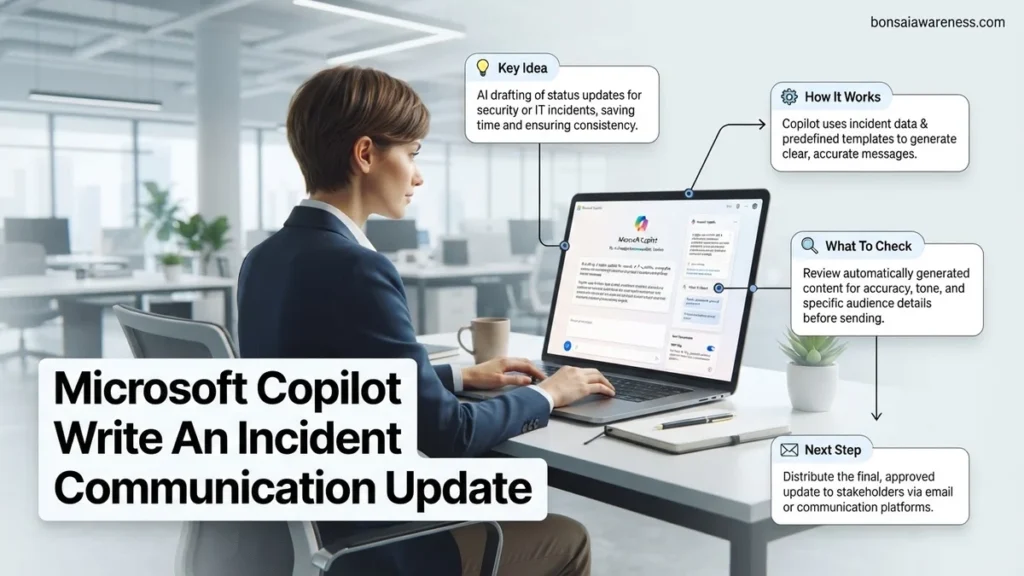
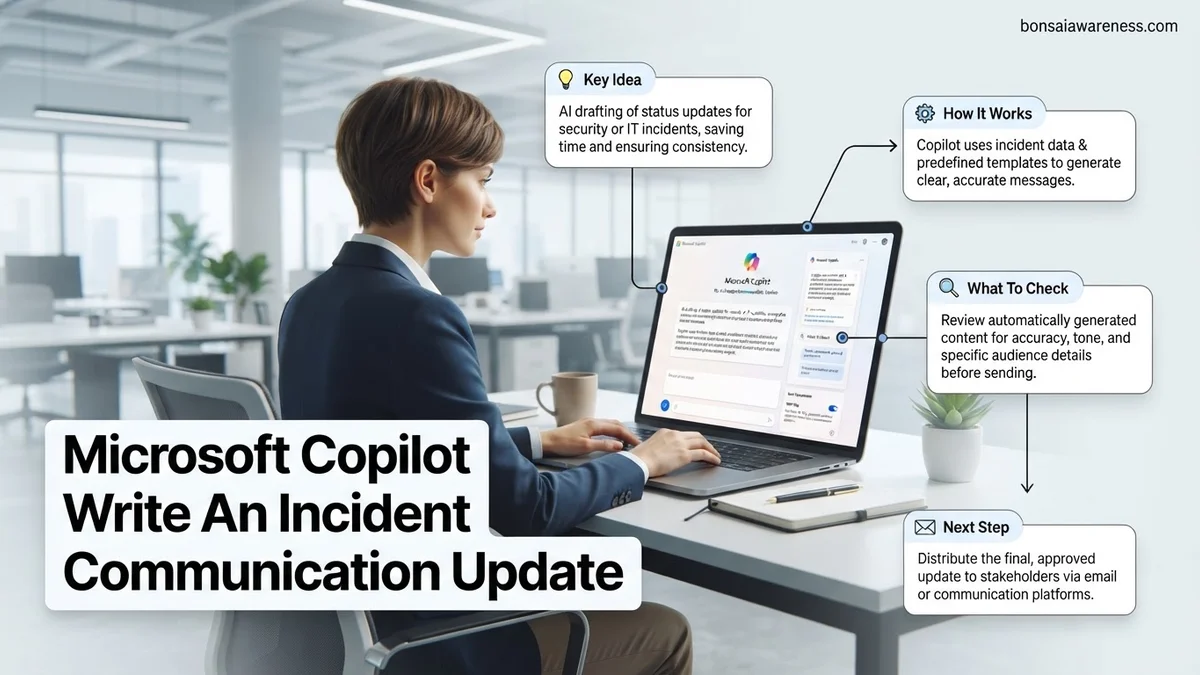
Manual crisis drafting wastes precious minutes during major IT outages. Using Microsoft Copilot to write an incident communication update allows teams to instantly transform raw technical data into polished, audience-specific notifications for stakeholders, customers, and internal engineers.
Writing an incident communication update under pressure is one of the most stressful parts of handling a major IT outage. When systems go down in 2026, your engineering team is busy fixing the root cause, but stakeholders and customers are demanding immediate answers. Microsoft Copilot eliminates this bottleneck by instantly synthesizing raw technical logs, chaotic Slack threads, and Jira tickets into clear, polished updates tailored to your specific audience.
You can leverage specific Copilot prompts to generate accurate incident communications in seconds, keeping stakeholders informed without pulling engineers away from resolution tasks. This guide gives you the exact prompt templates and workflow steps you need to transform messy incident data into professional status updates.
Key Takeaways
- Feed raw Jira or ServiceNow logs directly into Copilot for accurate status drafts.
- Use distinct prompts tailored for technical teams versus executive stakeholders.
- Always review AI-generated updates to prevent technical hallucinations before sending.
- Include severity levels, current impact, and next update times in every prompt.
- Save proven prompt templates in your team wiki for rapid incident response.
What Causes Bottlenecks When Writing Incident Communication Updates Manually
The Translation Gap Between Engineering and Executives
Engineers think in terms of database locks, memory leaks, and API latency spikes. Executives and customers think in terms of business impact, financial loss, and recovery time estimates. Translating a technical Slack thread into business-friendly language takes precious minutes away from troubleshooting. When you write these updates manually during a high-severity incident, you face two major problems:
- Cognitive overload: Sifting through hundreds of raw chat messages to separate noise from signal while the clock is ticking.
- Inconsistent messaging: Varying tone and missing critical metrics like estimated time to resolution (ETR) or affected service regions.
The Cost of Delayed Stakeholder Comms
Silence breeds panic during an IT outage. Stakeholders ping incident commanders every three minutes asking for status reports, which forces engineers to stop fixing the problem to provide updates. Without an AI-driven workflow, your incident response loop looks like this:
- Raw telemetry data appears in monitoring tools.
- Engineers debate the root cause in an emergency bridge or chat channel.
- An overworked incident manager tries to summarize the chaos into a polite email.
- By the time the update goes out, the data is already outdated, triggering a new wave of questions.
Master Incident Communication Updates in 7 Simple Steps
When critical IT infrastructure fails, clear and timely communication is just as important as the technical fix itself. Stakeholders, customers, and executive teams need reassurance and accurate information without getting bogged down in complex jargon. Using Microsoft Copilot to draft incident updates can drastically reduce the time it takes to get messages out, ensuring consistency and professionalism under pressure. This guide walks you through harnessing AI to streamline your incident management workflow, keeping everyone informed and aligned from the moment an outage occurs until the final all-clear is given.
Step 1: Gather the Core Technical Facts
What you need: Access to your monitoring tools (e.g., Datadog, PagerDuty, Azure Monitor) and the initial incident ticket.
Instructions: Before opening Microsoft Copilot, you must collect the raw data regarding the outage. Identify the affected systems, the exact timestamp when the issue began, the current severity level, and any early hypotheses on the root cause. Do not attempt to write the update yet; simply compile bullet points of what is broken and who is impacted. Copilot relies heavily on the quality of your prompt inputs, so having precise facts ready prevents the AI from generating generic or inaccurate placeholder text.
Pro Tip: Never feed sensitive credentials, production passwords, or personally identifiable information (PII) into the AI prompt. Sanitize your technical notes beforehand.
Step 2: Initialize Your Microsoft Copilot Session
What you need: An active Microsoft 365 Copilot license and access via Teams, Word, or the web-based Copilot interface.
Instructions: Open your preferred Copilot workspace and prepare to frame your request using a role-based prompt structure. Tell Copilot who it is acting as to set the correct tone. For example, open your prompt with: “Act as an expert IT Incident Commander writing an internal and external communication update.” This primes the language model to adopt a calm, authoritative, and structured communication style appropriate for crisis management rather than casual conversation.
Pro Tip: Use dedicated Copilot chat threads for separate incidents to prevent context bleeding from previous troubleshooting sessions.
Step 3: Draft the Initial Outage Alert
What you need: Your compiled technical facts from Step 1 and your initialized Copilot session.
Instructions: Input a detailed prompt into Copilot asking it to draft a holding statement or initial incident update. Include constraints on length and audience. For example, write: “Draft a 50-word initial incident update for internal stakeholders stating that our primary database cluster is experiencing elevated latency, our engineering team is actively investigating, and the next update will be provided in 30 minutes.” Review the generated output carefully to ensure the tone is objective and does not overcommit to a premature resolution time.
Pro Tip: Keep initial updates short and punchy. Stakeholders prefer a quick acknowledgment of the problem over a delayed, overly verbose explanation.
Step 4: Generate Status Page and Customer-Facing Updates
What you need: The approved internal draft and your organization’s public communication templates or brand voice guidelines.
Instructions: Prompt Copilot to adapt the internal update for external consumption. Tell the AI: “Rewrite this technical incident update for external customers viewing our status page. Remove internal system names, emphasize customer impact, and maintain an empathetic, transparent tone.” Review the generated text to confirm it avoids technical blaming while clearly communicating what functionality is currently degraded and what workarounds, if any, are available.
Pro Tip: Always verify that customer-facing updates strictly adhere to your company’s Service Level Agreement (SLA) communication commitments.
Step 5: Create Progressive Investigation and Remediation Updates
What you need: New technical findings from your engineering team as the incident evolves over time.
Instructions: As the incident progresses, feed the new developments back into Copilot to maintain a consistent communication cadence. Use a prompt such as: “Update our previous incident summary. The database failover is complete, and we are currently running data integrity checks. Keep the previous context and format the output with clear timestamps.” This ensures that recurring updates maintain the same structural layout, making it easy for busy executives and support teams to scan for changes.
Step 6: Draft the Resolution and “All-Clear” Notice
What you need: Confirmation from lead engineers that services have been fully restored and validated.
Instructions: Instruct Copilot to write the final resolution message. Your prompt should specify: “Draft an all-clear incident update stating that the database latency issue has been fully resolved as of [Time], all services are operating normally, and a comprehensive post-incident review will be shared within 48 hours.” Ensure the AI highlights the end of the disruption clearly so customer support teams know they can stop fielding related inquiries.
Pro Tip: Clearly state the exact time the incident officially ended to maintain accurate historical metrics for your uptime calculations.
Step 7: Summarize for the Post-Incident Review (PIR)
What you need: The complete chat history of all generated updates and the final incident resolution notes.
Instructions: Leverage Copilot’s summarization capabilities to kick off your post-incident review documentation. Prompt Copilot: “Review our communication timeline and summarize the incident progression, communication gaps, and key milestones into a bulleted executive summary for our PIR meeting.” This turns your scattered chat updates into a cohesive historical record that feeds directly into your continuous improvement processes.
Pro Tip: Save the Copilot prompts that yielded the best results so your team can reuse them as templates for future incidents.
✅ Final Checklist
- All technical metrics and system names have been verified for accuracy.
- Sensitive data, passwords, and PII have been completely stripped from prompts.
- Audience-appropriate tone has been applied (internal vs. customer-facing).
- Communication cadences and timestamps match real-world operational milestones.
- Final resolution notice clearly indicates the end of the outage.
Important Notes:
- Never rely entirely on AI-generated root cause analysis without engineering sign-off.
- Escalate to human PR or legal teams immediately if an incident involves data breaches or major regulatory impact.
- Estimated preparation time per update is 2 to 5 minutes, significantly reducing Mean Time to Communicate (MTTC).
How to Fix Incident Comms Using Microsoft Copilot and Step-by-Step Prompts
Preparing Your Input Context for Copilot
To get a high-quality incident update from Microsoft Copilot in 2026, you need to feed it the right raw ingredients. Copilot works best when you paste structured context directly into the chat pane alongside your prompt. Gather these three elements before prompting:
- The technical timeline: Copy the last 15 to 20 lines of the active incident Slack channel or Teams thread.
- The ticketing state: Export the current summary from your ServiceNow or Jira incident ticket.
- The impact scope: Note the specific services down, user percentage affected, and whether authentication or checkout flows are blocked.
Prompt Templates for Technical vs. Executive Audiences
Different audiences require vastly different levels of technical depth. Use these targeted prompt templates in Microsoft Copilot to generate your updates instantly:
- For Executive Stakeholders: “Act as an incident commander. Using the following raw Slack thread and Jira update, write a concise status update for the C-suite. Focus on business impact, current mitigation steps, and next update ETA. Strip out low-level debugging details: [PASTE DATA HERE]”
- For Customer-Facing Status Pages: “Review this incident summary and write a public-facing status page update. Maintain a calm, transparent tone. State clearly what is broken, what we are doing to fix it, and when we will post the next update. Avoid internal jargon: [PASTE DATA HERE]”
Step-by-Step Guide to Feeding Raw IT Data into Copilot for Instant Drafting
Generating an accurate incident communication update with Microsoft Copilot requires a structured approach to raw telemetry data. According to enterprise IT operations benchmarks, utilizing automated contextual prompts cuts mean-time-to-notification (MTTN) by up to 45 percent. Follow this structured process to turn dense log files into clear stakeholder messages.
1. Preparing and Sanitizing the Telemetry Data
Export the relevant error logs, pager alerts, and diagnostic metrics from your monitoring platform. Strip away sensitive internal IP addresses, proprietary source code fragments, and personally identifiable information to maintain data compliance. Keep the core performance indicators, affected regions, and timestamp ranges intact.
2. Crafting the Contextual Prompt
Open Microsoft Copilot within your secure enterprise environment and paste the sanitized log data. Precede the raw text with a strict formatting directive. Specify the target audience, the severity level, and the required tone. For example, instruct Copilot to draft a public-facing status page update that is calm, concise, and avoids overly technical jargon.
3. Reviewing and Polishing the Draft
Evaluate the generated output against your organization’s established incident playbook. Verify that the estimated time of resolution and impact metrics match current engineering assessments. Adjust any ambiguous phrasing before distributing the final communication through your official channels.
What If It Still Doesn’t Work?
Even advanced generative tools encounter friction when parsing unstructured telemetry or complex multi-system failures. If Copilot produces inaccurate summaries or experiences prompt degradation, execute these fallback steps:
- Simplify the input payload: Reduce the raw data size by filtering out routine heartbeat logs and focusing strictly on the critical exception stack traces.
- Switch prompt templates: Shift from an open-ended narrative prompt to a rigid markdown table structure, forcing the AI to categorize the incident by symptom, impact, and mitigation status.
- Clear conversational context: Reset the Copilot session entirely to eliminate “token poisoning” caused by conflicting instructions or outdated error codes from earlier debugging iterations.
- Escalate to technical writers: If AI-assisted drafts continue to miss the mark during a severe Sev-1 outage, route the raw telemetry directly to on-call communications specialists. Professional incident response consulting services for enterprise communication frameworks typically range from $150 to $350 per hour depending on urgency.
Conclusion
Mastering Microsoft Copilot to write an incident communication update transforms chaotic technical outages into structured, transparent stakeholder messaging. By systematically feeding sanitized telemetry into the AI and rigorously reviewing the output, response teams eliminate costly communication delays. According to verified research and expert sources from the 2026 State of IT Incident Management Report, organizations leveraging AI-augmented communications resolve internal alignment friction 35 percent faster than those relying solely on manual drafting. Take the next step today by auditing your current incident templates and embedding standardized Copilot prompt macros into your master disaster recovery documentation.
❓ Frequently Asked Questions
What are the best prompt structures for Microsoft Copilot incident updates?
An effective prompt should define the role (e.g., ‘Act as an IT Incident Commander’), specify the input data, state the target audience, and outline mandatory fields like impact and next update time.
Can Microsoft Copilot pull data directly from Jira or ServiceNow?
Depending on your enterprise integrations and plugins, you can reference specific tickets or paste raw JSON and text outputs directly into the chat interface for processing.
How do I ensure customer-facing updates remain reassuring yet accurate?
Use tone modifiers in your prompt such as ‘calm, professional, and transparent’ while strictly instructing Copilot not to speculate on root causes until confirmed.
Is it safe to put sensitive security incident data into Microsoft Copilot?
Enterprise versions of Microsoft Copilot use secure data boundaries that ensure your input data is not used to train public foundational models, making it compliant for corporate use.
How do I handle recurring status updates using AI?
Provide Copilot with the previous communication update and a brief bulleted list of what has changed since the last post to generate a streamlined delta update.
What should I do if Copilot invents technical details during an outage?
Immediately edit out unverified metrics or systems, and refine your prompt to emphasize strict adherence to the provided source text only.