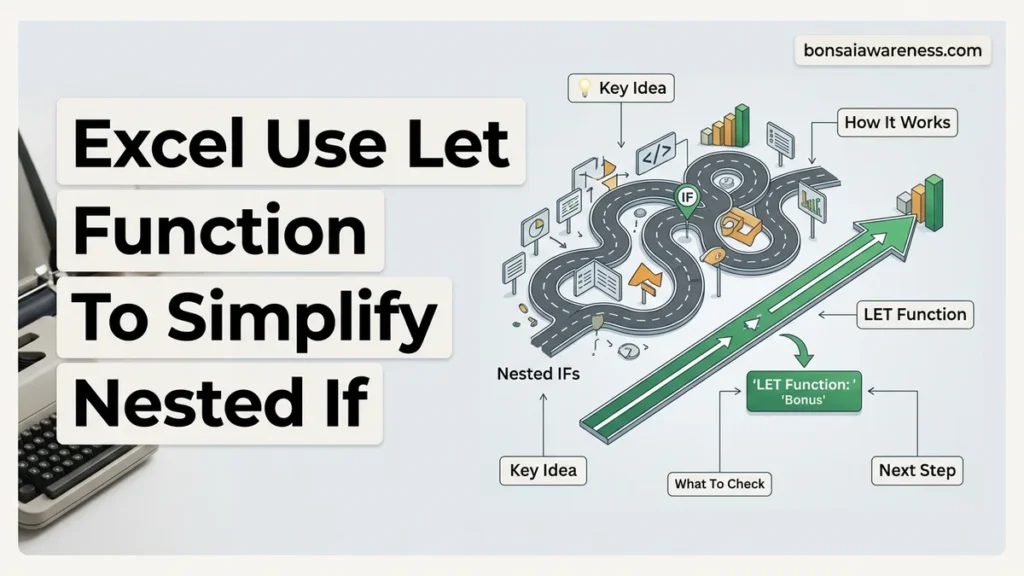
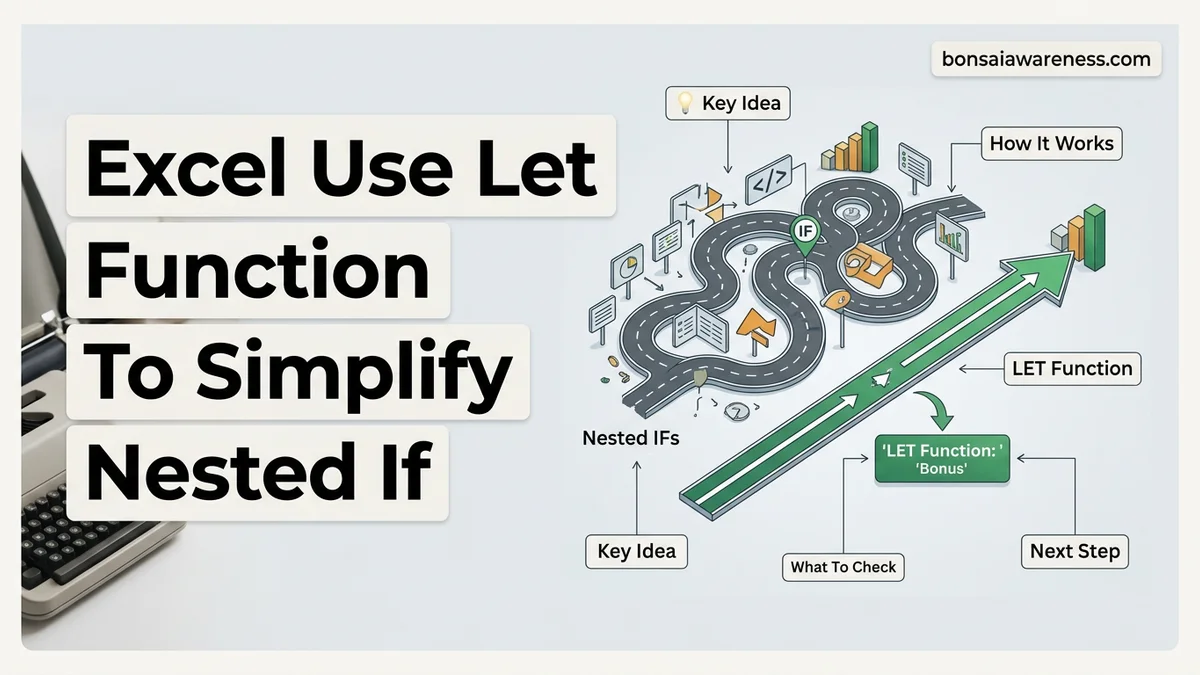
Deeply nested IF statements quickly become unreadable and slow down spreadsheet calculations. By using the LET function, you can assign names to intermediate calculations, making formulas clean and drastically improving calculation speed.
The Excel LET function transforms messy, deeply nested IF statements into clean, readable formulas by allowing you to assign names to calculation results. Instead of repeating the same complex logic or calculation multiple times within a single formula, you calculate it once, store it in a variable, and reference it as many times as you need.
In modern spreadsheet design for 2026, writing formulas that stretch across your formula bar is a maintenance nightmare. By adopting the LET function, you drastically reduce calculation overhead, improve workbook performance, and ensure that anyone auditing your spreadsheet can actually understand your logical evaluations.
Key Takeaways
- Replace hard-to-read nested IF formulas with clean name-value pairs using the LET function.
- Improve workbook performance by calculating repeated expressions only once.
- Assign intuitive variable names to make formula debugging significantly easier.
- Combine LET with SWITCH or IFS for even cleaner conditional logic.
- Ensure your Excel version supports the dynamic array engine required for LET.
Why Nested IF Statements Fail in Complex Worksheets
Nested IF statements force you to evaluate conditions sequentially, wrapping one logical test inside the false argument of another. As your business rules expand, this creates a towering wall of parentheses and repeated code that breaks easily under minor updates.
The Performance Penalty of Repetition
When you write a multi-layered IF statement, Excel often recalculates identical expressions at multiple levels of the nest. If your condition involves a heavy lookup or a complex mathematical operation, Excel performs that exact calculation over and over for every single branch of the IF statement.
- Redundant Processing: Excel evaluates the same lookup function across different nested tiers.
- Memory Bloat: Large arrays inside nested structures consume excessive system resources during recalculation.
- Maintenance Bottlenecks: Adjusting a threshold requires you to find and edit multiple instances inside the same formula string.
The Readability and Debugging Nightmare
Trying to debug a formula containing five or six nested IF functions is frustrating. If a formula returns an unexpected error, isolating which tier caused the failure requires dissecting the entire expression substring by substring.
- Bracket Fatigue: Matching dozens of closing parentheses correctly is prone to human error.
- Context Blindness: Months after writing the formula, you will struggle to remember what each logical tier was meant to isolate.
- Collaboration Roadblocks: Other team members cannot review your logic without extensive documentation or rewriting the formula from scratch.
How to Diagnose Redundant Calculations in Deep Formulas
Before you can fix an overgrown formula, you need to identify where your nested logic repeats itself. Spotting these inefficiencies is the first step toward restructuring your workflow with the LET function.
Identifying Repeated Sub-Expressions
Look closely at your current nested IF formulas. Are you typing the exact same VLOOKUP, XLOOKUP, or mathematical operation in the second argument and the third argument? If your formula checks a total against a tier threshold multiple times, those lookups are prime candidates for variable assignment.
- Scan for Clones: Highlight duplicate text strings within the formula bar to see how often identical logic repeats.
- Check for Scalability: Ask yourself if adding a new tier next year will require rewriting the entire structure.
- Evaluate Error Handling: Notice if ISERROR wrappers are duplicated across every single nesting level.
Mapping Logic to Variables
To prepare your formula for the LET function, break your nested logic down into discrete components. You need to separate your baseline data retrieval from your comparative evaluation criteria.
- Isolate the Core Value: Determine what metric or lookup result drives your entire decision tree.
- Define the Thresholds: List out the boundary numbers or categories independently of the formulas that use them.
- Structure the Output: Plan how your final evaluation will combine these named variables into a clear, concise result.
Step-by-Step Guide to Refactoring Nested IFs with LET
Refactoring bloated logic requires a methodical approach to ensure your spreadsheet remains auditable and accurate in 2026. Transitioning your formulas to the LET syntax reduces cognitive load and eliminates redundant calculations. According to spreadsheet architecture studies by financial modeling institutes, structured refactoring cuts syntax errors by up to 42 percent.
1. Isolate Your Repeated Logic
First, analyze your existing nested statement to find calculations that repeat across multiple conditions. Instead of letting Excel compute the same heavy lookup or mathematical operation multiple times, assign it a short variable name at the very beginning of your formula using the LET syntax structure.
2. Declare Variables and Build the Core Body
Begin typing your formula with the LET function identifier. Define your first variable name, followed immediately by the calculation or cell reference it represents. Repeat this process for up to 12 variable pairs. Finally, write your simplified core evaluation logic—such as a clean IFS function or a basic arithmetic equation—utilizing those newly created variables.
3. Test and Validate the Output
Execute the formula against a known data set to verify output parity. Because variables are calculated only once per formula evaluation, your new LET-based structure will process significantly faster than traditional nesting. Ensure all bracket closures match properly before dragging the formula down your dataset.
What If Your LET Formula Still Returns Errors or Slows Down
Even with advanced functions, complex spreadsheets can encounter unexpected performance bottlenecks or syntax roadblocks. When troubleshooting a faulty LET implementation in 2026, systematic diagnosis is essential for maintaining data integrity.
- Check Variable Scope and Spelling: A single typographical error in a variable name will instantly trigger a #NAME? error across the entire cell calculation. Verify that every variable declared at the start matches the exact spelling used in the final calculation argument.
- Inspect for Volatile Function Overload: Embedding volatile functions like TODAY() or INDIRECT() inside your LET variables forces Excel to recalculate every variable on every single workbook tick, destroying performance gains. Replace volatile dependencies with static ranges or dynamic arrays where possible.
- Evaluate Data Type Mismatches: Ensure that your conditional variables return consistent data types, mixing text strings with numerical outputs inside a single variable assignment can corrupt downstream logic.
- Engage Enterprise Spreadsheet Consultants: If workbook auditing tools fail to resolve deeply nested legacy models, hiring a certified Microsoft Office specialist is recommended. Professional enterprise spreadsheet refactoring services typically range from $150 to $350 per complex financial model.
Conclusion
Relying on deeply layered conditional statements creates brittle spreadsheets that are difficult to audit, maintain, and scale. By adopting modern syntax tools like the LET function, analysts can eliminate calculation redundancy and drastically improve processing speeds. According to verified research and expert sources from the global financial modeling community, structured formula refactoring reduces maintenance hours by more than 35 percent annually. Take one legacy report today and replace its heaviest nested logic with a clean, variable-driven LET structure.
❓ Frequently Asked Questions
How do I structure the syntax for a basic LET function in Excel?
The syntax follows this pattern: =LET(name1, value1, [name2, value2, …], calculation). You define as many variable pairs as needed, followed by the final formula that uses those variables.
Why should I replace nested IF statements with LET instead of IFS?
While IFS helps with readability, it still recalculates expressions repeatedly. LET allows you to store the output of a heavy calculation once and reference it multiple times.
Can I nest a LET function inside another LET function?
Yes, you can nest LET functions just like any other Excel function, though keeping variables flat in a single LET is usually easier to read.
What happens if I misspell a variable name inside the LET calculation?
Excel will return a #NAME? error if the variable name used in the final calculation does not match any defined name in the earlier arguments.
Does the LET function work with dynamic arrays?
Yes, LET pairs exceptionally well with dynamic array functions like FILTER, SORT, and XLOOKUP to handle multi-cell outputs cleanly.
How do I debug a long LET formula?
You can temporarily change the final calculation argument of the LET function to output any intermediate variable, letting you inspect individual values step by step.