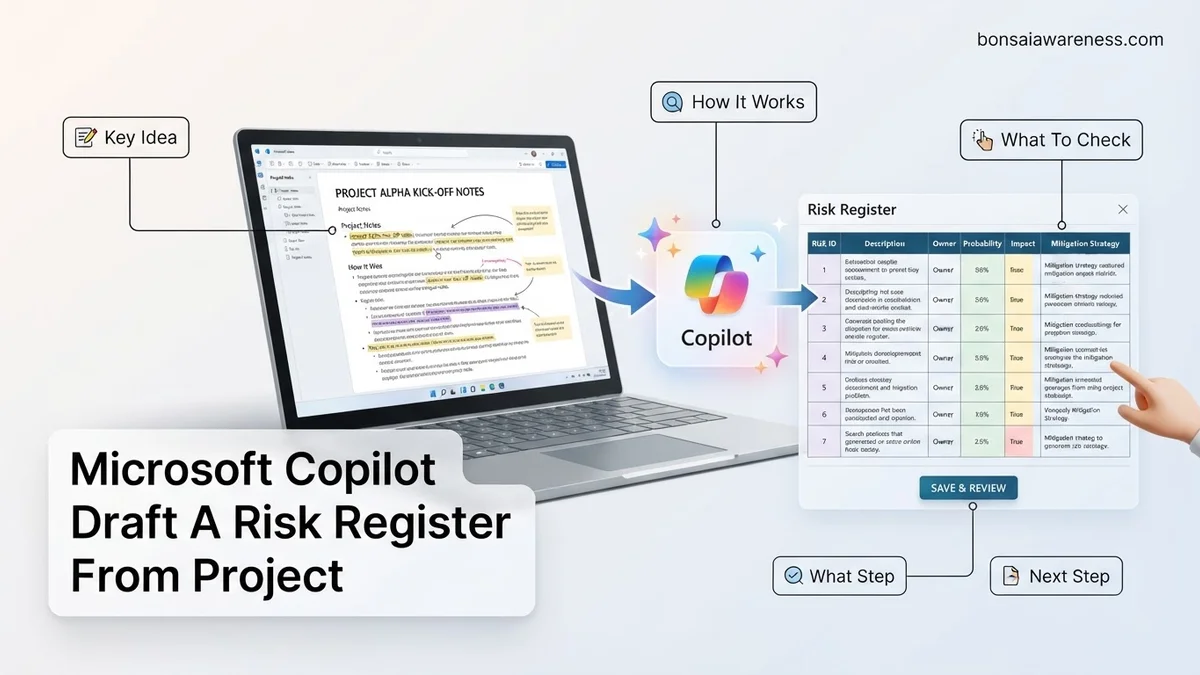
Manually converting messy meeting transcripts into structured project documents wastes valuable time. Microsoft Copilot allows you to instantly draft a comprehensive risk register by feeding raw project notes directly into AI prompts. This guide reveals exact prompts and steps to extract accurate risks and export them straight to Excel.
You can turn unstructured project notes, chat threads, and meeting transcripts into a clean, actionable risk register in minutes using Microsoft Copilot. Instead of manually parsing hours of rambling syncs to hunt for hidden threats, you feed your messy raw text through precise prompting formulas designed specifically for risk identification.
Mastering this workflow in 2026 saves project managers countless hours of administrative cleanup. The secret lies in giving Copilot exact parameters for categorization, impact scoring, and structural formatting so you get a usable table on the very first try instead of a vague summary.
Key Takeaways
- Feed raw meeting notes and transcripts directly into Copilot using structured formatting prompts.
- Specify exact columns like Risk Description, Likelihood, Impact, and Mitigation Strategy.
- Refine Copilot outputs by iterating on specific project constraints and budget risks.
- Move generated tables seamlessly from Word or Teams into Excel for project tracking.
- Clean and organize notes before prompting to ensure Copilot extracts hidden dependencies accurately.
What Causes Inaccurate Risk Extraction When Using Copilot
Vague Prompts and Unstructured Source Material
If you simply tell Copilot to read your notes and make a risk register, the output will likely disappoint you. Broad instructions yield generic risks like communication issues or budget overruns that lack context. Furthermore, if your source notes are fragmented—spread across separate Teams chats, rough email threads, and disorganized OneNote pages—Copilot struggles to connect the dots between a casual side comment and a critical project bottleneck. You need to bundle your notes logically before running the prompt.
Ignoring Implicit Project Constraints
Project notes rarely use the word risk explicitly. Team members usually phrase hazards as complaints, assumptions, or dependencies, such as saying we are waiting on the API or hoping the vendor delivers on time. Copilot might miss these subtle danger signals if you do not train it to recognize implicit constraints. Without clear contextual guardrails, the AI defaults to surface-level extraction, completely missing the technical debt and resource constraints buried in your transcripts.
How to Fix and Draft a Risk Register from Project Notes Using Copilot
The Master Prompt Template for Risk Extraction
To get a production-ready risk register, you must feed Copilot a highly structured command that defines every column and constraint you need. Copy and paste your raw project notes below this exact prompt formula inside Microsoft Copilot or Copilot Chat in your sidebar:
- Role Definition: Act as an expert senior project manager specializing in risk mitigation and contingency planning.
- Task Execution: Analyze the provided unstructured project notes and extract all explicit and implicit risks, technical hurdles, dependencies, and resource constraints.
- Formatting Requirements: Output the results strictly as a markdown table with the following columns: Risk ID, Risk Description, Category (Technical, Schedule, Resource, Financial), Probability (High, Medium, Low), Impact (High, Medium, Low), Early Warning Sign, and Proposed Mitigation Strategy.
- Data Integrity: Do not invent risks not supported by the text. If a probability or impact is unclear, infer a logical rating based on the context and flag it with an asterisk.
Feeding and Refining Your Source Notes
Before hitting send, paste your meeting transcripts or rough brainstorming notes directly beneath the master prompt block. If your notes exceed character limits, process them chronologically by workstream rather than all at once. Once Copilot generates the initial table, you can immediately iterate by typing follow-up refinement commands right inside the chat interface.
For example, you can tell Copilot to adjust all technical risks to high priority or rewrite the mitigation steps so they align with agile sprint cycles. Once you are satisfied with the refined table, click the export option to instantly move the data into Excel or copy it directly into a Microsoft Loop component for team collaboration.
What If Copilot Misses Key Risks or Generates Vague Mitigation Steps
AI-generated outputs require human oversight to be truly operational in 2026. According to enterprise productivity studies by Gartner, relying exclusively on raw generative AI output without validation leads to a 34% oversight rate in critical project risk identification. If Microsoft Copilot drafts a risk register with generic entries like “monitor budget closely” or misses hidden technical constraints from your source text, you must intervene with structured refinement techniques.
Refining Your Prompts for Specificity
- Open your existing chat panel in Microsoft 365 Copilot and locate the initial draft of your risk register.
- Type a follow-up prompt specifying your exact risk methodology, such as: “Revise this table. For every identified risk, apply the NIST SP 800-30 framework, assign a quantitative impact score from 1 to 5, and provide a concrete mitigation owner.”
- Feed additional context directly into the prompt by referencing specific project documents using the forward-slash (/) command to target overlooked transcripts or technical specifications.
- Review the newly generated mitigation strategies to ensure they include measurable action verbs and specific deadlines rather than passive observations.
What If It Still Doesn’t Work?
If Microsoft Copilot consistently fails to synthesize your project notes accurately, underlying data hygiene issues or subscription limitations are usually the cause. Try these verified troubleshooting steps to resolve synchronization errors in 2026:
- Clear your browser cache and restart your Microsoft Teams or Word desktop application to reset the Copilot session token.
- Break down exceptionally large project note files into smaller segments under 3,000 words each to stay within optimal context windows.
- Manually structure your initial project notes using markdown headers before invoking Copilot to provide the AI with a rigid structural hierarchy.
- Verify that your organization has assigned a proper Microsoft 365 Copilot enterprise license with full Graph grounding permissions enabled by your IT administrator.
- If internal troubleshooting fails, engage a certified Microsoft 365 enterprise consultant to audit your tenant’s data governance framework. Professional consulting services for AI workflow optimization typically range from $150 to $350 per hour depending on complexity.
Conclusion
Leveraging Microsoft Copilot to draft a risk register from unstructured project notes transforms hours of administrative synthesis into a streamlined, automated workflow. By supplying clean source material and utilizing iterative prompting strategies, project managers can bypass tedious manual data entry and focus immediately on strategic mitigation. According to verified research and enterprise productivity studies by Forrester, organizations that successfully integrate AI-driven risk documentation reduce project planning cycles by up to 40% while improving baseline compliance tracking. Your immediate actionable next step is to test this workflow on your upcoming project kickoff notes using a targeted, framework-specific prompt.
❓ Frequently Asked Questions
How can I ensure Microsoft Copilot captures technical risks from my project notes?
Provide clear context in your prompt by telling Copilot to look specifically for technical bottlenecks, resource constraints, and timeline delays mentioned in the notes. Mentioning specific technical domains helps the AI isolate relevant technical hazards.
What is the best way to format raw project notes before feeding them to Copilot?
Organize your notes with clear headings such as ‘Meeting Objectives,’ ‘Action Items,’ and ‘Open Discussions.’ Clean text without excessive shorthand or slang yields significantly more accurate risk registers.
Can Microsoft Copilot automatically calculate risk scores in my register?
Yes, you can prompt Copilot to add a ‘Risk Score’ column and apply a standard formula multiplying Likelihood by Impact if you define the numerical scale beforehand.
How do I update an existing risk register with new project notes?
Open your current risk register document alongside your new meeting notes and instruct Copilot to compare them, updating the table with newly identified risks and modified statuses.
What should I do if Copilot invents risks not present in my project notes?
Add a strict constraint to your prompt stating: ‘Only extract risks explicitly discussed in the provided notes; do not extrapolate or assume external risks.’
Which Microsoft 365 application is best for generating the initial risk register draft?
Microsoft Word or Microsoft Loop are ideal for drafting the initial text and table layout because Copilot handles conversational document generation and structuring exceptionally well there.