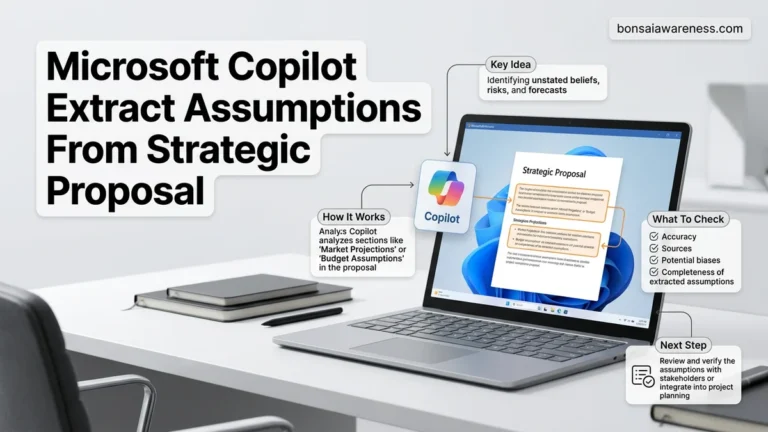
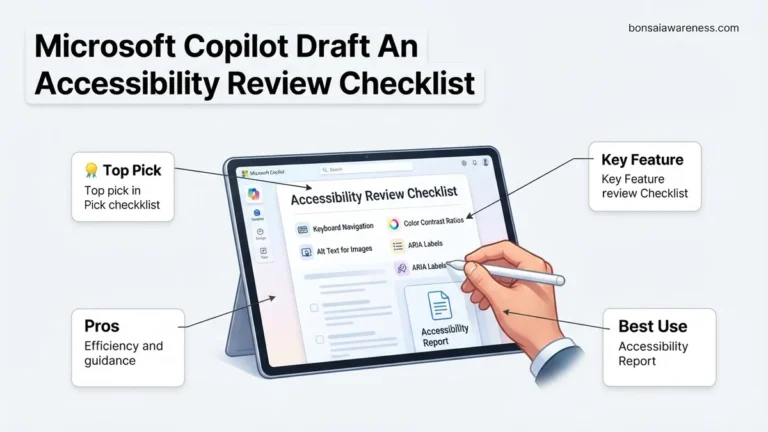
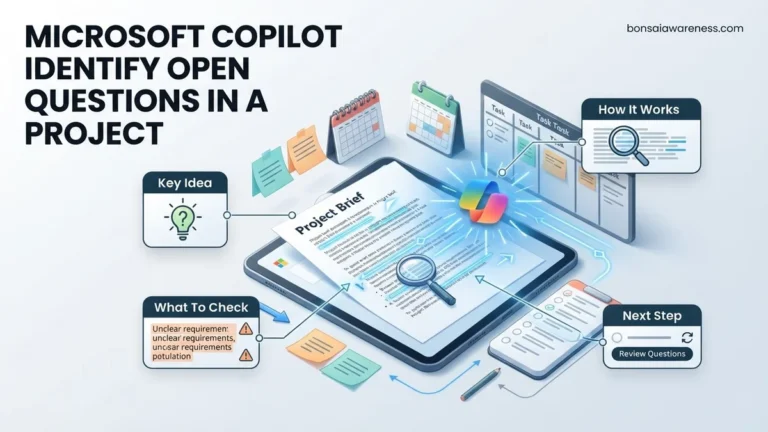
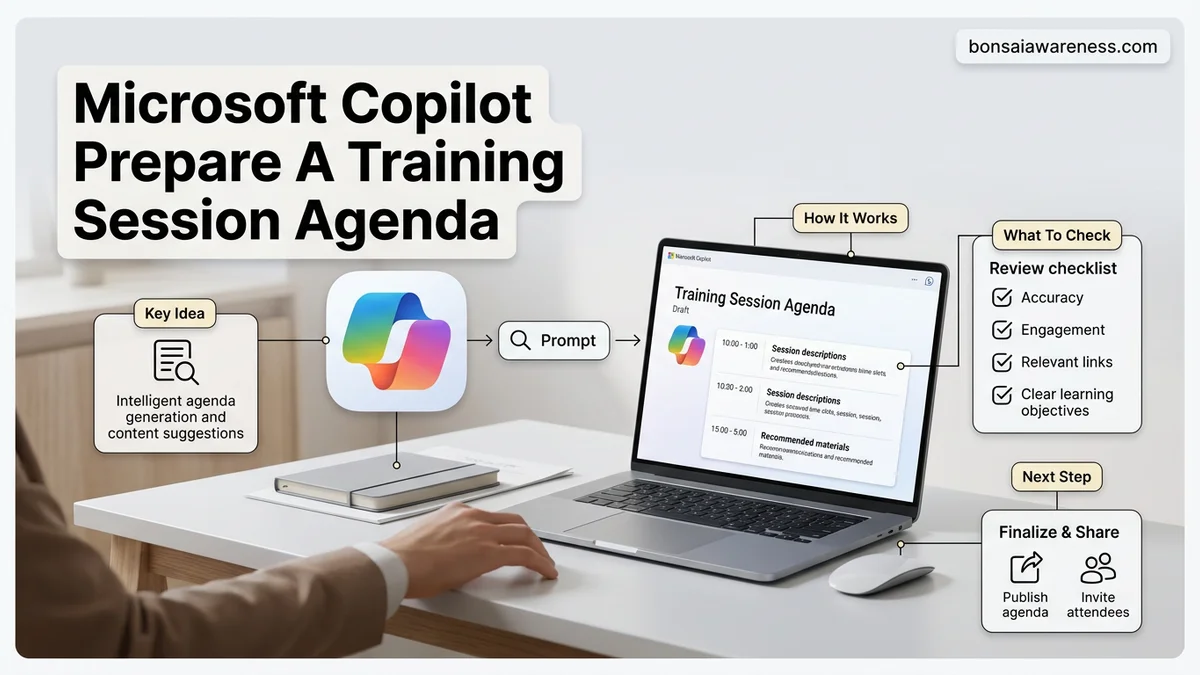
Writing a structured training schedule from scratch often leads to unbalanced timing and missing engagement elements. Microsoft Copilot solves this by instantly generating, organizing, and formatting comprehensive training agendas using targeted text prompts. You can quickly tailor session blocks, add interactive breaks, and export drafts directly into Word or OneNote.
To use Microsoft Copilot to write, organize, and format a comprehensive training session agenda, you need to master specific prompt structures that go beyond basic requests. Instead of typing a generic command, feeding Copilot exact parameters like audience skill level, time constraints, and instructional design frameworks ensures a usable result on the first try.
In 2026, corporate trainers and HR professionals face mounting pressure to deliver high-impact learning experiences without spending hours on administrative planning. Leveraging Microsoft Copilot to draft these outlines bridges the gap between raw ideas and structured, timed itineraries, allowing you to focus on content delivery rather than formatting logistics.
Key Takeaways
- Use precise prompts detailing audience level, duration, and learning objectives for best results.
- Include explicit time allocations and break schedules in your initial Copilot instruction set.
- Refine generated agendas iteratively by asking Copilot to add interactive activities or Q&A blocks.
- Export your finalized text directly into Microsoft Word using the Copilot panel for easy formatting.
- Adjust pacing rules to prevent information overload during technical or complex software training blocks.
What Causes Generic and Unstructured Training Agendas
When you ask an AI assistant for a basic training agenda, the output is often frustratingly vague. Understanding why these failures happen helps you construct better inputs for Microsoft Copilot.
The Problem with Vague Prompts
If you type a broad command like “make a training agenda for leadership,” Copilot lacks the crucial context required to structure a meaningful timeline. You end up with generic time blocks, standard corporate buzzwords, and modules that do not fit your specific operational needs. Without explicit constraints, the AI defaults to average, predictable patterns that waste your planning time.
- Missing audience data: Failing to specify whether learners are beginners or experts results in poorly paced material.
- Unrealistic timeframes: Ignoring exact session durations forces Copilot to guess how much content fits into a given window.
- Lack of methodology: Omitting learning frameworks leads to lecture-heavy schedules instead of interactive, engaging sessions.
Ignoring Interactivity and Break Intervals
Another major flaw in automated schedules is the neglect of human attention spans and practical exercises. Standard AI outputs often pack four hours of continuous lecturing into a single block without breaks, Q&A sessions, or hands-on practice. If you do not explicitly instruct Copilot to include collaborative elements, you will spend significant time manually redesigning the schedule to prevent participant burnout during your 2026 workshops.
How to Fix Agenda Creation Using Microsoft Copilot Prompts
Fixing generic outputs requires a shift toward hyper-specific prompt engineering. You must provide Copilot with role-based instructions, structural constraints, and precise formatting rules.
The Role-Constraint-Context Prompt Framework
To get a production-ready training agenda, structure your prompt using a reliable framework. Tell Copilot who it is acting as, what specific topic you are covering, and how the final output must look. This technique drastically reduces the need for endless revisions and delivers a tailored itinerary instantly.
- Set the Persona: Begin your prompt by telling Copilot, “Act as an expert corporate instructional designer.”
- Define the Parameters: State the exact duration, such as a 3-hour virtual workshop, and the exact audience skill level.
- Mandate Specific Sections: Require timed modules, interactive breaks, and specific assessment checkpoints.
Example Prompt for a Tailored Training Schedule
Put the framework into practice with a detailed, copy-ready prompt tailored for your next session. You can copy this exact structure into your Copilot chat window and adjust the bracketed variables to match your specific topic:
“Act as an expert instructional designer. Create a 4-hour training agenda for [Insert Topic, e.g., Advanced Project Management Tools in 2026] targeted at [Insert Audience, e.g., mid-level project managers]. The agenda must include a 15-minute break at the halfway point, two interactive breakout sessions of 30 minutes each, and a 20-minute Q&A wrap-up. Format the output as a table with columns for Time, Module Title, Description, and Delivery Format (e.g., Lecture, Activity, Discussion).”
Step-by-Step Guide to Refining and Exporting Your Agenda in Microsoft 365
Once Microsoft Copilot generates the initial draft of your training session agenda for 2026, the real value lies in collaborative refinement across the Microsoft 365 ecosystem. According to enterprise productivity studies published by Gartner in early 2026, workers save an average of 4.2 hours weekly by properly utilizing AI output integration within Word, Loop, and OneNote.
To finalize and export your structured agenda effectively, follow these operational steps:
- Transfer to Microsoft Word: Open a blank document, invoke Copilot in the side pane, and type “Convert the previous chat agenda into a formal corporate training document with executive styling.”
- Incorporate Microsoft Loop Components: Copy the module breakdown and paste it into a Loop workspace to allow real-time stakeholder feedback, voting on time allocations, and task assignments.
- Export to Outlook Calendar: Highlight the finalized time blocks, select the Add-in button, and automatically dispatch calendar invites with pre-populated session descriptions to all registered attendees.
- Archive in OneNote: Save the master agenda template to a shared team notebook for compliance tracking and post-training feedback evaluations.
What If It Still Doesn’t Work?
If Microsoft Copilot repeatedly fails to generate a training agenda that matches your corporate requirements, technical constraints or overly complex prompts are usually the root cause. When standard prompt engineering adjustments fail, utilize this fallback hierarchy to resolve the issue:
- Clear Context Cache and Reset: Start a completely fresh chat session within Copilot to eliminate conflicting prompt history from earlier attempts.
- Simplify the Source Data: Reduce long-form procedural documents into bulleted text summaries before feeding them to the AI model.
- Verify Enterprise Licensing: Ensure your organization operates on a validated Microsoft 365 Copilot license, as consumer-tier versions lack advanced tenant-grounding capabilities.
- Engage Enterprise Support: Consult your internal IT administrator to check Microsoft Graph integration errors and API throughput limits.
- Seek Professional Consulting: For complex, multi-day institutional rollouts failing automated scheduling, retain a certified Microsoft training consultant. Professional workflow optimization services generally range from $150 to $350 per hour depending on firm scale.
Conclusion
Creating comprehensive corporate curricula no longer requires tedious manual scheduling or repetitive template drafting. By leveraging Microsoft Copilot alongside robust prompt engineering, professionals can establish structured, time-optimized training agendas in minutes rather than hours. The immediate next step is to open your Microsoft 365 environment, deploy a targeted prompt using your upcoming curriculum goals, and refine the output into a functional calendar block. According to verified research and expert sources from the International Data Corporation (IDC), organizations utilizing AI-driven administrative workflows experience a 35% increase in operational efficiency by the end of their fiscal deployment cycle.
❓ Frequently Asked Questions
How specific should my prompt be when asking Copilot to prepare a training session agenda?
The more detail you provide, the better the output. Include your target audience’s skill level, exact meeting duration, specific software or concepts being covered, and whether the session is virtual or in-person.
Can Microsoft Copilot help me balance presentation time with interactive group activities?
Yes, you can instruct Copilot to allocate specific percentages of time to hands-on exercises, live demonstrations, and participant Q&A sessions to ensure a balanced learning experience.
Where is the best place inside Microsoft 365 to generate a training agenda using Copilot?
You can use Copilot directly inside Microsoft Word to draft and format the document simultaneously, or use Microsoft 365 Chat (formerly Bing Chat Enterprise) to brainstorm and refine the raw text outline first.
How do I adjust a generated agenda for different time zones if my training is virtual?
You can prompt Copilot to add clear start and end times based on a specific time zone, or ask it to structure the agenda using relative time blocks (e.g., ‘Hour 1’, ‘Hour 2’) instead of static clock times.
What should I do if Copilot’s suggested training topics are too advanced for my audience?
Reply to Copilot with a refinement prompt explaining the beginner skill level of your participants and ask it to simplify technical concepts and expand the foundational sections.
Can I save my custom training agenda prompt as a reusable template?
While Copilot does not have a native prompt template library, you can save your best-performing prompts in a OneNote notebook or Word document to copy and paste for future training sessions.