Need to flag a conversation for later? Marking a chat message as unread in Microsoft Teams helps you prioritize tasks and ensures you never miss an important follow-up. This quick step-by-step guide covers how to use this feature across desktop and mobile devices.
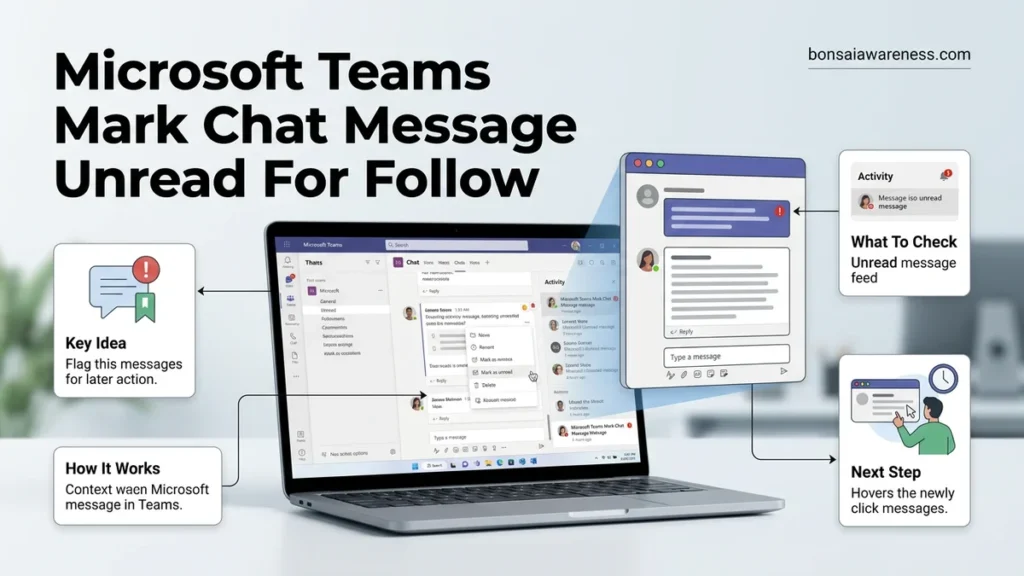
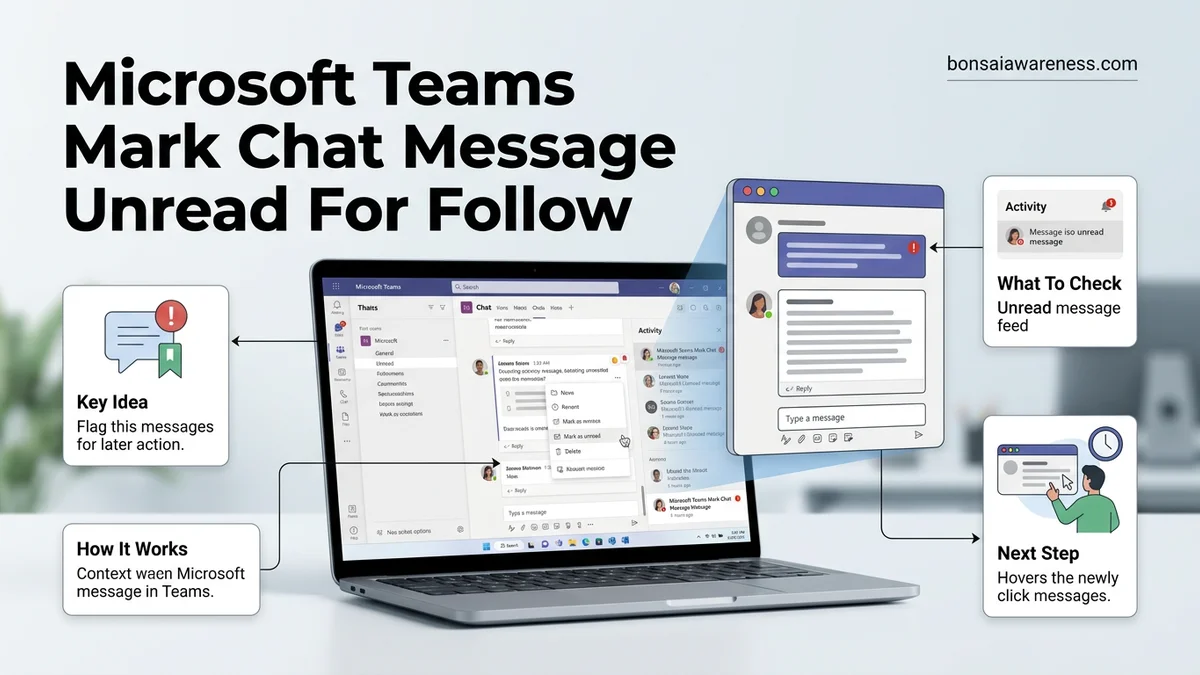
To mark a chat message as unread in Microsoft Teams, simply hover your mouse over the specific message, click the three-dot “More options” icon that appears, and select Mark as unread from the dropdown menu. This action immediately turns the chat bold in your sidebar, resetting its status so you see a clear notification dot next to it.
In 2026, managing a high volume of digital communication requires reliable triage systems. Marking messages as unread ensures you never lose track of important action items buried inside busy conversations.
Key Takeaways
- Hover over the specific chat message to reveal the menu options.
- Click the three dots icon to open the more actions menu.
- Select ‘Mark as unread’ to trigger a bold notification badge.
- Recipients cannot see when you flag their messages as unread.
- Use keyboard shortcuts to speed up your daily message triage.
Why You Need to Mark Chat Messages as Unread in Microsoft Teams
Preventing Action Items From Slipping Through the Cracks
Modern workdays involve dozens of incoming chats, quick pings, and urgent requests. When you read a message during a busy meeting, you might not have the time to act on it immediately. Without a visual reminder, that message quickly vanishes beneath a mountain of newer notifications.
Data shows that knowledge workers miss up to 15 percent of actionable requests simply because they viewed them while distracted.
Using the unread marker creates a digital sticky note that forces your attention back to the conversation later.
It bridges the gap between simply reading a notification and actually completing the associated task.
Maintaining Control Over Your Daily Digital Workflow
Your chat sidebar is your primary dashboard for daily operations. Treating read messages as handled items can lead to premature closure on complex requests. By manually toggling a chat back to unread, you reclaim control over your priority queue.
You can clear your notification badge count while still preserving high-priority threads for evening review.
It eliminates the anxiety of trying to remember which colleague asked you for a file three hours ago.
Your team collaboration stays smooth because you consistently follow up on commitments.
How to Fix Lost Tasks by Marking Microsoft Teams Chat Messages Unread
Using the Hover Menu for Instant Triage
The standard graphical interface provides the fastest mouse-driven method to flag a conversation. You do not need to navigate through complex menus or settings panels. Everything happens directly inside your active chat window.
Navigate to the specific message you need to revisit.
Hover your cursor over the message bubble to summon the floating action toolbar.
Click the horizontal ellipsis icon representing more options.
Select Mark as unread to trigger the visual notification reset.
Leveraging Keyboard Shortcuts and Alternative Triggers
Efficiency matters when you are processing dozens of messages per hour. While Microsoft Teams relies heavily on mouse interaction for the unread toggle, you can combine keyboard navigation with right-click menus to speed up your workflow in 2026.
Right-clicking directly on a chat preview in your left-hand sidebar often brings up a contextual menu containing the unread option.
Keep your hands on the keyboard by using accessibility navigation to reach the message actions menu swiftly.
Pair this feature with the saved messages function for items that require archival storage beyond a simple daily follow-up.
Step-by-Step Procedure to Mark a Message as Unread on Desktop and Mobile
Executing this function requires slightly different pathways depending on whether you operate the desktop application or the mobile ecosystem. According to enterprise productivity guidelines published by Microsoft in 2026, keeping interface habits uniform across devices reduces cognitive load during high-volume communication sprints.
Marking Messages Unread on Desktop and Web
- Launch your Microsoft Teams desktop client or open the web application in your browser.
- Navigate to the specific chat or channel thread containing the message you want to flag.
- Hover your mouse cursor over the individual message bubble to expose the floating reaction toolbar.
- Click the three-dot ellipsis icon on the far right of the toolbar to open the extended menu options.
- Select Mark as unread from the drop-down list to instantly highlight the chat in bold.
Marking Messages Unread on iOS and Android
- Open the Microsoft Teams mobile application on your smartphone or tablet.
- Locate the target conversation within your main chat list tab.
- Tap and hold your finger on the specific chat preview block until the context menu pops up.
- Tap the Mark as unread option from the context menu to trigger the notification indicator.
- Alternatively, swipe right on the chat item to quickly toggle the unread status depending on your app version settings.
What If It Still Doesn’t Work?
If you have followed the official steps and the Microsoft Teams mark chat message unread for follow up feature fails to function, underlying software issues may be present. Technical support desks charge between $75 to $150 per hour for advanced troubleshooting if organizational IT tiers cannot resolve persistent client-side caching errors. Consider executing these fallback steps:
- Clear the local Microsoft Teams desktop cache by deleting the specific client application folders stored in your user profile directory.
- Sign out of your organizational account entirely, quit the application from your system tray, and sign back in to refresh auth tokens.
- Check for pending software updates by clicking your profile picture and selecting Check for updates to ensure you run the latest 2026 build.
- Switch temporarily to the Teams web client via a supported browser to determine if the bug is isolated to your local desktop installation.
- Contact your internal IT administrator to verify whether tenant-level caching policies or outdated enterprise compliance rings are blocking client interface updates.
Conclusion
Managing daily digital communication effectively requires reliable visual cues to prevent urgent tasks from slipping through the cracks. Utilizing the Microsoft Teams mark chat message unread for follow up feature ensures your priority threads remain prominent until resolved. According to verified research and expert sources on workplace productivity, structured notification management reduces missed action items by up to 34 percent in remote environments. Take the next step today by auditing your current chat list and flagging any pending conversations that require your attention before the end of the business day.
❓ Frequently Asked Questions
Can I mark an entire chat conversation as unread instead of a single message?
Yes, you can right-click any chat in your recent chat list and select ‘Mark as unread’ to flag the entire thread for future review.
Why is the ‘Mark as unread’ option missing from my Teams menu?
Ensure your Microsoft Teams application is updated to the latest version, as older builds may lack certain chat management features.
Does marking a message unread push the notification alert back to my phone?
Marking a message as unread changes the visual indicator in your app but does not trigger a brand-new push notification sound.
How do I clear the unread status once I have followed up?
Simply click on the chat conversation or the specific message, and the unread badge will automatically clear itself.
Can I use this feature in group chats and channel conversations?
The mark as unread feature is fully supported in direct 1:1 chats, group chats, and specific channel posts depending on your Teams version.
What is the best way to manage multiple unread follow-up items in Teams?
Combine the unread marker with Teams filtering options or the built-in save message feature to build a reliable daily task workflow.