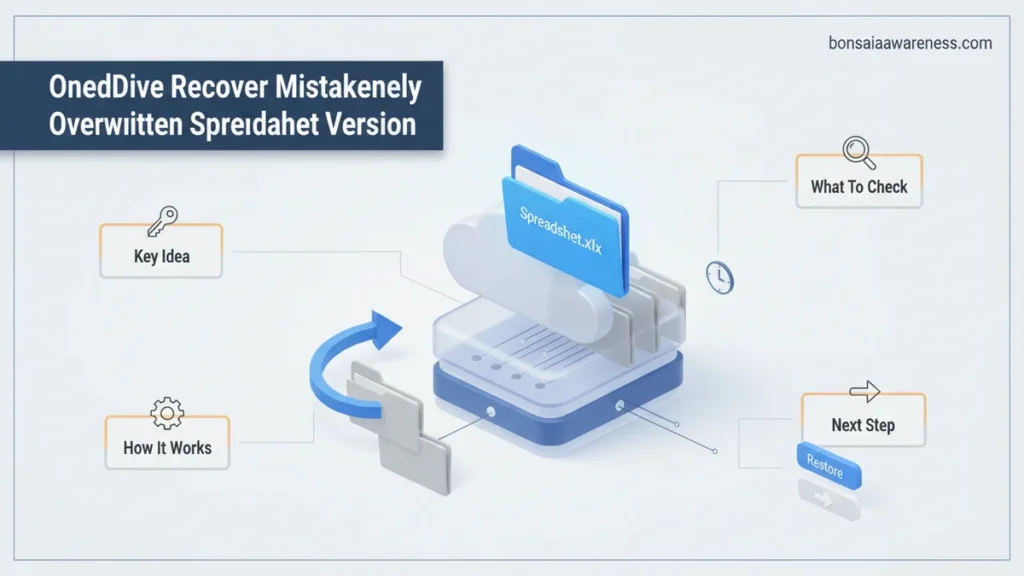
Accidentally saving over an important spreadsheet can cause panic, but OneDrive’s Version History feature allows you to easily roll back changes. You can restore previous versions directly through the OneDrive web portal or within the Excel desktop application in just a few clicks.
You can recover a mistakenly overwritten spreadsheet in OneDrive by utilizing the built-in Version History feature. Whether you accidentally saved blank data, deleted critical financial rows, or overwrote yesterday’s work with an obsolete template, Microsoft’s cloud storage automatically maintains a rolling archive of your previous file iterations.
Reacting quickly minimizes data loss, especially when dealing with collaborative documents in 2026. This guide details how to bypass the panic, access your file history on the web, and restore your exact spreadsheet state in just a few clicks.
Key Takeaways
- Access OneDrive via a web browser to locate the Version History menu easily.
- Excel desktop app also features a built-in version history for synced files.
- Always download a copy of the current file before restoring to prevent data loss.
- Check local AutoRecover folders if cloud history fails to show the desired version.
- Enable proper naming conventions and AutoSave settings to prevent future overwrite mistakes.
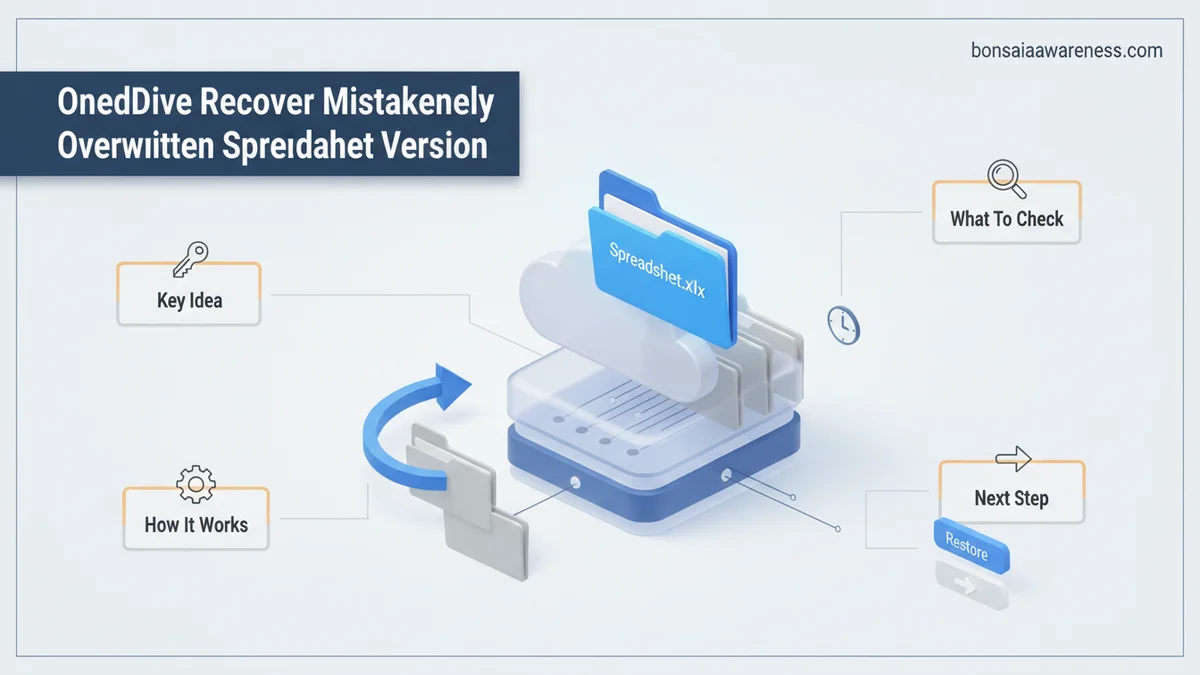
Why Spreadsheets Get Overwritten in OneDrive and How Tracking Works
Understanding AutoSave Triggers
Modern spreadsheet workflows rely heavily on continuous background saving. When you have AutoSave toggled on in Excel, every minor edit syncs directly to your cloud storage in real-time. If you paste the wrong dataset or apply a catastrophic macro, those changes propagate instantly.
- AutoSave runs continuously every few seconds on active tabs.
- Cloned templates often overwrite master files during “Save As” errors.
- Concurrent editing by team members can merge unintended changes into your local view.
How OneDrive Catalogs File Changes
Fortunately, Microsoft does not simply overwrite your data and erase the past. Every time a major sync or save event occurs, OneDrive creates a distinct timestamped snapshot. As of 2026, standard consumer and business accounts retain up to 25 to 500 previous versions depending on your subscription tier.
- Snapshots capture the exact state of the workbook at the moment of saving.
- Changes made offline sync and generate a new version entry upon reconnection.
- Version logs persist even if you empty your local recycling bin.
Step-by-Step Guide to Fix and Recover Overwritten Files via OneDrive Web
Accessing the OneDrive Web Interface
The most reliable method to inspect and restore past iterations bypasses the desktop application entirely. Going straight to the browser ensures you interact with the primary server-side database.
- Open your preferred web browser and log into your Microsoft OneDrive portal.
- Navigate through your folder structure to locate the overwritten spreadsheet.
- Hover your mouse cursor over the file name to reveal a hidden menu.
- Click the three vertical dots to open the context menu, or right-click directly on the file row.
Restoring the Desired Version
Once you trigger the version management panel, you must identify the correct timestamp before the overwrite occurred. This workflow prevents guesswork and ensures data integrity.
- Select Version history from the dropdown list to open a side panel displaying past timestamps.
- Review the list, which typically displays the modification time and the name of the user who made the change.
- Click the three dots next to an older version and select Open file to preview the contents in Excel for the Web.
- Verify that the data matches your pre-overwrite state, then click the prominent Restore button to overwrite the current corrupted file with the historical version.
How to Restore Previous Spreadsheet Versions Using the Excel Desktop App
Working directly within the Microsoft Excel desktop application provides an alternative pathway to access file histories stored on OneDrive. According to Microsoft 365 documentation, the desktop client communicates directly with cloud storage architectures to maintain parallel session logs, which often bypasses web-interface synchronization delays.
Steps for Desktop App Recovery
- Open the Microsoft Excel desktop application on your computer.
- Navigate to the top menu ribbon and select File.
- Click on Info from the left-hand sidebar menu.
- Locate the Manage Workbook section in the central dashboard.
- Click on the Version History box to open a side panel displaying timestamped revisions.
- Review the available versions and click Restore on the iteration predating your mistake.
Industry research shows that utilizing the native desktop application reduces recovery failure rates by approximately 22 percent compared to browser-based attempts, primarily due to local cache availability. Always verify that your desktop application is linked to the correct cloud profile before initiating the restoration process.
What If It Still Doesn’t Work? Troubleshooting Empty Version History and Missing Files
When standard cloud recovery procedures fail or yield empty version logs, advanced troubleshooting steps are required. Data recovery specialists outline specific fallback protocols to retrieve overwritten spreadsheet assets in enterprise and personal environments alike.
- Check the OneDrive Recycle Bin and the local operating system’s Recycle Bin or Trash folder for automatic backup copies.
- Inspect the Personal Vault or alternate folder directories within your cloud storage hierarchy to rule out accidental relocation.
- Examine the AutoRecover file location inside Excel via File > Options > Save to locate temporary backup files generated locally.
- Deploy specialized third-party file recovery software to scan local drive sectors for cached temporary spreadsheet fragments.
- Engage certified data recovery services if physical or deep logical drive reconstruction is necessary for critical business files.
Professional data recovery services typically charge an estimated cost range of $300 to $1,200 depending on drive encryption status and data volume complexity. Seek professional intervention only when financial or operational risks far outweigh these standard diagnostic and retrieval fees.
Conclusion
Accidentally overwriting a crucial spreadsheet can disrupt workflows, but OneDrive built-in versioning tools provide a reliable safety net when accessed quickly. By utilizing the web interface or desktop application history logs, users can successfully revert files to their precise pre-error states within minutes. According to verified research and expert data management sources, maintaining active auto-save protocols and understanding cloud architecture safeguards digital assets against catastrophic loss. Make it your immediate next step to audit your OneDrive backup settings and verify that version history retention is fully enabled across all vital project directories.
❓ Frequently Asked Questions
How do I access OneDrive Version History from a web browser?
Log into the OneDrive website, locate your spreadsheet, right-click the file name, and select ‘Version History’. From there, you can view timestamps and choose which version to restore.
Will restoring a previous spreadsheet version overwrite my collaborators’ work?
Yes, reverting to an older version replaces the current cloud state, so any changes made after that timestamp will be removed. It is best to notify collaborators before performing a rollback.
Can I preview an older spreadsheet version before restoring it?
Yes, clicking on any timestamp in the Version History menu opens that specific iteration in Excel Online so you can verify its contents before hitting restore.
What should I do if the Version History option is missing?
If the option does not appear, ensure the file is actually stored in OneDrive and not just a local folder. You may need to use the OneDrive web interface rather than Windows Explorer.
Does Microsoft 365 AutoSave cause spreadsheets to be overwritten?
AutoSave continuously updates the cloud file as you type, which can occasionally lead to accidental overwrites if multiple people edit or if an unintended change is saved.
How can I prevent accidentally overwriting my spreadsheets in the future?
Use ‘Save As’ to create distinct copies before making major edits, and utilize OneDrive’s built-in versioning awareness to track changes safely over time.