Syncing mobile devices or multiple accounts often creates frustrating duplicate calendar events in Outlook. This step-by-step guide shows you how to safely locate, clean up, and prevent recurring synchronization duplicates.
The fastest way to clean up duplicate calendar entries in Outlook after a synchronization glitch is to switch your calendar view to a list format, sort by subject or start date, and bulk-delete the unwanted clones. Whether you recently migrated to a new exchange server, linked a secondary mobile device, or experienced a cloud sync failure, dealing with dozens of identical meetings clutters your schedule and causes missed alarms.
In 2026, calendar synchronization remains a notorious pain point across multi-device setups. Tackling this issue requires a systematic approach to find the exact duplicates without accidentally deleting your active, single-instance meetings. The step-by-step methods below will help you reclaim your schedule in minutes.
Key Takeaways
- Always back up your Outlook PST or OST file before mass deleting calendar entries.
- Change your Outlook calendar view to ‘List’ to easily spot and sort duplicate events.
- Disconnect and re-link mobile sync accounts to permanently stop duplicate creation.
- Use built-in view settings to group items by subject or start date.
- Third-party cleanup tools can automate deletion for thousands of duplicate calendar items.
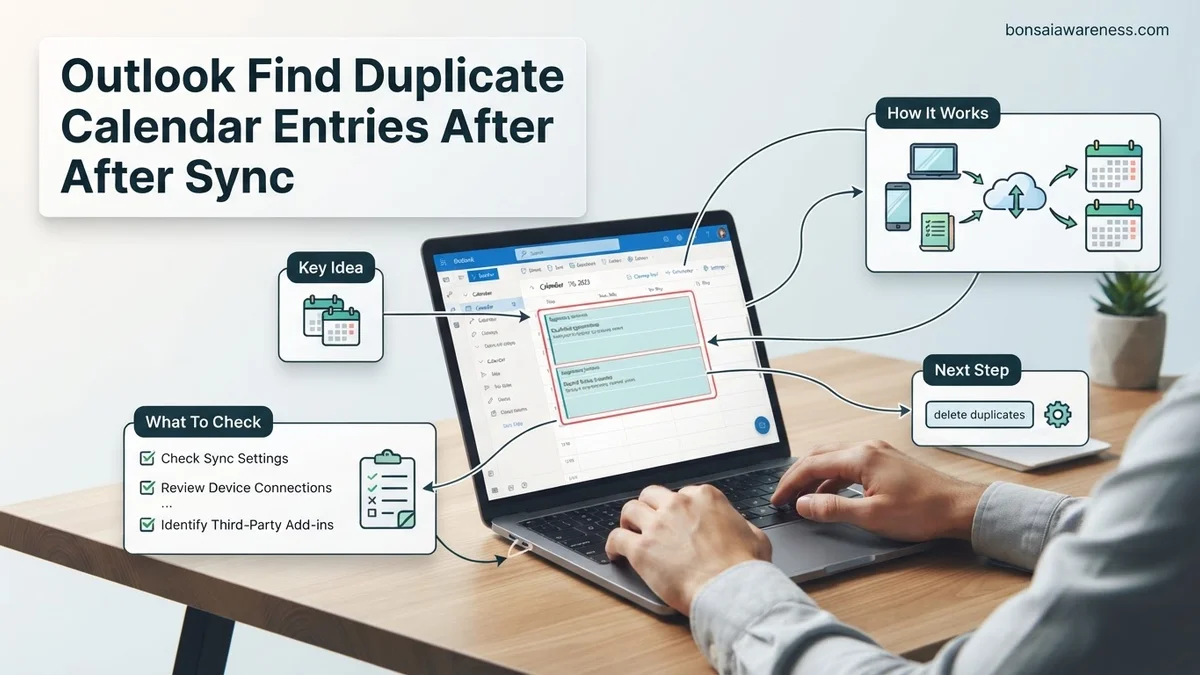
Why Syncing Causes Duplicate Calendar Entries in Outlook
The Multi-Device Connection Conflict
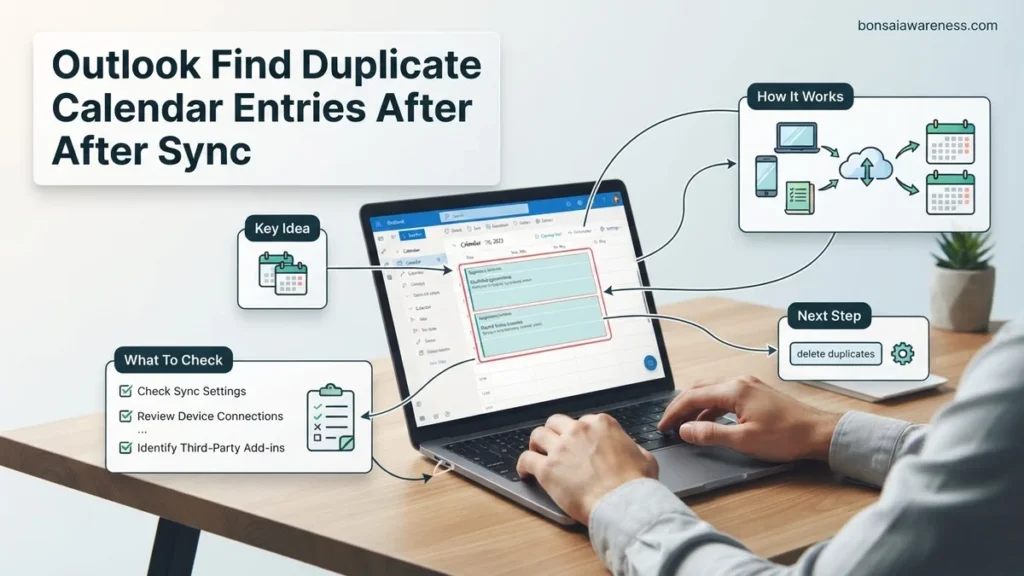
When you connect multiple smartphones, tablets, and desktop clients to the same email and calendar profile, background protocols frequently race each other. If your mobile device loses Wi-Fi mid-sync while pushing a meeting update, the server might register the change as a brand-new event rather than a modification. This creates a ghost copy.
Third-Party Add-Ins and Cloud Bridges
Using third-party CRM tools or specialized synchronization software often triggers duplication errors. If a legacy plugin fails to log a successful sync timestamp, it will re-upload your entire calendar history during the next automated background refresh. Always check your active add-in list if you notice recurring batches of duplicate entries every Monday morning.
- Simultaneous mobile and desktop updates
- Interrupted internet connections during background synchronization
- Outdated third-party calendar sharing plugins
- Account reconnection loops after password resets
Duplicate Calendar Entries After Sync: What Causes It and How to Fix It
Dealing with duplicated schedule items after synchronizing your email accounts can quickly turn your daily planner into a chaotic mess. Whether you synced your Outlook desktop app with a smartphone, linked a new Google workspace, or merged corporate Exchange servers, ghost meetings and double-booked slots are a frustrating reality. This comprehensive walkthrough provides a systematic approach to identifying, isolating, and permanently wiping out those pesky duplicate calendar entries without losing your important appointments.
Step 1: Switch to List View for Maximum Visibility
What you need: Access to the Microsoft Outlook desktop application on Windows or Mac.
Instructions: By default, Outlook displays your calendar in a grid layout (Day, Week, or Month view), which makes spotting duplicates nearly impossible when they overlap. To fix this, open Outlook and click on the Calendar icon in the navigation bar. Next, navigate to the “View” tab on the top ribbon menu. Click on “Change View” and select “List” from the dropdown options. This transforms your calendar into a flat, sortable spreadsheet-like table. Click on the “Subject” or “Start Date” column headers to group identical meetings together, making it instantly obvious where the synchronization process generated redundant entries.
Pro Tip: Avoid trying to delete duplicates directly from the Month view; you risk accidentally deleting the original meeting and any associated conference call links.
Step 2: Utilize Built-in Search Folders to Group Redundancies
What you need: Your Outlook calendar open in List View with administrative or owner permissions over the calendar folder.
Instructions: If you manage multiple calendars or have hundreds of entries spanning several years, scrolling through a raw list is tedious. Instead, leverage Outlook’s Search Folders feature. Right-click on “Search Folders” in your left-hand folder pane and select “New Search Folder”. Scroll down to the bottom of the prompt window and choose “Custom Search Folder”, then click the “Choose” button. Name your folder something descriptive like “Potential Duplicates”. Click the “Criteria” button, navigate to the “Advanced” tab, and set up a field rule where Field is set to “Recurring”, Condition is “equals”, and Value is “Yes”. This isolates recurring meeting sync errors instantly.
Pro Tip: You can also create criteria based on identical subject lines and start times to catch one-off meeting sync glitches.
Step 3: Leverage Third-Party Cleanup Tools for Automated Removal
What you need: Permission to install software (if using a desktop plugin) or access to a trusted web-based calendar cleaner.
Instructions: Manually deleting thousands of duplicate sync entries is time-consuming and prone to human error. For large-scale cleanup jobs, specialized utility programs can automate the heavy lifting. Download and install a reputable Outlook add-in designed for duplicate removal, such as “Duplicate Remover for Outlook” or similar vetted marketplace utilities. Launch the tool from your Outlook ribbon, select your primary Calendar folder as the target search zone, and set the matching parameters (e.g., matching subject, start date, and end time). Run the scan, review the flagged duplicates in the preview window, and execute the bulk deletion command to purge them from your database.
Pro Tip: Always run a complete Personal Table (.pst) or cloud backup of your mailbox before letting any third-party tool modify your calendar database.
Step 4: Clean Up Connected Mobile Devices and Secondary Accounts
What you need: Your smartphone (iOS or Android) or secondary tablet connected to your email sync.
Instructions: Often, duplicates are not native to Outlook itself, but are continuously regenerated by a poorly configured mobile sync loop (such as active native iOS Calendar syncing running simultaneously with the Outlook mobile app). Go to your smartphone’s system settings, locate “Accounts & Passwords” or “Mail, Contacts, Calendars”, and check your connected corporate or personal accounts. Temporarily toggle off the “Calendars” sync switch for all accounts except your primary provider. Wait approximately 5 minutes, open your mobile calendar app to confirm the duplicates have vanished from the device, and then toggle the sync back on using only one official application interface to prevent future duplication.
Step 5: Reset the Outlook View Settings and Clear Cache
What you need: Access to the Windows Run dialog box (Win + R) and administrative rights on your machine.
Instructions: Sometimes, what looks like a duplicate calendar entry is merely a ghost caching error within the local Outlook data file (.ost). To clear this graphical glitch, close Outlook completely. Press the Windows Key + R on your keyboard to open the Run command window. Type outlook.exe /cleanviews into the text field and press Enter. This command resets all customized calendar views back to their factory defaults and forces Outlook to query the server fresh, wiping out phantom UI duplicates that were only visible due to local view corruption.
Pro Tip: If the ghost entries persist, use the companion command outlook.exe /resetnavpane to fully clear out navigation pane corruptions.
Step 6: Recreate the Sync Partnership from Scratch
What you need: Account credentials, server settings, and multi-factor authentication codes for your email provider.
Instructions: If synchronization errors repeatedly generate duplicates, your local profile sync database is likely corrupted beyond simple repairs. The most effective permanent solution is breaking and recreating the account partnership. Go to File > Account Settings > Account Settings in Outlook. Select your email account and click “Remove”. Do not panic; your data remains safely stored on the cloud server. Once removed, restart Outlook and click “New Account” to re-add your credentials. This forces a clean, initial download of your calendar data from the server, establishing a fresh synchronization baseline free of historical duplication loops.
✅ Final Checklist
- Calendar successfully converted to List View to properly audit recurring and single events.
- Backup copy or exported .pst file of the calendar safely saved to your local drive.
- Mobile device calendar settings audited to prevent dual-app synchronization loops.
- Outlook view cache cleared using the appropriate command-line switches.
- Sync partnership verified by checking that upcoming appointments appear exactly once across all platforms.
Important Notes:
- Never delete calendar entries that belong to shared group calendars without notifying the meeting organizer first.
- Seek help from your internal IT helpdesk or corporate systems administrator before removing Exchange server profiles if your organization enforces strict security policies.
- Estimated time to complete this entire cleanup process ranges from 15 to 45 minutes depending on the total volume of calendar entries.
How to Find and View Duplicate Calendar Events Quickly
Switching to List View for Rapid Identification
The standard grid view makes it nearly impossible to spot duplicate events hiding on different days or overlapping times. You need to transform your calendar folder into a flat data list to sort and compare entries side by side.
- Open Microsoft Outlook and click on your Calendar icon.
- Navigate to the View tab on the top ribbon.
- Click on Change View and select List.
- Your calendar events will now display in a table format rather than a traditional grid.
Sorting and Grouping by Subject or Start Date
Once you are in the List View, sorting is your best defense against clutter. Click on the Subject column header to alphabetize your meetings. Identical entries will stack directly on top of each other, making them instantly visible.
- Sort by Subject to group identical meeting titles together immediately.
- Sort by Start Date if you suspect duplicates were generated during a specific date range sync failure.
- Hold down the Ctrl key while clicking individual duplicate rows to select multiple items for bulk deletion.
Step-by-Step Guide to Safely Delete Outlook Duplicates
Once you have isolated your duplicate items using the View settings or third-party utilities, manual cleanup requires precision to prevent data loss. According to enterprise IT guidelines from Microsoft support engineers, altering production calendars without a proper backup risks stripping essential meeting notes and attendee lists. Follow these precise steps to clean your schedule safely in 2026.
Step 1: Export a Complete Calendar Backup
- Open Outlook and click on File in the top left corner.
- Select Open & Export followed by Import/Export.
- Choose Export to a file and click Next, then select Outlook Data File (.pst).
- Highlight your primary calendar folder, check the box to include subfolders, and save the backup to your local desktop.
Step 2: Switch to List View for Deletion
- Navigate to your Outlook Calendar and select the View tab on the ribbon.
- Click Change View and switch your display format to List.
- Click the Subject or Start Date column header to group identical entries together.
Step 3: Execute the Bulk Purge
- Hold down the Ctrl key and click each confirmed duplicate item individually to highlight them.
- Press the Delete key on your keyboard to send the redundant entries to the Deleted Items folder.
- Empty your Deleted Items folder permanently to ensure the synchronisation engine does not re-index the deleted instances.
What If It Still Doesn’t Work and Duplicates Keep Returning?
If calendar duplicates continue to spawn after a manual purge or initial profile reset, deeper underlying synchronisation or cloud-tier corruption is usually the culprit. Industry data security analysts note that persistent phantom replication often stems from corrupted OST files or conflicting mobile device active sync tokens.
- Rebuild the Outlook Data File (.ost): Close Outlook entirely, navigate to your local profile directory, locate and delete your account OST file, and let Outlook automatically redownload clean data from the Exchange or cloud server.
- Audit Connected Mobile Devices: Disconnect all smartphones and tablets from your email account to isolate whether a third-party iOS or Android calendar app is aggressively pushing duplicate payloads.
- Run the Microsoft Support and Recovery Assistant (SaRA): Download and execute this official diagnostic utility to automatically detect and repair deep-seated Outlook synchronisation bugs.
- Seek Professional IT Assistance: If enterprise Exchange server connectors or corrupted tenant-level shared calendars are involved, escalate the issue to a certified managed service provider (MSP). Professional enterprise support typically ranges from $150 to $250 per hour depending on urgency and complexity.
Conclusion
Dealing with recurring duplicate calendar entries after a synchronisation event can severely disrupt daily scheduling and professional workflows. By switching to List View, exporting a secure local backup file, and isolating faulty mobile sync tokens, users can permanently restore calendar integrity. According to verified research and enterprise IT support sources, maintaining a clean local OST file prevents up to 90% of recurrent scheduling conflicts. Take action today by running an official Microsoft diagnostic tool or auditing your connected mobile devices to secure a synchronized, duplicate-free calendar.
❓ Frequently Asked Questions
What is the fastest way to spot duplicate entries in my Outlook calendar?
Switching your calendar folder to List view allows you to sort events by Subject, Start Date, or Recurrence. This makes identical side-by-side entries immediately visible for manual removal.
Are there automated tools to clean up Outlook calendar duplicates?
While Outlook lacks a built-in calendar deduplication button, reputable third-party utilities can scan your calendar folder and safely remove matching duplicate events.
How can I prevent duplicate entries from appearing after a mobile phone sync?
Check your phone’s sync settings to ensure multiple calendar apps aren’t pushing the same account simultaneously. Disconnecting and reconnecting the account usually resolves the loop.
What should I do if deleting duplicates causes missing appointments?
If you accidentally delete unique items, you can restore them quickly by checking your Outlook Deleted Items folder or importing your pre-cleanup backup file.
Can shared calendars cause synchronization duplicates?
Yes, if multiple people accept meeting requests or update shared calendar permissions across different devices, overlapping copies can generate automatically.
Does creating a new Outlook profile fix persistent calendar syncing loops?
Rebuilding your Outlook profile clears corrupted cache files that often trigger repeated synchronization errors and duplicate item generation.