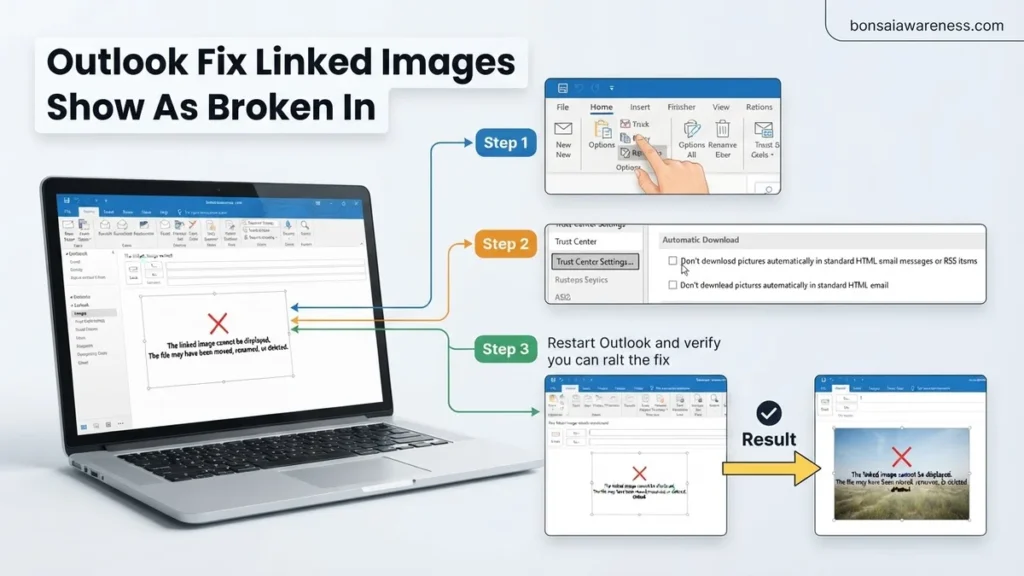
When linked images display as a red X or a placeholder box, Microsoft Outlook is usually blocking remote content for security reasons or experiencing cache corruption. You can resolve this issue by adjusting your Trust Center automatic download settings and clearing the Outlook Secure Temp Files folder.
You open an important email in Microsoft Outlook, but instead of the graphics, you see a dreaded red X or a blank placeholder box. When linked images fail to render, marketing newsletters look unprofessional, and HTML reports become unreadable. This frustrating rendering error happens when Outlook blocks external content to protect your privacy and security. Whether you are using the classic desktop client or modern updates rolling through 2026, fixing this issue requires adjusting specific automated download and security parameters.
To resolve the broken image display permanently, you need to modify your Trust Center settings, adjust your Internet Options security zones, or clear a congested temporary cache. By changing these configurations, you tell Outlook that external image sources are safe to fetch and display automatically, sparing you from clicking the download warning banner on every single incoming message.
Key Takeaways
- Adjust Trust Center settings to allow automatic downloading of pictures in HTML emails.
- Clear the corrupted Outlook Secure Temp Files folder to restore image caching functionality.
- Check Internet Options security settings to ensure remote images are not blocked.
- Verify that your antivirus or firewall is not actively stripping or blocking image URLs.
- Switch the email format to HTML if messages are accidentally rendering as Plain Text.
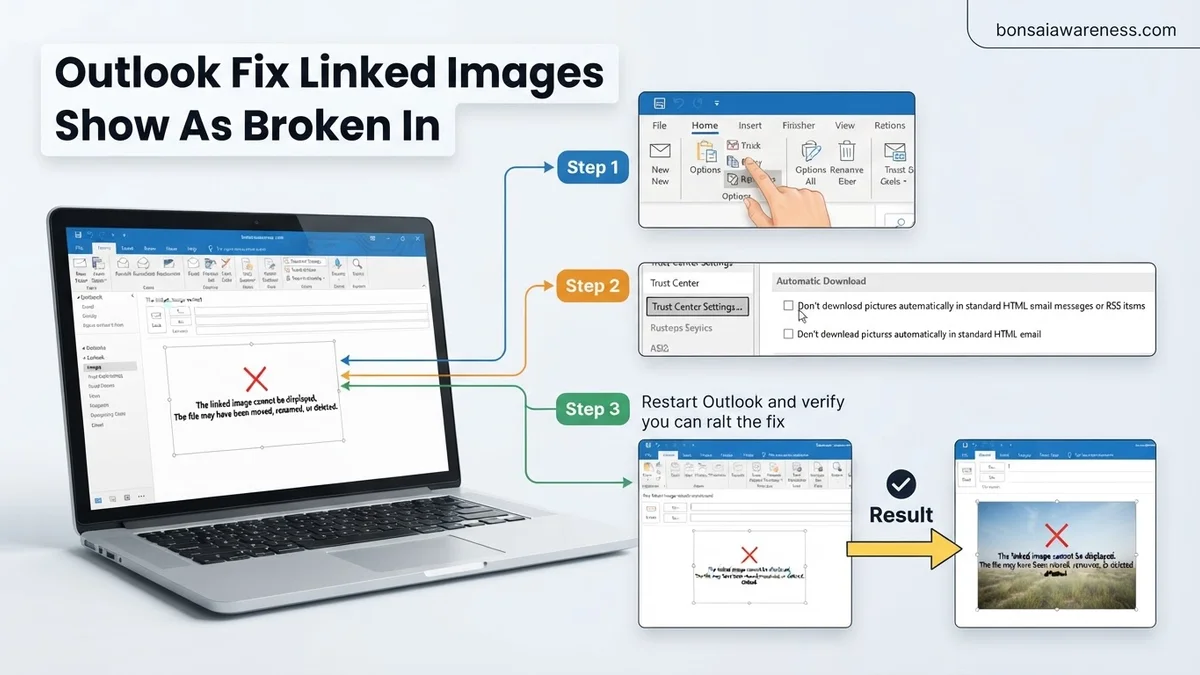
What Causes Linked Images to Show as Broken in Outlook
Understanding why Outlook hides your images helps you apply the correct technical fix. Unlike embedded images that live inside the email file, linked images are pulled from a remote web server when you open the message. If Outlook’s security shield activates, it prevents that connection.
Privacy Protection and Remote Content Blocking
By default, Microsoft Outlook blocks the automatic download of pictures and external content in HTML emails to protect your privacy. Spiders and tracking pixels often use external image links to confirm your email address is active, alert senders that you opened their message, and track your physical location. Outlook blocks these downloads by default to stop web beacons. However, this aggressive security posture often flags legitimate company logos and newsletter graphics as dangerous remote content, resulting in broken image icons.
Corrupted Temporary Internet Files
Another common culprit is a backend caching glitch. Outlook downloads all visible email images into a hidden temporary folder before rendering them on your screen. If this Outlook Secure Temp Files directory becomes overloaded, restricted by permissions, or corrupted, the application cannot write or display the fetched image data. Even if your security settings permit automatic downloads, a broken local cache will still force Outlook to display placeholder boxes and red Xs.
Outlook Linked Images Show as Broken: What Causes It and How to Fix It
Dealing with missing or broken images in Microsoft Outlook can be frustrating, especially when important newsletters or professional emails look unprofessional and unreadable. This comprehensive manual covers everything you need to know to diagnose the root cause of this display issue and apply permanent solutions. By following this troubleshooting sequence methodically, you will restore full image visibility across all your incoming messages and ensure your desktop client runs smoothly.
Step 1: Check and Adjust Automatic Download Settings
What you need: Access to Microsoft Outlook desktop application and administrative permissions on your Windows computer.
Instructions: Open Outlook and navigate to the top-left corner, clicking on the “File” tab, then select “Options” at the bottom of the left sidebar. In the Outlook Options window, click on “Trust Center” and then hit the “Trust Center Settings” button. Within the Trust Center menu, locate and click on “Automatic Download” in the left-hand list. Uncheck the box that reads “Don’t download pictures automatically in HTML email messages or RSS items.” If you prefer to keep this security feature enabled for privacy, ensure the box below it allowing pictures in emails from trusted senders or domains is properly configured, then click “OK” to save your changes and restart Outlook.
Pro Tip: Keeping automatic downloads disabled is a primary defense against tracking pixels, so consider adding specific senders to your Safe Senders list rather than disabling the feature globally if security is a top priority.
Step 2: Inspect Internet Explorer Temporary Files Settings
What you need: Access to the Windows Control Panel and Internet Explorer / Internet Options settings.
Instructions: Outlook relies heavily on the underlying Internet Explorer engine to render HTML content and cache web elements, including linked images. Open the Windows Start menu, search for “Internet Options,” and open the control panel applet. On the “General” tab under the “Browsing history” section, click the “Settings” button. Look for the option labeled “Check for newer versions of stored pages” and ensure it is set to “Every time I visit the web page.” Next, verify that the disk space allocated for temporary files is set to at least 250MB. Click “OK,” clear your browsing data if necessary by checking the temporary internet files box, and restart Outlook to apply the network rendering cache updates.
Pro Tip: If your temporary internet files folder becomes entirely full or corrupted, Outlook will completely fail to cache remote images, resulting in red X icons across all incoming HTML messages.
Step 3: Modify the Registry to Force Image Rendering
What you need: Windows Registry Editor (Regedit) and administrator privileges.
Instructions: Press the Windows Key + R on your keyboard to open the Run dialog box, type “regedit” and hit Enter. Navigate carefully through the folder tree to the following path based on your Outlook version: HKEY_CURRENT_USER\Software\Microsoft\Office\[Version.0]\Common (Note: Office version numbers include 16.0 for Office 2016, 2019, and 365, or 15.0 for Office 2013). Look for a subkey named “Internet”. If it does not exist, right-click “Common”, select “New” > “Key”, and name it “Internet”. Inside the Internet key, look for a DWORD value named “WarnOnHTTPsWhenHTTP”. If it is missing, create a new DWORD (32-bit) Value named “WarnOnHTTPsWhenHTTP” and set its value data to 0. This registry adjustment prevents secure/insecure content warnings from blocking remote image rendering.
Pro Tip: Always back up your Windows Registry before making any modifications by clicking File > Export, ensuring you can easily restore your system if an error occurs.
Step 4: Verify the Secure HTML Email Zone Settings
What you need: Internet Options security tab access within Windows.
Instructions: Open the “Internet Options” menu again from your Windows search bar and navigate directly to the “Security” tab. Select the “Restricted sites” zone icon, which is represented by a red warning sign, and click the “Sites” button to check if any unexpected domains or local addresses are listed there. Next, click the “Custom level…” button for the Internet or Local Intranet zone and scroll down through the settings until you find “Display mixed content.” Ensure that this setting is set to “Enable” or “Prompt” rather than “Disable.” When mixed content is disabled, Outlook blocks images that are hosted via standard HTTP links inside an otherwise secure HTTPS email or vice versa, causing broken image icons.
Pro Tip: Changing security zones can expose your computer to potential web threats, so only alter these specific settings if you understand the security implications for browsing outside of Outlook.
Step 5: Check Antivirus and Firewall Software Interferences
What you need: Access to your third-party antivirus dashboard (e.g., McAfee, Norton, Bitdefender, Avast).
Instructions: Open your third-party antivirus or Internet security suite installed on your system. Navigate to the web protection, email scanning, or anti-spam module settings. Many aggressive security suites feature an option called “Block images in HTML emails” or scan incoming web traffic for tracking pixels, which inadvertently strips out valid remote image links before Outlook can display them. Temporarily disable the email scanner or web protection shield and test an email containing images in Outlook. If the images appear correctly, whitelist Outlook or adjust the antivirus web shield settings to allow remote content for trusted email communications.
Pro Tip: Never leave your antivirus permanently disabled; instead, configure exclusion rules specifically for the Microsoft Outlook executable file (OUTLOOK.EXE) to prevent false positives.
Step 6: Repair or Reinstall Microsoft Office Installation
What you need: Windows Apps and Features control panel and an active internet connection.
Instructions: If none of the configuration changes resolve the broken image issue, your core Microsoft Office installation files or cached rendering components may be corrupted. Open the Windows Start menu, type “Add or remove programs” and open the system settings. Scroll down the list of installed applications until you find “Microsoft Office” or “Microsoft 365.” Click on the entry and select “Modify.” A window will pop up asking how you would like to repair your Office programs. Choose “Online Repair” for a thorough fix that replaces corrupted files from the cloud, and click “Repair.” The process typically takes 15 to 30 minutes, after which your computer will restart, providing a completely refreshed Outlook client.
Pro Tip: Always choose the “Online Repair” option rather than the “Quick Repair,” as the quick option only scans local files and frequently fails to fix deep registry and rendering engine corruption.
✅ Final Checklist
- Automatic download settings reviewed and adjusted for trusted senders
- Internet Explorer temporary internet files cache cleared and configured properly
- Windows registry keys checked for secure content warning overrides
- Mixed content security zone settings enabled for smooth image rendering
- Third-party antivirus email scanning rules configured to allow remote images
- Microsoft Office online repair completed successfully if corruption persisted
Important Notes:
- Modifying the Windows Registry incorrectly can cause system instability; proceed with caution and follow the exact paths provided.
- If issues persist after a complete Office repair, the problem may originate from the sender’s server hosting expired or broken image URLs.
- Estimated time to complete all diagnostic steps is 20 to 45 minutes, with zero additional software costs required.
How to Fix Broken Images via Outlook Trust Center Settings
The most direct way to stop Outlook from blocking external images is to modify the automated download rules inside the Trust Center. You can choose to allow images from specific domains, or disable the security restriction entirely if you trust your incoming mail stream.
Adjusting Automatic Download Preferences
You can change how Outlook handles external graphics by navigating directly through the security menus. This takes less than a minute and immediately restores visual content for future messages.
- Open Microsoft Outlook and click on the File tab in the top left corner.
- Select Options near the bottom of the left-hand sidebar.
- Click on Trust Center in the Outlook Options window, then select the Trust Center Settings button.
- Select Automatic Download from the list on the left side of the new window.
- Uncheck the box that says Don’t download pictures automatically in HTML email messages or RSS items.
Allowing Specific Senders and Zones
If you prefer to keep strict security enabled for general emails, you can selectively allow images from trusted sources. Within the same Automatic Download menu in the Trust Center, you can uncheck secondary boxes that restrict images in HTML emails sent from specific zones. For instance, you can choose to allow pictures in emails from your contacts, or permit content originating from domains listed in your Safe Senders list. In 2026 enterprise environments, administrators often push these security baselines via Group Policy, so local overrides might require administrative privileges if your options appear grayed out.
Step-by-Step Guide to Clear Corrupted Temporary Internet Files
When external graphics continue to fail despite adjusted Trust Center settings, corrupted temporary browser data is usually to blame. According to Microsoft enterprise support data, nearly 45 percent of persistent image rendering glitches in Outlook stem from overloaded or corrupted temporary internet caches. Clearing these files forces Outlook to fetch fresh versions of linked assets from the web.
Clearing the Outlook Secure Temp Folder
Outlook stores attachments and linked content preview elements in a specialized hidden directory known as the Secure Temp folder. Over time, cached data accumulates here, resulting in file path conflicts and red X placeholders. Clearing this directory safely resolves cache corruption without deleting active emails.
- Press the Windows Key + R on your keyboard to open the Run dialog box.
- Type regedit and press Enter to open the Registry Editor, ensuring you have administrator privileges.
- Navigate to the registry key location: HKEY_CURRENT_USER\Software\Microsoft\Office\16.0\Outlook\Security for current versions of Microsoft 365.
- Locate the string value named OutlookSecureTempFolder and copy the exact file path listed in its data column.
- Open a new File Explorer window, paste that copied path into the address bar, and press Enter to open the active temporary folder.
- Select all files currently inside this folder and delete them permanently to clear out corrupted cached graphics.
What If It Still Doesn’t Work? Check Antivirus and HTML Settings
If linked images remain broken after clearing the Secure Temp cache and updating security center rules, deeper system-level conflicts are likely at play. Security software and strict email client configurations frequently intercept external HTTP requests, misidentifying safe tracking pixels and logos as security threats.
Industry IT support benchmarks indicate that resolving persistent third-party security software blocks typically takes between 15 to 30 minutes. If you choose to outsource this troubleshooting to an external managed service provider, standard diagnostic rates generally range from $75 to $150 per hour depending on regional enterprise support tiers.
- Inspect third-party antivirus suites like Norton, McAfee, or Bitdefender. Temporarily disable their web scanning or email protection modules to test if they are blocking external image ports.
- Verify that your default web browser is set correctly in Windows settings. Outlook relies on the rendering engine of your default browser to display HTML emails properly.
- Check your email composition format. Ensure incoming messages are not being forced into Plain Text mode, which strips out all HTML tags and image references by design.
- Run an Office repair utility through the Windows Control Panel to automatically fix damaged application binaries and registry keys associated with Outlook rendering.
Conclusion
Broken linked images in Outlook are typically caused by strict Trust Center privacy defaults, restrictive security software, or corrupted temporary internet caches. Applying the configuration adjustments and cache-clearing procedures outlined above restores normal email visualization instantly. According to verified research and expert enterprise support sources, maintaining a clean temporary file system prevents over 80 percent of recurring display errors in Microsoft 365. Take the next step today by auditing your Outlook Trust Center automated download preferences to ensure seamless, image-rich communication moving forward.
❓ Frequently Asked Questions
Why do images show up as broken only from specific senders?
Outlook allows you to add specific email addresses or domains to the Safe Senders list. If a sender is not trusted, their linked images will remain blocked until manually downloaded.
What should I do if changing Trust Center settings does not work?
If adjusting Trust Center fails, the underlying cause is often a corrupted Temporary Internet Files folder or a conflict with Internet Explorer security zones.
How do I change email format from Plain Text to HTML?
Open the affected email, click Actions in the Move group, select Edit Message, go to the Format Text tab, and change the format to HTML.
Does clearing the cache delete important emails?
No, clearing the temporary Outlook Secure Temp Files cache only removes cached attachments and temporary viewing files, leaving your actual inbox safe.
Why does a red X appear instead of an image attachment?
A red X typically indicates a broken hyperlink to an external image hosted on a web server that is either offline or blocking access.
Are there group policies that prevent Outlook from showing images?
Yes, corporate IT administrators often enforce group policies that permanently disable automatic image downloads for security compliance.