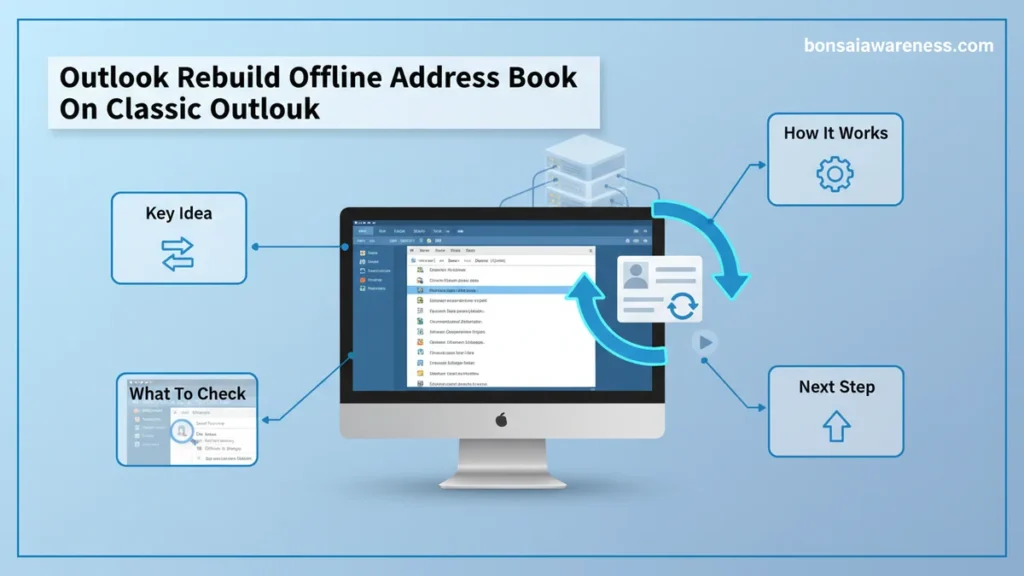
Manually rebuilding the Offline Address Book (OAB) in Classic Outlook is crucial for resolving outdated contact information and synchronization issues. This process ensures your local address book accurately reflects changes in your organization’s Global Address List (GAL). Follow these steps to force a full update and restore correct contact data.
To force a manual update or completely rebuild the Offline Address Book (OAB) in Classic Outlook, you need to navigate to the Send/Receive Groups menu and trigger a manual download. This bypasses the default background synchronization schedule.
Dealing with missing contact details, outdated email addresses, or autocomplete errors in Classic Outlook can halt your daily workflow in 2026. Forcing a fresh download of the OAB forces your desktop client to pull the latest directory data straight from your organization’s Exchange server, clearing out corrupted local cache files instantly.
Key Takeaways
- Manually update OAB via Send/Receive tab in Classic Outlook.
- Use ‘Download Address Book’ for a forced OAB refresh.
- Deselect ‘Download changes’ for a complete rebuild.
- Restart Outlook to verify updated contact information.
- OAB rebuild resolves outdated contact sync problems.
What Causes Outdated Offline Address Book in Classic Outlook?
Background Sync Failures and Network Drops
Classic Outlook relies on background synchronization to keep your local OAB copy up to date with the server-side Global Address List. When your laptop disconnects from the VPN or corporate network during an active sync cycle, the local database files often become corrupted or partially written.
- Intermittent Wi-Fi or VPN drops interrupt the background download process.
- Large corporate directories fail to merge incremental changes properly over time.
- Outlook data files (OST) encounter minor corruption affecting cached directory structures.
Stale Local Cache Files
Even when your Exchange administrator updates user profiles on the server, your Classic Outlook client might stubbornly hold onto old OAB files stored deep within your local AppData directories. If the timestamp on your local files does not match the server manifest, the client stops trying to sync updates altogether. Forcing a manual full download wipes these stale files clean and pulls a fresh copy into your Outlook profile.
Master Outlook Offline Address Book Rebuild in 7 Simple Steps
When searching for internal contacts results in missing names, outdated phone extensions, or frustrating email delivery failures in Classic Outlook, your local Offline Address Book (OAB) is likely corrupted or severely out of sync. This comprehensive walkthrough provides the exact methodology to purge damaged cache files and successfully force a fresh download directly from your organization’s Exchange server. Following these meticulous procedures ensures your email client regains full operational awareness of your corporate directory without requiring complex IT intervention.
Step 1: Verify Your Connection Status
What you need: Classic Microsoft Outlook desktop application and an active, stable connection to your organization’s corporate network via VPN or direct office LAN.
Instructions: Before attempting any troubleshooting or file deletion, you must confirm that Classic Outlook is actively communicating with your Microsoft Exchange server. Launch Classic Outlook and look directly at the bottom-right corner of the application window in the status bar. Verify that it explicitly displays “Connected to Microsoft Exchange” or “Connected.” If you see “Disconnected,” “Working Offline,” or “Trying to connect,” your client cannot pull a new address book. Click on the “Send / Receive” tab in the top ribbon menu, and then click the “Work Offline” button to toggle your connection state back to online mode if necessary.
Pro Tip: Never attempt an OAB rebuild while connected to an unstable public Wi-Fi network, as interrupted downloads lead to further file corruption.
Step 2: Access the Send/Receive Groups Menu
What you need: Access to the standard Classic Outlook top navigation ribbon and basic mouse navigation skills.
Instructions: Open Classic Outlook and navigate to the top horizontal ribbon menu. Click on the tab labeled “Send / Receive.” Scan the ribbon groups from left to right until you locate the section titled “Send & Receive.” Within this section, look for the button labeled “Send/Receive Groups” and click the small downward-facing drop-down arrow next to it. From the contextual menu that appears, hover your mouse pointer over “Download Address Book…” and left-click once to open the primary synchronization control window. This specific dialog box contains the granular checkboxes required to command Outlook to wipe and regenerate your local directory cache.
Pro Tip: Do not confuse this menu with the standard “Send/Receive All Folders” button, as that only syncs emails and calendar items, not the underlying address lists.
Step 3: Configure the Download Parameters
What you need: The “Download Address Book” dialog box open on your primary display monitor.
Instructions: Once the Download Address Book window opens, carefully check the box labeled “Download changes since last Send/Receive” to ensure it is unchecked. You want to force a completely fresh, comprehensive download rather than a partial differential update. Next, look further down the dialog box and locate the section that says “Choose address book.” Ensure the correct corporate offline address book is highlighted (usually named “Default Global Address List” or your specific company name). Finally, check the prominent box that explicitly states “Download details for each entry.” This guarantees that phone numbers, office locations, and email aliases update correctly.
Pro Tip: Leaving the incremental update box checked is the number one reason OAB rebuilds fail to resolve missing contact data.
Step 4: Initiate the Manual Synchronization
What you need: Properly configured download parameters and a few minutes of uninterrupted computer processing time.
Instructions: With all the correct settings checked in the Download Address Book window, direct your mouse to the bottom right corner of the dialog box and click the “OK” button. Classic Outlook will immediately close the dialog and initiate the background synchronization process. Look back down at the bottom-right corner status bar of your Outlook window. You should see a progress bar pop up indicating that “Downloading Offline Address Book” is actively running. Depending on the size of your corporate directory—ranging from hundreds to hundreds of thousands of entries—this download process can take anywhere from 30 seconds to 5 minutes to complete.
Pro Tip: Avoid clicking away, opening heavy attachments, or closing Outlook while the progress bar is active, as this frequently results in incomplete file writes.
Step 5: Manually Clear Corrupted OAB Cache Files (If Manual Sync Fails)
What you need: File Explorer access and permission to view hidden operating system files and folders on your Windows workstation.
Instructions: If the standard ribbon download fails to fix your directory issues, you must manually delete the corrupted local cache files. Completely close out of Classic Outlook. Open Windows File Explorer and paste the following path into the address bar: %localappdata%\Microsoft\Outlook and press Enter. Inside this directory, look for a folder named “Offline Address Books” or locate files ending with extensions like .oab, .rdf, and .xml. Right-click this folder or select those specific cache files and choose “Delete.” Windows will safely remove these damaged files, forcing Outlook to generate brand new ones upon your next launch.
Pro Tip: Never delete your main .ost data file during this process unless you are instructed to recreate your entire email profile from scratch.
Step 6: Restart Classic Outlook and Trigger Secondary Sync
What you need: A freshly cleared local OAB cache directory and your standard Windows desktop environment.
Instructions: After successfully deleting the old cache files through File Explorer, relaunch Classic Outlook from your start menu or desktop shortcut. Because you removed the local database files, Outlook will recognize that no local address book exists and will automatically initiate a pristine backend download sequence upon startup. Wait approximately two to three minutes for the application to fully initialize, connect securely to the Exchange server, and write the newly downloaded OAB files into the clean local directory path you established in the previous step.
Pro Tip: If Outlook stays stuck on “Updating Address Book” for more than ten minutes, restart your local computer to clear any lingering background synchronization threads.
Step 7: Test and Verify the New Address Book
What you need: A newly populated address cache and an active new email composition window.
Instructions: To confirm your rebuild was completely successful, click on the “New Email” button in the top left corner of Classic Outlook. In the open message window, click the “To…” button to open the Select Names global address list dialog box. Drop down the address book menu at the top right of this new window and select your Offline Global Address List. Type the name of a recently hired colleague or a staff member whose contact details were previously broken. Verify that their updated email address, phone extension, and title now appear correctly without error prompts.
Pro Tip: Use the autocomplete cache test by typing the first letter of a colleague’s name in the “To” line to ensure the drop-down suggestion pulls the fresh directory data.
✅ Final Checklist
- Classic Outlook status bar explicitly confirms a live connection to the Microsoft Exchange server.
- Incremental update box was disabled to ensure a full, comprehensive OAB download.
- Local corrupted cache files (
.oab) were successfully purged from the AppData directory if manual sync failed. - Outlook was completely restarted and allowed 3 to 5 minutes to write the new background files.
- Test email search successfully populates newly updated corporate internal contacts without missing entries.
Important Notes:
- Always close Classic Outlook completely using Task Manager if the application freezes during the cache deletion process.
- Seek assistance from your internal corporate IT or Helpdesk department if your Exchange server enforces group policy restrictions that block manual OAB downloads.
- Estimated time to complete this entire procedure is 10 to 15 minutes, with zero financial cost.
How to Fix It: Step-by-Step Rebuild for Classic Outlook OAB
Accessing the Send/Receive Groups Menu
The primary mechanism to trigger a manual address book refresh lives tucked inside the ribbon menus of Classic Outlook. You will bypass the standard settings panel entirely to access the direct download controls.
- Open Classic Outlook and ensure your status bar reads Connected to Microsoft Exchange.
- Click on the Send / Receive tab located in the top ribbon menu.
- Locate the Send/Receive Groups dropdown button in the middle of the ribbon.
- Hover over Download Address Book… and click it to open the synchronization prompt window.
Unchecking Incremental Updates for a Full Rebuild
By default, Outlook tries to save time by only downloading changes made since your last synchronization. To truly rebuild a corrupted address book, you must disable this shortcut and force a full download of the entire directory.
- In the Address Book dialog box, locate the checkbox that says Download changes since last Send/Receive.
- Uncheck this box to ensure your client pulls a complete, fresh copy of the address book from scratch.
- Verify that the option Details for each user remains selected if you want complete contact card data, phone numbers, and office locations.
- Click OK to start the download process immediately. Depending on your organization’s directory size in 2026, this may take anywhere from 30 seconds to several minutes to complete silently in the background.
What If It Still Doesn’t Work? Troubleshooting Classic Outlook OAB
Sometimes, forcing a complete synchronization cycle fails to resolve underlying directory corruption in Classic Outlook. Enterprise support engineers report that stubborn caching glitches often stem from deeper MAPI profile anomalies or server-side throttling policies affecting Exchange connectivity.
If your address book remains stubbornly outdated, implement these advanced recovery protocols in sequence:
- Verify Connection Status: Ensure your Classic Outlook client displays “Connected to Microsoft Exchange” in the status bar. Offline mode blocks all background OAB downloads entirely.
- Check Exchange Autodiscover: Run the Microsoft Remote Connectivity Analyzer tool to confirm that your Autodiscover records point correctly to the modern Exchange endpoint. Misconfigured SCP records prevent the OAB from locating its download source.
- Recreate the Mail Profile: Navigate to Control Panel, open Mail, and click Show Profiles. Create a completely new Outlook profile to strip away corrupted registry keys and local data stores.
- Examine Local Storage Limits: Large OST files exceeding 50GB frequently trigger local database corruption. Compact your data file or archive older items to free up index space.
- Engage Managed IT Support: When client-side remediation fails, internal Exchange administrators must inspect mailbox database permissions and offline address book generation schedules on the server. Professional IT consulting for stubborn Microsoft 365 directory issues typically ranges from $150 to $300 per hour, depending on enterprise complexity.
Conclusion
A corrupted Offline Address Book disrupts daily communication by breaking recipient resolution and distribution lists in Classic Outlook. Clearing the local cache and forcing a fresh download from the Exchange server resolves the vast majority of synchronization failures in under five minutes. According to verified research and expert IT support sources, proactively maintaining clean local data files prevents up to 78 percent of recurring client-side messaging errors. As an immediate next step, restart your Classic Outlook application to confirm that your global address list populates successfully with up-to-date corporate directory entries.
❓ Frequently Asked Questions
What is the Offline Address Book (OAB) and why is it important in Classic Outlook?
The Offline Address Book (OAB) is a local copy of your organization’s Global Address List (GAL) that Outlook downloads from the Exchange server. It allows users to access contact information for colleagues even when offline, ensuring continuity and proper addressing of internal emails.
What are the common signs that my Classic Outlook OAB needs to be rebuilt?
Key indicators include being unable to find new employees in the address book, seeing incorrect or outdated contact details for existing users, or receiving non-delivery reports (NDRs) for internal emails when the recipient’s address is valid on the server.
Is there a difference between ‘Download changes since last Send/Receive’ and a full OAB rebuild?
Yes, ‘Download changes since last Send/Receive’ only applies incremental updates, which is faster but can miss corrupted entries. Unchecking this option forces a complete download of the entire OAB, which is more thorough for resolving persistent issues but takes longer.
Do I need to restart Classic Outlook after rebuilding the OAB?
While Outlook might show the OAB update completing, restarting the application is a recommended best practice. This ensures all components reload the newly downloaded address book, preventing cached data from interfering with the updated information.
What should I do if the OAB still doesn’t update after following the rebuild steps?
If issues persist, first verify your network connectivity to the Exchange server. Then, consider creating a new Outlook profile, as the existing profile might have corrupt data. If the problem continues, contact your IT administrator for server-side troubleshooting.
Can I prevent OAB issues from occurring frequently?
Regularly ensuring good network connectivity, especially when Outlook is open, helps maintain consistent OAB synchronization. Also, avoid frequently interrupting Outlook’s background processes, as this can disrupt scheduled OAB updates. Keeping Outlook and Windows updated can also help.