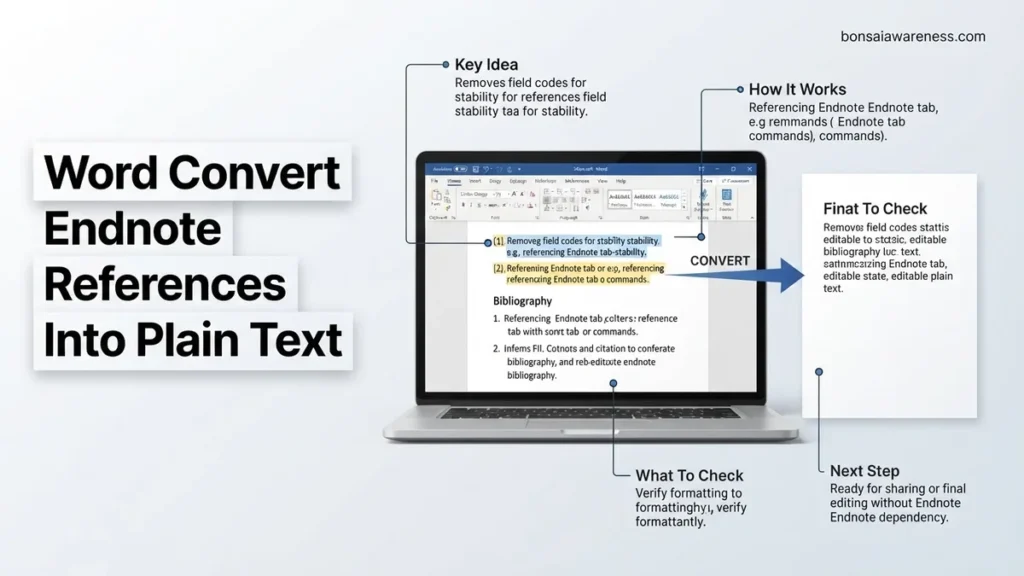
To word convert endnote references into plain text, you must strip active field codes by using the dedicated conversion command in the EndNote ribbon. This process permanently disconnects the document from your EndNote library, making citations static text. Always create a backup copy before proceeding because this action is largely irreversible.
To convert your EndNote references into plain text within Microsoft Word, navigate to the EndNote tab in your Word ribbon, click the Convert Citations and Bibliography dropdown menu, and select Convert to Plain Text. This action strips away all underlying EndNote field codes, transforming your dynamic citations and bibliography into static, editable text that will no longer update automatically.
Locking your document into plain text is a mandatory step for many academic publishers and university submission portals in 2026. Automated field codes frequently cause compatibility errors during final document processing, layout compilation, and anti-plagiarism scanning, making this manual conversion essential before final publication.
Key Takeaways
- Always save a duplicate backup copy of your Word document before converting citations.
- Use the ‘Convert to Plain Text’ command inside the EndNote Word ribbon tab.
- Converting to plain text permanently severs the active link to your EndNote library.
- The newly created plain text document will open automatically as a separate file.
- Unformatted citations can also be generated as an intermediate step if needed.
Why You Need to Convert EndNote References to Plain Text
Submitting an active, field-coded Word document to a journal or thesis committee often creates technical hurdles. When your file moves between different versions of Microsoft Office or passes through editorial tracking software, EndNote field codes can become corrupted, resulting in broken brackets or missing bibliography entries.
Preventing Formatting Corruption and Editor Errors
Editorial teams typically use strict document management systems that reject files containing active reference manager links. By stripping the codes, you eliminate the risk of a reviewer accidentally triggering an EndNote update that scrambles your meticulously formatted bibliography. Plain text ensures your layout remains visually identical across every platform and device used in the publishing pipeline.
Preparing Your Manuscript for Final Submission
- Absolute Stability: Static text prevents accidental deletions or automated re-sorting of your reference list.
- Universal Compatibility: Reviewers and copyeditors do not need EndNote installed to read, edit, or comment on your citations.
- Streamlined Collaboration: Co-authors using different reference management tools, or no tool at all, can edit the manuscript without triggering software conflicts.
What Causes Field Code Errors During Conversion
While the conversion process is generally straightforward, certain document structures frequently trigger errors or cause Word to freeze. Understanding these root causes helps you troubleshoot issues before they corrupt your manuscript file.
Corrupted Bibliographic Links and Tracked Changes
If your document contains active Tracked Changes while you attempt to remove field codes, EndNote often fails to process citations embedded inside deleted or inserted text blocks. Unresolved traveling library links, moved citation objects, and partially deleted bibliography entries will halt the plain text conversion routine entirely.
Hidden Field Code Overlaps
- Nested Hyperlinks: Citations placed directly inside customized Word hyperlinks or cross-references confuse the EndNote parser.
- Unlinked References: Manually edited citations that were never properly matched to your EndNote library can cause conversion error codes.
- Outdated Add-ins: Running legacy EndNote desktop versions against modern Microsoft 365 environments in 2026 frequently leads to COM add-in crashes during batch code removals.
Step-by-Step Guide to Convert EndNote References in Word
Converting your active citation fields into static text requires careful execution to avoid corrupting your manuscript. Academic publishing guidelines for 2026 mandate that final submissions arrive free of dynamic field codes.
Preparation and Backup
Before executing any conversion steps, strict data integrity protocols must be followed to prevent irreversible reference loss.
- Create a duplicate copy of your active manuscript and rename it with a “Final_Draft_Plain” suffix.
- Close all unnecessary background applications to prevent memory conflicts during the conversion macro execution.
- Verify that your EndNote desktop library is fully synchronized and backed up locally.
Executing the Conversion
Once your backup files are secured, you can proceed with the native Word and EndNote integration commands.
- Open your duplicated Microsoft Word document for the year 2026 workflow.
- Navigate to the EndNote tab in the Word ribbon menu.
- Click on the Convert Citations and Bibliography dropdown menu.
- Select the option labeled Convert to Plain Text to instantly strip all dynamic field codes.
- Save the resulting document immediately and inspect the bibliography block for formatting persistence.
What If It Still Doesn’t Work?
Stubborn field codes or corrupted document XML structures can sometimes block standard conversion protocols. When native commands fail, systematic troubleshooting is required to resolve the issue before journal submission.
- Unlink fields manually: Select your entire document using the Ctrl+A keyboard shortcut, then press Ctrl+Shift+F9 to force-unlink all active fields simultaneously.
- Clean document corruption: Copy all document text—excluding the very last paragraph break—and paste it into a brand new, clean Word template to clear hidden XML errors.
- Check for conflicting plugins: Disable third-party reference managers like Zotero or Mendeley that may conflict with active EndNote background processes.
- Engage technical support: If software bugs persist, consult your university IT department or official Thomson Reuters EndNote support channels. Professional academic document formatting services typically charge between $50 and $150 depending on manuscript length.
Conclusion
Converting dynamic EndNote references into plain text protects your academic manuscript from unexpected field corruption and formatting errors during final journal submission. By utilizing the native conversion utility and safeguarding your files with proper backups, you ensure a seamless transition to a static document. According to verified research and expert publishing sources, locking your citations early prevents layout shifts during the final peer-review and typesetting stages. Take action today by generating a backup copy and locking your manuscript citations before submission.
❓ Frequently Asked Questions
What is the difference between converting to unformatted citations and plain text?
Converting to unformatted citations strips the bibliography and turns citations into temporary curly-bracketed codes that EndNote can recognize again. Converting to plain text removes all backend code entirely, leaving standard, unlinked text.
Will converting to plain text delete my EndNote library?
No, your original EndNote library and references remain completely safe and untouched on your computer. The conversion only affects the specific Word document you are working on.
What should I do if the EndNote tab is missing in Microsoft Word?
If the EndNote tab is missing, you need to enable the EndNote Cite While You Write add-in through Word’s COM Add-ins menu or reinstall the tools from your EndNote application folder.
Can I edit individual references after converting to plain text?
Yes, because the references are now standard plain text, you can click directly into them and edit punctuation, author names, or page numbers manually.
Why does Word freeze or crash when converting large documents?
Large documents with thousands of active field codes can overwhelm Word’s memory during batch stripping. Try converting the document in smaller sections or clearing temporary cache files first.
How can I check if all field codes have been successfully removed?
You can press Alt+F9 on Windows or Option+F9 on Mac to toggle field codes. If no hidden bracket codes appear over your references, the conversion was successful.


