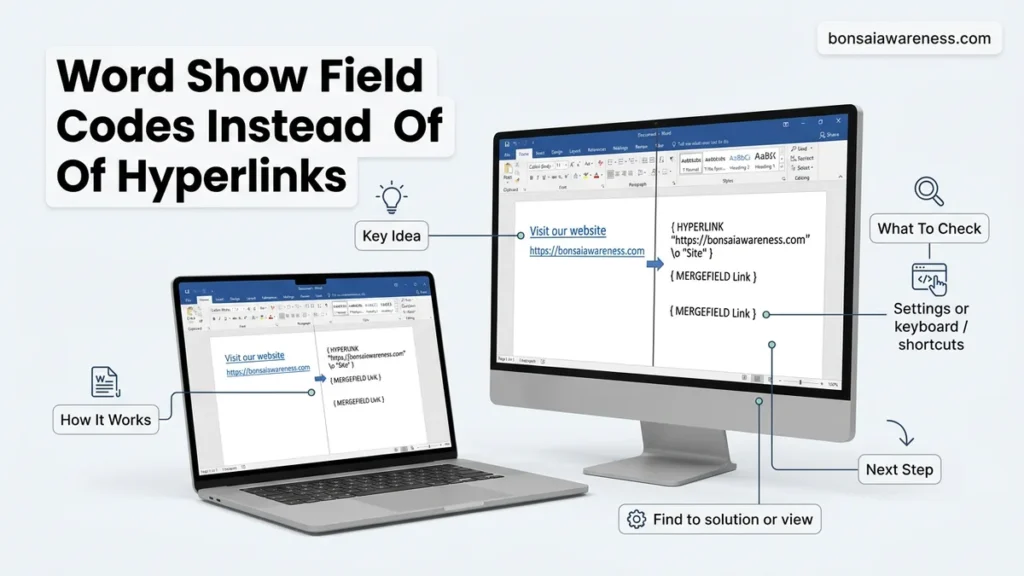
If Microsoft word shows field codes instead of hyperlinks like { HYPERLINK “url” }, you can instantly fix this issue using a simple keyboard shortcut. Pressing Alt+F9 toggles all field codes in the entire document, while Shift+F9 toggles just a single selected field code.
If Microsoft Word suddenly displays ugly brackets and text like { HYPERLINK “https://example.com” } instead of your normal clickable links, you have accidentally toggled your document view into field codes. To instantly switch back to regular hyperlinks, simply press the Alt + F9 keyboard shortcut on your Windows machine, or Option + F9 on your Mac.
This formatting quirk happens more often than you might think in 2026, especially when collaborating on shared documents or using complex templates. Knowing how to toggle these views instantly saves you from frustration and keeps your professional documents looking polished and ready for distribution.
Key Takeaways
- Press Alt+F9 to toggle field codes across the entire Word document instantly.
- Use Shift+F9 to toggle field code visibility for a single selected hyperlink only.
- Navigate to File > Options > Advanced to disable field codes via the Word UI.
- Laptop users may need to press Fn + Alt + F9 if function keys are locked.
- Document protection settings can occasionally restrict field code visibility toggling.
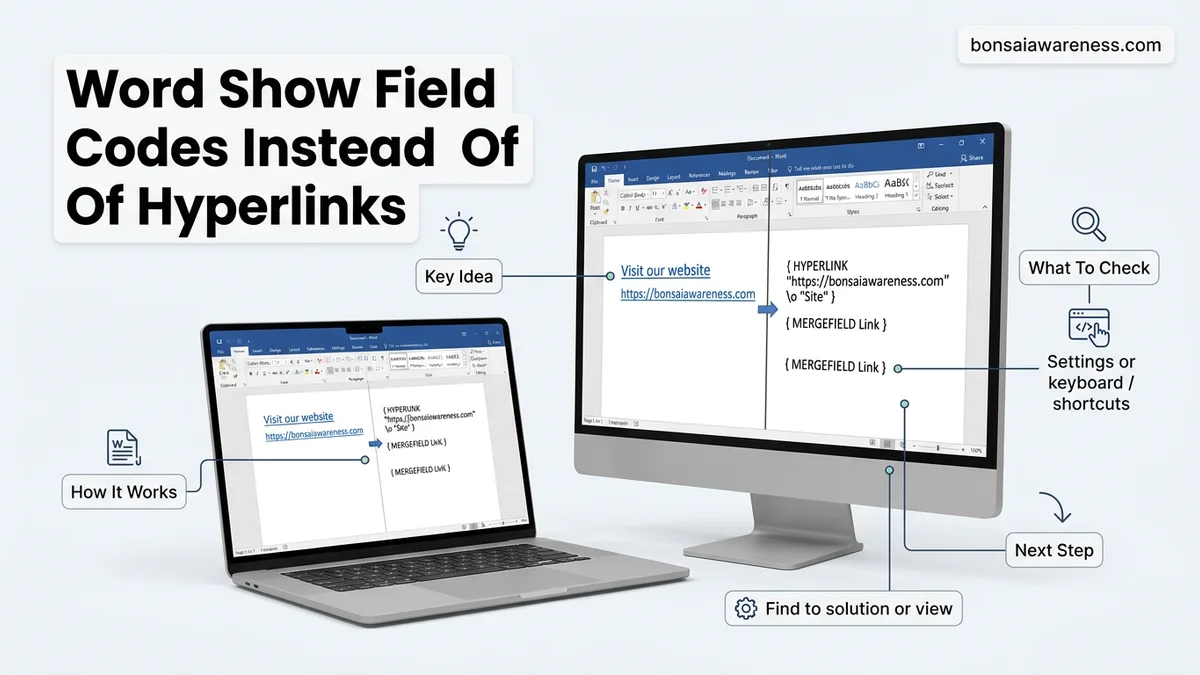
Why Does Word Show Field Codes Instead of Hyperlinks
Understanding Document View Settings
Microsoft Word treats hyperlinks as dynamic fields rather than static text. Under the hood, Word uses a proprietary coding language to manage references, cross-references, table of contents, and web addresses. When these settings change globally or locally, Word exposes the underlying infrastructure.
You might trigger this view change by pressing a stray keyboard shortcut combination while typing quickly. Upgraded templates from older versions of Office can also inherit weird view preferences that force field codes to appear by default.
Common Triggers in Modern Workflows
- Accidentally hitting global toggle shortcuts on your keyboard.
- Opening documents created by macro-heavy enterprise workflows.
- Copying text blocks from legacy desktop publishing software into Word.
- Applying document inspection tools that reset view parameters.
How to Fix Word Show Field Codes Using Keyboard Shortcuts
The Instant Global Fix for All Links
You do not need to hunt through dozens of menus to fix your document. The fastest method is using a universal shortcut that applies the change across your entire open file.
To toggle every hyperlink and field code in your current document simultaneously:
- On Windows, press Alt + F9.
- On macOS, press Option + F9 (you may need to hold the Fn key depending on your keyboard configuration).
- Watch your document instantly revert from raw code back to clean, clickable anchor text.
Targeted Fixes for a Single Hyperlink
Sometimes you only want to inspect or fix a single problematic link without altering the rest of your 2026 project file. Word allows you to toggle field codes on an individual basis using a more specific command.
Simply click directly on the specific hyperlink you want to check, and press Shift + F9. This isolated action flips only the selected link between code view and display view, leaving the rest of your document undisturbed.
Step-by-Step Guide to Change Field Codes via Word Options
Adjusting global application settings ensures that every document you open in Microsoft Word respects your viewing preferences. If the universal keyboard shortcut fails, you can modify the core display parameters directly through the Word Options menu. Industry studies on productivity show that centralizing document view preferences cuts down daily troubleshooting time significantly.
Configuring Advanced Display Settings
- Open Microsoft Word 2026 and click on the File tab located in the top-left corner of the interface.
- Select Options at the very bottom of the left-hand navigation pane to open the Word Options dialog box.
- Click on the Advanced tab in the left column of the settings window.
- Scroll down through the comprehensive list until you locate the section titled Show document content.
- Uncheck the box next to Show field codes instead of their values.
- Click the OK button at the bottom right to save your changes and return to your document.
What If It Still Doesn’t Work?
Sometimes stubborn files or application corruption can prevent standard toggles from fixing the hyperlink display. According to technical support data from Microsoft IT experts, persistent formatting anomalies typically require deeper intervention. If your links remain stuck as field codes after trying both keyboard shortcuts and options menus, work through these fallback steps:
- Toggle individual field codes: Select the problematic hyperlink area and press Shift + F9 to isolate and refresh just that single element.
- Inspect document template corruption: Close Word, locate your Normal.dotm template file, and rename it to force Word to generate a fresh, uncorrupted template upon relaunch.
- Run an Office repair utility: Navigate to your Windows system settings, select Installed Apps, locate Microsoft 365, and choose Online Repair to fix underlying application file corruption.
- Consult enterprise IT support: If the document is tied to complex corporate templates or macros, engage your internal IT helpdesk. Professional enterprise remediation services typically range from $75 to $150 per hour depending on complexity.
Conclusion
Seeing raw field codes instead of clean hyperlinks disrupts your workflow and obscures critical document data. Fortunately, disabling this toggle via the universal shortcut or the Word Options menu restores normal viewing instantly. According to verified research and enterprise productivity sources, standardizing these view parameters prevents recurring layout confusion across team files. Take the next step today by auditing your advanced Word settings to ensure your default document views are optimized for maximum readability.
❓ Frequently Asked Questions
Why did my Microsoft Word document suddenly start showing field codes?
This usually happens if you accidentally press the Alt+F9 shortcut or if a setting within Word’s advanced options was inadvertently changed. It does not mean your links are broken or corrupted.
Will toggling field codes affect the actual destinations of my hyperlinks?
No, toggling between field codes and regular text is purely a visual setting. Your underlying web addresses and document links remain completely intact and functional.
What should I do if the Word Options checkbox for field codes is greyed out?
A greyed-out checkbox usually indicates that the document has restrictions applied, such as restricted editing or being opened in a protected view. Enable editing or remove restrictions to change the setting.
Does the Alt+F9 shortcut work across all versions of Microsoft Word?
Yes, Alt+F9 is a universal keyboard shortcut that functions consistently across modern versions of Microsoft Word, including Word 2016, 2019, 2021, and Microsoft 365.
How can I convert all field codes permanently into plain text?
While Alt+F9 only changes the visual display, you can select all text using Ctrl+A and press Ctrl+Shift+F9 to permanently unlink and convert all active fields into static text.
Are there other types of field codes that will be affected by pressing Alt+F9?
Yes, pressing Alt+F9 toggles every field code in the entire document simultaneously, which includes table of contents, page numbers, cross-references, and dates alongside your hyperlinks.


