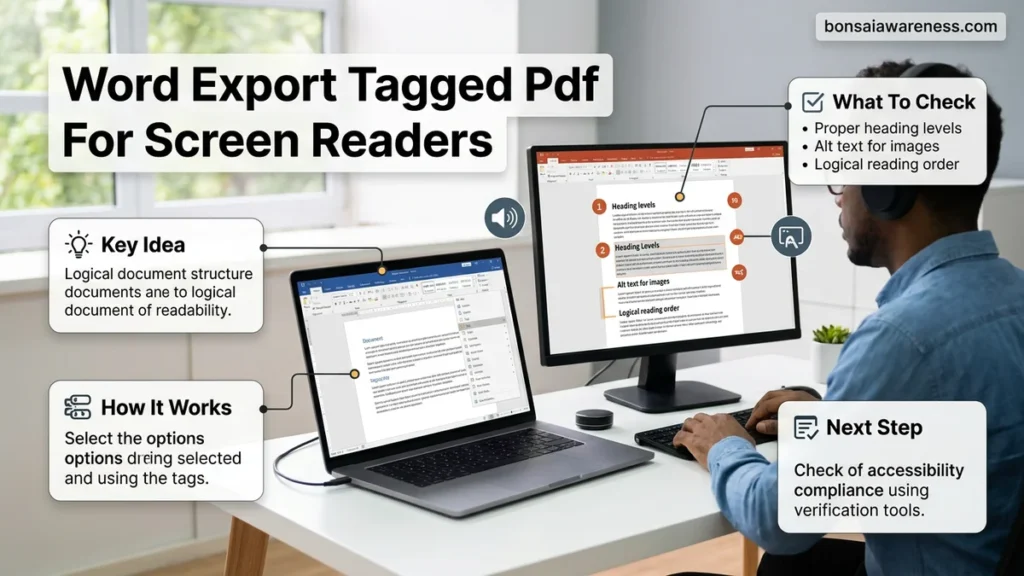
To make documents accessible, you must word export tagged PDF files so screen readers can interpret headings, images, and tables correctly. Failing to enable document structure tags results in an inaccessible PDF that violates compliance standards.
To export an accessible, tagged PDF from Microsoft Word that screen readers can navigate flawlessly in 2026, you must enable document structure tags during the final save process. Leaving your PDF export settings at their default values strips away critical semantic information, leaving blind and low-vision users with an unreadable digital document.
Getting this right saves you from tedious manual remediation inside Adobe Acrobat later. By building accessibility directly into your original Word file and selecting the correct export checkboxes, you ensure that headings, lists, and tables remain fully functional for assistive technology users.
Key Takeaways
- Always use Microsoft Word’s built-in heading styles before exporting.
- Add descriptive alternative text to all images and graphics.
- Check the document structure tags option in the PDF export dialog.
- Mark table header rows explicitly within Microsoft Word.
- Verify your exported PDF using the Adobe Acrobat Accessibility Checker.
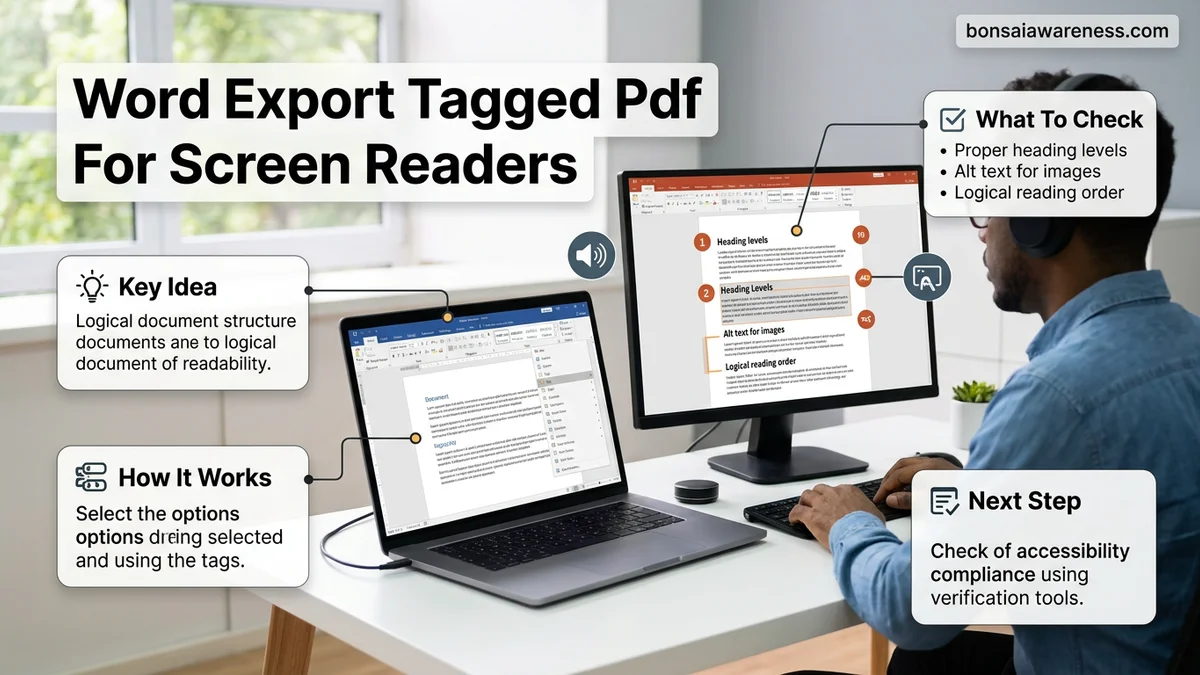
Why Untagged Word Exports Fail Screen Readers
The Invisible Document Structure Problem
When you click save and output a standard PDF without tags, you create a flat wall of text. Visual formatting like bold text or large fonts means nothing to a screen reader. Without underlying structural tags, assistive software cannot tell the difference between a main page title, a random sidebar, or a footnote. In 2026, compliance standards require strict adherence to PDF/UA guidelines, and untagged exports immediately fail these automated and manual accessibility checks.
Reading Order and Visual Disconnects
Visual layouts often use columns, text boxes, and floating images that look great to sighted readers. However, an untagged export exports these elements based on the order they were drawn on the page, not their logical reading sequence. Screen readers will bounce erratically across the page, reading a sidebar before the main paragraph. Tagged PDFs enforce a strict structural tree that dictates the exact, logical path the assistive technology must follow.
- Untagged PDFs lack semantic HTML-equivalent tags like headings and lists
- Screen readers default to reading raw, unformatted character streams
- Table cells lose their association with header rows and columns
- Automated compliance checkers flag untagged files instantly
How to Prepare Your Word Document for Accessible Export
Applying Built-In Heading Styles
Your journey to an accessible PDF starts deep inside your Word document architecture. You cannot rely on manually highlighting text and increasing the font size to indicate a heading. You must use the built-in Heading 1, Heading 2, and subsequent style options located on the Home ribbon. Screen readers rely entirely on these native style markers to generate a table of contents and allow users to jump quickly from section to section.
Adding Alt Text and Formatting Tables
Every non-text element in your Word document requires manual optimization before you even touch the export button. Right-click your images, shapes, and charts to add descriptive alternative text that explains their function or content. For data tables, ensure you designate the top row as a repeating header and check the option to prevent rows from breaking across pages. Missing alt text and unassigned table headers are the two most common reasons an otherwise well-exported PDF still fails accessibility audits.
- Use only native Word heading styles in a sequential, hierarchical order
- Write concise, descriptive alternative text for all informational graphics
- Mark decorative images as artifacts or hide them from screen readers
- Define explicit header rows for every data table in your file
Step-by-Step Guide to Exporting a Tagged PDF from Word
Exporting an accessible document requires exact configuration within Microsoft Word. Default save settings strip away critical structural metadata needed by assistive technologies. Follow this procedural workflow to guarantee a fully compliant tagged PDF output for 2026 standards.
- Open your fully remediated Microsoft Word document and verify all heading styles, alt text, and table headers are correctly applied.
- Navigate to the top left corner of the application window and click on the File tab.
- Select Save As or Export from the left-hand menu, then choose the Create PDF/XPS Document option.
- Click the Options button in the save dialog box to open the export configuration panel.
- Ensure that the checkbox for Document structure tags for accessibility is actively selected.
- Confirm that the checkbox for Create bookmarks using is checked, utilizing your heading structures for navigation.
- Click OK to save your preferences, choose your destination folder, and select Publish to generate the final tagged PDF.
What If It Still Doesn’t Work?
Even with correct export settings, complex document layouts frequently fail automated and manual accessibility audits. If your PDF export lacks structural integrity or fails screen reader testing, implement these systematic fallback strategies:
- Run the built-in Adobe Acrobat Pro Accessibility Checker to pinpoint exact tag failures, such as untagged tables or missing artifact designations.
- Manually repair the tag tree inside Adobe Acrobat Pro by using the Reading Order tool to redefine content blocks.
- Re-examine the source Word document for floating text boxes or complex nested tables, replacing them with linear, native document elements.
- Engage a certified accessibility specialist or remediation agency if your organization faces strict legal compliance deadlines under the European Accessibility Act or ADA Title II. Professional remediation services typically cost between $3 to $15 per page depending on document complexity.
Conclusion
Exporting a tagged PDF from Microsoft Word is a critical step in ensuring digital documents remain usable for individuals relying on screen readers. By enforcing strict styling guidelines and properly configuring export options, content creators bypass common structural failures. According to verified research and digital accessibility experts, proactive document remediation reduces compliance risks and expands audience reach significantly. One actionable next step is to audit your organization’s most frequently downloaded public documents using Adobe Acrobat Pro today.
❓ Frequently Asked Questions
How do I ensure my table structures remain accessible when exporting to PDF?
In Word, you must define header rows by selecting the top row of your table, right-clicking Table Properties, and checking ‘Repeat as header row at the top of each page’. This ensures the tags translate accurately into the exported PDF.
Why does my exported PDF show untagged content warnings in Adobe Acrobat?
This usually happens because text boxes, floating shapes, or decorative elements were used instead of native Word layout tools. Convert floating elements to inline text and ensure you checked the accessibility tag option during export.
Can I fix missing tags directly inside Adobe Acrobat instead of Word?
While you can use Acrobat Pro’s Accessibility Wizard and reading order tools to fix tags, it is significantly faster and more reliable to fix the source document in Microsoft Word and re-export.
What is the difference between a standard PDF and a tagged PDF?
A standard PDF is essentially a digital image of text that lacks structural hierarchy, making it unreadable for assistive tech. A tagged PDF contains a hidden layer of semantic code that defines reading order and element types.
Are hyperlinks preserved when exporting a tagged PDF from Word?
Yes, as long as you use Word’s native hyperlink feature rather than just typing out a URL. The export process converts these into interactive, accessible links for screen reader users.
Does font choice affect how a PDF is tagged for screen readers?
While fonts do not affect tag creation directly, using standard Unicode fonts ensures that screen readers can accurately map characters to text strings during the export process.


