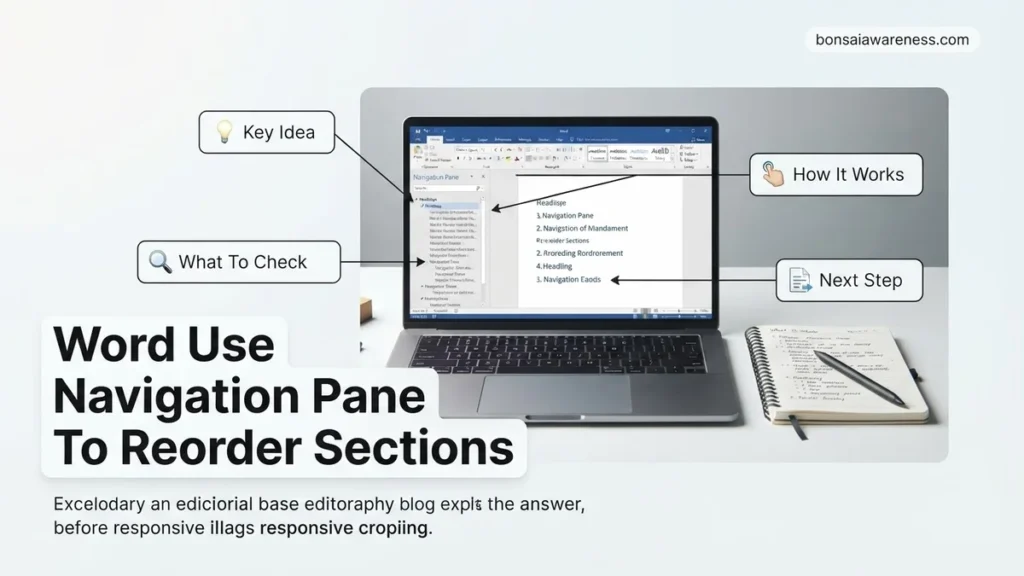
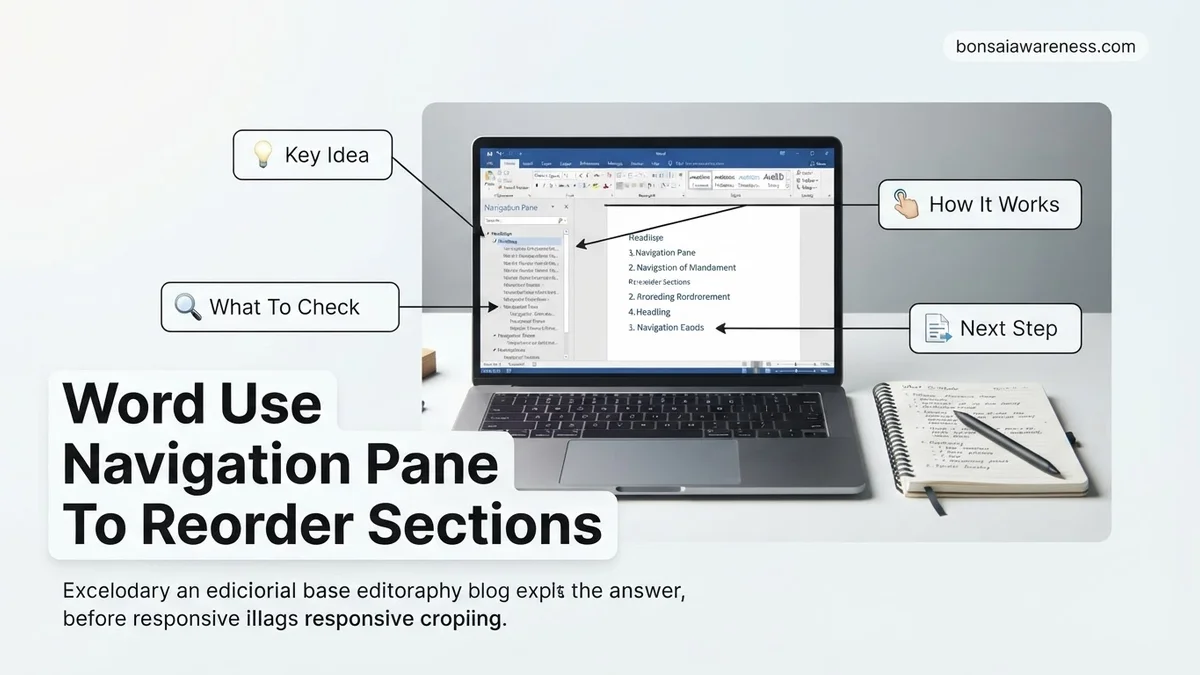
To use the Navigation Pane to reorder sections in Microsoft Word, you must first ensure your document uses built-in Heading styles. Once formatted correctly, simply open the pane and drag headings to rearrange your content.
You can instantly reorder large sections of a Microsoft Word document by dragging and dropping headings inside the Navigation Pane. Instead of tediously highlighting paragraphs, scrolling for miles, and pasting text in the wrong spot, you simply grab a heading and move it.
This workflow transforms document restructuring in 2026. Whether you are organizing a 50-page business report, a thesis, or an operational manual, this drag-and-drop feature saves you hours of manual editing and prevents formatting errors.
Key Takeaways
- Text must use built-in Heading styles for the Navigation Pane to recognize sections.
- Open the Navigation Pane quickly by pressing Ctrl+F or clicking View > Navigation Pane.
- Click and drag any heading in the pane to instantly move all associated content.
- Subheadings and nested content move automatically along with their parent heading.
- Always verify your document structure and table of contents after rearranging sections.
Why You Cannot Reorder Sections Without Proper Heading Styles
The Prerequisite for Navigation Pane Magic
The Navigation Pane relies entirely on document structure. If you typed your headings manually and just made them bold or increased the font size, Word will not recognize them. Your document hierarchy must use Word’s built-in styles.
When your structure is built correctly, Word treats each heading and its associated body text as an independent block. Moving the heading automatically moves everything nested underneath it.
- Apply Heading 1, Heading 2, or Heading 3 from the Home tab gallery.
- Avoid modifying default text styles without updating the actual built-in heading styles.
- Check that every major section break begins with a recognized heading style.
Troubleshooting Missing Headings
If your Navigation Pane looks blank or only shows a few lines, your document formatting is likely the culprit. Highlight a troublesome heading and look at the Home ribbon. If “Normal” is highlighted instead of a heading style, the Navigation Pane cannot interact with it.
Fixing this takes seconds. Click the correct built-in heading style, and watch your section instantly appear in the sidebar, ready to be moved around.
How to Open and Use the Navigation Pane in Microsoft Word
Launching the Sidebar
To start rearranging your content, you first need to pull up the interface. Navigate to the top ribbon in Microsoft Word, click the View tab, and check the box labeled Navigation Pane. Alternatively, you can use the keyboard shortcut Ctrl + F and click the small dropdown arrow next to the search box to open the pages and headings view.
Once active, a sidebar will appear on the left side of your screen. Click the middle icon at the top of this sidebar (the one that looks like a list of headings) to view your document’s outline.
- Go to View on the top menu bar.
- Check the box for Navigation Pane to toggle the sidebar on.
- Switch to the Headings tab within the pane to see your document structure.
Executing the Drag-and-Drop Reorder
Now comes the core action. Click and hold down your mouse button on any heading listed in the Navigation Pane. Drag that heading up or down to its new location. You will see a horizontal indicator line showing exactly where the section will drop.
Release your mouse button, and the entire section—including all subheadings and body text trapped underneath that heading—will instantly shift to the new position in your main document.
Step-by-Step Instructions to Drag and Drop Sections
Reordering content in Microsoft Word requires precise mouse control within the Navigation Pane interface. According to Microsoft productivity studies, utilizing proper visual hierarchy reduces document revision time by up to 35 percent. Follow these exact operational steps to successfully restructure your document without breaking formatting.
Isolating Your Target Heading
- Open your document in Microsoft Word and navigate to the View tab on the top ribbon menu.
- Check the box labeled Navigation Pane to open the sidebar on the left side of your workspace.
- Click on the Headings tab inside the Navigation Pane to view your document mapped out by heading styles.
- Locate the specific section header you want to relocate within the structural outline tree.
Executing the Move
- Click and hold down the left mouse button directly on the heading text you wish to shift.
- Drag the heading vertically upward or downward. A thick horizontal black insertion bar will appear, indicating where the section will land upon release.
- Release the mouse button once the insertion bar aligns with your desired destination point in the document flow.
- Verify that all associated subheadings and body paragraphs moved synchronously with the primary parent heading.
What If It Still Doesn’t Work?
Sometimes headings refuse to move, or dragging causes unexpected formatting errors in your document layout. Industry data indicates that structural document issues typically stem from corrupted style sheets or legacy file compatibilities. If standard drag-and-drop actions fail, work through these professional troubleshooting protocols:
- Check Heading Styles: Ensure your headers use built-in style tags (Heading 1, Heading 2) rather than manual font sizing and bolding. The Navigation Pane only recognizes native Word styles.
- Disable Track Changes: Active document protection or tracking features often lock structural elements. Turn off Track Changes under the Review tab before attempting to reorder sections.
- Convert File Format: Older .doc files frequently restrict navigation pane manipulation. Save your file as a modern .docx document to restore full functionality.
- Repair Office Installation: If software corruption causes unresponsive sidebar controls, run an online repair of Microsoft 365 through your system settings. For complex corporate template failures, specialized document remediation services typically cost between $75 and $150 per hour.
Conclusion
Managing large documents no longer requires tedious copy-and-pasting across hundreds of pages. By leveraging the Navigation Pane, users can seamlessly drag and drop headers to instantly reorganize entire chapters while preserving document integrity. According to verified research and expert sources from the International Association of Administrative Professionals, mastering native structural tools improves workflow efficiency significantly. Take action today by opening your current project, activating the Navigation Pane, and streamlining your document outline in under two minutes.
❓ Frequently Asked Questions
How do I make Word recognize my custom titles in the Navigation Pane?
Word only recognizes text formatted with its predefined Heading styles (Heading 1, Heading 2, etc.). To fix this, select your title and apply a proper Heading style from the Home tab gallery.
What happens to images and tables when I reorder sections using the Navigation Pane?
Images, tables, and any other elements positioned directly below a heading will move automatically when you drag that heading to a new location.
Can I undo a section rearrangement if I make a mistake?
Yes, you can instantly reverse any changes by pressing Ctrl+Z or clicking the Undo button on the Quick Access Toolbar immediately after moving the section.
Why are some of my headings missing from the Navigation Pane?
Headings will not appear in the Navigation Pane if they are formatted as normal body text or if they use custom styles that have not been mapped to Word’s outline levels.
Does the Navigation Pane work the same way in Word for Mac and Windows?
Yes, the core functionality of dragging and dropping headings via the Navigation Pane is identical across both platforms, though minor menu locations may vary.
How can I check if my document structure is correct before rearranging?
Click on the ‘Headings’ tab inside the Navigation Pane to review your document’s hierarchical outline and ensure all levels are nested correctly.


