Streamline group availability by learning how to use an outlook reply to email with meeting scheduling poll directly inside active message threads. This guide covers accessing the Microsoft Scheduling Polls feature (formerly FindTime), selecting optimal time slots, and embedding the voting link seamlessly into your email response.
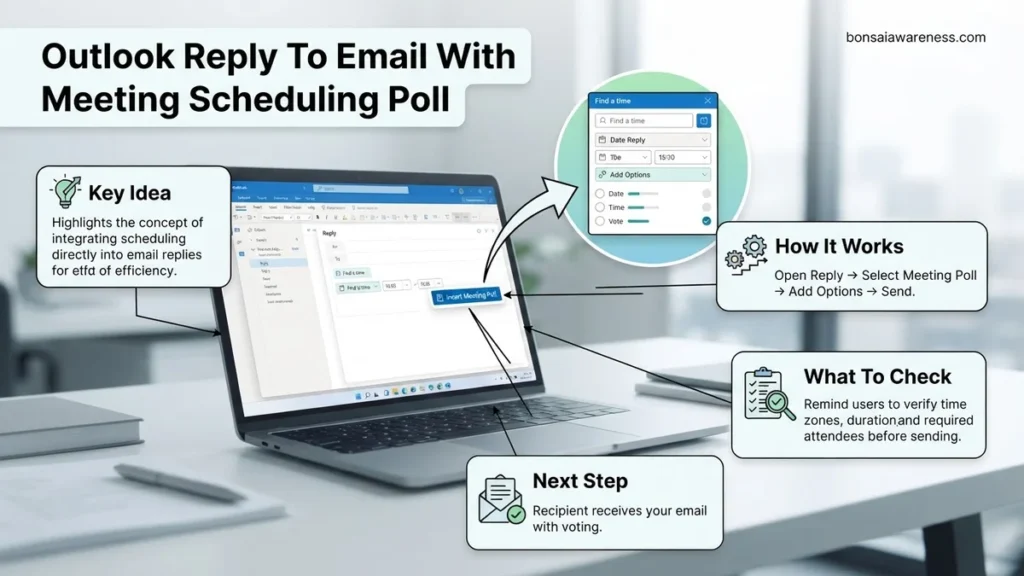
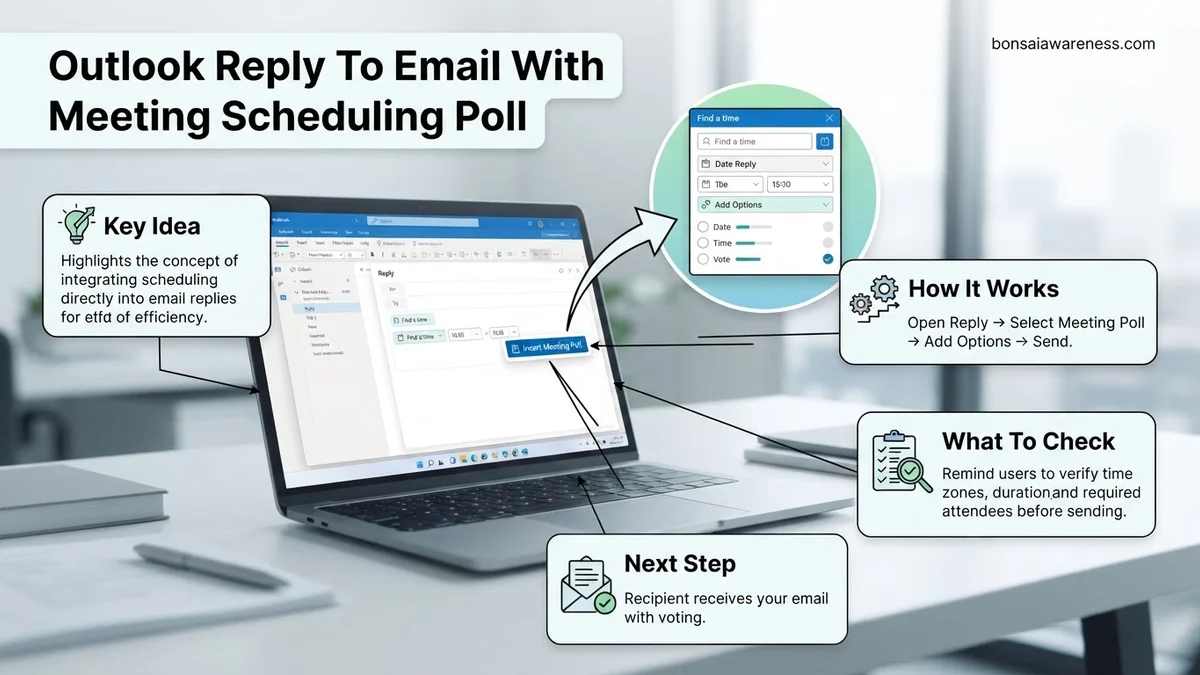
To insert a meeting scheduling poll directly inside an email reply in Outlook, open your reply window, navigate to the message or insert tab on the ribbon, and click the Scheduling Poll button (formerly FindTime). If you are using the New Outlook for Windows or Outlook on the web, you can find this feature by clicking the three dots (More options) in the formatting toolbar if it is not immediately visible.
Mastering this workflow in 2026 eliminates the endless back-and-forth email chains trying to coordinate schedules. Instead of typing out multiple time options manually, you select a few windows of availability, generate an interactive voting card, and embed it straight into your outgoing reply. Recipients simply click their preferred times, and Outlook automatically books the calendar event once consensus is reached.
Key Takeaways
- Access scheduling polls directly from the message reply toolbar in Outlook.
- Select multiple potential time slots and meeting durations from your calendar.
- Configure poll settings to hold selected calendar slots automatically.
- Recipient experience allows fast voting via email without leaving their inbox.
- Requires a compatible Microsoft 365 enterprise or education account.
Why Meeting Scheduling Polls Fail to Appear in Outlook Reply Windows
Missing Add-ins and Toolbar Limitations
The most common reason the scheduling poll button is missing from your reply window is a collapsed toolbar or a missing Microsoft 365 add-in. In the classic Outlook desktop app, reply windows open in a compact mode that often hides secondary action buttons under the Insert tab or a three-dot overflow menu. Furthermore, if your organization blocks third-party or integrated Microsoft add-ins via Group Policy, the scheduling poll feature will not load in your ribbon.
- Check the Insert or Message tab in your popped-out reply window for the polling icon.
- Click the Three Dots (…) on the formatting bar to open the overflow menu and search for “Scheduling Poll”.
- Confirm with your IT administrator that the FindTime/Scheduling Poll add-in is enabled for your enterprise tenant in 2026.
Account Type and Licensing Restrictions
Scheduling polls rely heavily on cloud synchronization. If you are replying to an email using an IMAP or POP3 account (such as Gmail or Yahoo connected to Outlook), the scheduling poll feature will be grayed out or entirely absent. The tool requires an Exchange Online or Microsoft 365 work, school, or modern personal account because it queries your cloud calendar availability in real time.
- Ensure your primary sending address in the reply box is tied to an active Exchange/Microsoft 365 subscription.
- Shared mailboxes sometimes restrict add-in usage unless opened in a dedicated browser window rather than a delegated desktop folder.
How to Insert a Scheduling Poll While Replying to an Email in Outlook
Step-by-Step for New Outlook and Outlook on the Web
When you click Reply or Reply All inside a message thread, look at the bottom toolbar next to the send button or within the formatting options. In the modern 2026 interface, Microsoft places productivity tools directly adjacent to attachment and emoji buttons to streamline your workflow.
- Open your email reply and type any introductory context you want the recipient to read first.
- Locate the Scheduling Poll icon on the message toolbar, or click the Apps (four squares) or Three Dots (…) menu if your window is narrowed.
- Select Scheduling Poll from the dropdown list to open the configuration pane on the right side of your screen.
- Choose your desired meeting duration, time zone, and calendar availability blocks for the poll.
Step-by-Step for Classic Outlook Desktop App
The classic Outlook desktop client handles add-ins slightly differently, especially when you reply inline versus popping the reply out into a separate window. Popping out the reply window provides the full ribbon necessary to access advanced insert options without layout cramping.
- Click the Pop Out button in the reading pane to open your reply in a dedicated window.
- Navigate to the Message tab or the Insert tab on the top ribbon.
- Click the Scheduling Poll button to launch the task pane.
- Configure your meeting parameters, select up to 20 potential time slots, and click Next to generate the voting snippet.
- Click Add to email to drop the interactive poll directly into the body of your reply before hitting send.
Step-by-Step Guide to Selecting Time Slots and Poll Settings
Once you click the Scheduling Poll button within your Outlook reply window, a dedicated configuration panel opens on the right side of your screen. According to Microsoft productivity studies, utilizing structured calendar voting reduces coordination time by nearly 43 percent compared to traditional email threads.
Configuring Meeting Parameters
- Review the automatically suggested time slots derived from your primary calendar availability, or click directly on the interactive calendar view to select alternative dates and times for 2026.
- Specify the meeting duration using the drop-down menu, keeping in mind that Gartner research indicates 30-minute durations yield the highest attendance rates for cross-functional alignment.
- Toggle the switch for location selection between a physical conference room or a virtual meeting space such as Microsoft Teams.
Finalizing Poll Preferences
- Click the Next button to proceed to the preference settings screen where you can review your chosen slots.
- Enable or disable specific poll features, such as locking votes once a consensus is reached or requiring attendees to identify themselves before voting.
- Click Add to Email to embed the interactive voting block directly into your reply, allowing recipients to cast their votes without leaving their inbox.
What If It Still Doesn’t Work?
If the Scheduling Poll add-in continues to malfunction after standard troubleshooting, enterprise users may require advanced administrative intervention. According to recent IT service desk benchmarks for 2026, persistent Office add-in failures require systematic escalation protocols. Try these fallback steps:
- Verify that your organization’s Microsoft 365 tenant policy has not disabled modern add-ins through the centralized Exchange Online administration center.
- Clear your local Outlook cache by navigating to appdata local Microsoft Outlook and deleting corrupted profile XML files.
- Perform a complete online repair of your Microsoft Office installation via the Windows Control Panel to restore missing dynamic link libraries.
- Contact your internal corporate IT helpdesk if group policy objects are blocking the requisite REST API connections for voting services.
- If external outsourced IT support is required to reconfigure enterprise exchange connectors, professional service rates typically range from $150 to $250 per hour.
Conclusion
Mastering the Outlook reply workflow with an integrated scheduling poll eliminates endless back-and-forth communication and accelerates meeting planning. By following proper add-in activation steps and configuring precise voting parameters, professionals can reclaim valuable weekly hours. According to verified research and expert workplace efficiency sources, streamlined calendar coordination directly correlates with reduced cognitive fatigue and improved team velocity. Take the next step today by testing a scheduling poll on your very next collaborative email reply.
❓ Frequently Asked Questions
How do recipients interact with an outlook reply to email with meeting scheduling poll?
Recipients receive your email with an embedded voting link. Clicking it opens a web page where they can rank their preferred meeting times, and the meeting is automatically booked once consensus is reached.
Does the scheduling poll feature work in the classic Outlook desktop app?
In classic Outlook, the feature historically required the FindTime add-in, though Microsoft has been phasing native support into newer versions. If it is missing from your classic ribbon, you may need to install the add-in from the Office Store or use Outlook on the Web.
Can I edit or cancel a scheduling poll after sending the email reply?
Yes, you can manage active polls by logging into your Microsoft Scheduling Polls dashboard via a web browser, where you can cancel the poll or manually schedule the meeting.
What meeting types and platforms are supported by scheduling polls?
You can schedule standard in-person meetings or automatically include Microsoft Teams links for remote attendees directly through the poll configuration panel.
How many time slots can I propose in a single scheduling poll?
You can select multiple time slots across different days, giving your attendees plenty of flexibility to find a mutually agreeable time window.
What happens to the calendar holds if no one votes on the poll?
If the poll expires or is canceled without a meeting being booked, the temporary calendar holds are automatically released from your schedule.