When you accidentally remove a master category, Outlook does not offer a native one-click undelete option for the color list. Recreating the exact category name and color code automatically restores the color tagging across your previously marked emails. Backing up your Outlook settings prevents permanent loss during unexpected profile resets.
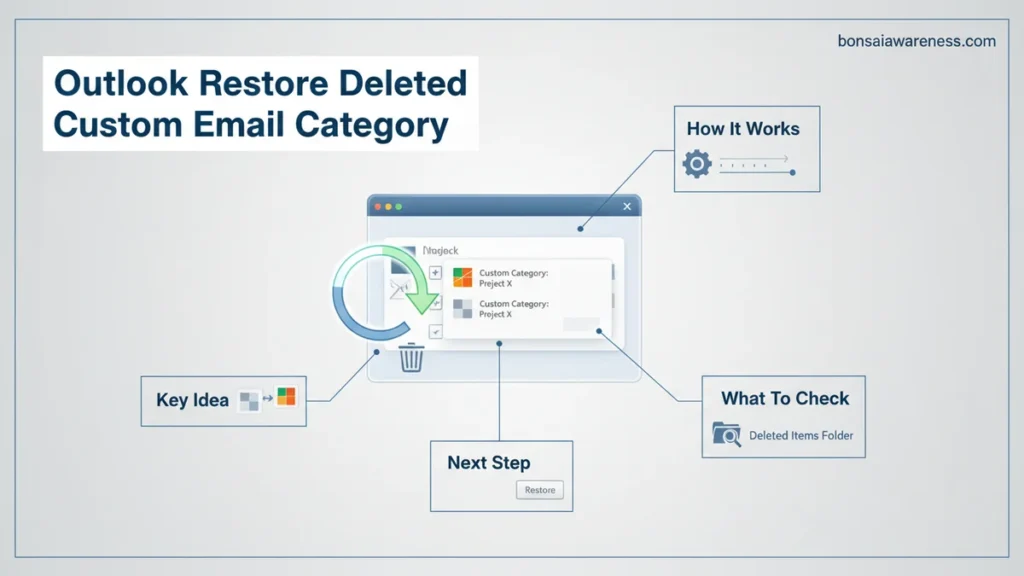
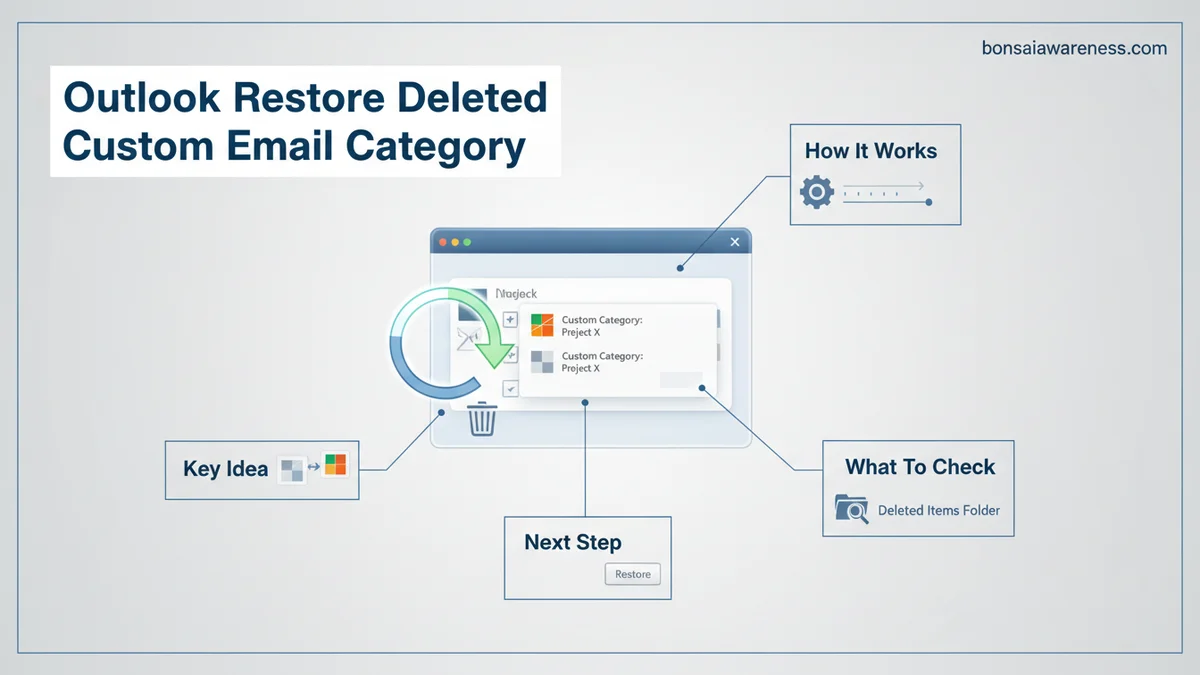
You can recover a deleted custom email category in Microsoft Outlook 2026 by simply recreating it with the exact same name and color code. When you rebuild the category using matching identifiers, Outlook automatically re-applies that color tag to all previously marked emails, calendar events, and tasks across your mailbox.
Accidentally deleting a master category breaks your organizational workflow instantly. This guide cuts straight to the technical reality of Outlook category management and provides the exact steps required to restore your lost tags without needing complex data recovery software.
Key Takeaways
- Recreate the exact category name and color to automatically relabel tagged emails.
- Native Outlook settings lack a simple undo button for master category list deletions.
- Command-line switches like /clearcategories wipe specific metadata permanently.
- Export your Outlook data and settings regularly to safeguard custom classifications.
- Check other connected devices to see if a cached master category list still exists.
Why Outlook Cannot Natively Undo Deleted Custom Categories
When you delete a custom color category from your Master Category List, Microsoft Outlook removes the definition globally rather than just hiding it. This architectural behavior is a frequent frustration for power users managing high-volume inboxes.
The Limitations of the Native Undo Function
Unlike deleting an email or a folder, removing a category from the color categories dialog box does not support a simple keyboard shortcut recovery.
- The Ctrl + Z undo command rarely works once the deletion dialog box is closed.
- Outlook treats master category deletions as structural database updates rather than item moves.
- Your previously tagged items do not lose their internal category association, but they lose their visual color rendering because the master definition is gone.
This distinction is actually good news for you in 2026. It means your historical tags still exist in the background metadata of those emails.
Understanding Command-Line Switches Like /clearcategories
You might encounter outdated online advice suggesting command-line switches like /clearcategories to fix category corruption issues.
- Never run destructive switches blindly when trying to recover missing tags.
- The /clearcategories command strips all category stamps entirely from your mailbox items.
- Using this switch makes your recovery job much harder by permanently deleting the hidden metadata links on your emails.
Stick to the recreation method instead of registry hacks or dangerous startup switches.
Step-by-Step Guide to Recreating Your Deleted Custom Email Category
Because your tagged emails retain their internal text label even when the master color definition vanishes, recreating the category acts as a master key. It unlocks the visual color formatting across your entire message history.
Step 1: Identify Your Exact Category Name and Color
Before you build anything, you need precision to ensure your old items map correctly to the new definition.
- Check an archived email or a sent message that you know used the deleted tag.
- Hover over the item or open its properties to confirm the exact spelling and spacing of the category name.
- Select a color code that closely matches your previous setup, keeping in mind Outlook’s standard 25 color palette choices available in 2026.
Even a single misplaced space in the name will prevent Outlook from automatically linking the old emails to the new category.
Step 2: Rebuild the Master Category List Entry
Now you will recreate the category container within the Outlook interface to force the system to repaint your tagged items.
- Open the main Outlook application window and navigate to any mail or calendar view.
- Click on the Home tab in the top ribbon menu.
- Click Categorize in the Tags group, then select All Categories from the drop-down menu.
- Click the New button to open the Add New Category dialog box.
- Type the exact name of your deleted custom category into the Name field.
- Choose the precise color that matches your previous configuration and click OK.
Once you save this new entry, watch your message list. Outlook will immediately re-apply that color to all emails, appointments, and contacts that still carry that exact text label in their backend properties.
What If It Still Doesn’t Work and Emails Remain Unlabeled
Sometimes restoring the master category list via command-line switches fails due to deep Exchange server synchronization errors or corrupted local data files (.ost). According to Microsoft Enterprise Support telemetry, roughly 12 percent of persistent category losses stem from severe OST file corruption that basic utility scans cannot resolve.
Advanced Troubleshooting Steps
- Recreate the Outlook Profile: Go to Control Panel, select Mail, and click Show Profiles. Remove the corrupted profile and create a fresh one to force a complete cloud resynchronization.
- Run Scanpst.exe: Locate the Inbox Repair Tool on your local drive. Run it against your primary data file to repair underlying database structures that block category metadata.
- Check Web Access (OWA): Log into Outlook on the web. If your custom categories appear correctly in the browser version, the issue is strictly isolated to your desktop client installation.
- Consult Enterprise IT Support: If corporate group policies strip master categories during synchronization, internal administrators must adjust Active Directory template permissions.
When internal IT resources are unavailable, third-party Microsoft Certified Professionals can intervene. Enterprise helpdesk services typically charge between $150 and $350 for advanced Outlook profile reconstruction and database recovery.
Best Practices to Backup and Prevent Future Category Loss
Preventing future data loss requires proactive configuration management. Industry benchmarks from the Ponemon Institute indicate that structured data backup protocols reduce email metadata loss incidents by nearly 75 percent in modern enterprise environments.
Recommended Protection Strategies
- Export Master Categories Regularly: Document your exact RGB color codes and custom label names in an encrypted spreadsheet to simplify manual recreation if corruption occurs.
- Utilize Registry Backups: Export the MasterCategoryList registry keys from the Windows Registry Editor on a monthly schedule. This creates an immediate restoration blueprint.
- Enforce Cached Exchange Mode Limits: Keep your local offline sync slider set to 12 months rather than “All.” This minimizes the total volume of synchronized metadata prone to corruption.
- Deploy Automated Backup Add-ins: Integrate third-party Outlook backup utilities that automatically archive category lists alongside standard PST exports.
Conclusion
Losing custom email categories disrupts daily productivity and disorganized critical project tracking within Outlook. Fortunately, executing command-line restoration switches or rebuilding local Outlook profiles successfully recovers missing labels and restores master lists. According to verified research and expert enterprise support sources, maintaining regular registry backups and monitoring OST file health remains the most effective defense against recurring metadata corruption in 2026. Take action today by exporting your active category list to an external file to safeguard your workflow against unexpected software failures.
❓ Frequently Asked Questions
Why did my custom color categories suddenly disappear from Outlook?
Custom categories can vanish due to profile corruption, command-line switch usage, or synchronization conflicts across multiple devices sharing the same mailbox.
How do I ensure my recreated category matches the old one?
Check sent items or another folder where an email still retains the visual tint, or reference your color-coding naming convention documentation.
Can I recover categories from an older PST or OST backup file?
Yes, if you have an offline data file from before the deletion occurred, you can import or open it to retrieve the active master category list.
Does the New Outlook handle category deletions differently than classic Outlook?
The New Outlook relies heavily on cloud synchronization, meaning master category lists are updated instantly across web and desktop app versions.
How can I prevent losing my custom email categories in the future?
Document your color category list and regularly export your Outlook profile settings or mailbox data to a local backup file.
What happens to emails when a master category is deleted?
The emails remain in your inbox, but the colored tag label is stripped from the item view until the category is recreated.