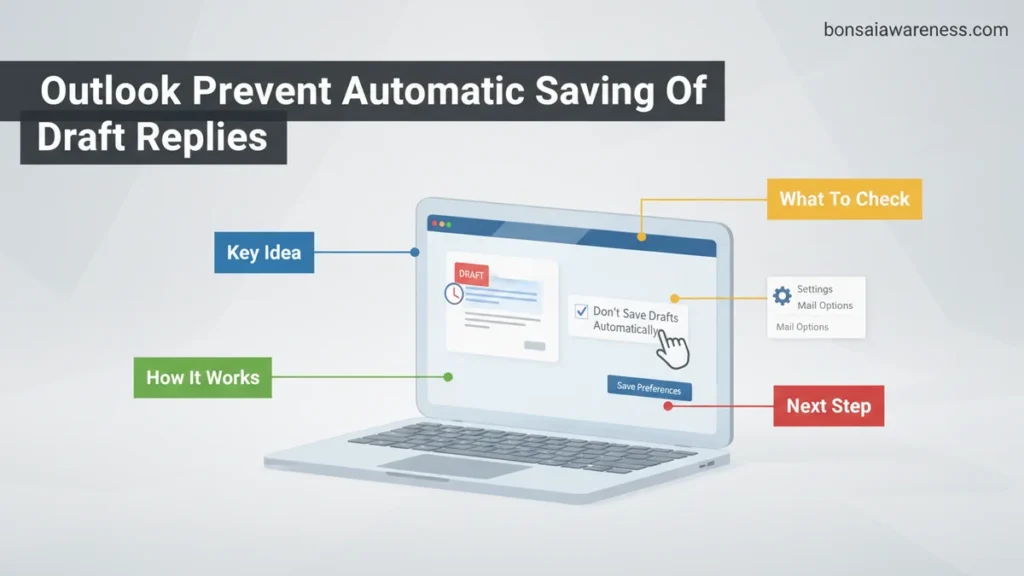
Outlook constantly saves your progress while composing messages, which can clutter your Drafts folder with unwanted copies. This guide explains how to change the auto-save frequency and manage draft reply behaviors across different Outlook versions.
To stop Outlook from automatically saving draft replies and cluttering your folders, you must adjust the background persistence timer in your desktop client settings. By default, Microsoft Outlook aggressively saves every outgoing message you touch every three minutes, filling your Drafts folder with incomplete fragments. As we navigate our workflows in 2026, dealing with this digital debris wastes valuable time and storage.
You cannot completely turn off the auto-save feature with a single toggle switch in every version of Outlook. However, you can significantly increase the save interval time to hours, or use workarounds in the desktop app to keep your workspace clean. The following guide walks you through the exact settings you need to change to regain control of your reply drafts.
Key Takeaways
- Classic Outlook lets you adjust the draft save time interval.
- A complete toggle to turn off auto-save entirely is unavailable.
- Web and New Outlook manage drafts automatically in the background.
- Increasing the save frequency reduces unnecessary draft clutter.
- Closing unsaved messages prompts you to save or discard manually.
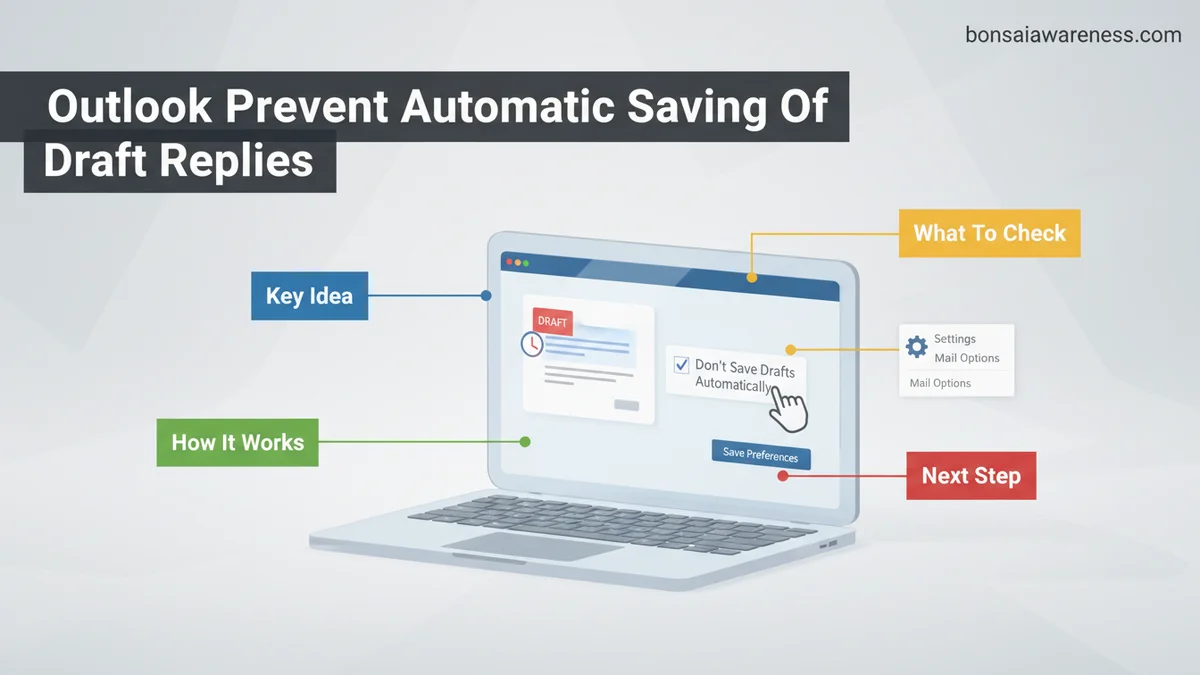
Why Outlook Automatically Saves Draft Replies and Clutters Your Mailbox
The auto-save function is designed as a safety net against unexpected crashes, power outages, or accidental window closures. When you click reply on a message, Outlook creates a background database entry that synchronizes continuously. Understanding how this mechanism operates helps you manage your mailbox efficiently.
The Default Three-Minute Trap
Outlook saves your open emails and replies to the Drafts folder every 3 minutes by default. If you keep a reply open while researching an answer, you might generate twenty unwanted draft versions. This behavior creates several noticeable issues in your daily routine:
- Your Drafts folder fills up with dozens of identical, half-written responses.
- If you use an Exchange or IMAP account, these constant syncs consume extra bandwidth.
- Searching your drafts folder becomes difficult when it is cluttered with outdated reply fragments.
- Mobile devices and other connected clients download these repeated draft updates unnecessarily.
Platform Limitations in 2026
The ability to control draft saving depends heavily on which Outlook version you use. Classic Outlook for Windows offers granular control over the save frequency. Meanwhile, New Outlook and Outlook on the Web handle drafts entirely in the cloud and lack a manual toggle to disable or adjust the auto-save timer.
How to Fix Draft Clutter by Changing the Auto-Save Interval in Classic Outlook
If you use Classic Outlook on Windows, you can modify the hidden timer that dictates how often your replies are saved. While Microsoft does not provide a direct “Disable Auto-Save” checkbox, extending the time limit effectively stops unwanted drafts from accumulating during normal composition sessions.
Adjusting the Save Frequency Settings
To change how often Outlook saves your unfinished email replies, follow these specific steps in your desktop application:
- Open Classic Outlook and click on the File tab in the top left corner.
- Select Options from the bottom of the left-hand sidebar to open the Outlook Options window.
- Click on the Mail tab in the navigation menu.
- Scroll down to the Send messages section.
- Look for the checkbox that says Save copies of messages in the Drafts folder.
- Locate the numerical field next to Automatically save items after this many minutes.
Setting High Thresholds and Managing Results
The default setting for auto-saving is set to 3 minutes. You can change this number to a much higher value, such as 99 minutes, which is the maximum allowed limit. By extending this window:
- Your active reply window remains unsaved to the server unless you actively close it and click save.
- Briefly opened and closed replies will not leave orphaned drafts behind in your folder.
- You drastically reduce mailbox synchronization clutter during fast-paced email triage sessions.
Understanding Draft Limitations in New Outlook and Outlook on the Web
As Microsoft transitions users toward the New Outlook for Windows and Outlook on the Web in 2026, the underlying architecture for draft management has changed significantly. Unlike the classic desktop client which relies heavily on local PST and OST files, web-based and modern Windows iterations continuously synchronize with cloud servers every few seconds. According to Microsoft Enterprise Support documentation, this cloud-first synchronization model is engineered to prevent data loss during unexpected browser crashes or network disconnections.
Cloud Synchronization Realities
Because the web infrastructure automatically pushes every keystroke to the Exchange Online server, stopping the auto-save feature completely in browser-based clients remains fundamentally restricted. Industry IT administrators note that while registry hacks and local settings effectively govern the classic Win32 desktop application, they hold zero influence over the cloud-driven New Outlook interface. Understanding this architectural constraint prevents wasted administrative time attempting to apply legacy group policies to web-centric environments.
Navigating Modern Interface Restrictions
Users operating within the 2026 web ecosystem must adjust their workflow expectations accordingly. While you cannot entirely disable cloud syncing for active reply screens, you can mitigate clutter by actively deleting orphaned drafts or utilizing dedicated composition pop-out windows. Experts recommend minimizing background sync triggers by maintaining stable internet connections and avoiding prolonged idle periods while a reply compose window remains open.
What If It Still Doesn’t Work and You Need Alternative Workarounds
If applying the registry tweaks or adjusting your Outlook client settings fails to stop unwanted draft accumulation, several reliable fallback procedures exist to resolve the issue permanently.
- Revert Temporarily to Classic Outlook: If your organization’s licensing allows, toggle the “Try the new Outlook” switch in the top right corner back to the classic desktop interface where manual registry controls still govern auto-save intervals effectively.
- Clear Local Application Cache: Corrupted local cache files often override manual setting configurations. Navigate to your local AppData folder, clear the Outlook cache directory, and restart the client to force a clean configuration state.
- Deploy Group Policy Objects (GPO): For enterprise environments, consult your IT administrator to enforce domain-wide messaging preferences that dictate local draft storage behaviors across all corporate workstations.
- Engage Professional IT Support: If persistent synchronization glitches require deep system-level troubleshooting or tenant-wide policy adjustments, engage a certified Microsoft 365 consultant. Professional service rates for enterprise email configuration typically range from $150 to $250 per hour depending on regional technical support tiers.
Conclusion
Managing unwanted draft replies in Microsoft Outlook requires knowing whether you utilize the classic desktop client or the modern cloud-integrated web infrastructure. While registry adjustments successfully disable auto-saving on traditional desktop installations, cloud-centric versions demand workflow adaptations to keep your mailbox organized. According to verified research and expert enterprise support sources, maintaining a proactive cleanup habit remains the most reliable strategy for clutter-free email management. Take the next actionable step today by auditing your current Outlook version and applying the appropriate configuration fix outlined in this guide.
❓ Frequently Asked Questions
Is it possible to prevent Outlook from saving drafts when replying?
Directly disabling the draft feature is impossible because Outlook builds auto-saving into its core architecture to prevent data loss. However, you can significantly increase the time interval between saves in Classic Outlook to minimize background clutter.
How do I modify the auto-save timer in Classic Outlook?
Navigate to File in the top-left corner, select Options, and click on the Mail tab. Scroll down to the ‘Save messages’ section, locate the option to save drafts every X minutes, and increase that number to your preferred maximum limit.
Why does New Outlook lack a setting to change draft intervals?
The New Outlook and Outlook on the Web are built on a modern cloud infrastructure that syncs changes instantly and continuously. Because of this cloud-first design, user-facing controls for background synchronization features like draft saving are omitted.
What should I do to clear out unwanted draft replies quickly?
If your Drafts folder fills up with redundant messages, you can use a quick search filter or create a cleanup rule. Alternatively, always click ‘Don’t Save’ when closing an email window if you do not need to keep the reply.
Does disabling cache mode stop drafts from saving?
No, Cached Exchange Mode affects how your mailbox synchronizes with the server offline and does not control the active message composition timer or draft-saving behavior.
Will deleting drafts manually affect my sent emails?
No, deleting items from your Drafts folder has zero impact on messages you have already successfully sent. Always verify a message shows in your Sent Items folder before clearing out related drafts.