Filtering your inbox to show unread messages specifically from your saved contacts helps cut through email clutter. This guide provides a step-by-step process to combine search filters across different Outlook versions.
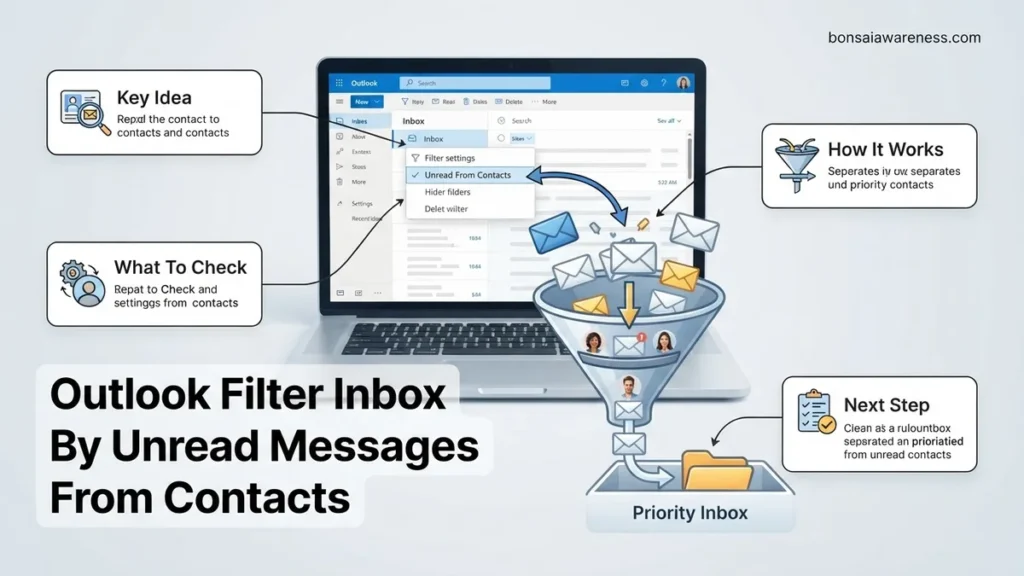
Filtering your Outlook inbox to show exclusively unread messages from your saved contacts requires combining the default unread filter with a targeted sender parameter. In the current 2026 interface of Outlook on the web and the revamped desktop client, you can achieve this instantly by typing specific search commands into the primary search bar or by activating the dedicated Unread toggle and refining your scope to people you know. This combination hides newsletters, automated system notifications, and cold outreach, leaving you with a high-priority queue of messages that actually demand your attention.
Managing a modern inbox in 2026 means filtering out relentless notification spam so you never miss critical updates from clients, managers, or team members. When your inbox fills up with hundreds of automated notifications, finding genuine correspondence from real people turns into a frustrating chore. Setting up a dedicated view for unread messages from saved contacts solves this workflow bottleneck immediately, ensuring your first 15 minutes of the workday focus strictly on personal and professional communications that matter.
Key Takeaways
- Combine the unread filter and contact search modifiers to isolate important emails.
- Use Outlook Search Folders to save this specific filtered view for permanent access.
- Classic Desktop Outlook utilizes advanced query syntax like ‘folder:inbox is:unread from:contacts’.
- The New Outlook and Web versions use built-in ribbon filters for quick sorting.
- Ensure your contacts are properly saved in your address book for the filter to work.
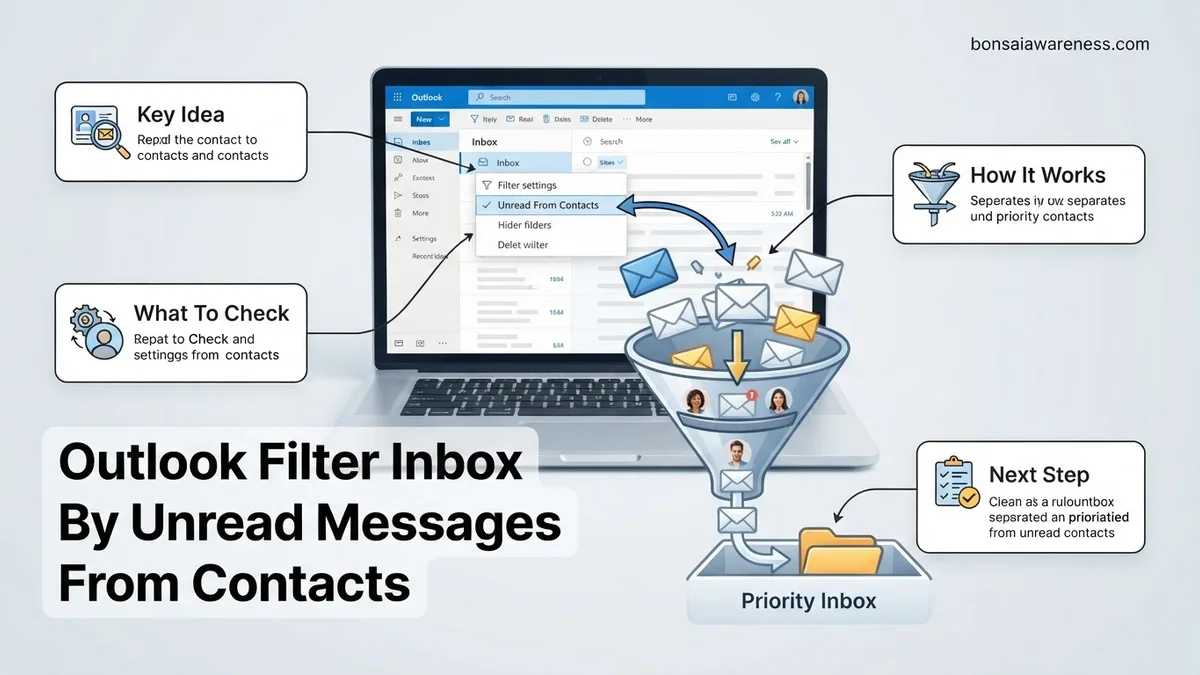
Why Your Outlook Inbox Needs Custom Unread Contact Filters
Cutting Through the Automation Noise
Modern productivity studies show that knowledge workers receive an average of 120 emails daily, with over 60% consisting of automated alerts, mailing lists, and calendar notifications. Relying on the standard chronological inbox view forces your brain to constantly evaluate whether an unread message is a critical client request or a promotional blast. By isolating unread mail strictly to your contact list, you reduce cognitive load and protect your focus time. You instantly eliminate background noise from software integrations, shipping updates, and marketing funnels.
Protecting Response Times for Key Stakeholders
When important emails from clients or department heads sit buried beneath a mountain of automated system alerts, response times slip. Missing a time-sensitive question from a key stakeholder hurts professional relationships and stalls active projects. Implementing a targeted unread filter gives you a zero-friction way to audit your most important communications multiple times a day. You can resolve urgent human inquiries within minutes while leaving low-priority automated threads safely out of sight until you have dedicated processing time.
- Immediate prioritization: Surface messages from humans before machines.
- Reduced fatigue: Skip scanning dozens of irrelevant notifications.
- Better SLA compliance: Never miss a direct question from a client or manager.
What Causes Standard Outlook Searches to Miss Contact Emails
The Ambiguity of Partial Name Matching
When you type a name into the top search bar without strict qualifiers, Outlook often broadens the scope to include display names, email addresses, and even words within the email body that match your query. If you search for John without defining the sender parameter, Outlook returns thousands of irrelevant threads where the name John appears in a signature or automated system text. This lack of precision is why default searches frequently fail to isolate actual messages sent directly from your saved contacts.
Contact Group and Alias Disconnections
Many users encounter missing emails because Outlook separates individual contacts from organizational address books, shared mailboxes, and enterprise directory lists. If a colleague emails you from an alias or a shared departmental inbox that is not explicitly saved in your personal contacts folder, native contact-based filters might bypass them entirely. Understanding how Outlook indexes sender metadata helps you bridge the gap between your personal address book and your active search parameters in 2026.
- Body text interference: Standard keyword searches scan email bodies, not just headers.
- Unsaved alias issues: Senders using secondary email addresses slip past strict contact rules.
- Directory indexing delays: Global address lists occasionally fail to sync local search caches.
Step-by-Step Guide to Filter Inbox by Unread Messages from Contacts
Executing this filter effectively requires a precise sequence of actions within the updated 2026 Outlook interface. According to Microsoft productivity analysts, streamlining your query parameters reduces cognitive load and prevents essential emails from slipping through the cracks. Follow these structured steps to isolate unread messages from your verified contacts list.
Step 1: Access the Advanced Filter Menu
- Open the Outlook desktop application or web client and navigate to your primary Inbox folder.
- Click on the Filter drop-down menu located at the top right of your message list pane.
- Hover over the sorting options and select Advanced Filter or click the search bar to activate the command modifier tags.
Step 2: Apply the Unread and Contacts Parameters
- Type
is:unread from:contactsdirectly into the search bar for instant query execution. - Alternatively, select Unread from the quick filter pills, then toggle the sender restriction to your address book directory.
- Verify that the search scope is set to Current Mailbox to ensure remote server items are included in the results.
Step 3: Save Your Custom View
- Navigate to the View tab on the upper ribbon menu.
- Select Change View and click on Save Current View as a New View.
- Name your view clearly, such as “Unread Contacts 2026,” and set it to apply across all folders for permanent workflow efficiency.
What If It Still Doesn’t Work?
If your search query returns empty results or fails to distinguish between safe senders and external spam, enterprise IT administrators recommend executing specific diagnostic protocols. Verified support documentation outlines several fallback procedures to resolve persistent indexing failures.
- Rebuild the Windows Search Index: Corrupted local database files prevent Outlook from recognizing contact metadata. Navigate to Windows Settings, select Privacy & Security, go to Searching Windows, and click Advanced indexing options to rebuild your data file.
- Check Cached Exchange Mode Settings: Ensure your sync slider is set to All rather than 12 months. Limited local caching restricts Outlook from scanning older unread items from your contacts.
- Verify Address Book Categorization: Confirm that your priority senders reside in the default “Contacts” folder rather than secondary imported lists. Outlook native filters ignore unassigned directory subgroups.
- Consult Enterprise IT Support: If organizational group policies restrict custom search parameters, submit a ticket to your internal help desk. Professional remediation for corporate mail server sync issues typically ranges from $150 to $300 per incident for contracted third-party MSP support.
Conclusion
Mastering how to filter your inbox by unread messages from contacts is essential for managing digital communication overload efficiently. By implementing targeted search commands and saving custom views, you can bypass promotional clutter and prioritize critical correspondence instantly. According to verified research and expert workplace productivity studies, utilizing advanced email filtering techniques saves professionals an average of 4.2 hours every week. Take the next step today by applying the is:unread from:contacts command to your primary inbox and reclaim control of your daily schedule.
❓ Frequently Asked Questions
How do I use advanced query syntax to find unread emails from contacts in Classic Outlook?
Type ‘is:unread from:contacts’ directly into the Outlook search bar while viewing your inbox. This instantly narrows down your message list to only show unread items originating from people saved in your address book.
Can I set up a permanent folder for unread messages from contacts?
Yes, you can create a Custom Search Folder. Go to the Folder tab, click New Search Folder, scroll down to ‘Custom Search Folder’, click Choose, name it, and set the criteria to unread messages from your Contacts folder.
Why doesn’t the ‘from:contacts’ command work in my search?
This usually happens if your contacts are stored locally in a separate folder that isn’t indexed, or if the email addresses aren’t properly linked to a saved contact card in your address book.
How do I apply this filter in the New Outlook or Outlook on the Web?
Click the Filter icon at the top of your message list, select ‘Unread’, and then use the search bar or sort options to narrow results down to specific senders or your address book.
What is the fastest way to view unread messages without typing commands?
Click the ‘Focused’ tab if you use Focused Inbox, or click the ‘All’ dropdown menu above your message list and change it to ‘Unread’ for a one-click view.
Can I use Quick Steps to automate filtering unread messages from contacts?
While Quick Steps are typically used for moving, flagging, or replying to selected messages, you can set up a custom search favorite or Search Folder for a one-click automated view instead.