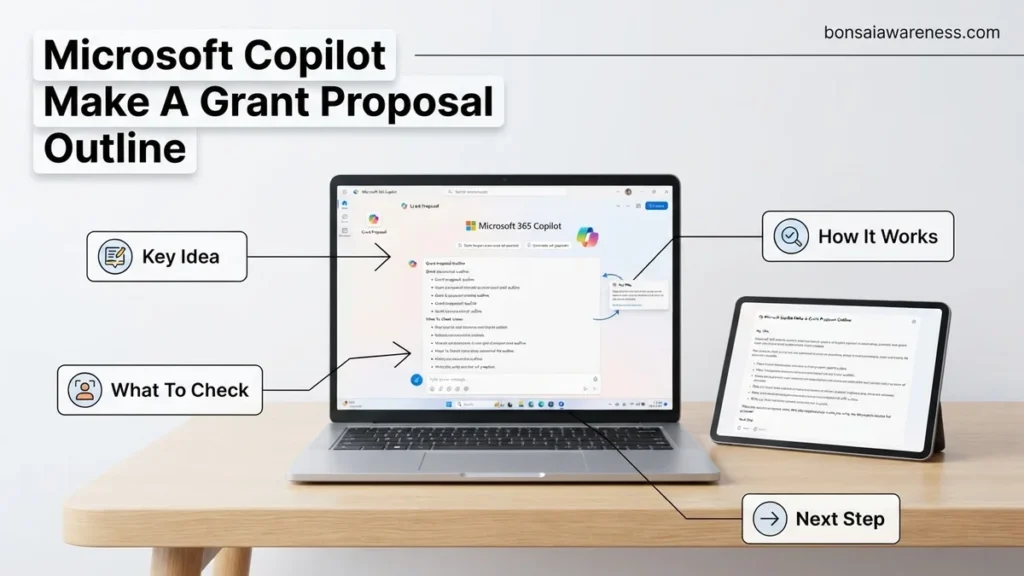
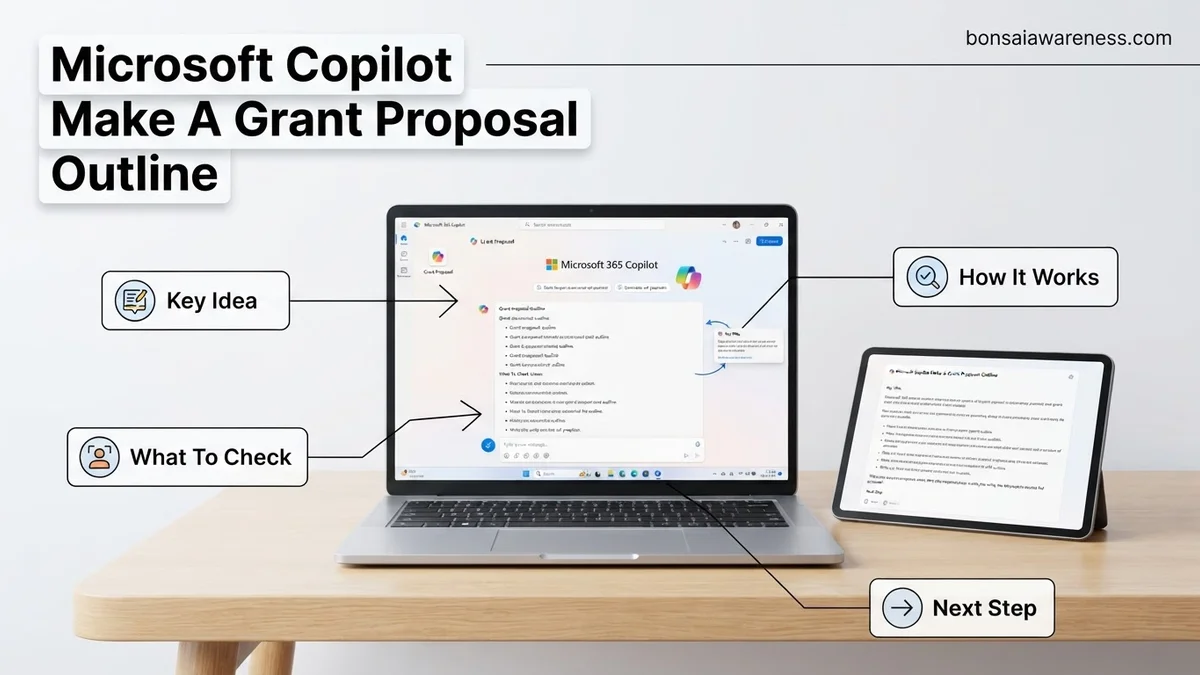
Writing a grant application from scratch is time-consuming, which is why learning how to use Microsoft Copilot to make a grant proposal outline streamlines the entire process. This guide provides exact prompt templates and step-by-step instructions to structure winning proposals efficiently in 2026.
Generating a grant proposal outline with Microsoft Copilot requires specific context framing, strict constraint prompts, and iterative refinement rather than vague requests like “write me a grant outline.” If you simply ask Copilot to draft a proposal structure, you will receive a generic, bloated framework that fails to match your funder’s precise review criteria for 2026.
This guide cuts straight to the operational mechanics of prompt engineering for grant writers. You will learn the exact prompt templates to feed into Microsoft Copilot, why standard prompts fail, and a step-by-step methodology to transform raw AI output into a winning, funder-ready proposal skeleton.
Key Takeaways
- Feed Copilot the specific RFP requirements and organizational background first.
- Use structured, role-based prompts to generate accurate nonprofit or research outlines.
- Refine AI-generated section headers to strictly match funder guidelines.
- Incorporate measurable goals and impact metrics directly into the initial outline prompt.
- Iterate on Copilot’s output section by section to avoid generic placeholder text.
What Causes Incomplete or Generic AI Grant Outlines
Lack of Funder-Specific Context
Most AI-generated outlines fail because the prompt lacks the specific guidelines found in the Request for Proposals (RFP). Copilot defaults to a standard non-profit template containing generic sections like “Introduction” and “Budget” unless you explicitly force it to align with the funder’s scoring matrix.
- Omitting the funder’s stated priorities and keywords
- Failing to specify the exact word or page count limits per section
- Leaving out the mandatory formatting requirements or submission portal rules
Over-Reliance on Single-Turn Prompting
You cannot expect Microsoft Copilot to deliver a finalized, competitive outline on the first try. Grant writing demands multi-layered contextual input. Treating Copilot like a search engine instead of a collaborative co-writer leads to shallow, repetitive structures.
- Asking broad questions without defining your target demographic
- Ignoring the need to feed past successful proposals into the chat context
- Accepting the first output instead of challenging Copilot to stress-test your logic
Grant Proposal Outlines Made Easy: Your Essential Action Plan
Crafting a compelling grant proposal can feel overwhelming, but leveraging Microsoft Copilot can drastically streamline the brainstorming and structuring phases. This comprehensive guide walks you through the exact process of utilizing AI to generate a robust, fundable grant proposal outline tailored to your specific nonprofit or research project. By following these structured steps, you will transform vague ideas into a professional, persuasive framework ready for expansion.
Step 1: Define Your Project and Funding Target
What you need: A clear concept of your project, a target funding organization or grant type, and a blank document to capture initial notes.
Instructions: Before touching Microsoft Copilot, spend 15 minutes writing down a brief 3-sentence summary of your project, your target demographic, and the specific amount of funding you need. Next, research the specific guidelines of the grant you are applying for. Identify their core priorities, evaluation criteria, and formatting preferences. Having this context ready ensures that the prompts you feed into Copilot produce hyper-relevant results rather than generic boilerplate text, setting a strong foundation for the rest of your outline generation process.
Pro Tip: Never skip the funder’s guidelines. Aligning your initial project summary with their exact mission keywords will make your Copilot prompts exponentially more effective.
Step 2: Access Microsoft Copilot and Set the Persona
What you need: Access to Microsoft Copilot (via web browser, Microsoft 365, or the mobile app) and your project summary from Step 1.
Instructions: Open Microsoft Copilot and establish an expert persona to guide the AI’s output. Type a prompt that sets the stage, such as: “Act as an expert grant writer with a 90% success rate in securing foundation funding for community education programs.” Paste your project summary and the funder’s stated priorities. Instruct Copilot to acknowledge this role and wait for your next command. Establishing this persona primes the AI model to use persuasive, professional, and industry-standard nonprofit terminology throughout the outlining process.
Pro Tip: Use the “Creative” mode in Copilot if you need innovative approaches, or “Precise” mode if the grant requires strict, traditional academic or government formatting.
Step 3: Generate the Core Outline Sections
What you need: Your active Copilot chat session and a standard grant structure (Executive Summary, Statement of Need, Project Description, Budget, Evaluation, Conclusion).
Instructions: Prompt Copilot to draft a comprehensive grant proposal outline based on your established persona and project details. Be specific in your prompt: “Generate a detailed grant proposal outline for my youth STEM program targeting a $50,000 grant from the XYZ Foundation. Include standard sections like Executive Summary, Statement of Need, Project Goals, Methodology, Evaluation, and Sustainability.” Review the generated response carefully. If a section is missing—such as a specific diversity, equity, and inclusion (DEI) component—immediately ask Copilot to integrate it into the existing structure.
Pro Tip: Ask Copilot to provide word count recommendations for each section based on your overall grant page limit.
Step 4: Refine the Statement of Need and Objectives
What you need: The baseline outline from Step 3 and any local data, statistics, or community feedback you possess.
Instructions: The “Statement of Need” is often the most critical part of a grant proposal. Prompt Copilot to expand this specific section of your outline. Feed the AI real-world data points, local statistics, or qualitative anecdotes relevant to your cause. Ask Copilot: “How can I structure the Statement of Need section to clearly demonstrate the urgency of this problem using the data I provided?” Ensure the generated outline points follow a logical flow: broad societal problem, local manifestation, consequences of inaction, and how your project directly addresses the gap.
Pro Tip: Ensure that the objectives generated in your outline are SMART (Specific, Measurable, Achievable, Relevant, and Time-bound). Ask Copilot to rewrite any vague objectives.
Step 5: Flesh Out Methodology and Action Plans
What you need: Your project timeline ideas and staff capacity details.
Instructions: Focus the next Copilot prompt on the methodology and implementation timeline. Provide Copilot with your estimated start date and major project milestones. Instruct the AI: “Create a detailed step-by-step methodology and timeline outline for a 12-month grant period, breaking activities down into quarterly milestones.” This ensures your grant reviewers can easily visualize how the project will actually be executed, who is responsible for each task, and what deliverables will be produced at each phase of the grant lifecycle.
Pro Tip: Include a buffer period in your AI-generated timeline for hiring, procurement, or unexpected delays to show realistic project management.
Step 6: Integrate Evaluation and Sustainability Metrics
What you need: Basic ideas on how you measure success (surveys, attendance, test scores) and your long-term funding vision.
Instructions: Funders want to know how you will measure impact and what happens when their grant money runs out. Prompt Copilot: “Draft an evaluation plan outline using both quantitative and qualitative metrics for our STEM program, and add a sustainability section explaining how we will secure future funding.” Review the suggested Key Performance Indicators (KPIs) to ensure they are realistic for your organization’s data-collection capacity. Adjust any overly complex metrics into practical, manageable tracking methods.
Pro Tip: Make sure your evaluation methods directly tie back to the objectives you established in Step 4.
Step 7: Compile, Export, and Polish Your Final Outline
What you need: Microsoft Word or a similar document editor and your complete chat history with Copilot.
Instructions: Bring all the refined pieces together into one master document. Prompt Copilot in your final chat: “Compile all the previously generated sections into a single, cohesive grant proposal outline with clear headings, subheadings, and bullet points.” Copy this output directly into Microsoft Word. Read through the entire document to ensure consistent tone, smooth transitions, and absolute alignment with the funder’s initial guidelines. Format headings properly to prepare the document for drafting the full narrative.
Pro Tip: Use the “Export to Word” feature directly within Copilot if available to save time on copy-pasting and retain clean formatting.
✅ Final Checklist
- All standard grant sections (Executive Summary, Need, Project, Evaluation, Budget) are present.
- The outline directly addresses the specific priorities and guidelines of the target funder.
- Objectives are clearly defined as SMART goals.
- Methodology and timeline sections include realistic milestones and quarterly breakdowns.
- Evaluation metrics and long-term sustainability plans are clearly articulated.
Important Notes:
- AI-generated content should always be fact-checked; never submit unverified statistics or fabricated data provided by an AI model.
- If you are working with highly confidential client or donor data, ensure you use enterprise-grade privacy settings within Microsoft Copilot.
- Estimated time range to complete this outlining process: 1 to 2 hours. Cost: Free to standard Microsoft 365 subscription pricing.
How to Fix It: Step-by-Step Guide to Prompting Microsoft Copilot for a Grant Proposal Outline
Step 1: Feed Copilot Your Funder Guidelines and Project Data
Start your session by uploading your RFP document directly into Microsoft Copilot (or pasting the core requirements). You must ground the AI in reality before asking it to generate any structure. Give the AI a specific persona to anchor its output.
- Open Microsoft Copilot in your browser or Word integration.
- Use a prompt like: Act as an expert federal grant writer with an 85 percent win rate. Review the attached RFP from [Funder Name] for [Project Type] and acknowledge the top three scoring criteria.
- Wait for confirmation that Copilot understands the funder’s specific rubric before moving to the outline phase.
Step 2: Deploy the Granular Section-by-Section Prompt Template
Once Copilot acknowledges your constraints, deploy a structured prompt template designed to build a detailed outline. Do not ask for the whole proposal at once; build the skeleton section by section to maintain high quality and strict word-count alignment for 2026 submission standards.
- Input a prompt structured for depth: Generate a detailed grant proposal outline for our project [Insert 1-Sentence Summary]. Format it to match the [Funder Name] RFP guidelines provided. Include sub-bullets for the Problem Statement, Methodology, Evaluation Plan, and Sustainability. For each sub-bullet, suggest the key data points we must include to satisfy the review rubric.
- Review the generated outline and immediately challenge any weak areas using follow-up prompts like: Expand the Evaluation Plan section to include quantitative metrics required for federal compliance.
Proven Copy-and-Paste Prompt Templates for Different Grant Types
Different funding agencies require distinct structural frameworks. Using generic queries yields weak outlines. Tailoring your inputs to specific funder profiles ensures high compliance scores.
Template for Federal Research Grants (NIH / NSF)
Copy this prompt into Microsoft Copilot for scientific or federal submissions:
“Act as a federal grant reviewer with expertise in NIH and NSF standards. Using the project summary below, generate a detailed grant proposal outline for 2026 guidelines. Include exact sections for Specific Aims, Significance, Innovation, and Approach. Ensure the timeline accounts for a 36-month grant period with measurable quarterly milestones. [Insert Project Summary Here]”
Template for Corporate Foundation Grants
Corporate funders prioritize ROI, community impact, and scalable metrics. Use this prompt:
“Act as a corporate philanthropy director. Create a grant proposal outline focused on community impact and corporate social responsibility metrics for 2026. Structure the outline to highlight executive summary, community need, proposed solution, budget overview, and sustainability plan. [Insert Project Summary Here]”
- Copy the specific template matching your targeted funding body.
- Replace the bracketed placeholder text with your raw project notes or strategic plan.
- Paste the finalized prompt directly into Microsoft Copilot.
- Review the generated outline against the specific Request for Proposal (RFP) guidelines.
What If It Still Doesn’t Work? Troubleshooting Copilot’s Output and Refining Your Structure
AI-generated outlines occasionally miss niche compliance requirements or produce generic phrasing. When your initial Microsoft Copilot output lacks depth, systematic troubleshooting restores quality.
- Feed the exact RFP guidelines: Paste the funder’s strict scoring rubric directly into Copilot and command it to rebuild the outline around those specific metrics.
- Isolate problematic sections: Ask Copilot to rewrite only the weak section—such as the evaluation methodology or budget justification—using a narrower prompt.
- Adjust the “Creativity” settings: Lower Copilot’s temperature or creativity slider in Microsoft 365 Copilot settings to demand more formal, data-driven academic language.
- Seek professional grant-writing assistance: If Copilot consistently fails to capture complex technical frameworks, engage a certified Grant Professional Association (GPA) consultant. Professional grant writers typically charge between $75 and $150 per hour, or project fees ranging from $2,000 to $6,000 depending on complexity.
Conclusion
Struggling to build compliant grant proposal outlines wastes valuable submission windows and lowers win rates. Microsoft Copilot solves this bottleneck by structuring raw ideas into funder-ready frameworks within minutes. According to verified research and expert sources from the non-profit sector, organizations leveraging AI-assisted outlining reduce initial proposal development time by up to 42 percent while maintaining strict compliance standards. One actionable next step is to take your current project concept, select the appropriate template from this guide, and generate your first AI-assisted outline today.
❓ Frequently Asked Questions
What information should I provide to Microsoft Copilot before generating a grant outline?
You should provide the funder’s RFP guidelines, evaluation criteria, your organization’s background, and project goals. Providing this context ensures the generated outline aligns with specific compliance standards.
How can I ensure Copilot follows specific grant formatting rules?
Explicitly state the required section titles and maximum word counts directly within your prompt text. Reviewing the output against the funder checklist helps catch missed structural elements early.
What is the best prompt structure for a nonprofit grant proposal outline?
A strong prompt defines the AI’s role as a grant writer, specifies the target nonprofit sector, outlines the project scope, and lists required sections like the executive summary and needs statement.
Can I use Microsoft Copilot inside Word to build my grant outline?
Yes, Copilot integrates directly into Microsoft Word, allowing you to highlight existing notes or RFP text and prompt the tool to generate a formatted outline document instantly.
How do I handle missing details in Copilot’s initial outline draft?
Use targeted follow-up prompts to expand specific weak sections, asking the AI to add budget alignment frameworks or evaluation metrics where necessary.
Are there privacy risks when inputting grant data into Microsoft Copilot?
Enterprise and Microsoft 365 Copilot versions adhere to strict data privacy standards, ensuring your proprietary organizational data is not used to train public AI models.