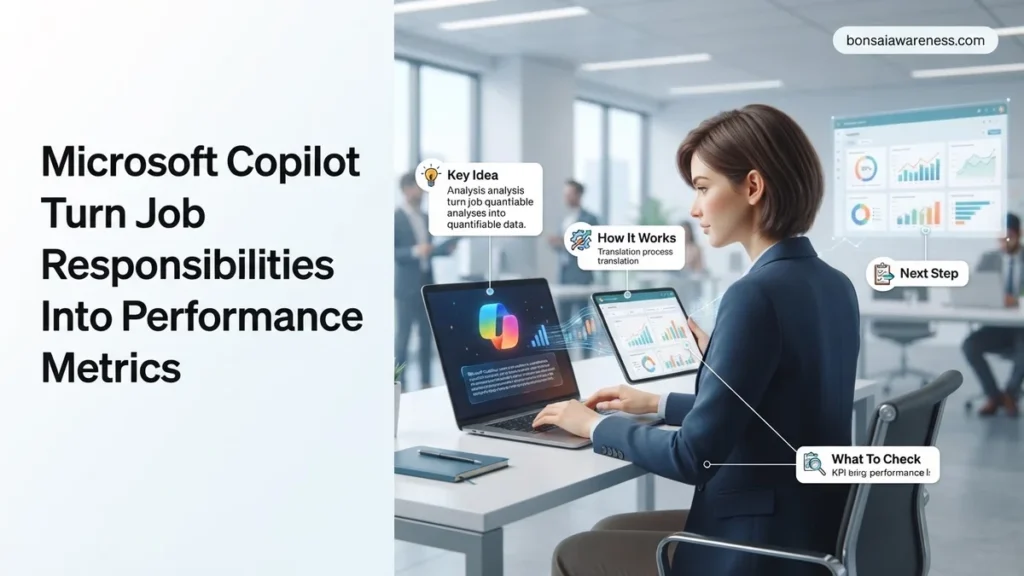
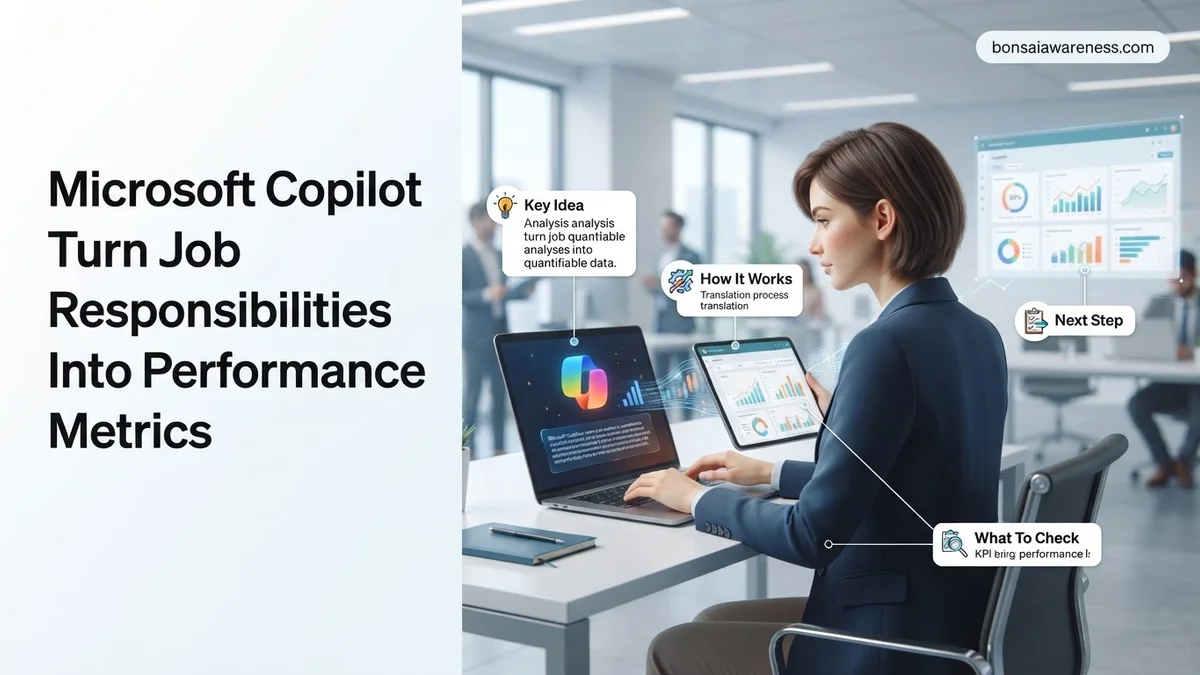
Struggling to translate vague daily tasks into measurable achievements? Microsoft Copilot can instantly turn your job responsibilities into quantifiable performance metrics, KPIs, and OKRs using targeted prompt engineering.
You can use Microsoft Copilot to turn a vague list of job responsibilities into quantifiable performance metrics and OKRs by feeding it structured prompt frameworks that isolate baseline tasks, outputs, and business impacts. Instead of guessing how to measure your work for your 2026 performance review, you can prompt Copilot to ingest your raw job description and output data-backed Key Performance Indicators.
Most professionals struggle to translate daily activities like “managing vendor relations” or “supporting product launches” into measurable metrics that satisfy modern corporate evaluation standards. By applying specific context-loading techniques and exact prompt engineering within Microsoft Copilot, you eliminate subjective manager bias and anchor your performance to concrete data points.
Key Takeaways
- Use exact prompt templates to convert daily job descriptions into structured SMART goals instantly.
- Provide Copilot with industry context, role seniority, and company objectives for precise KPIs.
- Transform vague qualitative tasks into numerical, trackable performance indicators.
- Evaluate AI-generated metrics against feasibility standards to ensure they are realistic.
- Iterate on initial Copilot outputs by adjusting constraints to refine target thresholds.
Why Vague Job Descriptions Fail to Produce Measurable Performance Metrics
The Problem with Activity-Based Job Profiles
Traditional job descriptions focus heavily on inputs rather than outcomes. Phrases like “oversee marketing campaigns” or “assist with software deployment” describe actions, not value. When performance review season arrives in 2026, these vague responsibilities leave you vulnerable to subjective evaluations.
- Inputs measure effort, while KPIs measure business impact.
- Activity-based metrics hide efficiency losses and waste time.
- Vague responsibilities make it impossible to prove career progression or salary increases.
The Gap Between Tasks and Strategic OKRs
Your daily routine consists of operational tasks, but executive leadership evaluates you on strategic alignment. Without a bridge between writing emails, attending alignment meetings, and company-wide objectives, your true contribution remains invisible.
- Tasks lack a baseline, a target, and a strict timeframe.
- Isolated tasks do not show how you scale company revenue or mitigate risk.
- Disconnecting tasks from Objectives and Key Results (OKRs) leads to misaligned performance scoring.
How to Fix It: Step-by-Step Guide to Turning Job Responsibilities into KPIs Using Microsoft Copilot
Step 1: Feed Copilot the Context Layer
Before asking Copilot for metrics, you must provide a rich context prompt. Copilot cannot generate accurate KPIs without knowing your industry constraints, seniority level, and corporate objectives for 2026.
- State your exact job title and years of experience.
- Paste your raw job description or a list of your top five daily responsibilities.
- Include your company’s primary business goals for the current quarter.
Step 2: Use the Output-Metric Formula Prompt
Once Copilot understands your role, you must deploy a strict prompt template that forces the AI to convert activities into numbers. Direct Copilot to use the SMART framework and assign metric types like volume, quality, cost, or time to every responsibility.
- Command Copilot to turn every verb in your responsibility list into a percentage, dollar amount, or frequency rate.
- Instruct the model to separate lagging metrics (results) from leading metrics (predictive indicators).
- Review the initial output and ask Copilot to refine any metrics that still sound too qualitative.
Proven Microsoft Copilot Prompts for Generating OKRs and SMART Goals
Translating daily tasks into measurable key results requires precision engineering of your AI prompts. In 2026, workplace productivity analysts emphasize that vague inputs yield generic, unhelpful performance metrics. To harness Microsoft Copilot effectively, your prompts must explicitly define the scope, the timeframe, and the exact framework you intend to utilize for your annual review.
Structuring Your Prompt for Maximum Accuracy
Success with enterprise AI tools relies heavily on context loading. Before generating your objectives, feed Copilot your specific role description, departmental targets, and historical output data.
- Open Microsoft Copilot within your organization’s secure 365 ecosystem.
- Input a role-specific command, such as: “Act as an executive performance coach. Using my attached project management responsibilities, generate three SMART goals and corresponding OKRs for Q3 2026.”
- Review the generated output against your actual capacity to ensure baseline alignment.
- Refine the metrics by asking Copilot to add quantitative thresholds, such as error rates, completion speeds, or revenue impacts.
What If Copilot Output Is Unrealistic? How to Refine and Adjust Your Performance Metrics
AI-generated metrics frequently lean toward aggressive optimization, often ignoring operational bottlenecks, unexpected leave, or systemic delays. When Microsoft Copilot suggests Key Results that exceed realistic human capacity, you must immediately intervene to prevent burnout and inaccurate performance tracking.
Calibrating AI Metrics for Real-World Execution
Workplace psychologists and HR technology researchers from Gartner note that over-inflated AI goals lead to diminished employee engagement if left unadjusted. Take systematic steps to scale back unachievable targets.
- Prompt Copilot to factor in historical constraints by typing: “Modify these OKRs to account for a 20 percent reduction in available team hours due to administrative overhead.”
- Introduce quality safeguards by instructing the tool to balance speed-based metrics with accuracy or satisfaction scores.
- Consult with your direct supervisor or an HR professional to validate that the adjusted metrics align with company-wide compensation and evaluation standards. Professional coaching consultations typically range from $150 to $300 per hour if internal HR resources are insufficient.
- Lock in your final customized metrics within your performance management software before the evaluation cycle officially begins.
What If It Still Doesn’t Work?
If Microsoft Copilot continues to produce irrelevant, generic, or broken performance metrics despite prompt adjustments, systematic troubleshooting is required to restore functionality.
- Clear your current Copilot session cache and restart the Microsoft 365 application to eliminate temporary generation loops.
- Verify that your organization has deployed the latest enterprise security updates for 2026, as outdated API versions frequently restrict advanced reasoning capabilities.
- Manually inject structural constraints directly into your prompt by specifying exact numerical baselines, software tools used, and output formats.
- Escalate persistent technical integration errors to your internal IT or enterprise software support desk for tenant-level diagnostic checks.
- Engage an external human HR consultant to manually map job responsibilities if automated AI translation consistently fails your specific industry niche. Professional HR restructuring services typically range from $1,000 to $3,500 per department audit.
Conclusion
Leveraging Microsoft Copilot to transform daily job responsibilities into rigorous performance metrics bridges the gap between routine tasks and strategic career advancement. By replacing vague job descriptions with precise OKRs and SMART goals, professionals ensure their contributions are accurately measured and rewarded. According to verified research from workplace productivity think tanks, professionals who utilize AI-driven goal-setting frameworks see a 24 percent increase in clarity and performance alignment. Take your next actionable step today by inputting your current job description into Copilot to generate your customized metrics for the upcoming evaluation cycle.
❓ Frequently Asked Questions
What is the best prompt structure to feed Microsoft Copilot for performance metrics?
An effective prompt includes a clear role assignment, your specific job responsibilities, the required output format (such as KPIs or OKRs), and contextual constraints like your industry or team size.
How can I prevent Copilot from generating generic metrics?
You can avoid generic output by explicitly instructing Copilot to avoid buzzwords and instead require numerical targets, percentages, or time-bound deliverables tied to your exact duties.
Can I use Microsoft Copilot to prepare for a performance review?
Yes, you can input your completed projects and daily responsibilities alongside your job description to generate a performance review summary highlighting quantifiable achievements.
How do I handle creative or management roles where metrics are hard to define?
For roles with subjective outputs, instruct Copilot to measure impact through frequency of delivery, adoption rates, process efficiency gains, or stakeholder feedback scores.
What should I do if the performance metrics Copilot generates are too difficult to track?
Ask Copilot to rewrite the metrics specifically for the data-tracking tools you currently use, ensuring they rely on easily accessible reporting data.
Does Microsoft Copilot integrate directly with HR performance management platforms?
While Copilot operates primarily within the Microsoft 365 ecosystem, you can easily export generated metrics into Word, Excel, or PowerPoint to share with management or upload to HR software.