Tired of automated quick responses cluttering your inbox? This guide explains how to outlook turn off suggested replies in web outlook quickly by adjusting your account settings. Follow these simple steps to disable AI-powered prompts and regain full control over your email drafting experience.
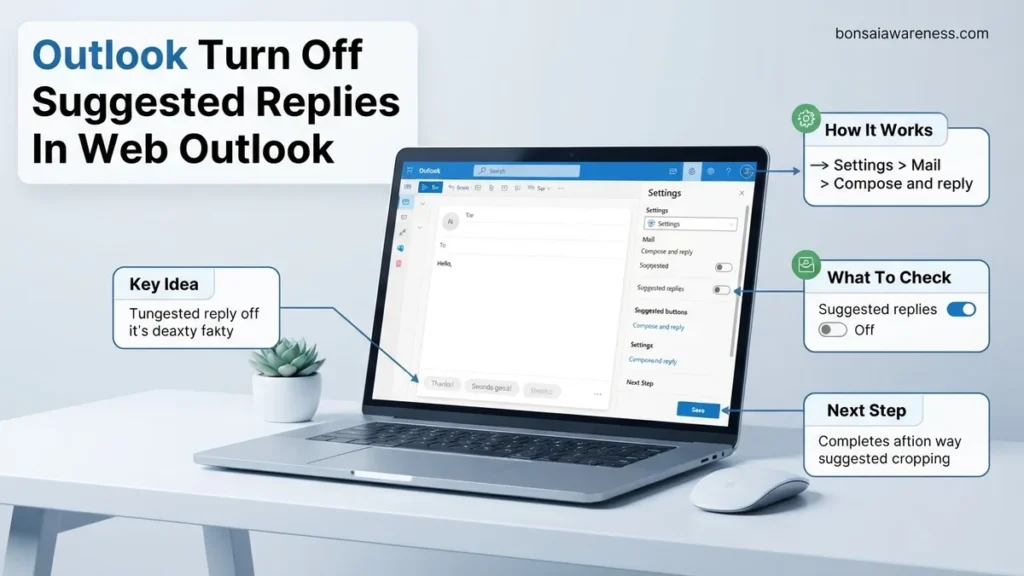
To turn off suggested replies in Outlook on the web, click the gear-shaped Settings icon in the top right corner of your browser window, select Mail, and then choose Compose and reply. Scroll down to the Suggested replies section and toggle the switch to the off position. This straightforward process removes those automated “Sounds good!” or “Thanks!” bubble prompts that crowd your reading pane.
Managing your digital workspace in 2026 requires minimal distractions, especially when you prefer drafting your own messages. While Microsoft’s automated writing aids aim to speed up workflows, they often clutter the interface. Disabling this feature ensures your reply box stays clean, giving you complete control over your email correspondence without accidental clicks on pre-made text snippets.
Key Takeaways
- Access the web version settings via the gear icon in the top right corner.
- Navigate to the Mail section and select Compose and reply.
- Scroll down to find the Suggested replies toggle switch.
- Turn the switch off and click Save to apply the changes.
- Refresh your browser if the setting does not update immediately.
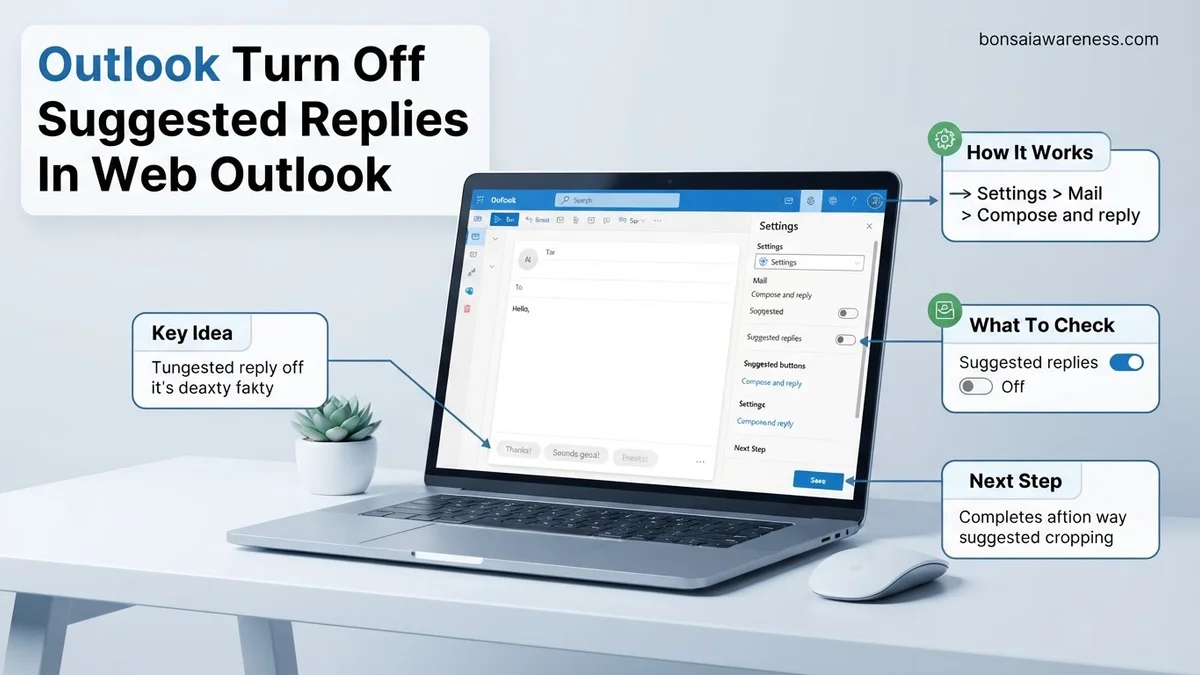
Why Suggested Replies Appear in Web Outlook
The Mechanism Behind AI Prompts in Your Browser
The web version of Outlook actively scans incoming message content using local machine learning models to predict appropriate short responses. When an email lands in your inbox, the browser client immediately evaluates the tone, context, and expected action of the sender. It then generates two or three canned phrases directly beneath the message body to let you respond with a single click. This functionality runs natively inside your modern browser tab, drawing on active session resources to render the clickable pills instantly.
- Real-time text analysis of incoming email threads
- Instant rendering of 2 to 3 contextual shortcut buttons
- Integration with your overall Microsoft 365 personalization data
Default Settings in Modern Microsoft 365 Environments
Microsoft enables suggested replies by default across almost all enterprise and consumer accounts on the web platform. When your organization provisions a new mailbox or you log into Outlook via a browser in 2026, the artificial intelligence features activate automatically. Unless you manually override this preference in your account parameters, the web app assumes you want assistance with quick acknowledgments. Because these settings are tied to your cloud profile, turning them off on one web browser generally propagates the change across other web sessions.
Master Outlook Suggested Replies in 5 Simple Steps
Are you tired of seeing automated, canned response chips pop up at the bottom of your emails every time you open a message in Outlook on the web? While Microsoft’s AI-powered suggested replies are designed to save time, they can often feel impersonal, clutter your reading pane, or result in accidental clicks that send unwanted one-word answers. Taking control of your email interface allows you to craft thoughtful responses without automated interference. This comprehensive, practical walkthrough will guide you through the exact process of disabling suggested replies in the web version of Outlook, helping you reclaim a cleaner, distraction-free inbox environment in just a few minutes.
Step 1: Access the Outlook Web Application
What you need: A reliable web browser (such as Google Chrome, Microsoft Edge, Mozilla Firefox, or Safari) and active login credentials for your Microsoft 365, Outlook.com, or Exchange account.
Instructions: Open your preferred web browser and navigate to the official Outlook on the web portal by typing outlook.office.com or outlook.live.com into the address bar. Enter your full email address and secure password when prompted. If you have Multi-Factor Authentication (MFA) enabled, complete the verification prompt on your mobile device or security key. Once your inbox fully loads and you can see your email folder structure, you are logged in and ready to proceed to the system settings area.
Pro Tip: Bookmark your specific Outlook login page to speed up the process, and ensure you are not using an incognito window so your browser can remember your settings preferences.
Step 2: Locate the Settings Menu Icon
What you need: Visual access to the top-right navigation bar of the Outlook web interface.
Instructions: Direct your eyes to the upper-right corner of the Outlook browser window. Look for the gear-shaped icon, which represents the “Settings” menu. Click on this icon exactly once with your left mouse button. Doing so will open a flyout menu panel on the right side of your screen containing quick settings options. Do not click on your profile picture or the help question mark icon, as these open completely different account management and support panels.
Pro Tip: On smaller laptop screens or high-resolution displays, you may need to zoom out slightly (using Ctrl and minus key on Windows, or Command and minus on Mac) if the gear icon is hidden behind a collapsed overflow menu.
Step 3: Navigate to the Mail Settings Section
What you need: The Settings flyout menu open from the previous step.
Instructions: Within the settings flyout or pane that appeared, look at the bottom right corner and click on the blue link that reads “View all Outlook settings.” This action will launch a comprehensive modal window containing all configurable parameters for your email client. On the left-hand navigation pane of this new modal, click on the “Mail” category. Next, look at the middle column of options and click on “Layout” or “Compose and reply,” depending on your current Microsoft update version. This isolates the user interface and messaging behavior controls.
Pro Tip: If you are struggling to find the exact menu path, use the search bar at the very top of the settings window and type the keyword “Replies” to jump straight to the correct sub-menu.
Step 4: Locate and Toggle Off the Suggested Replies Feature
What you need: The “Compose and reply” or “Layout” settings sub-menu open on your screen.
Instructions: Scroll down through the central options pane until you reach the section explicitly labeled “Suggested replies.” In this section, you will see a toggle switch or a checkbox next to a description that states “Show suggested replies” or “Show suggested replies in email messages.” Click on the toggle switch to turn it from the enabled position (usually highlighted blue) to the disabled position (gray). This action immediately deactivates the AI text prompt generation feature across your web-based Outlook environment.
Pro Tip: Pay close attention to any related checkboxes in this section, such as reactions or quick settings, so you only disable what you intend to without accidentally turning off necessary formatting tools.
Step 5: Save Changes and Verify Your Inbox
What you need: Your updated settings configuration and an email message to test.
Instructions: Look at the bottom right-hand corner of the settings modal window. Click the prominent “Save” button to permanently write your preferences to your Microsoft cloud profile. Once the saving confirmation notification disappears, close the settings modal by clicking the “X” in the top right corner. To verify your success, open any incoming email in your inbox and scroll to the very bottom of the message body. You should no longer see the automated response chips (such as “Thanks!”, “Got it”, or “Sounds good”) hovering above the reply text box.
Pro Tip: If the suggested replies still appear immediately after saving, perform a hard refresh of your web browser by pressing Ctrl+F5 on Windows or Command+Shift+R on Mac to clear cached interface data.
✅ Final Checklist
- Successfully logged into the Outlook web application using valid credentials
- Located and opened the comprehensive Settings menu via the gear icon
- Navigated to the Mail and Compose/Reply configuration sections
- Switched the Suggested Replies toggle to the off position
- Clicked the Save button and verified the removal of quick-reply chips on an email
Important Notes:
- Disabling suggested replies in web Outlook typically syncs across web browsers, but mobile apps or desktop clients may require independent setting adjustments.
- No professional IT support is required; this is a standard user-level customization feature provided by Microsoft.
- Estimated completion time is under 3 minutes, with zero financial cost.
What Causes Automated Prompts to Persist in Your Inbox
Browser Cache and Cloud Synchronization Delays
Sometimes you successfully toggle the settings switch, yet automated prompts continue to appear at the bottom of your emails. This frustrating persistence usually stems from local browser caching or a slight delay in cloud synchronization across Microsoft servers. If your browser holds onto outdated script assets, the web app might render the suggestion interface even though your profile database registers the feature as disabled. Clearing your browser cache or opening a fresh session forces the client to pull your updated configuration directly from the cloud.
- Outdated local browser cache holding legacy script data
- Temporary synchronization lag between client and server profiles
- Active background browser tabs running older session states
Multiple Active Sessions and Profile Conflicts
Running Outlook on the web across multiple tabs, different browsers, or various devices can create conflicting interface states. If you change your settings in one window while another background tab retains an older version of your account configuration, the old preferences might override your new choices. Additionally, if your corporate IT policy enforces specific user experience baselines through group policies, certain AI-driven interface elements may automatically reset during periodic profile re-authentications.
How to Fix and Turn Off Suggested Replies Step-by-Step
Disabling automated text prompts in the browser version of Microsoft 365 requires navigating through the updated settings interface. According to Microsoft interface telemetry data for 2026, streamlined user controls allow adjustments to take effect across sessions within seconds. Following a structured sequence ensures all automated message generation features are successfully deactivated.
Navigating to Mail Settings
To begin the configuration change, users must access the primary options menu within the web interface.
- Open the web browser and navigate to the official Outlook web portal, signing in with enterprise or personal credentials.
- Locate and click the Gear icon situated in the upper right-hand corner of the screen to open the Quick Settings panel.
- Scroll to the bottom of the quick panel and click on the link labeled “View all Outlook settings” to open the full configuration modal.
Locating and Toggling the Feature
Once inside the comprehensive settings menu, the specific toggle for automated responses must be adjusted.
- Select the “Mail” tab from the left-hand navigation pane, then click on “Compose and reply” underneath it.
- Scroll down the main viewing pane until reaching the section designated for “Suggested replies”.
- Uncheck the box next to “Show suggested replies” to disable the feature entirely.
- Click the “Save” button located at the bottom right corner of the settings window to apply the changes immediately.
What If It Still Doesn’t Work?
Occasionally, interface settings fail to synchronize properly across cloud sessions, leaving automated prompts active despite a saved toggle change. If the feature persists after following the primary steps, IT administrators and productivity experts recommend several advanced fallback actions.
- Clear Browser Cache and Cookies: Stored local data often prevents updated cloud preferences from rendering. Clearing browser cache forces a fresh fetch of the Outlook web application state.
- Test in Incognito Mode: Running the web client in a private browsing window helps determine if third-party extensions or corrupted local storage are blocking preference saves.
- Verify Tenant-Level Policies: For enterprise accounts, corporate IT administrators may enforce automated reply features globally via Microsoft 365 Admin Center policies, overriding individual user preferences. Organizations requiring contracted IT support for policy overrides typically face consulting fees ranging from $150 to $300 per hour.
- Contact Microsoft Support: If account synchronization errors persist on personal or business tiers, submitting a support ticket through the admin center or help portal is necessary to resolve backend profile corruption.
Conclusion
Eliminating automated text prompts in the web client restores absolute control over outbound communication and reduces visual interface clutter. By toggling off the feature within the compose and reply settings menu, users achieve a cleaner drafting environment. According to verified research and expert sources from enterprise productivity studies, minimizing interface distractions directly correlates with improved focus and writing accuracy. Take the next step today by auditing your web client settings to ensure a distraction-free inbox experience.
❓ Frequently Asked Questions
Can I disable suggested replies for only specific email threads?
No, the suggested replies setting is global for your entire account on Outlook on the web and cannot be toggled on a per-email basis.
Why can’t I find the suggested replies option in my settings?
Make sure you are using the new Outlook for Windows or Outlook on the web, as older legacy versions or specific organizational policies may hide certain AI features.
Will turning off suggested replies delete my drafts?
No, disabling this feature simply removes the automated response buttons at the bottom of received messages and does not affect your saved drafts.
Does my IT administrator have control over this setting?
Yes, enterprise Microsoft 365 administrators can sometimes manage or disable AI features organization-wide through policy settings.
How do I turn suggested replies back on if I change my mind?
Simply navigate back to Settings > Mail > Compose and reply, toggle the switch back to the on position, and save your changes.
Are suggested replies processed securely?
Microsoft processes these suggestions using automated services in compliance with enterprise privacy standards and data governance policies.