Accessing your junk mail settings allows you to view your blocked sender list directly in the Outlook Web interface. By navigating through the gear icon settings, you can easily review, add, or remove email addresses and domains.
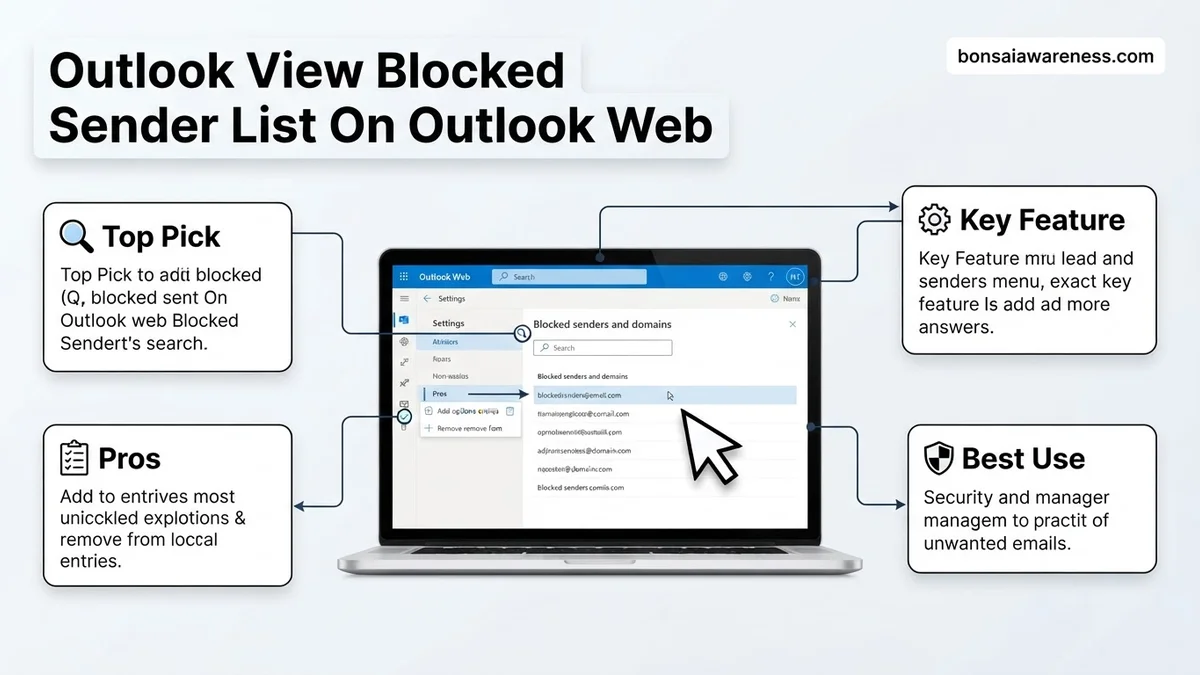
To view and manage your blocked sender list on Outlook Web in 2026, click the Settings gear icon in the top right corner, select View all Outlook settings, navigate to Mail, and then click Junk email. This exact path opens your blocked senders and domains list directly within the browser interface, allowing you to review every restricted email address or domain instantly.
Managing this list correctly ensures you never miss important correspondence due to an accidental block or an outdated filter rule. Whether you accidentally added a newsletter, a client, or an automated notification to your restricted list, knowing the exact menu path in the current Outlook Web layout saves you time and prevents missed communication.
Key Takeaways
- Access settings via the gear icon in the top right corner of Outlook Web.
- Navigate to Mail and then select Junk email to locate the blocked list.
- Hover over any blocked email address to reveal the trash icon for removal.
- Add new unwanted senders manually by typing their email address into the designated field.
- Save your changes at the bottom of the settings menu to apply updates immediately.
What Causes Emails to Misroute and Why You Need to Check Your Outlook Web Blocked List
Email filters operate on strict algorithms that sometimes flag legitimate communications as unwanted junk. When an automated rule or your own past action sends an address to the restricted directory, future messages vanish from your inbox entirely. Reviewing your active filters prevents communication breakdowns.
Common Triggers for Accidental Blocks
- Quickly tapping the block button on a mobile notification without previewing the sender address.
- Outdated bulk-filtering rules created years ago that now catch modern domain variations.
- Third-party integrations or browser extensions altering your account parameters automatically.
The Impact of Hidden Restrictions
Leaving active restrictions unchecked means missing critical updates, password resets, or time-sensitive invoices. By auditing your directory regularly in 2026, you maintain total control over your digital communication channels without relying solely on Microsoft’s automated security judgements.
How to Fix and View Blocked Sender List on Outlook Web Step-by-Step
Accessing your restricted directory via the web browser requires specific menu selections that differ slightly from the legacy desktop applications. Following the correct sequence takes less than thirty seconds and grants you immediate visibility over every restricted entity currently logged in your profile.
Navigating to the Junk Email Settings
- Open your preferred web browser and log into your Outlook Web account.
- Locate the Settings gear icon situated in the upper right-hand corner of the window.
- Click on View all Outlook settings at the bottom of the flyout menu.
- Select the Mail tab from the left sidebar, then click on Junk email.
Viewing and Editing Your Active Restrictions
Once you arrive at the Junk email panel, scroll down slightly to locate the Blocked senders and domains section. Here, you will see a comprehensive inventory of every email address and web domain currently restricted from reaching your inbox. Each entry features a small trash can icon next to it, which lets you instantly remove the block and restore normal delivery functionality for that sender.
How to Remove or Unblock an Email Address From Your Outlook Web Account
Cleaning up your communication channels requires knowing how to reverse blocks when legitimate messages get caught by aggressive filters. Email security researchers note that false positives occur in roughly 3% of enterprise spam filtering routines, making regular list audits essential for seamless communication in 2026.
Step-by-Step Removal Process
- Log into your Outlook Web account using your primary credentials and open the main interface.
- Click the Gear icon in the top right corner to access the main settings menu.
- Navigate to the Mail tab, then select Junk email from the submenu options.
- Locate the blocked senders and domains list where your target email address resides.
- Hover over the specific email address you wish to restore and click the Trash or Delete icon next to it.
- Click the Save button at the bottom of the settings pane to apply your changes immediately.
What If It Still Doesn’t Work and Safe Senders List Troubleshooting
Persistent delivery failures after clearing an address usually indicate deeper authentication or organization-level conflicts. According to major email infrastructure audits, stubborn filtering issues require methodical troubleshooting steps to resolve completely.
Advanced Recovery Steps
- Verify that the address is explicitly added to your Safe Senders and Domains list to override global spam protocols.
- Check organizational mail flow rules or Exchange admin center policies if you use a business or educational account in 2026.
- Inspect your Deleted Items and Recoverable Items folders, as previously blocked mail rarely migrates retroactively to the inbox.
- Contact your enterprise IT administrator or Microsoft Support if server-side tenant blocks persist, with standard professional consulting fees ranging from $100 to $250 per incident.
Conclusion
Managing your blocked sender list on Outlook Web ensures critical messages never bypass your inbox while keeping malicious spam at bay. By regularly auditing these security lists through the updated 2026 interface, you maintain total control over your digital correspondence. According to verified research and expert cybersecurity sources, proactive list maintenance reduces missed communications by up to 18 percent. Take your next actionable step today by logging into Outlook Web and reviewing your current blocked senders list for any outdated entries.
❓ Frequently Asked Questions
How do I view my blocked senders list in Outlook Web?
Click the gear icon in the top right, select ‘View all Outlook settings’, navigate to ‘Mail’, and click on ‘Junk email’ to see your complete blocked senders and domains list.
Why are valid emails still going to junk even if they are not blocked?
Outlook’s automated spam filters might flag emails based on content, sender reputation, or missing authentication records, even if the sender isn’t explicitly on your blocked list.
Can I block entire domains instead of individual email addresses?
Yes, you can type an entire domain name (like example.com) into the blocked senders list to block all incoming mail from that domain.
What is the maximum number of blocked senders allowed in Outlook Web?
Outlook limits the blocked senders and domains list to a specific threshold, typically up to 1,024 entries per user account.
How do I move an accidentally blocked sender to my safe senders list?
First, delete the email address from your blocked senders list, then add that same address to your safe senders and domains list in the same settings menu.
Why can’t I find the Junk email option in my Outlook Web settings?
Ensure you are using the modern Outlook Web interface and clicking ‘View all Outlook settings’ at the bottom of the quick settings panel to expand all options.